
How to reuse sessions and blocks with templates
If you often program the same leg day, a warm-up or a sequence of exercises, you do not need to build it again every time. With templates you save a complete session or a single block in your library and reuse it later in programs and client plans.
Your templates live in two sections of the Library: Sessions and Blocks. From there you can create them from scratch, edit them with the same editor you use in programs and keep them organized. When you apply a template, TrainerStudio creates a new copy in the day you chose, so you can adapt it to each case without changing the original template.
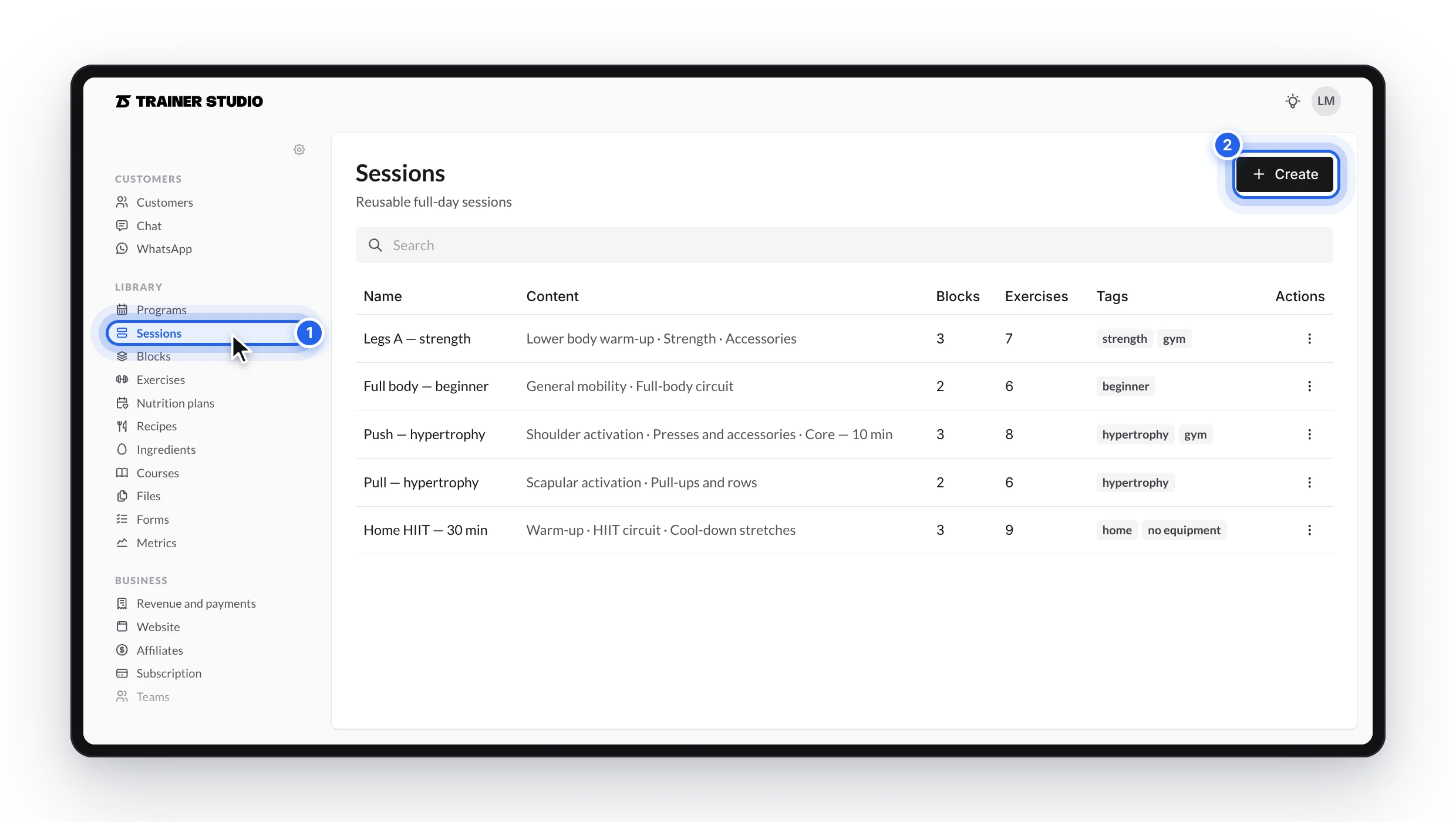
Your reusable sessions and blocks are in the library, next to your programs.
Before you start: session or block
You can save two kinds of template:
- Session: includes everything in a day. Use it to repeat a complete session, such as Legs A, with its warm-up, main part and cool-down.
- Block: includes a single block. Use it for pieces you combine in different ways, such as a mobility warm-up, a core circuit or some final stretches.
Choose a session when you want to keep the whole day; choose a block when you only want to insert one part into other workouts.
Where your templates are
In the side menu, under Library → Training, there are two new sections next to Programs:
- Sessions: your complete training days.
- Blocks: your standalone blocks.

Each list shows the template name, a summary of its content, how many exercises it includes (and how many blocks, for sessions) and its tags. Use the search box to find a template by name and click it to open it.
There are two ways to add templates to these lists: create them from scratch in the library or save as a template something you have already built in a program or in a client’s plan.
1. Create a template from scratch
- Go to Library → Sessions (or Blocks).
- Click Create.
- Type a clear name, for example Legs A — strength, and click Create.
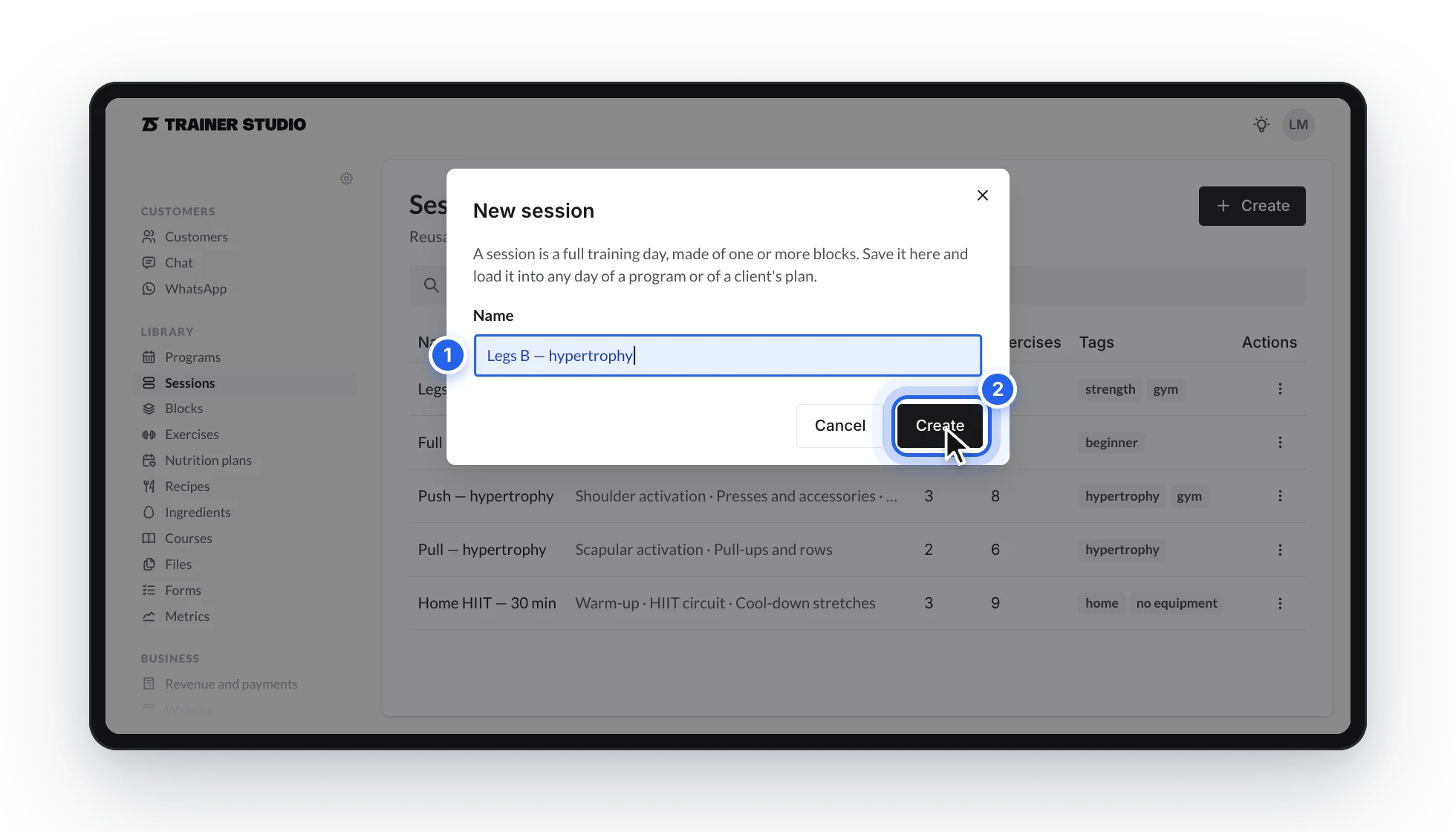
The dialog reminds you what you are creating: a session is a complete day; a block is one part of it.
The template opens straight away, empty and ready to fill in. A session starts with no blocks, so click Add block first; a block is ready for content right away. From there, add exercises, sets, supersets, circuits or any other item just as you would in a program.
From “Create” to the first exercise in a few seconds.
2. Save a session you already have as a template
If the session already exists in a program in your library or in a client’s plan, there is no need to build it again: save it as it is.
- Open the day you have already prepared.
- Open the three-dot menu in the day header.
- Choose Save session as template.
- Type a clear name, for example Legs A — strength.
- If it helps you stay organized, add tags such as strength, beginner or gym, then click Save template.
The session is saved with all the blocks it contains, in the same order, and appears in Library → Sessions. The template is a copy of the content as it is at that moment: if you change the original day afterwards, the template does not change.
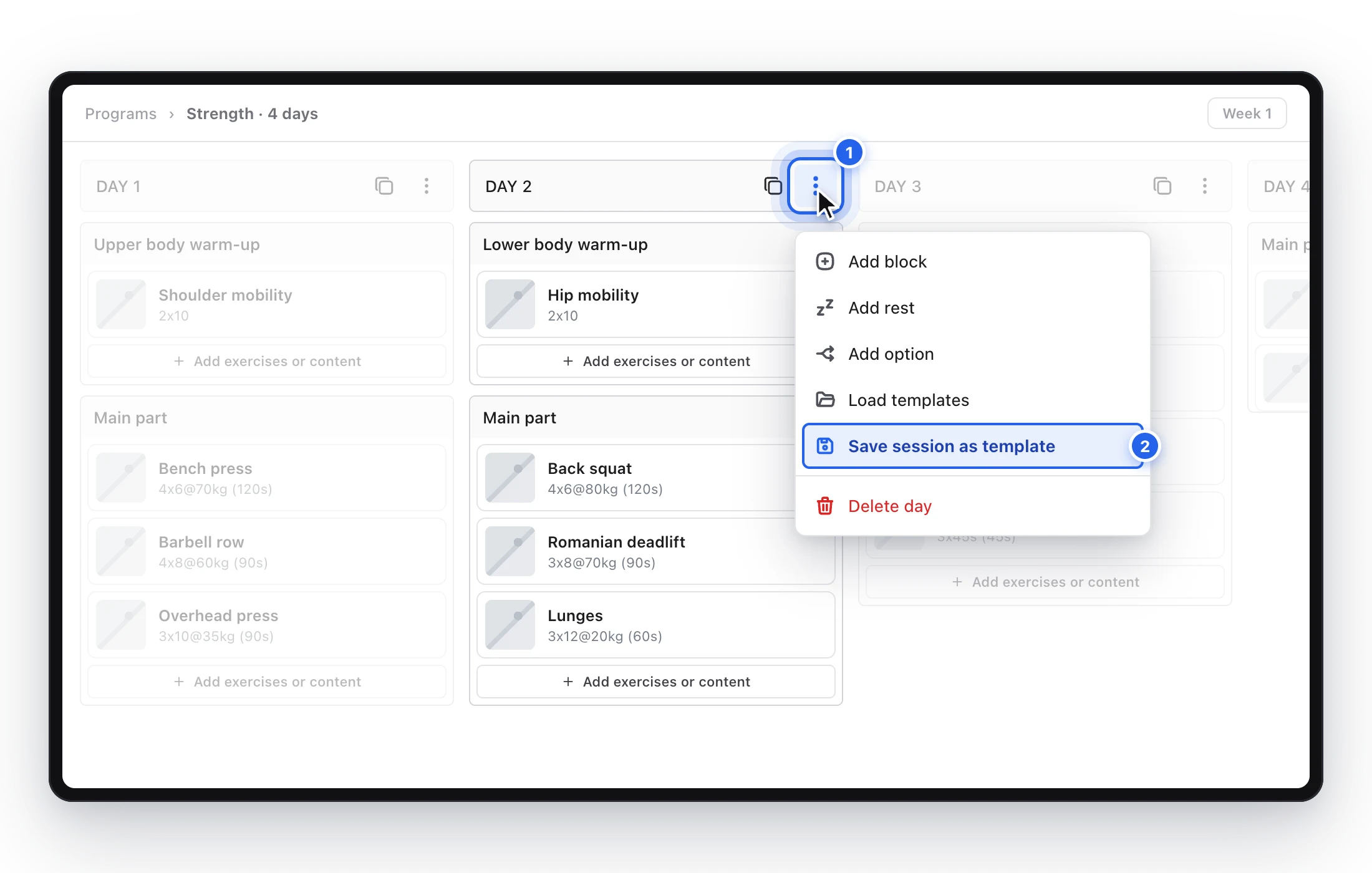
The three dots are in the header of each day; that is where you will find “Save session as template”.
3. Save a block as a template
To reuse only one part of a workout, save that block on its own.
- On the block you want to save, open the three-dot menu in its header. On a computer, it appears when you hover over the block.
- Click Save block as template.
- Give it a name, for example Lower body warm-up.
- Add tags if you like and click Save template.
A block template keeps the title, the description and all the contents of that block, and appears in Library → Blocks. It is a good way to keep your library of warm-ups, accessories, circuits or session finishers ready to insert.
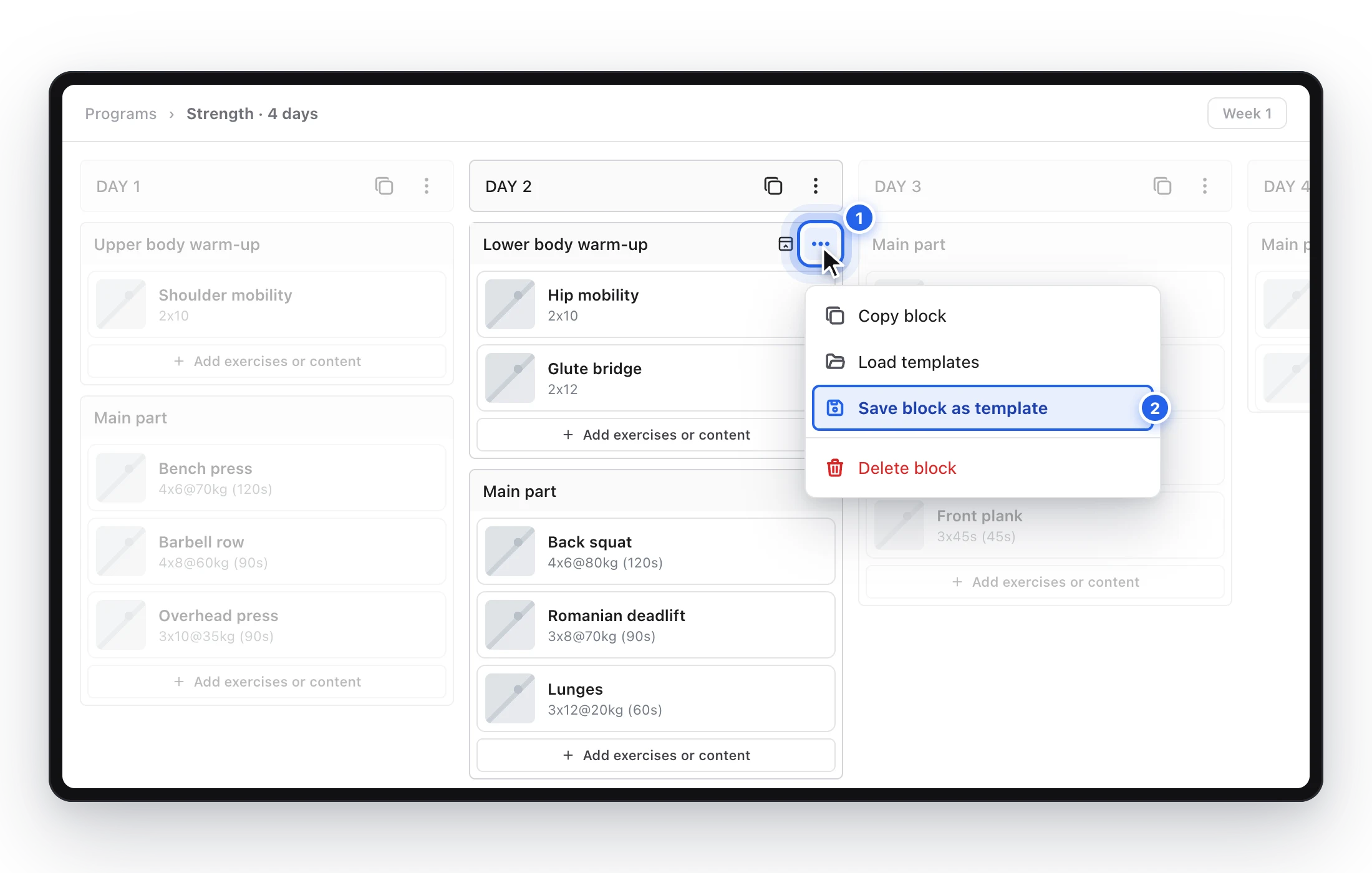
Each block has its own three dots; that is where you will find “Save block as template”.
4. Edit a template
Open a template from Library → Sessions or Blocks to edit it. You will see its blocks in a column, with the same editor as in programs:
- Change the content: add, edit, reorder or delete exercises, sets, supersets, circuits, tasks and other items.
- Edit each block: click its name to change it and add instructions underneath if you like.
- Add or remove blocks (sessions only): click Add block at the end of the session, or the trash icon on a block to delete it.
- Rename, tag or delete the template from the three-dot menu in the header: Rename, Edit tags and Delete.
There is no general save button: each change is saved as soon as you make it or confirm it in its dialog.
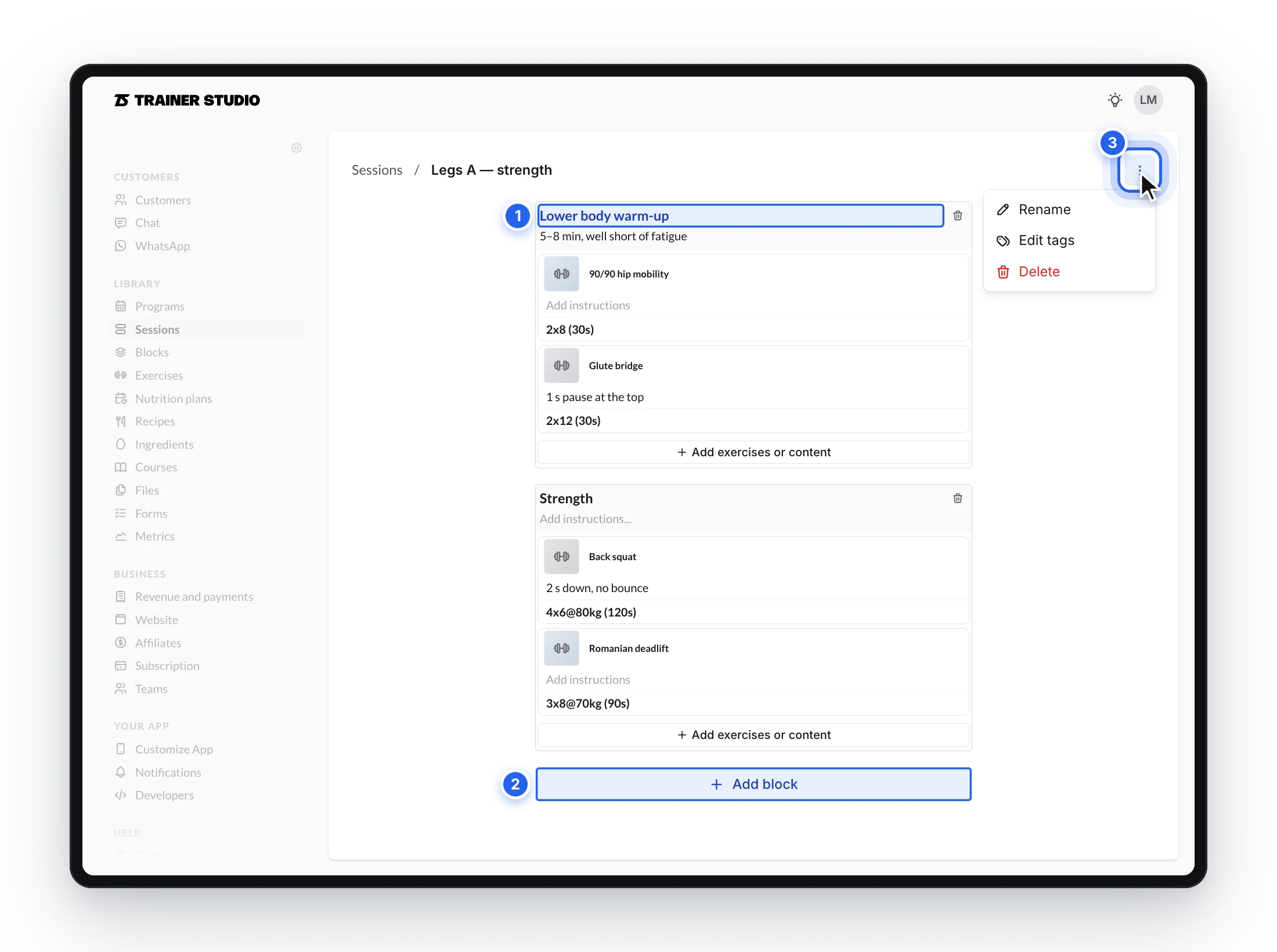
A session is edited block by block, just like a day in a program.

Adjust the sets and add blocks without leaving the template.
A block template always contains a single block, so you will not see the “Add block” button or the trash icon in it: you edit its content directly.
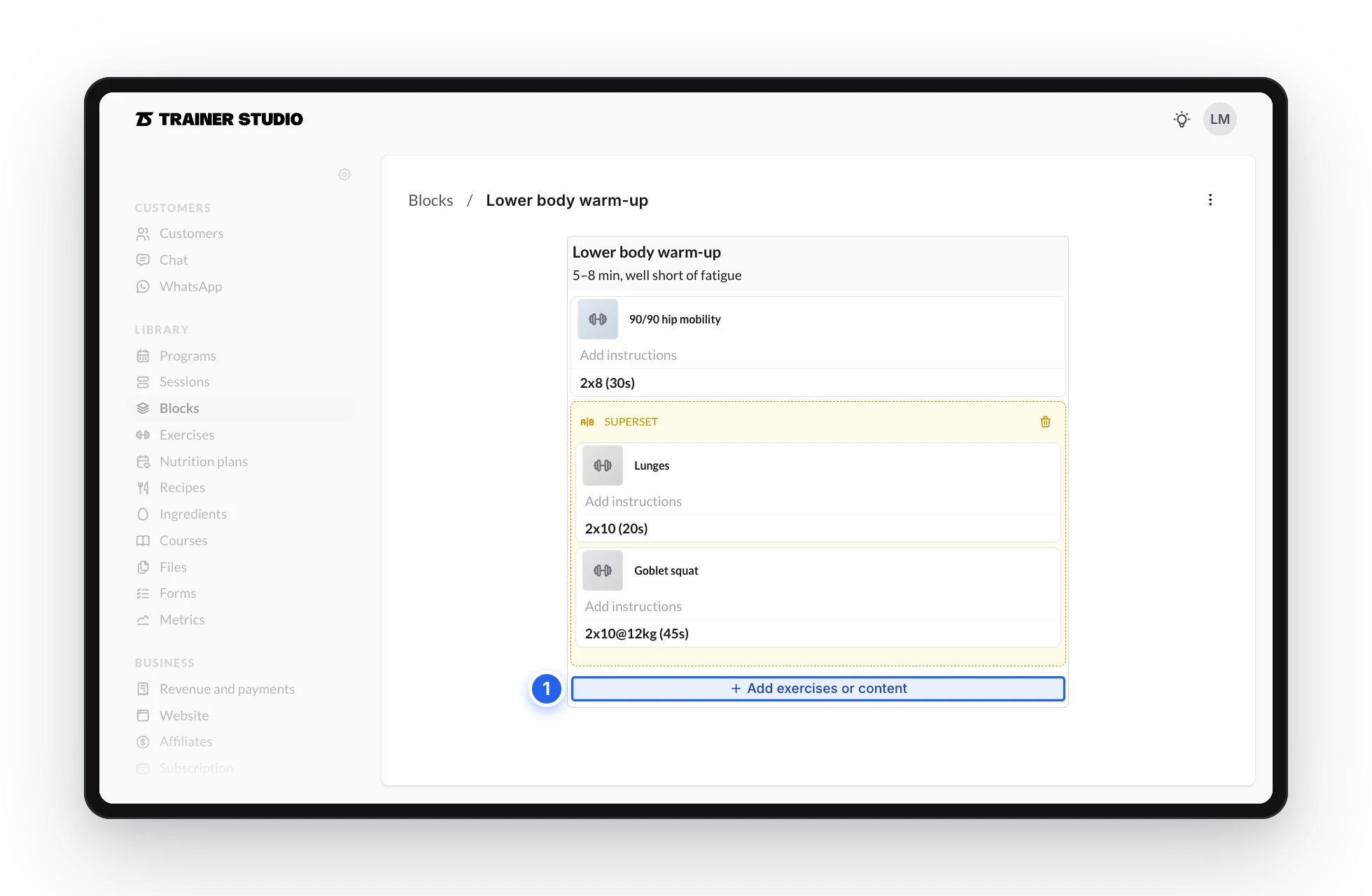
A block template is exactly one block.
Editing a template does not change the workouts where you had already used it: programs and client plans keep their copy. Your changes apply from the next time you load it.
5. Load a template into a day
When you want to reuse a template, open the target day — in a program or in a client’s plan — and follow these steps:
- Open the three-dot menu of the day. You can also open the menu of a block if you are already working inside it.
- Click Load templates.
- Select Sessions to see complete days or Blocks to see individual blocks.
- Search by name or filter by tag if needed.
- Click a template to review its content and choose Use template.
The preview shows you the blocks and exercises before you apply it, so you can check it is the one you need.
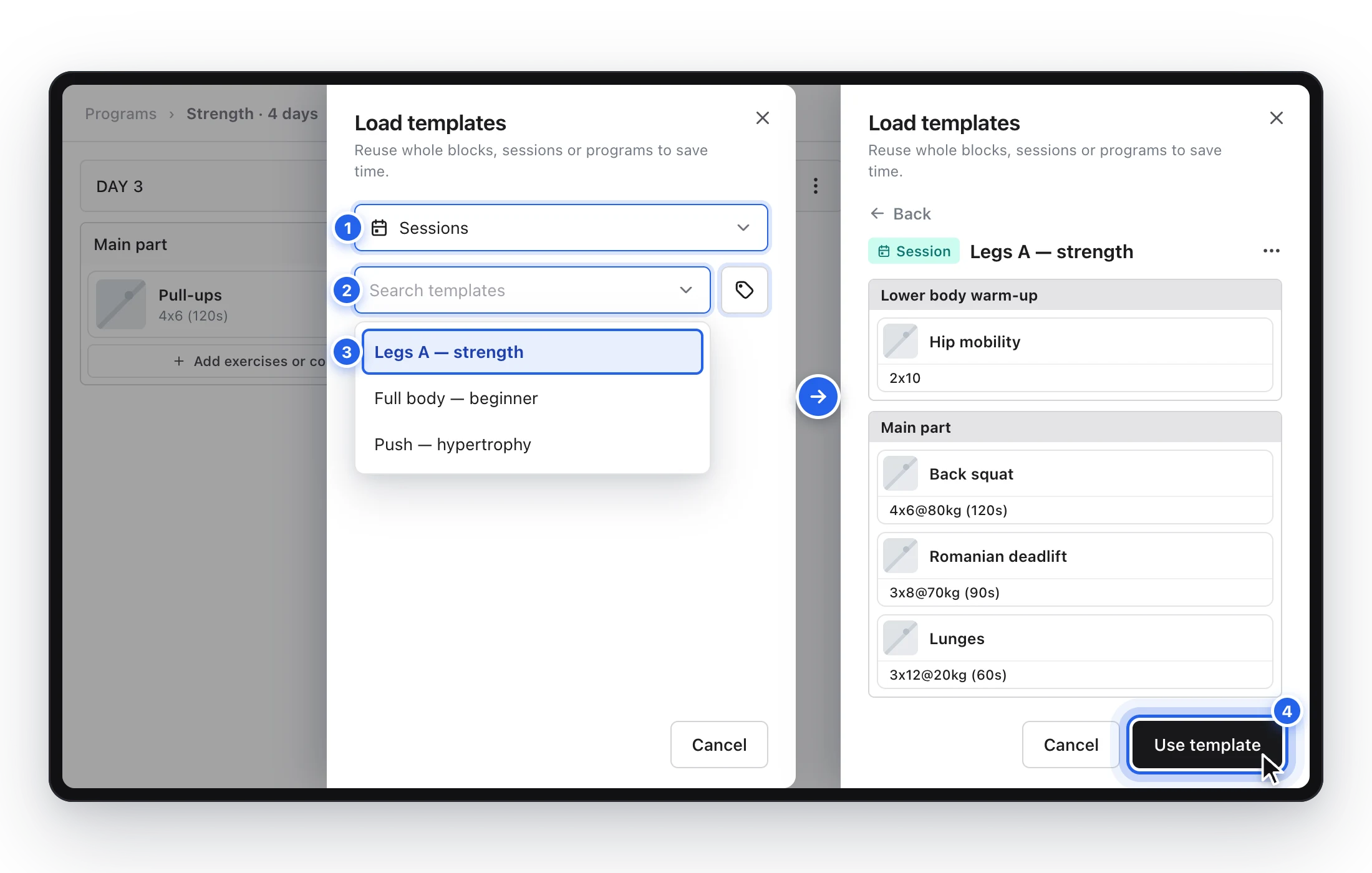
Search, review the content and use the template once you are sure it is the right one.
6. What happens when you use it
The template is added to the day you opened; it does not replace or remove the blocks that were already there. Afterwards you can reorder, edit or delete that copy like any other content in the plan.
This lets you, for example, load Legs A — strength and then change the weight, an exercise or the sets for a specific client. Those changes only affect that copy: the saved template stays intact for the next time you use it.
In a program, if you load a template into a day marked as rest, the day now contains the workout you added. In a client's plan, remove the rest from that day first: while it is marked as rest, the Load templates option is not shown.
Keep your templates organized
Once you have a few templates, these habits will save you time:
- Use tags such as strength, beginner or gym. You see them in the library list and can use them to filter in the Load templates panel.
- Rename templates you do not recognize at a glance.
- Delete the ones you no longer need, from the three-dot menu in the list or in the template itself. This does not delete the sessions or blocks you had already created from it.
A simple convention works very well: put the type of session and its goal in the name, for example Full body — beginner, Legs A — hypertrophy or Core — 10 min.
Frequently asked questions
If I edit a template, do the workouts where I already used it change?▼
No. Loading a template creates a copy in that day, so programs and client plans keep what they had. Your changes apply from the next time you load it.
If I change a session or block I loaded from a template, does the template change?▼
No. Anything you edit in the program or in the client’s plan only affects that copy. The saved template stays intact for the next time you use it.
What happens if I delete a template?▼
It disappears from your library and you can no longer load it, but the sessions and blocks you created from it are not deleted.
Does loading a template replace what was already in the day?▼
No. The template is added to the day alongside the content it already had; it does not replace or remove anything. Check the target day before using it, then reorder or delete whatever you need.
What is the difference between a session and a block?▼
A session is a complete training day, with one or more blocks. A block is a single part of the session, such as a warm-up, a circuit or some stretches. For pieces you combine in different ways, a block is usually more flexible than a full session.
Can I create a template without having a program first?▼
Yes. Go to Library → Sessions or Blocks, click “Create”, give it a name and fill it in directly in the editor. You can also save a session or block you already have in a program or in a client’s plan as a template.
Can I add more blocks to a block template?▼
No. A block template always contains a single block. If you need several blocks together, create a session.
Can I use the same template in programs and with clients?▼
Yes. Any template can be loaded into a day of a library program or into a day of a client’s plan.
Are tags required?▼
No, they are optional. They help you separate your templates by goal, level, equipment or duration, and filter them in the “Load templates” panel.
You may also be interested in
Export workouts to PDF and Excel
Download library programs and client plans as PDF or Excel files: format, period, contents, and steps to save or share the file.
Export a nutrition plan to PDF
Download a client's diet as a PDF you can print: layouts, period, what the file contains and how it behaves with each of the three ways of giving nutrition.