
How to use the «Finish workout» button
Knowing whether a client trained today should not force you to open their plan and count exercises one by one. With the «Finish workout» button the client closes their session for the day with one tap and you get an alert instantly (push or WhatsApp), with how many exercises they completed.
It is an opt-in feature: you turn it on from your settings. While it is off, the button does not appear in the client app and nothing changes. Your existing clients carry on exactly as before.

The client finishes their workout from their phone; you see it immediately on your computer, with the X of Y exercises they completed.
1. Turn it on from your settings
Go to Settings → Client app and, in the «Finish workout button» row, switch the selector to Enabled. It sits next to the other client app settings (visibility days, file uploads…), and it is off by default.
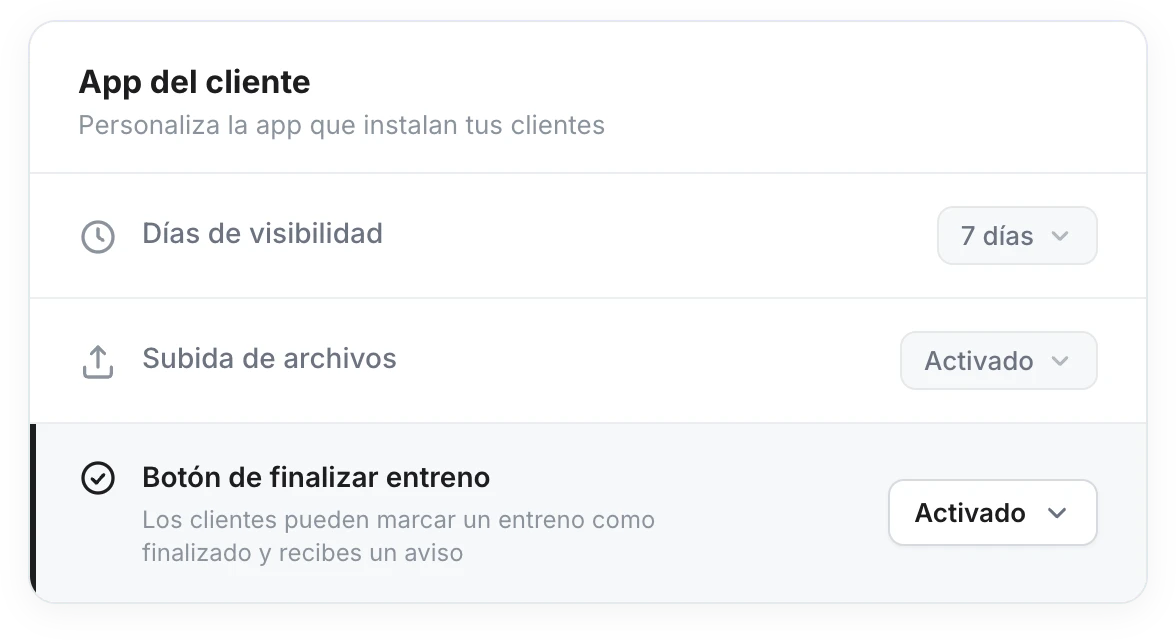
A single selector turns the button on for all your clients. With «Disabled» the button is hidden in the app.
As soon as you turn it on, the button appears in your clients' app and the «Workout finished» notification is switched on with push on and WhatsApp off by default. You can choose which channel you want to receive it on in Settings → Notifications.
2. What your client sees
On their workout-of-the-day screen, a fixed bar at the bottom appears with the «Finish workout» button. They can tap it whenever they want: they do not need to have completed every exercise.
Once they finish, the bar changes to «Workout finished ✓» with an «Undo» button in case they made a mistake. Undo sets the day back to pending without flooding you with repeated alerts (see below).
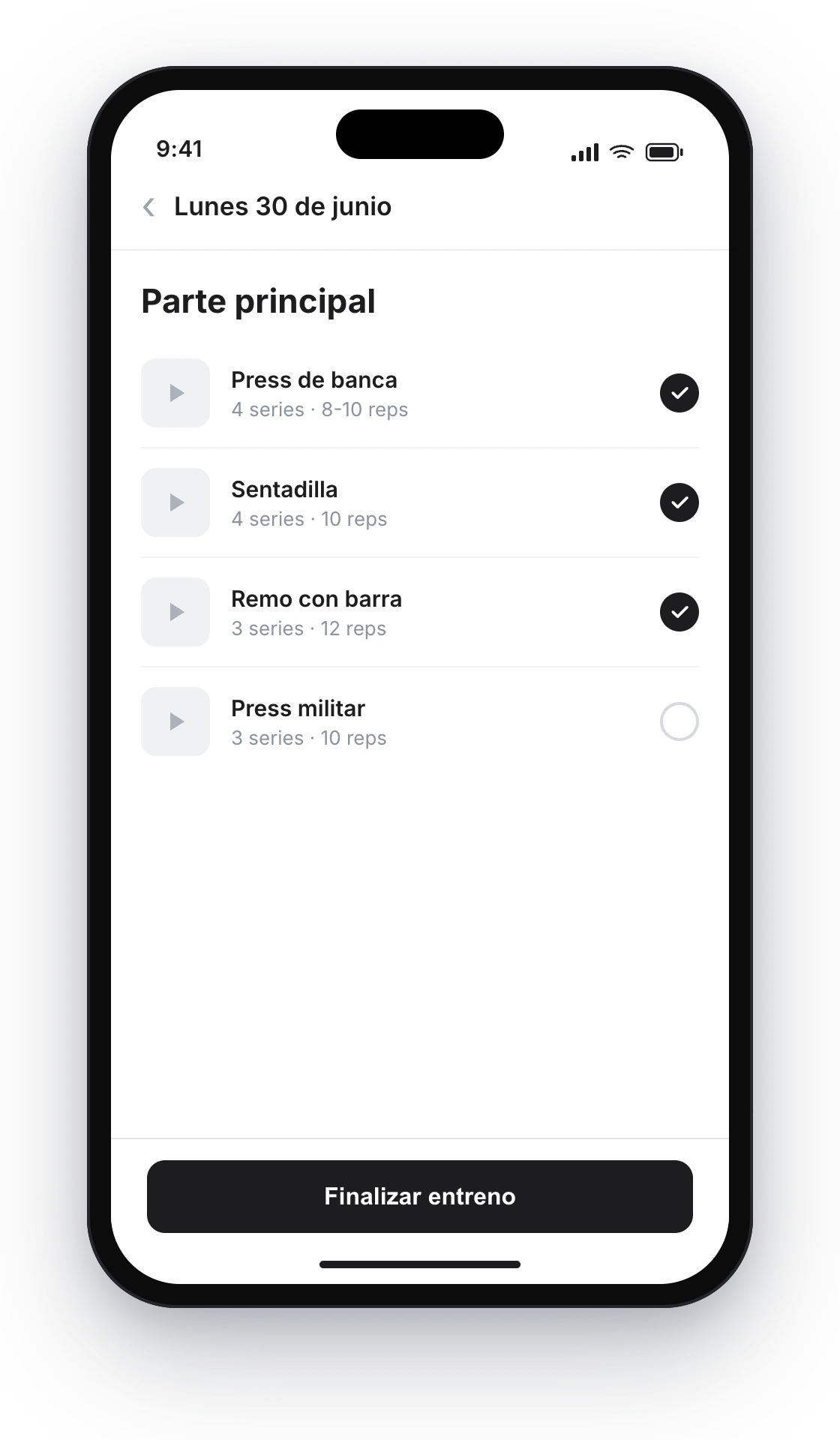
The «Finish workout» bar is always at hand. When they finish it turns into «Workout finished ✓», with «Undo» available.
3. Mark everything as done
If the client taps «Finish workout» with unmarked exercises, a bottom sheet opens and asks them before closing: it tells them how many they have done («You've completed 5 of 8») and offers two paths:
- Mark everything as completed and finish — marks the remaining exercises in one go and finishes. Ideal for someone who did the whole workout but did not log it set by set.
- Finish without completing them — finishes and leaves the log as it is. You see the real X of Y (pending exercises are not auto-completed behind your back).
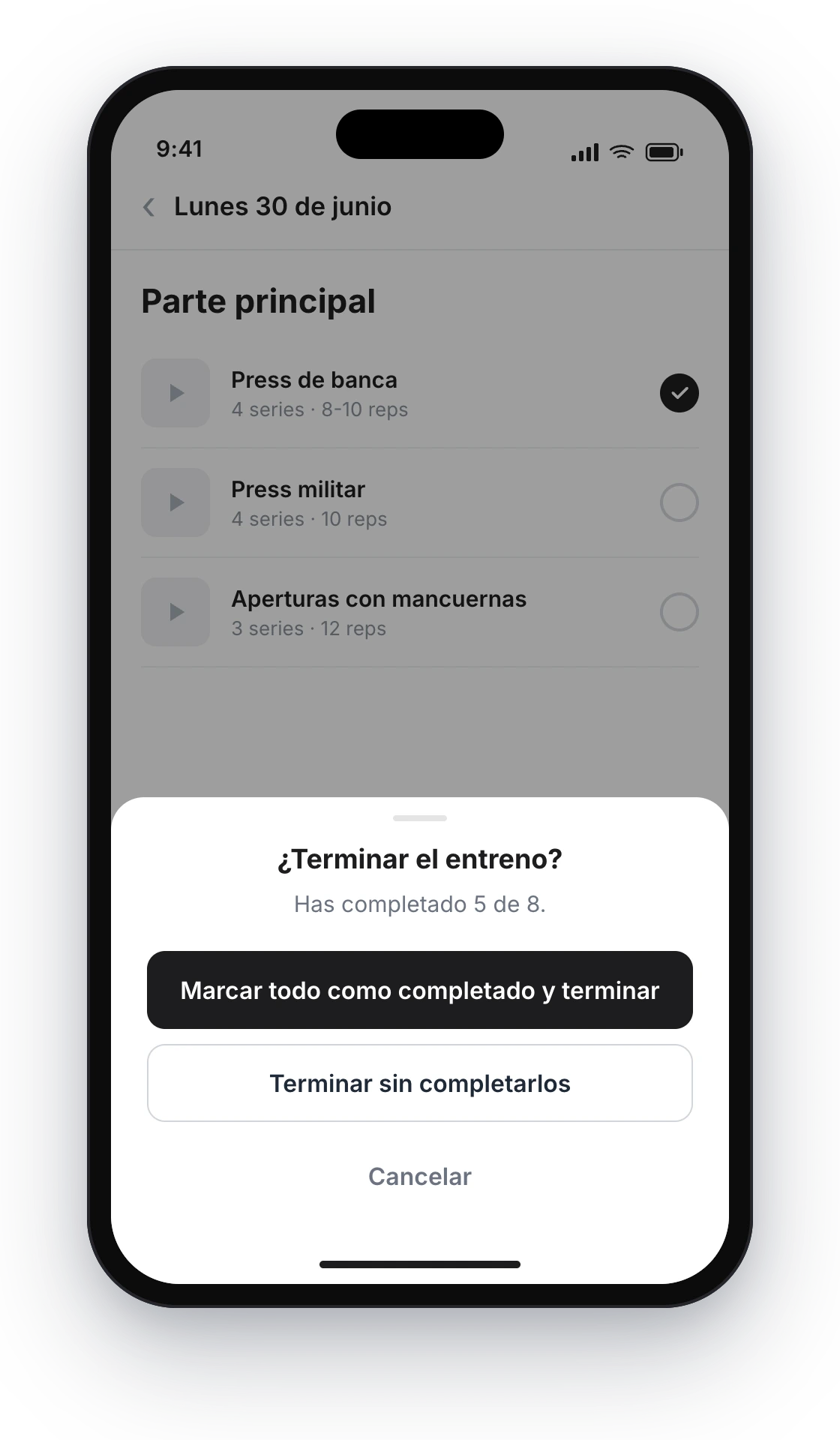
With pending exercises, «Mark everything as completed and finish» completes them all at once. If they prefer, they finish without touching them and you see the real count.
If they had already completed everything, there are no questions: one tap and done.
4. You get the alert right away
As soon as the client finishes, the «Workout finished» notification is triggered on the channels you have turned on:
- Push: "María has finished her workout (5/8 exercises)".
- WhatsApp: the same alert as a template message, if you turn on that channel in Settings → Notifications.
The alert includes the client's name and the X/Y exercises they logged, so you can see at a glance whether they completed everything or left things half done.
Good to know
- It is opt-in and global. A single selector in Settings → Client app turns the button on for all your clients. Off = the button does not exist for anyone.
- They can always finish. They do not need to complete all 8 exercises to finish; with pending ones, the app opens a bottom sheet and offers to mark everything as completed or finish without completing them.
- The X/Y is real. «Finish without completing them» does not complete anything on its own: you get the count as it stands, so you know how the session went.
- Undo does not bombard you. If the client undoes and finishes again on the same day, you do not get a second alert: only the first one reaches you.
- Only the chosen option counts. On days with several workout options, the X/Y is calculated on the option the client did, not on the sum of all of them.
- You choose the channel. By default it arrives by push; you can add or remove WhatsApp from Settings → Notifications, along with the rest of your alerts.
How to give your clients several routines to choose from each day?
Offer several workout options on the same day (routine A, routine B, express...) and let the client choose which one they do and log it. Ideal for rotating routines and clients without fixed days.
How to add WhatsApp reminders
Schedule a WhatsApp message that reaches your client at the time you choose —"Training day today!"— without you having to remember. You add it to a day in their plan, write the text and the app sends it for you.