
How to create and assign programs?
A program is a multi-week plan (workouts, tasks, forms…) that you build once in your library and assign to as many clients as you want. It is the fastest way to work with several clients who follow the same structure: prepare the program, assign it and then fine-tune whatever each client needs.
This guide covers the whole cycle: creating, duplicating, searching and deleting programs, editing them week by week, assigning them to one client or to several at once, and what happens next.
1. Open your program library
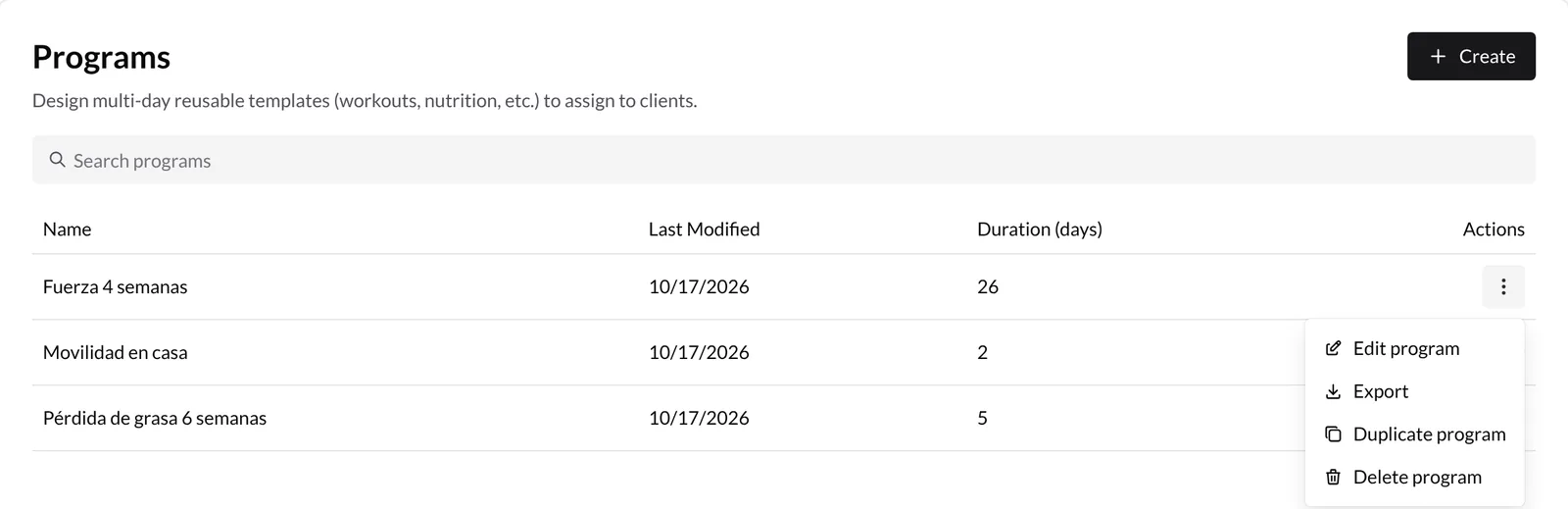
Go to Library → Programs. You will see your programs with their Name, Last Modified date and Duration (days), which shows the last program day that has content.
- To search for a program, type in Search programs.
- To open it, click its name.
- The ⋮ menu on each row has Edit program, Export, Duplicate program and Delete program.
2. Create a program
Press Create (top right). The New program window opens: type a name that helps you identify it (for example, "Hypertrophy 8 weeks") and press Create.
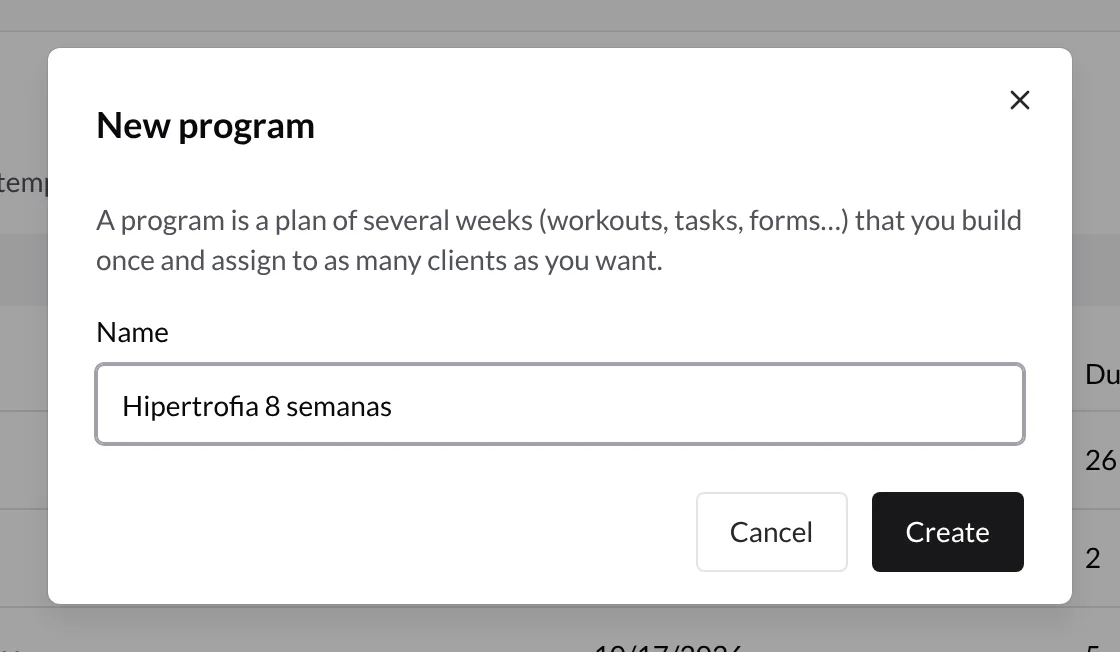
The program appears in the list. Open it to start filling it in.
Duplicate and delete
- Duplicate program creates a full copy named "Copy of…", which you can rename before pressing Duplicate. Use it to build variants (for example, a beginner version) without touching the original.
- Delete program asks for confirmation and cannot be undone. Clients you already assigned it to keep their workouts: assigning copies the content into their plan.
3. Edit the program week by week
The editor shows the program in numbered days (Day 1, Day 2…), not dates: dates are set when you assign it. It works like a client's plan: each day has blocks and each block has exercises and other content. If this is your first time, How to create routines? explains blocks, exercises and sets.
Some tools specific to the program editor:
- The arrows at the top right move between weeks; the indicator shows which program month you are in.
- The View menu switches between 5 days, 7 days and 30 days, and lets you collapse or expand all blocks.
- The File menu has Export (PDF or Excel) and Change name.
- Each day's ⋮ menu lets you Add block, Add rest, Add option, Load templates, Save session as template and Delete day.
Copy and paste days
To repeat a day somewhere else:
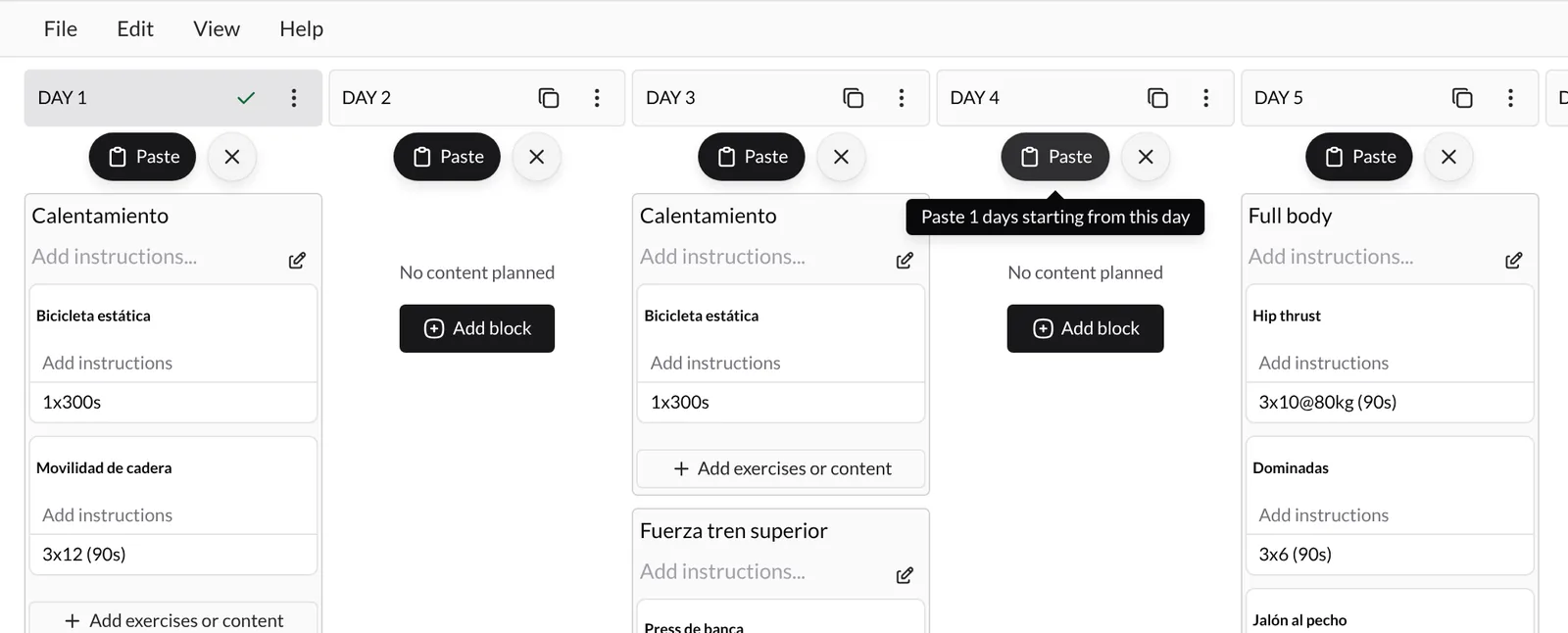
- Press the copy icon next to the day name (or click "Day N"). The day is marked with a ✓.
- To copy several days at once, mark them too: they add up to the selection.
- A Paste button appears on every day. Press it on the day where you want pasting to start: the copied days are pasted from that day onwards, in the same order.
- To cancel, press the ✕ next to Paste.
Copy whole weeks
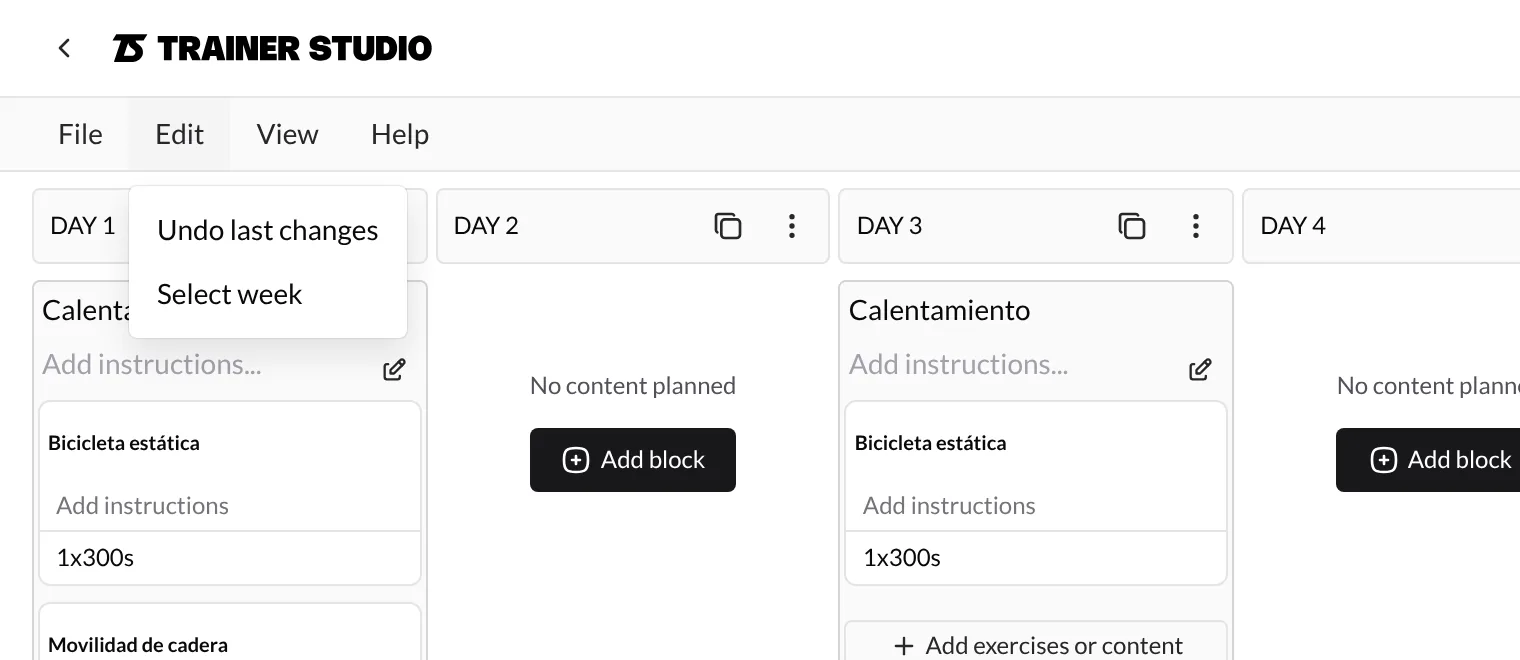
In the Edit menu, press Select week to copy every day of the week you are viewing. If you move to the next week and press it again, those days are added to the selection, so you can copy several weeks in a row. Then go to the target week and press Paste on its first day.
With days selected, the Edit menu also shows Delete selection, to remove all the marked days at once. If you make a mistake, Undo last changes reverts your latest change.
The clipboard is shared between programs and client plans: you can copy days from a program and paste them straight into a client's plan, or the other way round.
4. Assign the program to a client
- Open the client's Plan and go to the week when you want it to start.
- On the start day, open the ⋮ menu and press Load templates.
- With the Programs type selected, choose the program in Select a program. Each name shows its duration in days.
- In Start from program day, choose the day it starts from. Usually that is Day 1, but you can start later (for example, if the client already did the first week).
- Press Assign.
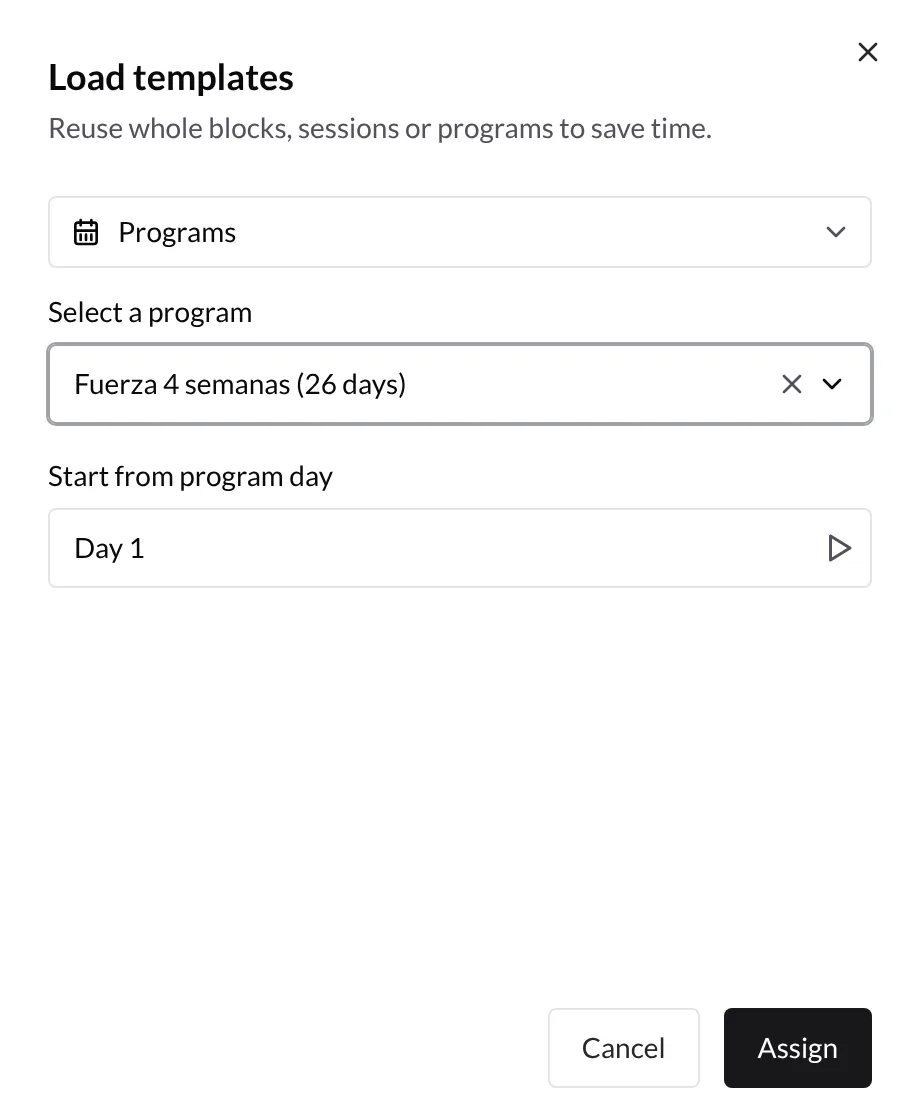
The calendar day where you opened the menu is the start date: the chosen program day lands on that date and the rest follow on the next days.
5. Assign a program to several clients at once
- Go to Customers and tick the clients' checkboxes (or use the filters and the header checkbox to select everyone matching the filter).
- Open Bulk Actions and press Assign program.
- Choose the Start Date, the program in Select Program and, if needed, the program day in Start from program day.
- Press Assign program to N customers.
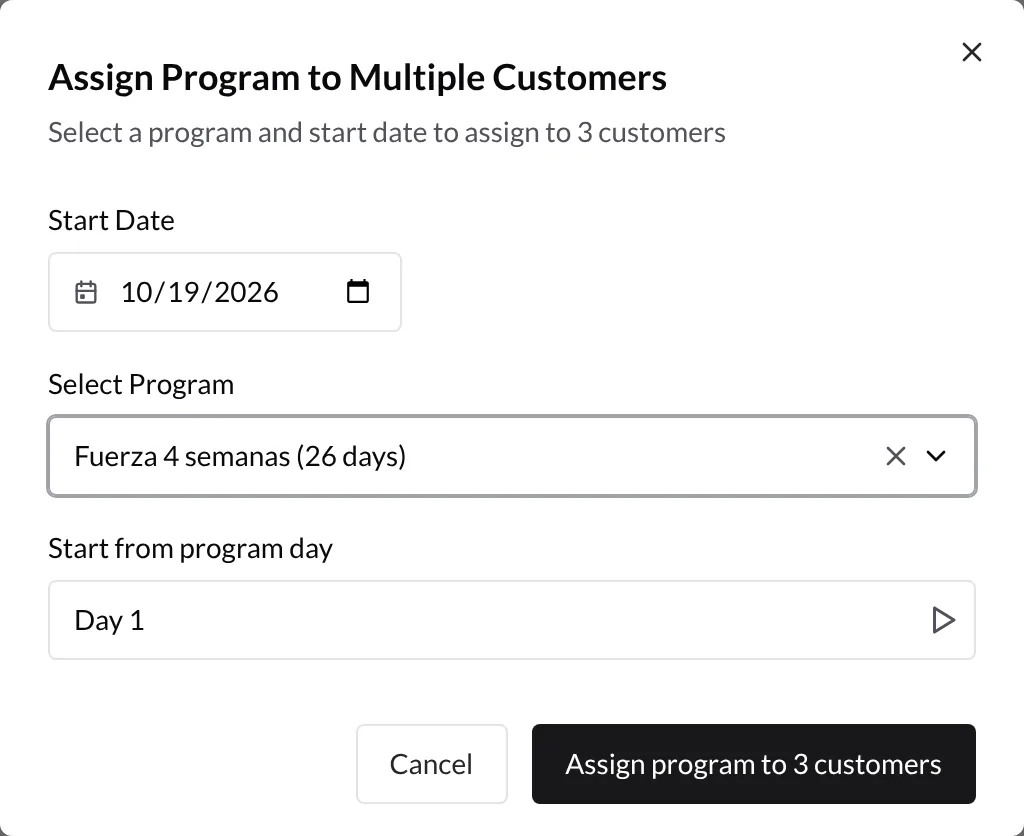
When it finishes you will see a message with how many clients were updated (for example, "3 of 3 applied"). If any fails, it stays selected so you can retry it. More about selection and bulk actions in How to organize your clients into groups?.
6. What happens after assigning
The program content is copied into the client's plan from the start date. Each copied block shows a label with the name of the program it comes from.
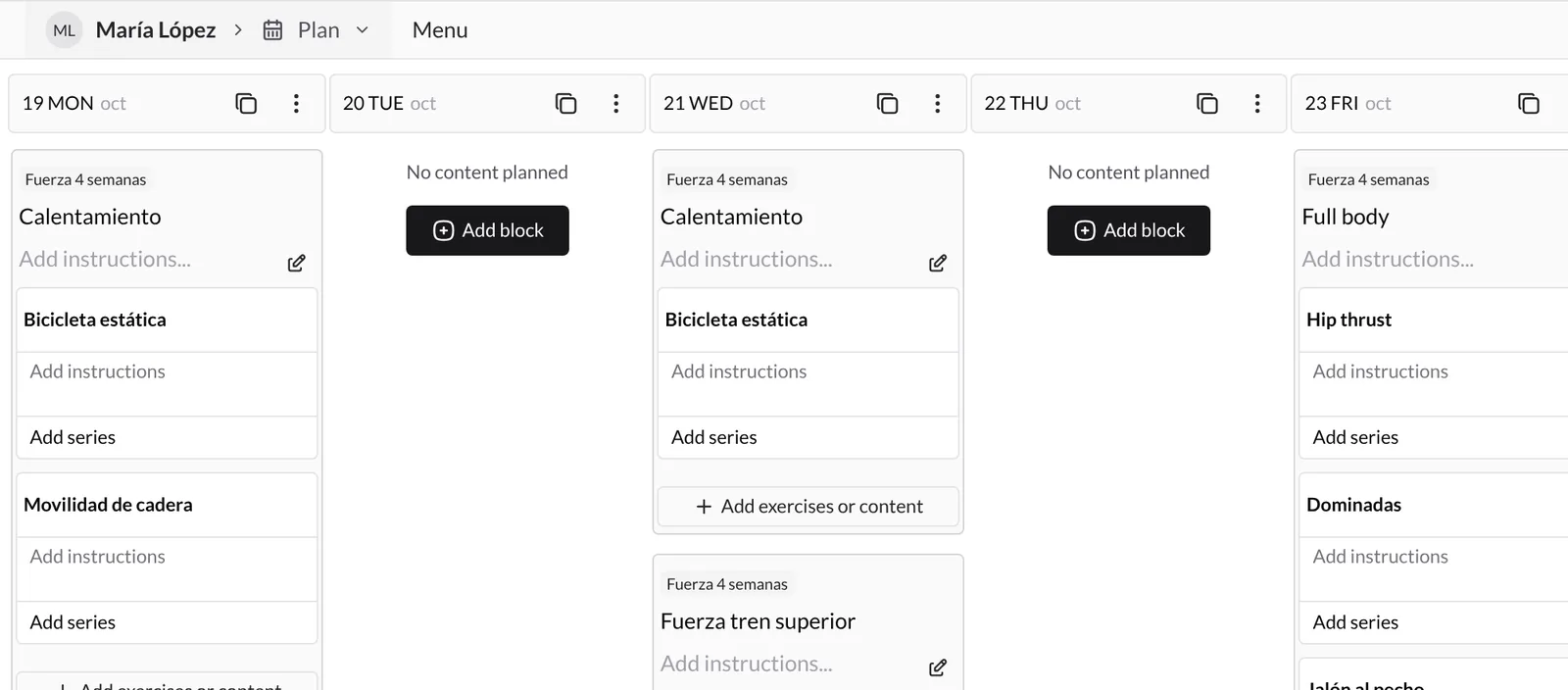
- It is an independent copy. You can adapt that client's plan (change sets, remove an exercise, move a day) without affecting the program or other clients. And the other way round: if you edit the program later, plans already assigned do not change.
- Nothing is deleted. If the client already had workouts on those dates, the program blocks are added to the existing ones.
- Your client sees it in their app on the matching dates, just like any workout you schedule by hand.
- The assignment is recorded in the plan history.
Good to know
- Numbered days, not dates. A program has no dates of its own; dates are set when you assign it.
- Duration = last day with content. If your program has work up to day 26, the duration shows 26 even if the last days of that week are empty.
- Start wherever you want. "Start from program day" lets you bring a client in mid-program without redoing anything.
- Copy, paste and undo. Copy days or whole weeks to build long programs in minutes, and use Undo last changes if something does not go as expected.
- Export when you need it. From the ⋮ menu or File → Export you can download the program as PDF or Excel.
Related guides
How to reuse sessions and blocks with templates
Create reusable sessions and blocks in your library, edit them whenever you like and add them to any day of a program or a client’s plan, so you can repeat your training structures without building them from scratch.
How to give your clients several routines to choose from each day?
Offer several workout options on the same day (routine A, routine B, express...) and let the client choose which one they do and log it. Ideal for rotating routines and clients without fixed days.