
How to request a document signature?
TrainerStudio lets you request signatures for documents such as an informed consent, an authorisation, or the acknowledgement of a privacy notice without leaving the client's profile.
Every request keeps the exact version of the PDF that was shown to the client. Once it is signed, both you and your client can download a copy with the signature and the acceptance details.
Before you start
To request a signature:
- the document must be a PDF uploaded to TrainerStudio;
- the client must have access to the file;
- you must be able to manage that client;
- there must be no other pending request for the same PDF and client.
You cannot request signatures for images, videos, links, or PDFs hosted on an external website.
Request the signature
- Go to Clients and open the person's profile.
- Open Shared files.
- Open the Actions menu of the PDF you want to send.
- Click Request signature.
That same menu groups the usual file options — such as open, download, edit or rename, and delete or stop sharing — together with the signature options available at any given moment.
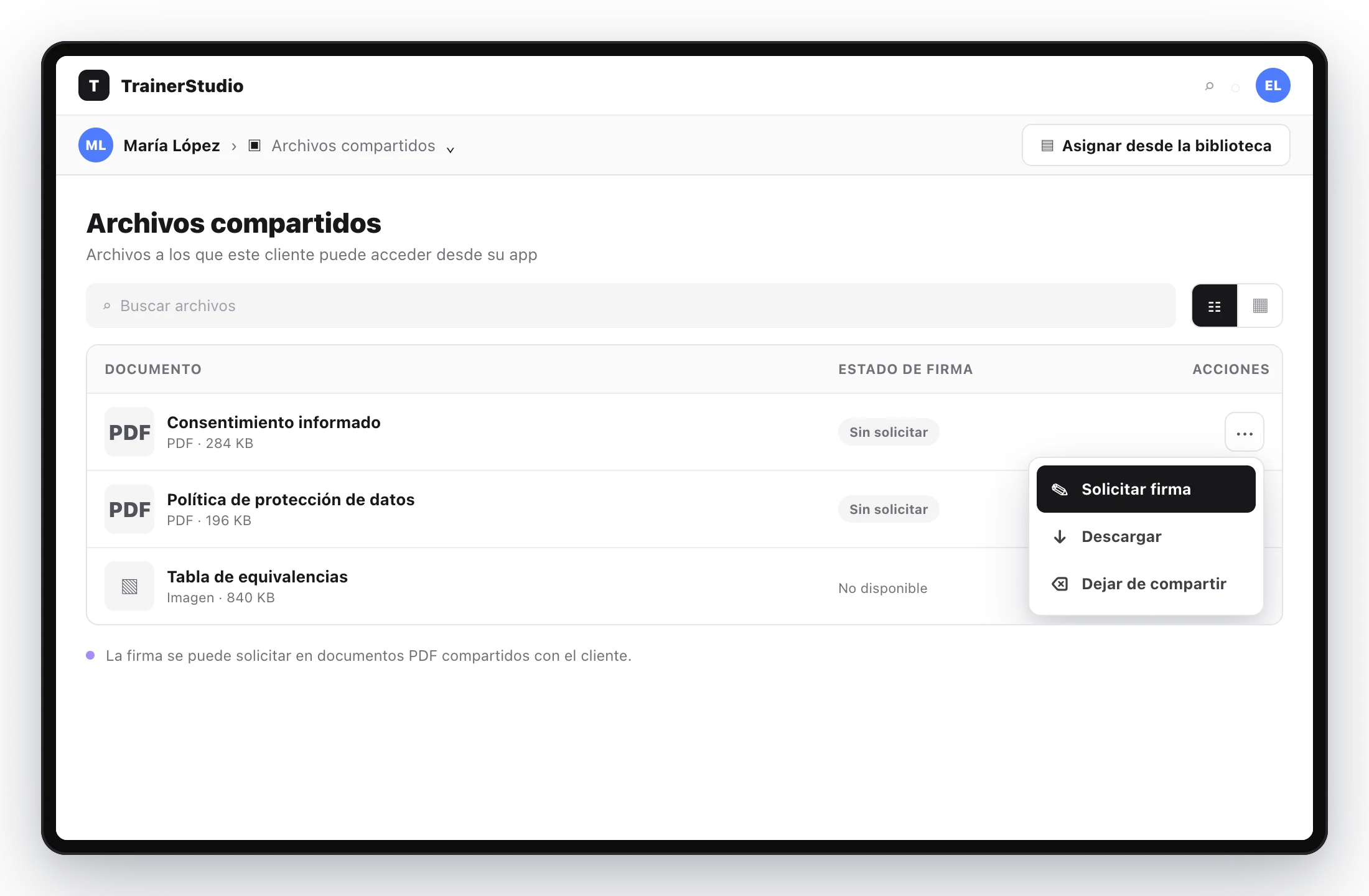
The option appears on compatible PDFs inside the client's files.
Before anything is sent, TrainerStudio shows you:
- the client's name;
- the PDF that will be kept and presented;
- the traceability notice and the request confirmation;
- a final confirmation.
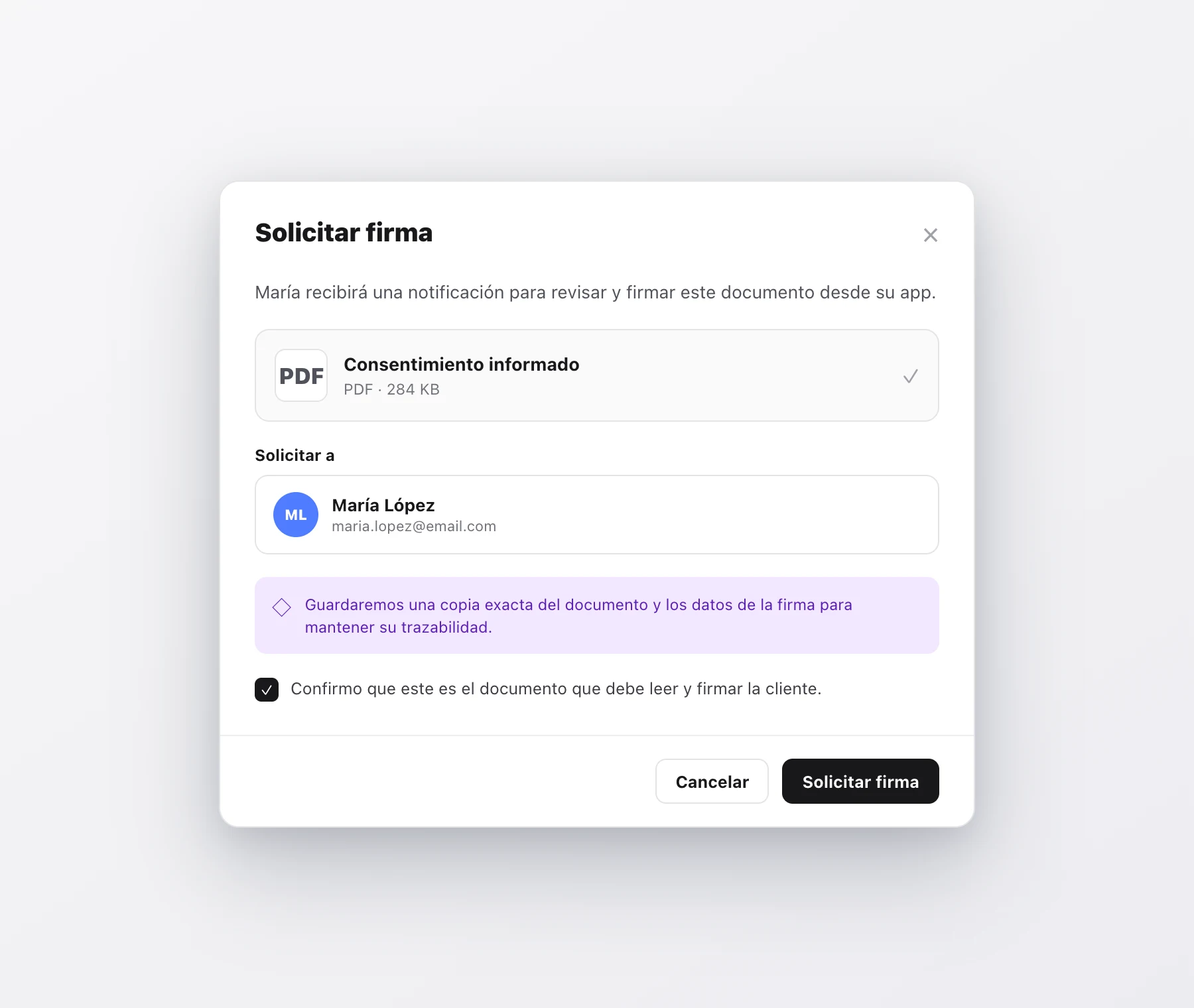
Review the recipient, the document, and the text before creating the request.
When you confirm, TrainerStudio saves a copy of that version of the PDF and creates the request. If the client has notifications enabled, they also get an alert on their devices.
What the client will see
Requests that need an action appear first in their Academy section, under Pending signatures.
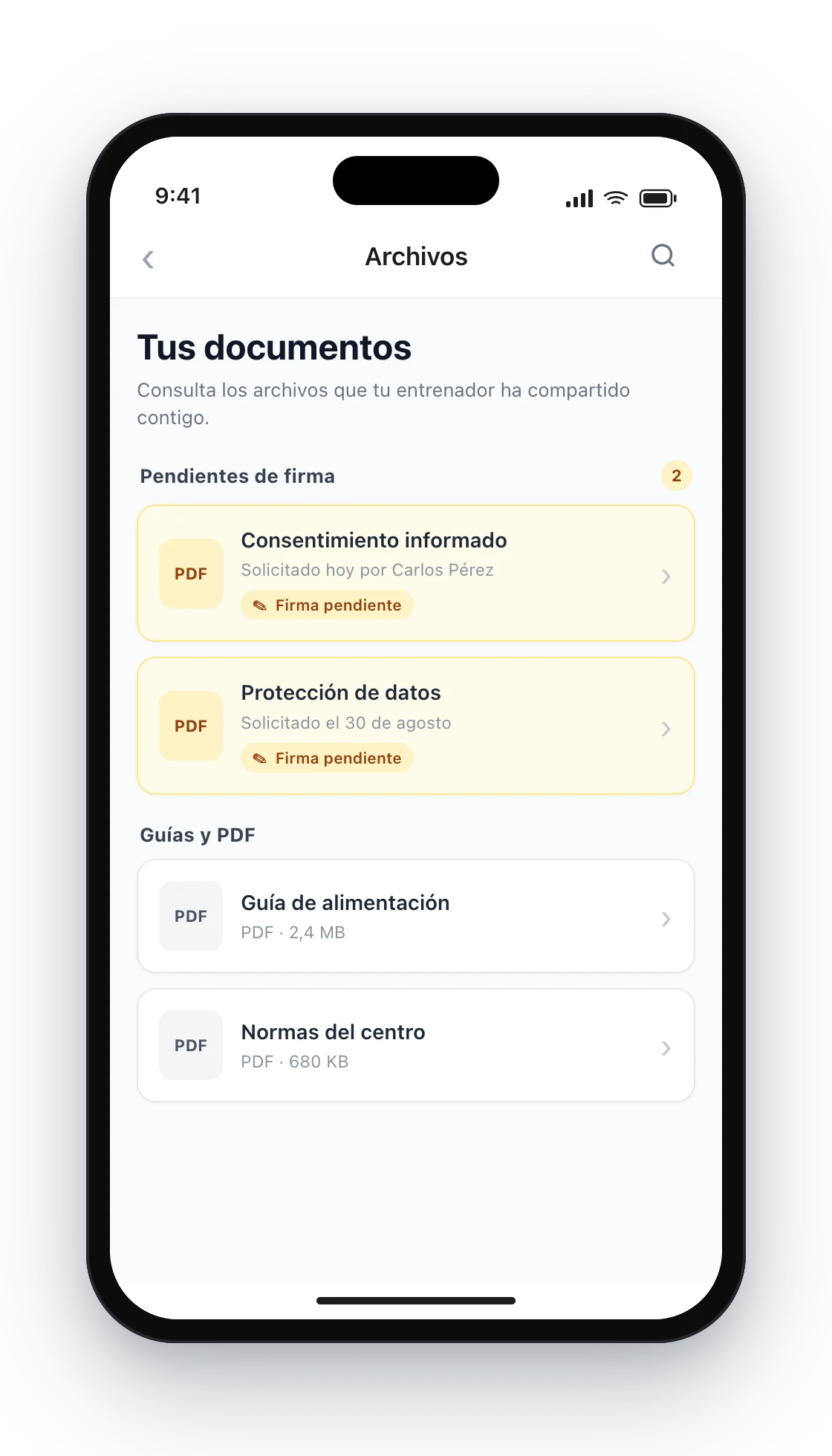
Pending requests stay visible even if the client does not get the push notification.
When they open the document, the client can:
- read the PDF;
- type or correct their Full name, prefilled from their account;
- read the acceptance text and tick the box;
- draw their signature with a finger, mouse, or stylus;
- press Sign document and confirm with Confirm signature.
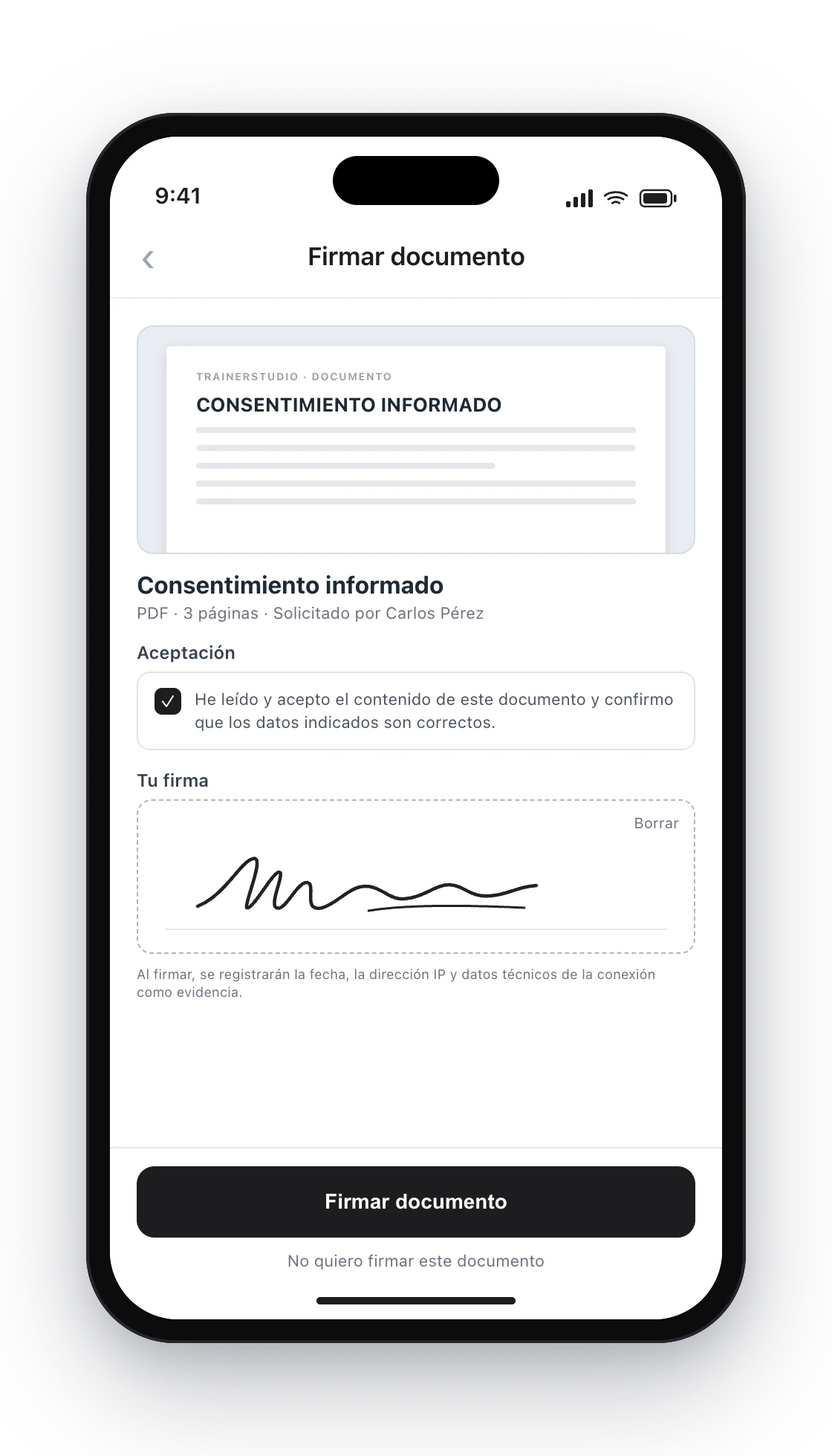
The button only becomes active once the name, the acceptance, and the signature are there.
The client can also choose I do not want to sign this document and confirm with Decline request. In that case, the request is recorded as declined and no signed document is generated.
After signing
TrainerStudio adds a signature page at the end of the copy of the PDF. That page includes the signer, the date, the accepted text, the document identifier, and the technical evidence of the connection used to sign.
The client sees a confirmation and can download their copy.
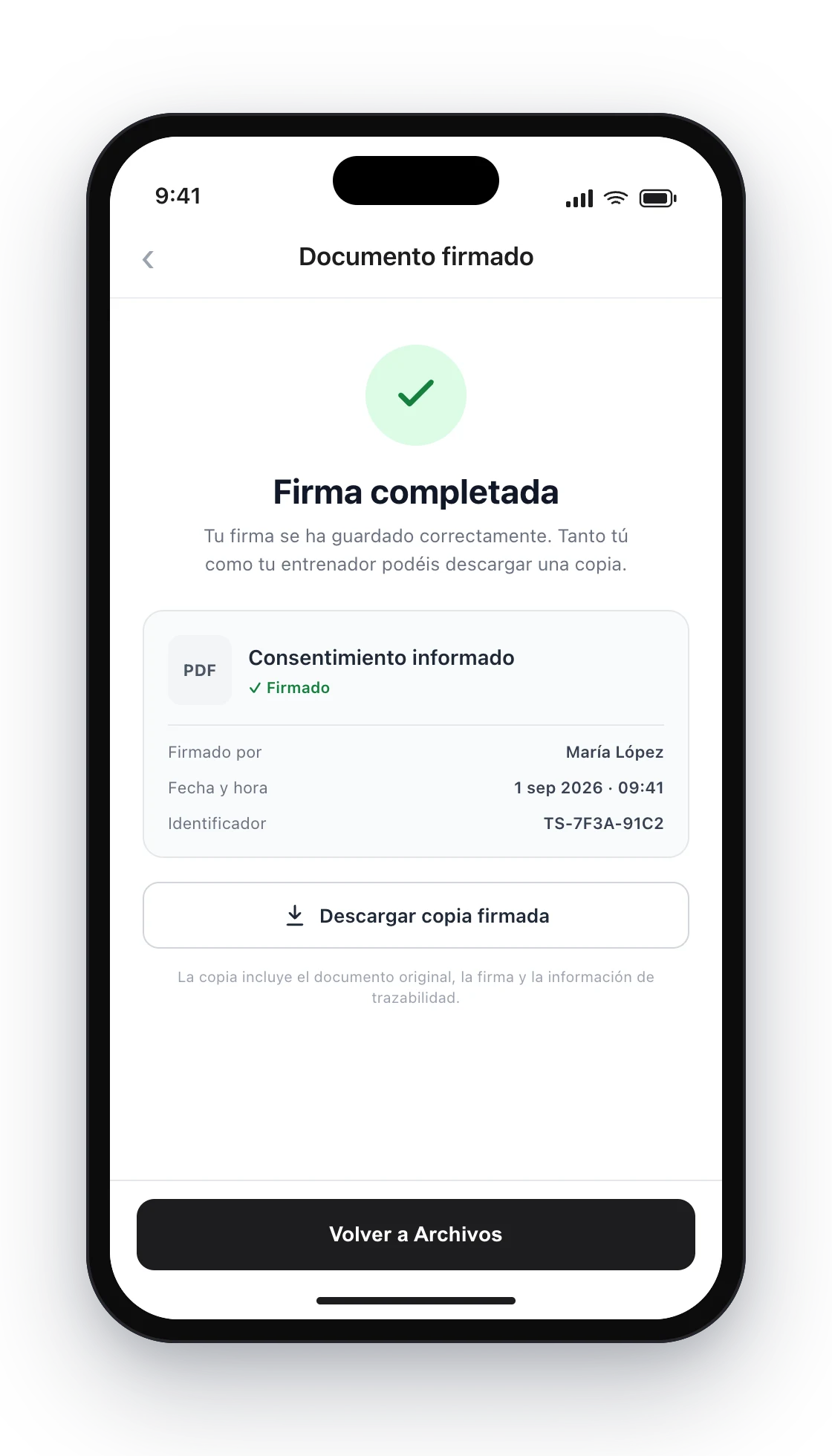
The signed copy becomes available to the client once the process is complete.
Check the status
Go back to Clients → Shared files to check the latest status of each PDF:
- Not requested: no signature has been requested yet;
- Pending: the client has not opened the document yet;
- Viewed: the client opened it, but has not made a decision;
- Processing: TrainerStudio is generating the final copy;
- Signed: the signed copy is available;
- Declined: the client decided not to sign it;
- Cancelled: the request was cancelled by a trainer.
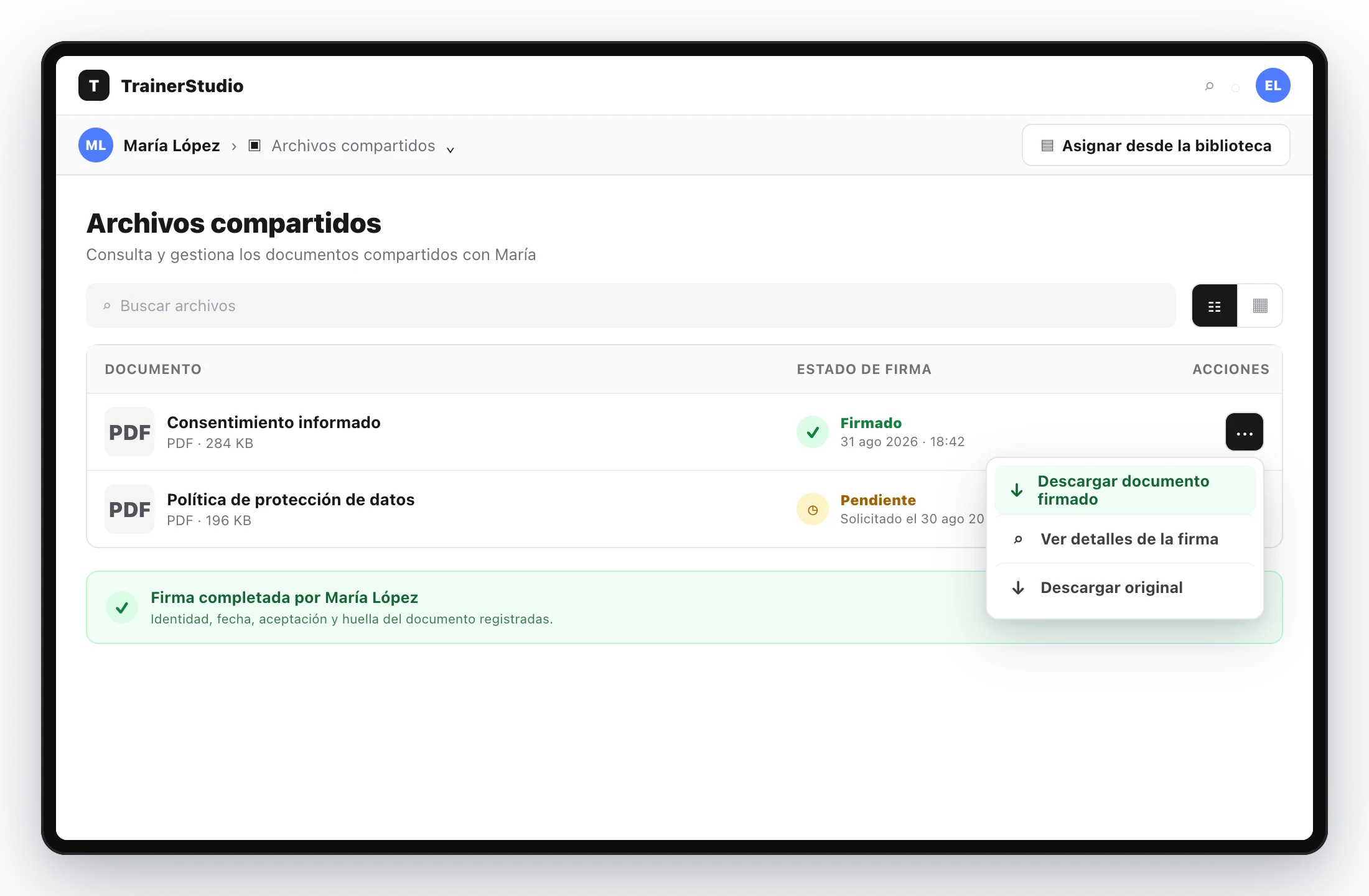
From the signed status you can download the final PDF or check the acceptance details and their technical evidence.
Remind or cancel a request
While a request is Pending or Viewed, open the file's Actions menu to:
- Send reminder: notify the client again without creating another request;
- Cancel signature request: prevent it from being signed later.
A signed, declined, or cancelled request cannot be reopened. If you need another signature, create a new request; TrainerStudio keeps both in the history.
Frequently asked questions
What information is kept with the signature?▼
To keep everything traceable, TrainerStudio stores:
- the exact copy of the PDF that was shown;
- the authenticated account and the name confirmed by the client;
- the signature stroke and the exact text that was accepted;
- the request, first view, and signature dates;
- the connection IP address, the client app, the language, and the user agent;
- the SHA-256 fingerprints of the original document and of the result.
This data is not shown in notifications and is not included in product analytics.
Can I request a signature from several clients at once?▼
No. The request is created from each client's profile so that every person has their own copy and status.
What happens if I delete the PDF from Academy?▼
Requests keep a separate copy. Deleting or renaming the Academy resource does not change previous signatures.
Can I change the PDF after requesting the signature?▼
Not within that request. Cancel it and create another one with the correct version so it stays clear which document the client received.
Is this a qualified electronic signature?▼
No. TrainerStudio offers a simple electronic signature with traceability; it does not use a qualified digital certificate.
How to share files with your clients
Share PDFs, images, videos, and links with all your clients or only with the people you choose.
How to create Academy courses?
Create educational courses so your clients can learn at their own pace. Organize content into lessons with videos and text, with no dates or deadlines.