
How to connect ChatGPT to TrainerStudio?
You can connect ChatGPT to your TrainerStudio coach account to work with your clients, routines and workouts from a conversation. For example, you can ask it to review a client's compliance or to create a program with exercises from your library.
The connection uses MCP, the protocol that lets ChatGPT read data and take actions in TrainerStudio. You set it up in ChatGPT and authorize access by signing in with your coach account.
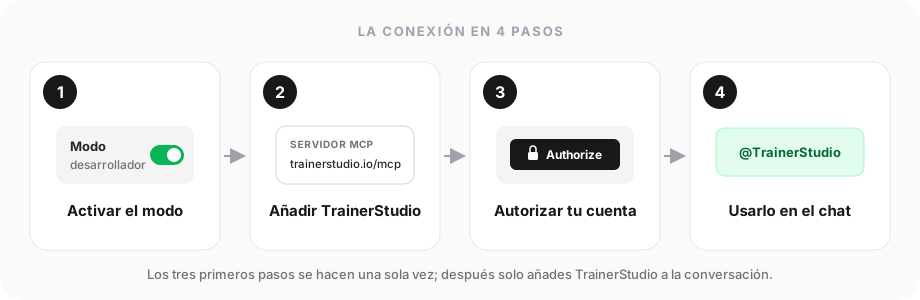
You set up the connection once and then simply add TrainerStudio to each conversation.
What can you do?
| Area | What you can ask ChatGPT |
|---|---|
| Clients | Search for clients, look up their groups, activity, notes and workout compliance. |
| Routines | Look up and create programs, add days and exercises, and assign them to a client. |
| Workouts | Look up, create, edit, duplicate or delete workout blocks. |
| Exercises and metrics | Search for exercises and look up a client's recorded metrics. |
| Chat | Read conversations and send messages in the TrainerStudio chats you take part in. |
Actions are carried out on your real account. A routine saved or a message sent from ChatGPT will appear in TrainerStudio.
Before you start
- Have the email and password of your TrainerStudio coach account at hand.
- Open ChatGPT in the browser on a computer.
- You need access to developer mode. OpenAI offers it on the web for Plus, Pro, Business, Enterprise and Education accounts; in a workspace it also depends on the permissions its admin allows. See the developer mode requirements.
Step 1: Turn on developer mode
In ChatGPT, open Settings → Security and login and turn on Developer mode.
This mode lets you add the TrainerStudio MCP connection. If the option does not appear, check your plan and your workspace permissions.
Step 2: Add TrainerStudio
Open ChatGPT Plugins, press the + button and fill in the connection:
| Field | What to enter |
|---|---|
| Name | TrainerStudio |
| Description | Manage your TrainerStudio clients and workouts. |
| MCP server URL | https://api.trainerstudio.io/mcp |
| Authentication | OAuth |
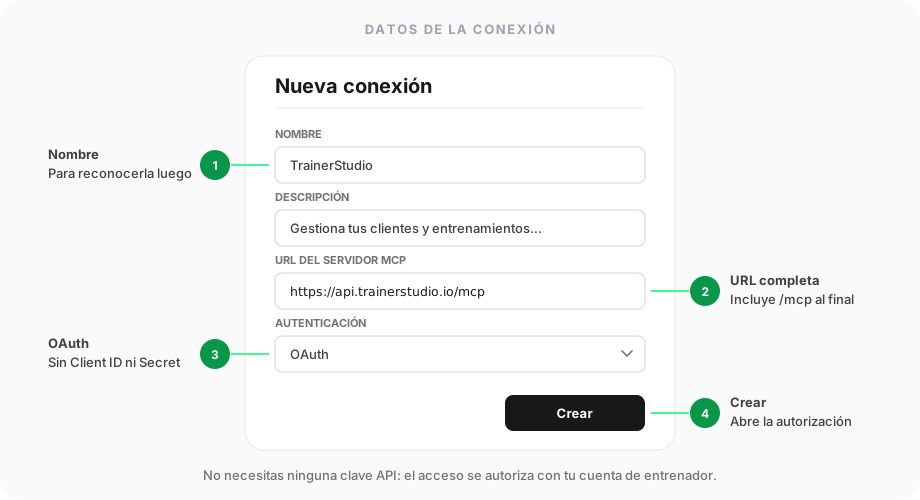
Indicative illustration: the position of the fields may vary depending on the ChatGPT version.
You can copy the URL from here:
https://api.trainerstudio.io/mcpIf optional Client ID and Client Secret fields appear, leave them empty. TrainerStudio lets ChatGPT register the connection automatically. If it asks you to choose the OAuth registration method, select dynamic client registration (DCR).
Press Create to continue. This guide uses the manual URL connection described in OpenAI's official connection guide.
Step 3: Authorize your coach account
- When the authorization page opens, check that the address belongs to
api.trainerstudio.io. - Enter your coach account's email and password.
- Press Authorize to authorize the connection and return to ChatGPT.
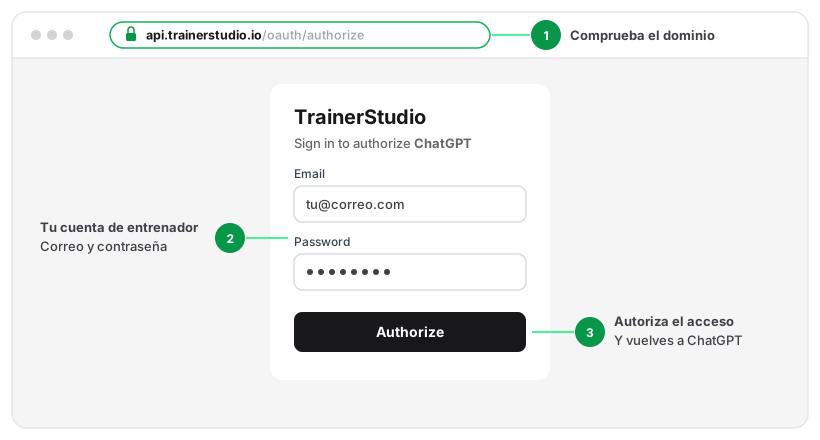
Before typing your password, check that the address starts with api.trainerstudio.io.
Only enter your credentials on that TrainerStudio page. ChatGPT receives an access authorization through OAuth; you do not need to type your password or an API key in the conversation.
Step 4: Use TrainerStudio in a conversation
- Open your personal plugins, select TrainerStudio and install it with the + button if it is not installed yet.
- Go back to the ChatGPT home screen and open a new conversation in Work.
- Type @ and select TrainerStudio to add it to the conversation.
These steps follow OpenAI's plugins quickstart. If you use the chat's tool picker, you can also open + → Developer mode and select TrainerStudio.
Start with a simple request:
Use TrainerStudio to show me my active clients.
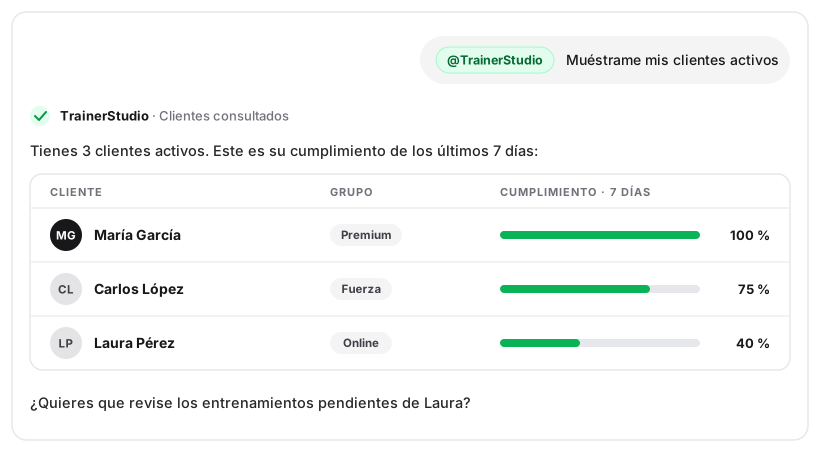
Example with fictional data. The answer should show that it has looked up TrainerStudio.
Check that ChatGPT uses the connection and returns information from your account. Then you can continue with questions about a specific client.
Examples for your work as a coach
Replace the names with your clients' names and give specific dates when you want to look up or schedule workouts.
Review a client's follow-up
Find María García in TrainerStudio and summarize her compliance over the last 7 days. Show me which workouts she has completed and which ones are still pending.
Prepare and save a routine
Check my exercise library and suggest a 3-day strength program for an intermediate level. Show me the exercises, sets and reps before saving it.
After reviewing the proposal:
Save this program in TrainerStudio with the name "Strength 3 days". Leave it unassigned so I can review it in the app.
Once you have reviewed it, you can ask it to assign it to a client by giving the start date. Assigning it adds workouts to the client's calendar: check the days they already have scheduled to avoid duplicates.
Look up progress
Look up Carlos López's recorded metrics and summarize how his weight has changed over the last 3 months. Tell me if any entries are missing.
Prepare a follow-up message
Read my conversation with Laura Pérez and draft a message asking her how the routine is going. Show me the text before sending it.
Check the recipient and the text before asking it to send. In a group conversation, the message will reach the other participants.
Review changes before applying them
ChatGPT can modify workouts and send messages. Check the client, the dates and the proposed changes. You can ask it to prepare a proposal first and then tell it to save it.
ChatGPT asks for confirmation for write actions by default, but the behavior depends on your approval settings. You may get a confirmation even when looking up data. See how developer mode confirmations work.
Data and privacy
The connection uses your coach identity and TrainerStudio's access checks. The data you look up is shared with ChatGPT to answer your requests and may become part of the conversation. How it is handled depends on your account and ChatGPT's data controls; see OpenAI's information on data from connected services.
Only ask for the client information you need for the task.
If something does not work
| Problem | What to check |
|---|---|
| Developer mode does not appear or I cannot create the connection | Use ChatGPT on the web and check that your account has access. In a workspace, check the permissions with the admin. |
| ChatGPT cannot connect | Copy the full URL, including /mcp, select OAuth and complete the authorization with a coach account. |
| The session has expired or it asks me to sign in again | Open the TrainerStudio connection in ChatGPT and authorize it again. |
| ChatGPT answers without looking up my data | Open a new chat, select TrainerStudio and start your request with "Use TrainerStudio to…". |
| The tools do not appear or one is missing | Open the connection in Plugins, press Refresh to update it and try in a new conversation. |
How do I disconnect TrainerStudio?
Open the TrainerStudio connection settings in ChatGPT and disconnect it. If you also installed the plugin, you can uninstall it from its page. Uninstalling a plugin does not by itself disconnect an MCP integration added separately.
Can I use Claude too?
Yes. You can follow the guide to connect Claude to TrainerStudio.
ChatGPT steps reviewed on 2 October 2026. Option names may vary depending on the interface language and version.