
How to review a client's activity and notes?
Inside each client's profile there are two sections designed for day-to-day follow-up:
- Activity Feed: a timeline of everything your client has done: completed workouts (with the sets they did and their comments), recorded metrics, progress photos and submitted forms.
- Private notes: a notepad per client to write down assessments, injuries, agreements or reminders. Your client does not see them.
1. Open the activity feed
Open the client's profile and choose Activity Feed in the sections menu.
Activity is grouped by day, newest first ("Today", "Yesterday" and then the date). You can collapse or expand each day with the arrow. At the bottom of the list, Load more brings in older activity.
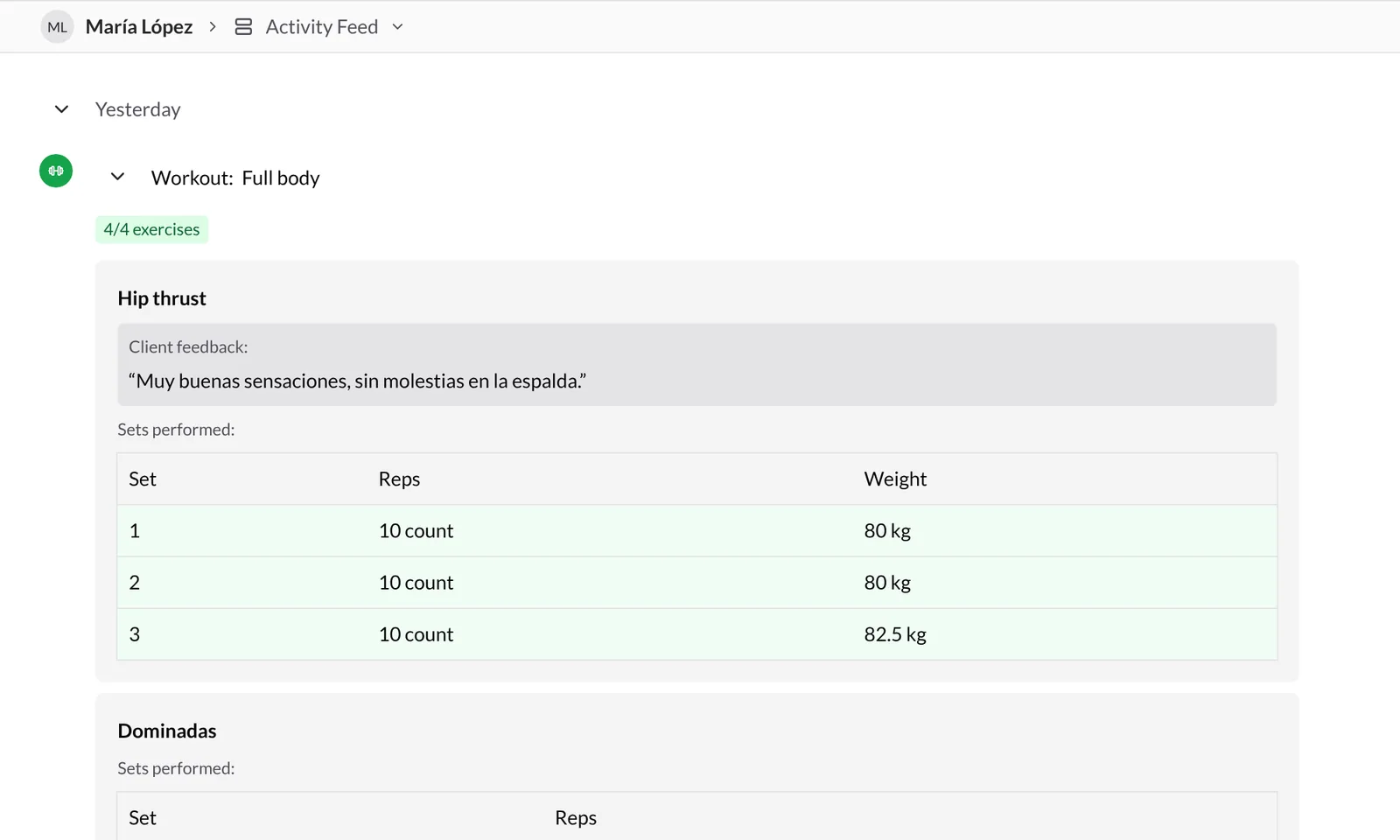
2. Review a completed workout
Each workout appears as Workout: block name, with a tag showing how many exercises were completed out of the total (for example, "4/4 exercises"). Expand it with the arrow to see each completed exercise:
- Instructions: the notes you added to the exercise.
- Client feedback: what your client wrote while doing it ("the last set was tough", "no back pain"…).
- Sets performed: a table with each set and the values they logged (reps, weight, time…). Completed sets are shown in green.
- Attachments: photos or videos your client attached to the exercise, for example so you can check their technique. Click one to see it larger. Videos also have Track pose, which opens them in the Pose Tracker (guide).
This way you can review how the session went without opening the plan day by day, and adjust loads or reply to their comments.
3. Metrics, photos and forms
Besides workouts, the feed shows:
- Metrics updated: the values your client logged (weight, measurements…), with their unit. More in How to track progress with metrics?.
- Progress photos uploaded: the views they uploaded, as thumbnails. To compare them, go to the Photos section (guide).
- Form completed: the form name, how many questions were answered and a preview of the answers. Full answers are in Form responses.
4. Filter the feed
Press Filter (top right) and tick or untick the activity types: Workouts, Photos, Metrics and Forms. All of them are shown by default; if you hide any, the button shows how many types are hidden.
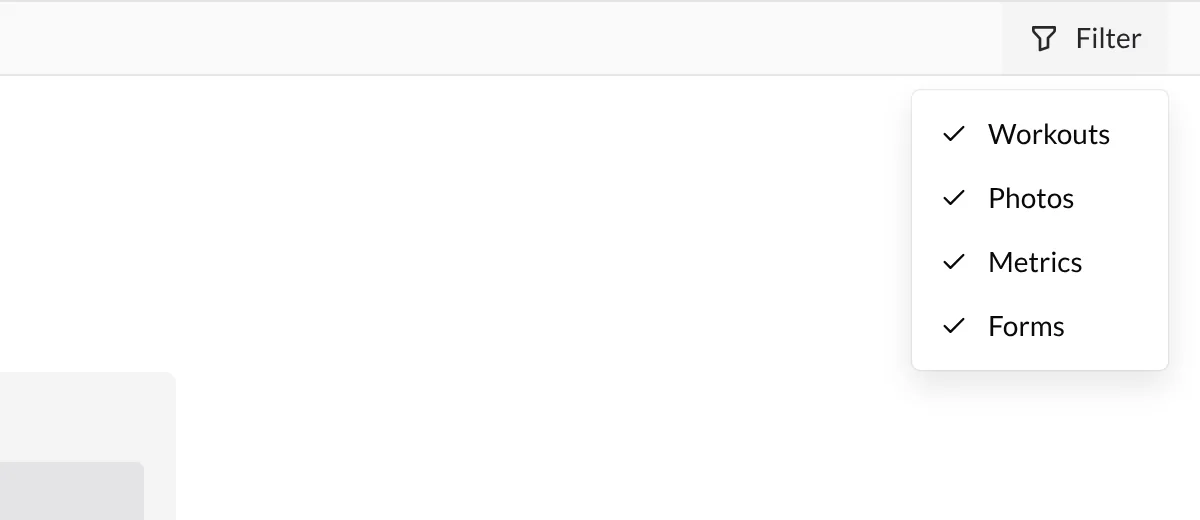
For example, untick everything except Workouts to go over just this week's sessions.
5. Create private notes
Open Private notes from the profile's sections menu (or from the client list: Options → View private notes).
- Press Create new note. A note dated today is created and opens in the editor.
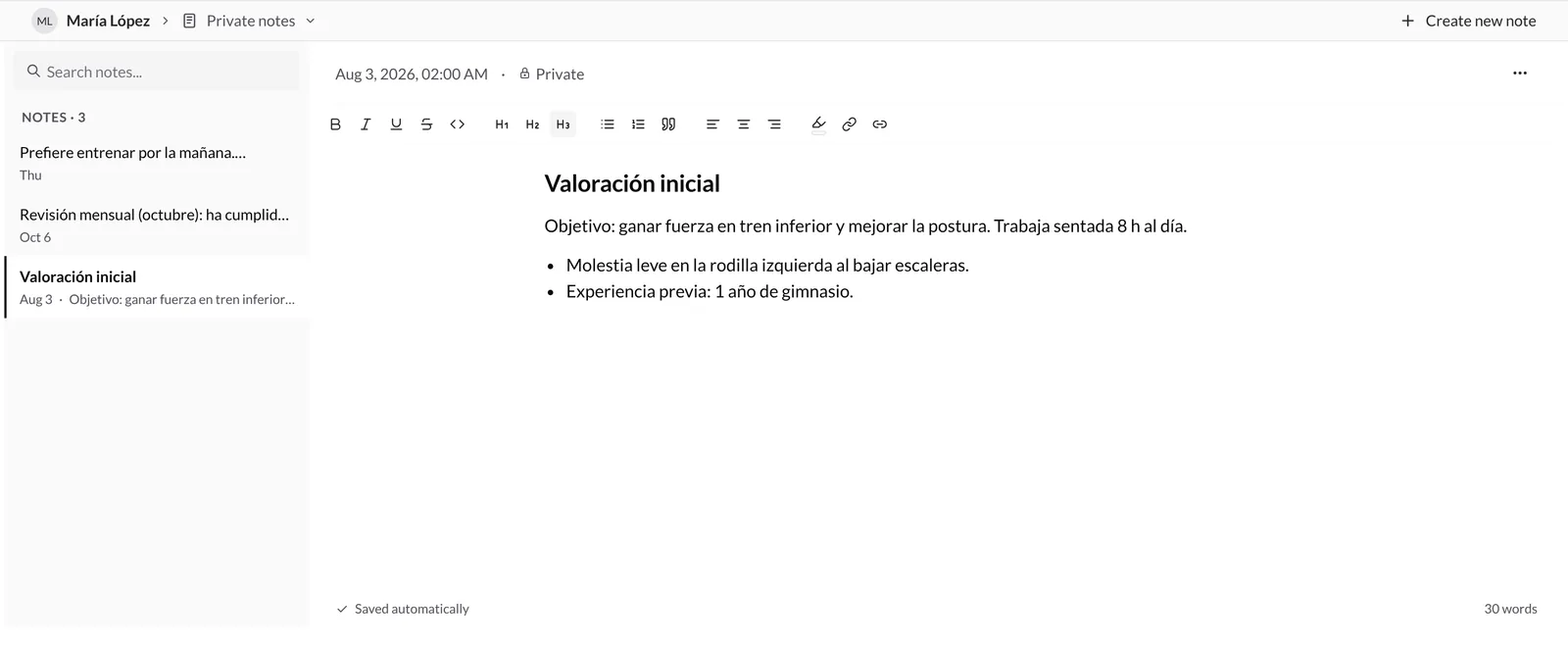
- Write. You can format the text with the toolbar: bold, italics, headings, lists, quotes, alignment, highlight and links.
- There is no need to save: the note is saved automatically a second after you stop typing. At the bottom you will see Saving... and then Saved automatically, along with the word count.
6. Search and manage your notes
- The left column shows all the client's notes, newest first, with their date and a preview of the text. Click one to open and edit it.
- Search notes... filters notes by their content.
- To delete a note, open it, press the ⋯ menu at the top right and choose Delete. You will be asked to confirm.
Good to know
- Notes are private. Each note shows the Private padlock: your client never sees them in their app.
- Everything saves itself. There is no save button; wait for "Saved automatically" before closing.
- The feed shows what was completed. Only exercises your client marked as done, plus the metrics, photos and forms they submitted, appear.
- Use the feed to give feedback. Review comments and attachments after each session and reply through chat or adjust the plan.
Related guides
How to view and compare progress photos?
Review your clients' progress photos, upload them yourself, filter by date, compare a before and after, and get notified when your client uploads new photos.
How to analyze videos with the Pose Tracker?
Open the videos your clients send you in the Pose Tracker to detect their skeleton, follow the path of a joint or the barbell, correct points frame by frame and draw on top.