
How to give my clients access to the app?
Your client does not have to sign up anywhere. When you create them in TrainerStudio their account already exists and a personal access link is generated: you send it to them, they tap it and they are in the app already signed in.
No username to remember, no password to make up, no invitation code. Copy, paste and you are done.
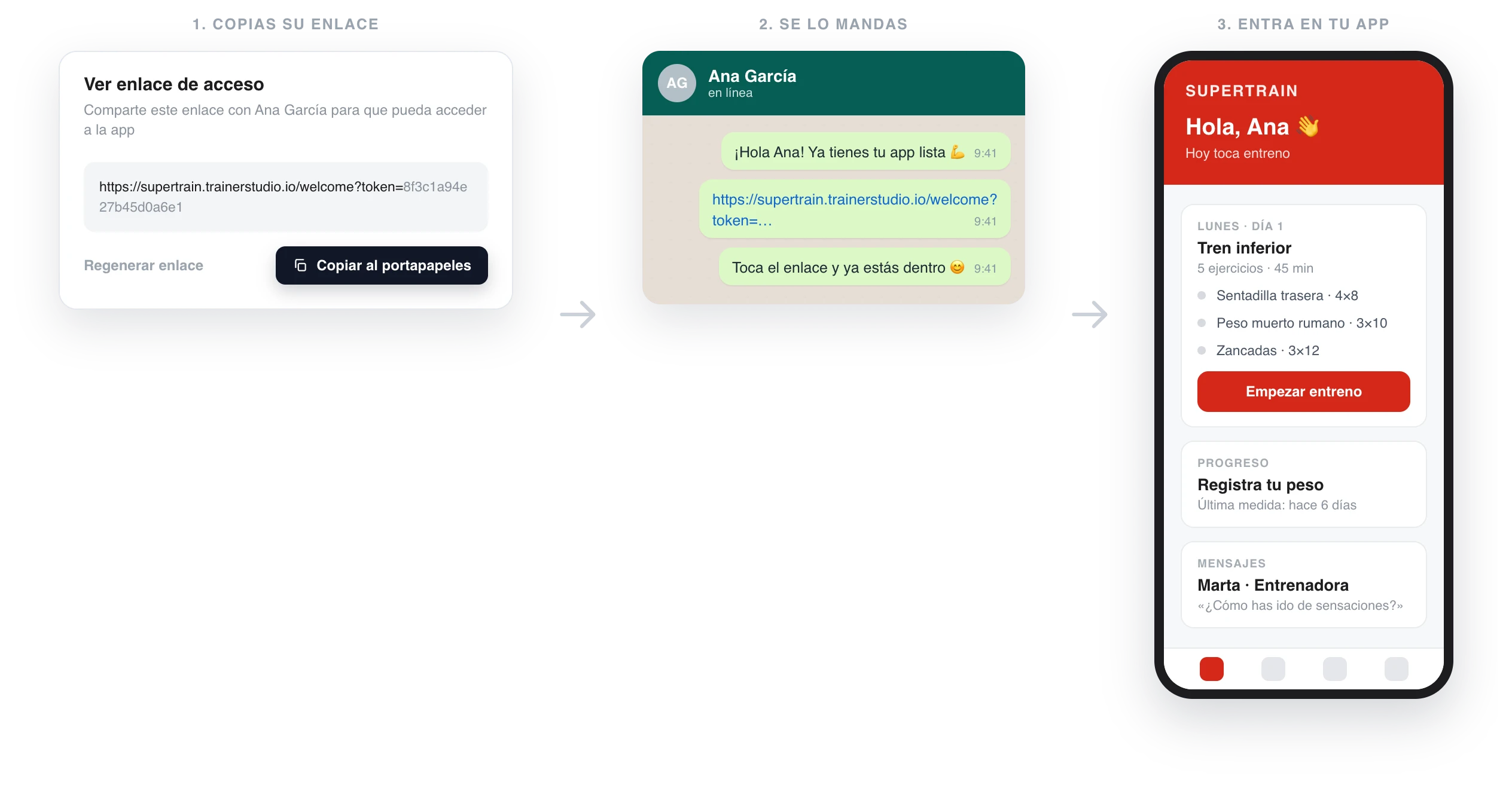
You copy the client's link, send it wherever you already talk and they go straight into their app.
1. Copy the client's link
Right when you create the client, the confirmation window offers you the «Copy app link» button. It is the shortest path: you create the client and leave with their link already on your clipboard.
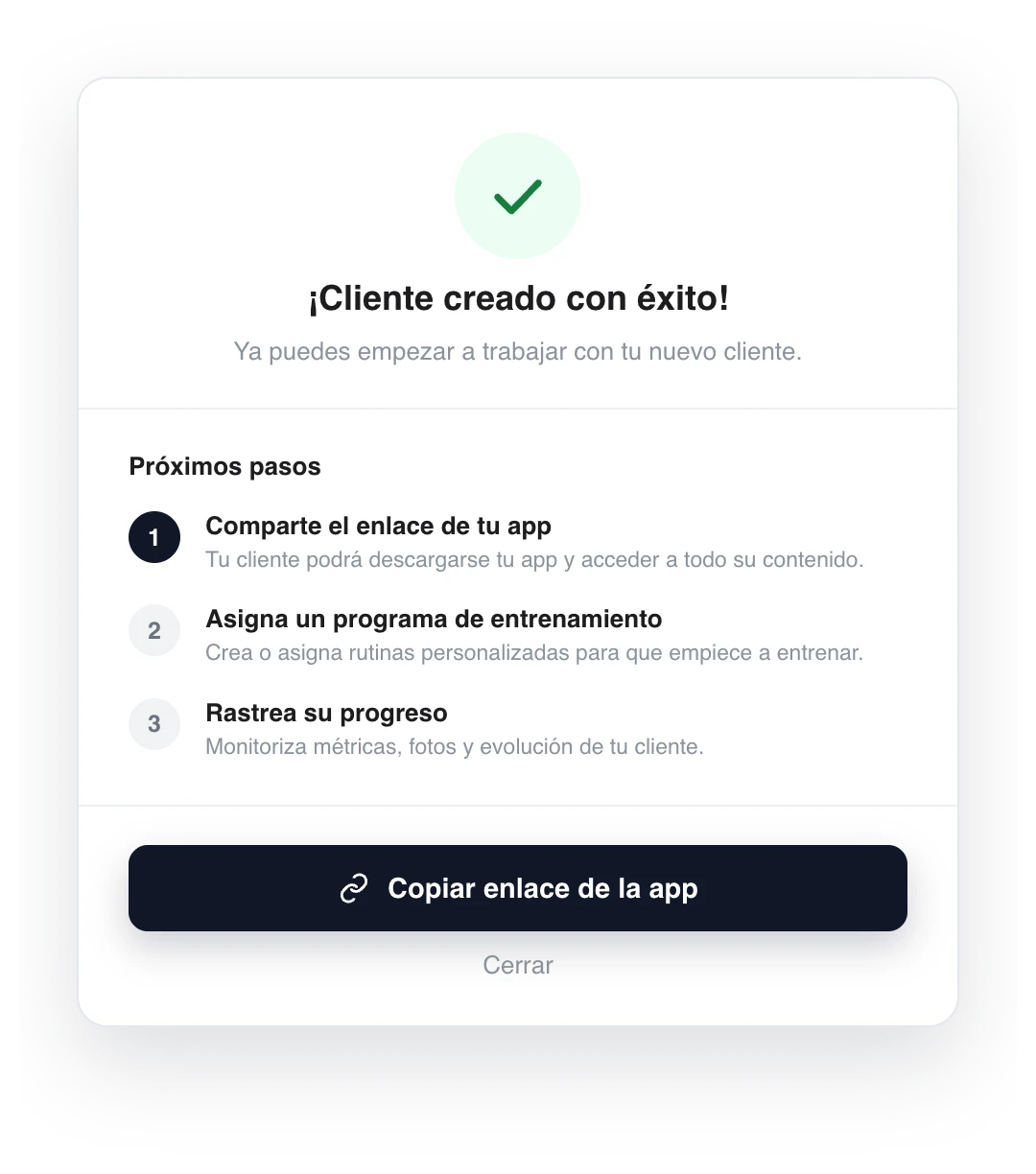
As soon as you create the client, their link is one click away.
If you closed that window or want to send it again weeks later, the link is always in the same place. Go to «Clients», press «Options» on the client's row and choose «View access link».
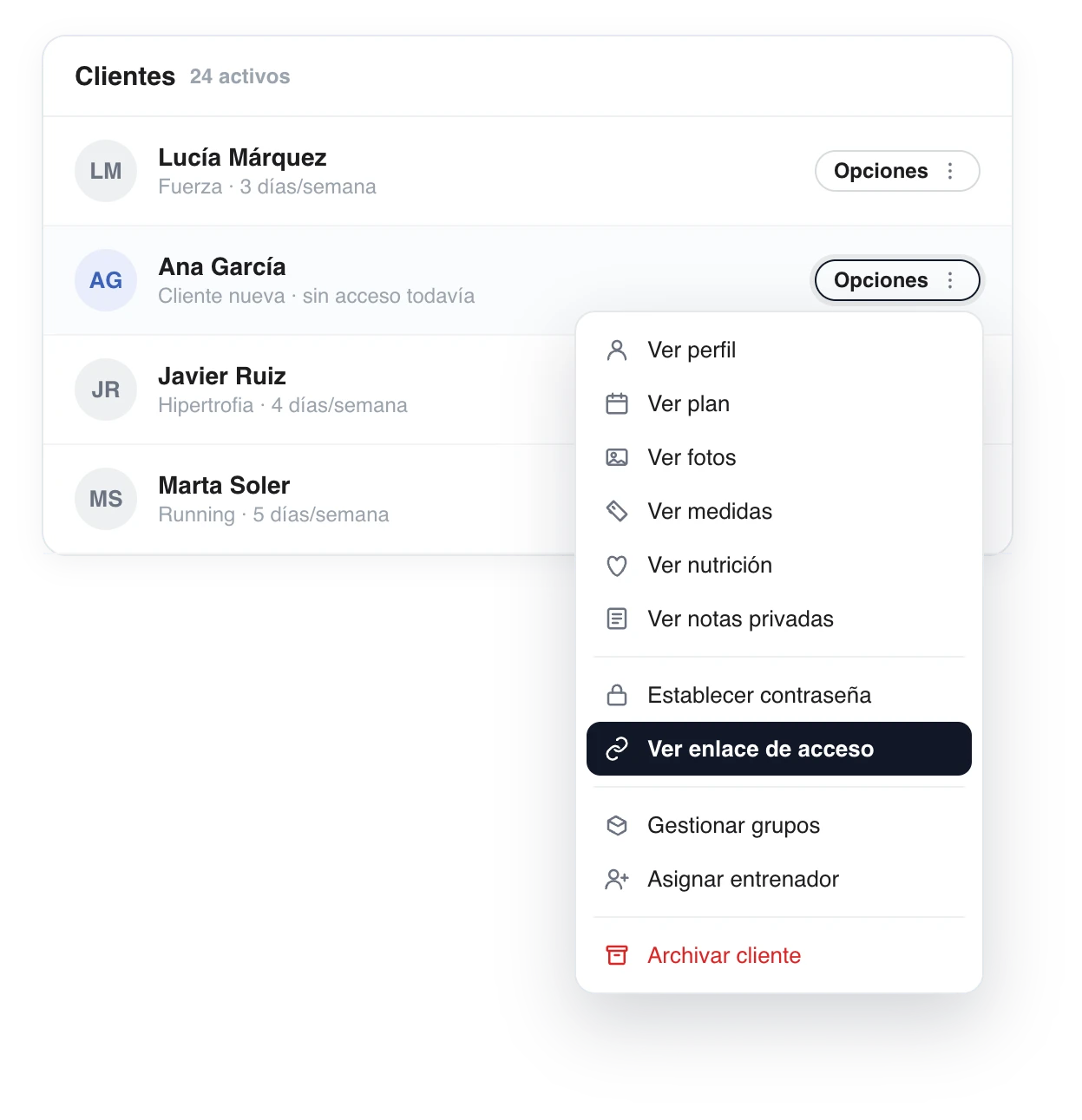
«View access link» is in each client's «Options» menu, next to «Set password».
The full link opens with two buttons: «Copy to clipboard» and «Regenerate link».
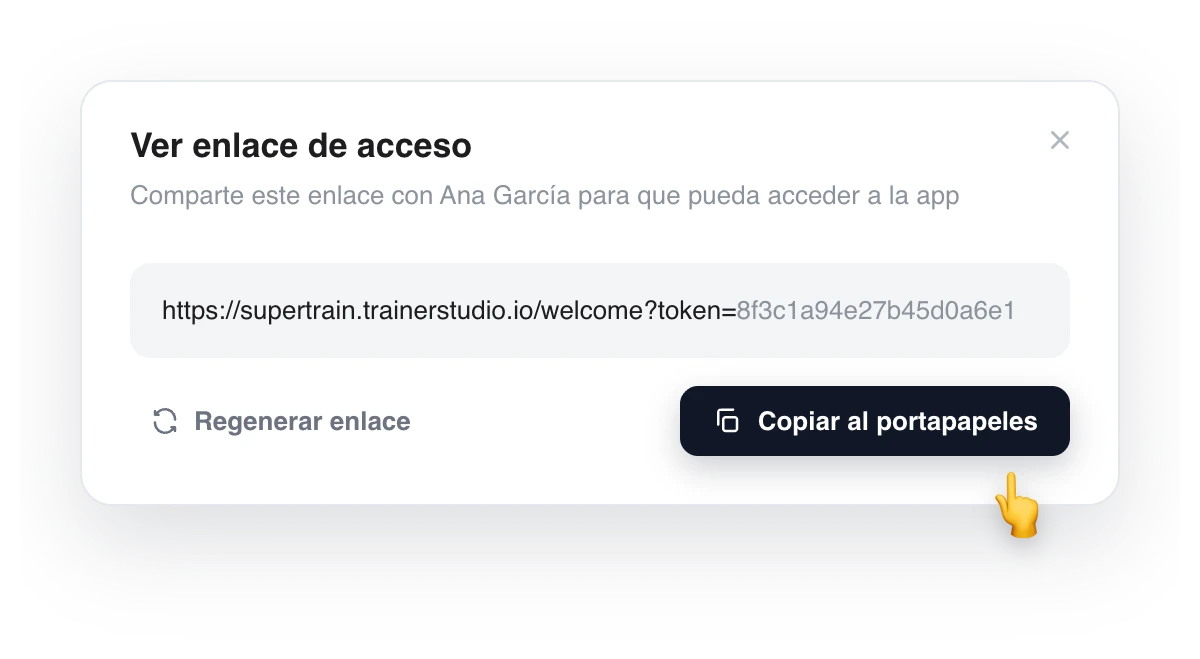
Each client has their own link, in the form yourdomain.trainerstudio.io/welcome?token=…
2. Paste it into WhatsApp
The channel does not matter —WhatsApp, Telegram, email, Instagram—: use whichever you already use. The only important thing is that the full link reaches them, without being cut off.
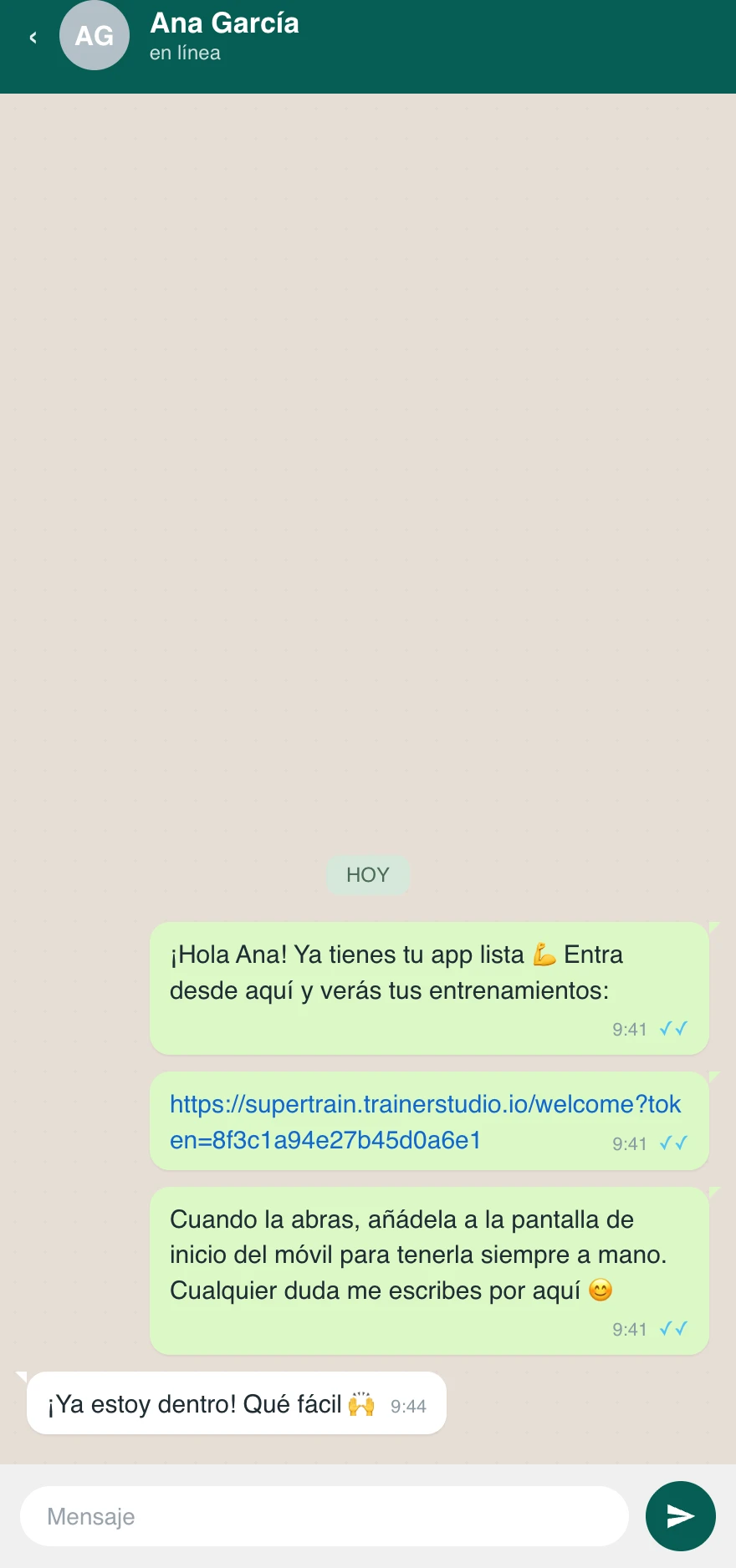
One message, the link and a line asking them to install the app. Nothing more is needed.
A message that works well:
Hi Anna! Your app is ready 💪 Open it from here and you'll see your workouts: [paste the link] When you open it, add it to your phone's home screen so you always have it at hand. Any questions, message me here.
And if you filled in their email when you created the client, TrainerStudio also sends them a welcome email with that same link. Even so, it is worth messaging them yourself: it arrives sooner and does not end up in spam.
3. The first time, they complete their account
When they tap the link your client goes straight in, with no login screen. Only the first time, if their account does not have an email and password yet, will they see «Complete your account»: they enter their email, create a password and continue. It is a one-off step.
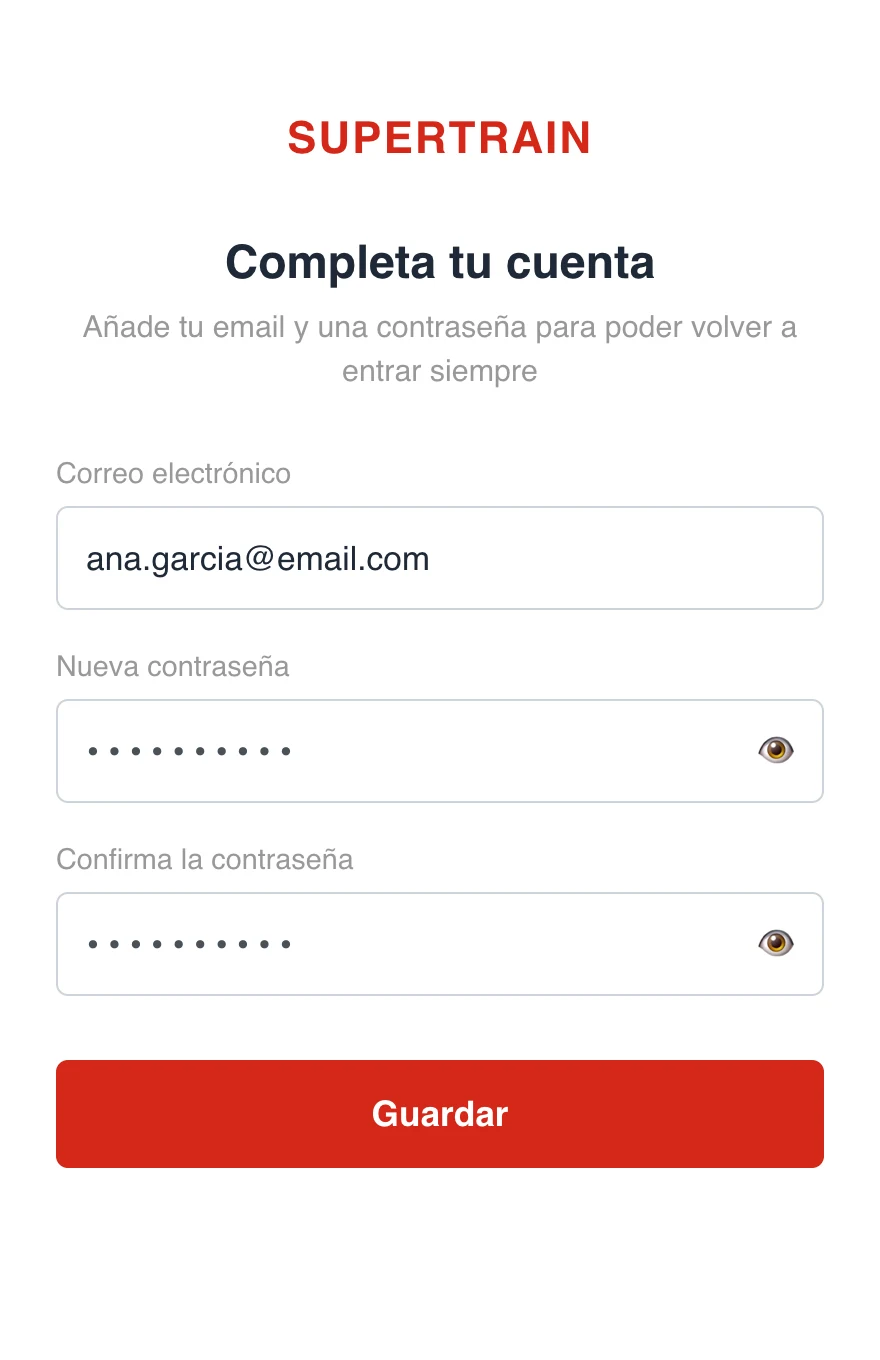
Email and password, just once. You already set their name when you created them.
That password also lets them sign in without the link, from the sign-in screen or from the native app. If you would rather save them the step, you can set it for them from «Options» → «Set password».
From here on they are in: their workouts, their chat and their metrics.
4. Get them to install the app
With the link they can already use the app from the browser, on their phone or computer. But what they really want is to install it: it opens full screen, without the browser bar, it carries your logo and your colors and it is the only way for them to get notifications.
It is installed from the link itself, without going through any store: two taps on iPhone and two on Android. You have it step by step, with screenshots for both platforms, in How does my client install the app?.
And if you would rather not explain it yourself, send them the client manual directly: Access with your link and Install the app.
Frequently asked questions
Can I send the same link to several clients?▼
No. Each link opens a specific client's account, so whoever uses it will sign in as that person and see their workouts and data. Never send it to a group or reuse another client's link: each one needs their own.
Does the link expire?▼
No. It does not expire and it can be reused: your client can save it and sign in again as many times as they want. It only stops working if you regenerate it from «View access link».
What is «Regenerate link» for?▼
To revoke the previous link: it creates a new one and the old one stops working instantly. Use it if the link ended up where it should not or you sent it to the wrong person. Then remember to send them the new one, because the old one no longer gets them in.
My client says the link does not work. What do I do?▼
It is almost always because it reached them cut off: ask them to copy the whole thing, from «https://» to the end. If they opened it from Instagram's or WhatsApp's in-app browser and it causes problems, they should paste it into Safari (iPhone) or Chrome (Android). And if you regenerated the link, the old one no longer works: send them the current one from «View access link».
It is asking them for a password. Why?▼
Either they are signing in from the store app (which always asks for an email and password) without having completed their account, or they are using a link you have already regenerated. Send them the current link, or set a password for them from «Options» → «Set password».
I closed the window without copying the link. Have I lost it?▼
No, the link does not change. You can get it back whenever you want from «Clients» → «Options» → «View access link».
What if my client deletes the app by mistake?▼
They do not lose anything: their data stays in their account. They just need to open their access link again —or sign in with their email and password— and they will find everything as they left it.
Next step
- How to create clients?
- How to customize your app? — your logo, your name and your colors in your clients' app
- How to view the app as your client sees it?
How to create clients?
Step-by-step guide to adding new clients to your TrainerStudio platform.
How does my client install the app?
Your client installs the app from their own access link, without going through any store: two taps on iPhone and two on Android. The icon stays on their phone with your logo, your name and your colors.