
How to prescribe exercises with sets and training variables
When you add an exercise to a client's plan you do not just choose the exercise: you set how many sets it has and which variables you define in each one. Those variables are the columns of the set editor, and you choose them for each exercise.
That is why TrainerStudio is not just for strength. With the same editor you can prescribe a squat at 4 × 8-12 with 80 kg, a 10 km run at 5:30 min/km in zone 2, 8 × 400 m intervals, 45 minutes on the bike at 75% of FTP or a 40-second plank. The only thing that changes is the columns.
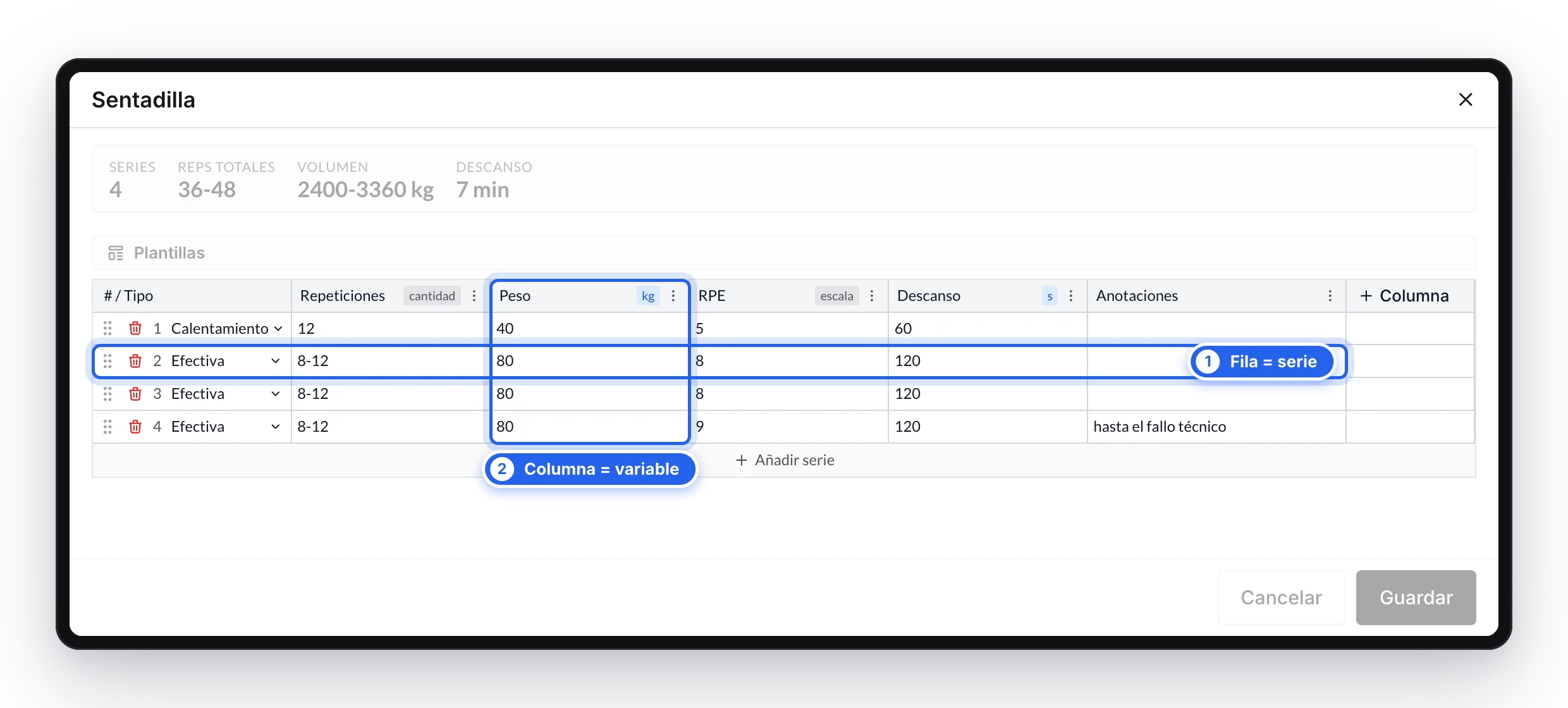
Each row is a set and each column a training variable.
The basics: sets and variables
A prescribed exercise is a table:
- Each row is a set.
- Each column is a training variable: reps, weight, RPE, rest, distance, pace…
In each cell you write the target for that variable in that set. Your client sees those targets in their app and, when training, logs what they actually did in each set. That way you can compare what was prescribed with what was done.
If you want to know what each variable means and when to use it, see Training variables.
1. Add the exercise and open its sets
- Open your client's plan (or a program in your library) and go to the day you want.
- Add an exercise to the block.
- Open its sets to edit them and press «Add set».
The editor is a table on desktop and an adapted version on mobile. They do the same thing; when a button is in a different place, this guide says so.
The first set is created with these columns, in this order:
| Column | Initial value | What it is for |
|---|---|---|
| Reps | 8-12 | How many times the movement is repeated |
| Weight | 50 kg | The external load |
| RPE | 8 | The perceived effort you are aiming for |
| Rest | 60 s | Recovery after the set |
| Notes | empty | Free text for anything that does not fit in the other columns |
It is a starting point designed for strength. You can change the values, remove the columns you do not use and add the ones you need. If you have already applied one of your set templates to that exercise, the first set starts from that template's columns.
2. Add and adjust the sets
- Press «Add set» again to create another row. The new set copies the values of the previous one, so you only need to tweak what changes.
- Edit any cell to give each set its own target: a pyramid, a lighter ramp-up set, a last set to failure…
- To delete a set or change its type, on desktop use the bin and the selector in the first column (# / Type); on mobile, the set options.

Each new set copies the previous one; you only change what varies.
Set types
By default every set is a working set. You can mark a set with another type so your client knows how to do it:
| Type | When to use it |
|---|---|
| Working set | Standard working set |
| Warmup | Light sets to prepare for the working sets |
| Dropset | Reduce weight and continue without rest |
| Rest-Pause | Brief rest and continue the same set |
| Cluster | Small groups of reps with short rest |
3. Choose the training variables
Columns are not fixed. For each exercise you decide what you want to prescribe:
- Add a column: press «+ Column» to the right of the table (on mobile, «Add training variable») and choose the variable from the catalog. They are grouped by category and each one includes a description.
- Swap one column for another: open the column header menu and choose «Change column». The values you had already written are kept and the column takes the new variable's default unit (meters for Distance, for example), so check it.
- Change the unit: from the same menu (kg or lb, seconds or minutes, min/km or min/mi…).
- Reorder: on desktop, drag the column; on mobile, use «Move left» and «Move right».
- Delete: «Delete column» removes it from every set of the exercise.
Column changes apply to every set of the exercise, and only to that exercise: each one can have its own variables.
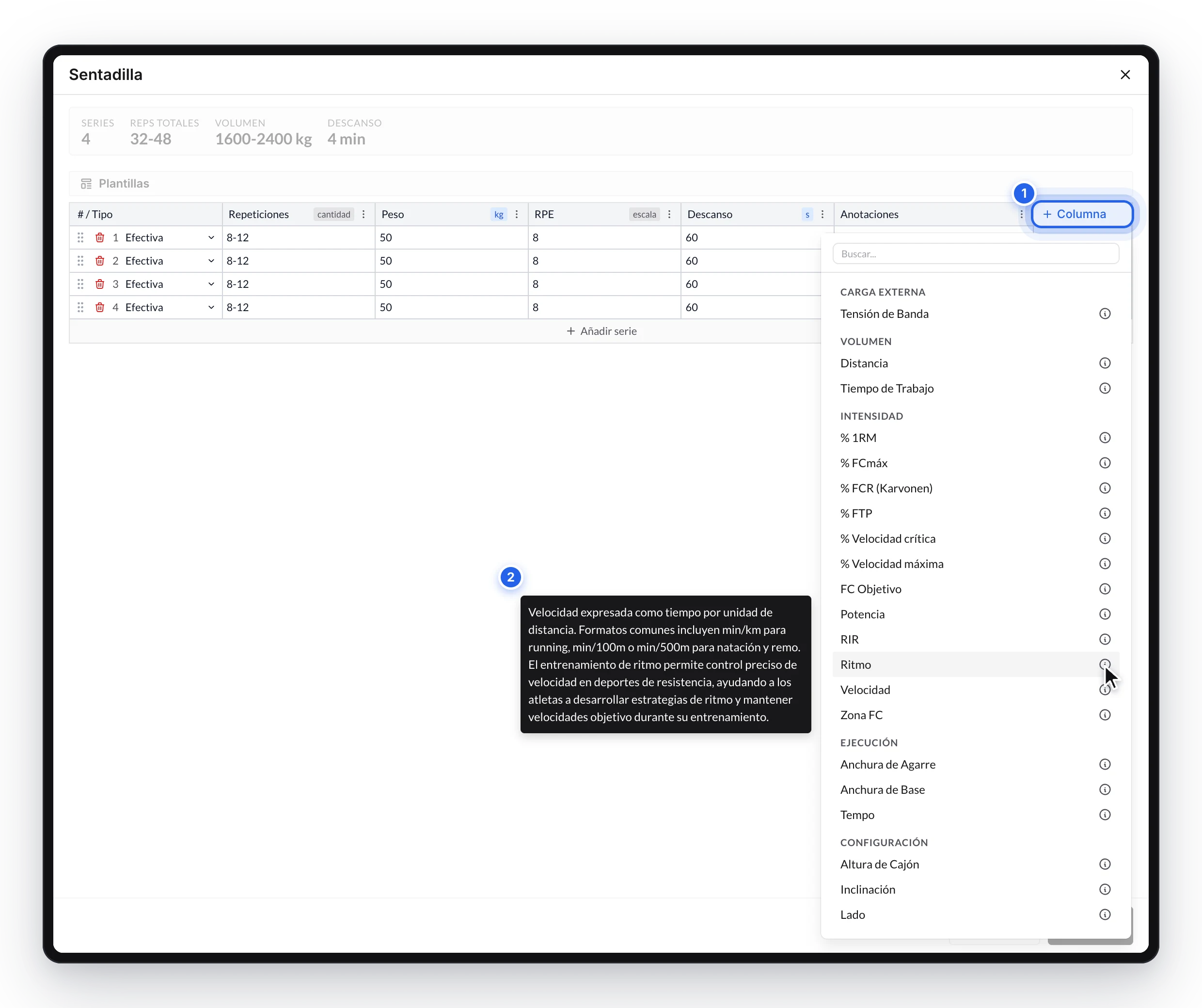
The catalog groups the variables by category and describes each one.
The variables are organized into five categories:
| Category | Answers | Examples |
|---|---|---|
| External load | How much resistance? | Weight, band tension |
| Volume | How much work? | Reps, distance, work time |
| Intensity | How much effort? | RPE, RIR, % 1RM, pace, HR zone, power |
| Execution | How is it done? | Tempo, grip width, notes |
| Setup | With what preparation? | Rest, incline, side |
The Training variables guide explains each one, with its units and when to use it.
Exact value or range
Each numeric column can be prescribed in two ways:
- Exact: a single value. 10 reps, 80 kg, 90 s.
- Range: a minimum and a maximum. 8-12 reps, RPE 7-8, pace 5:20-5:40.
On desktop you just type it in the cell: 10 is an exact value and 8-12 a range. On mobile you choose it with «Exact» or «Range» in the column options.
Use a range when you want to leave the client room to autoregulate and an exact value when the target is fixed.
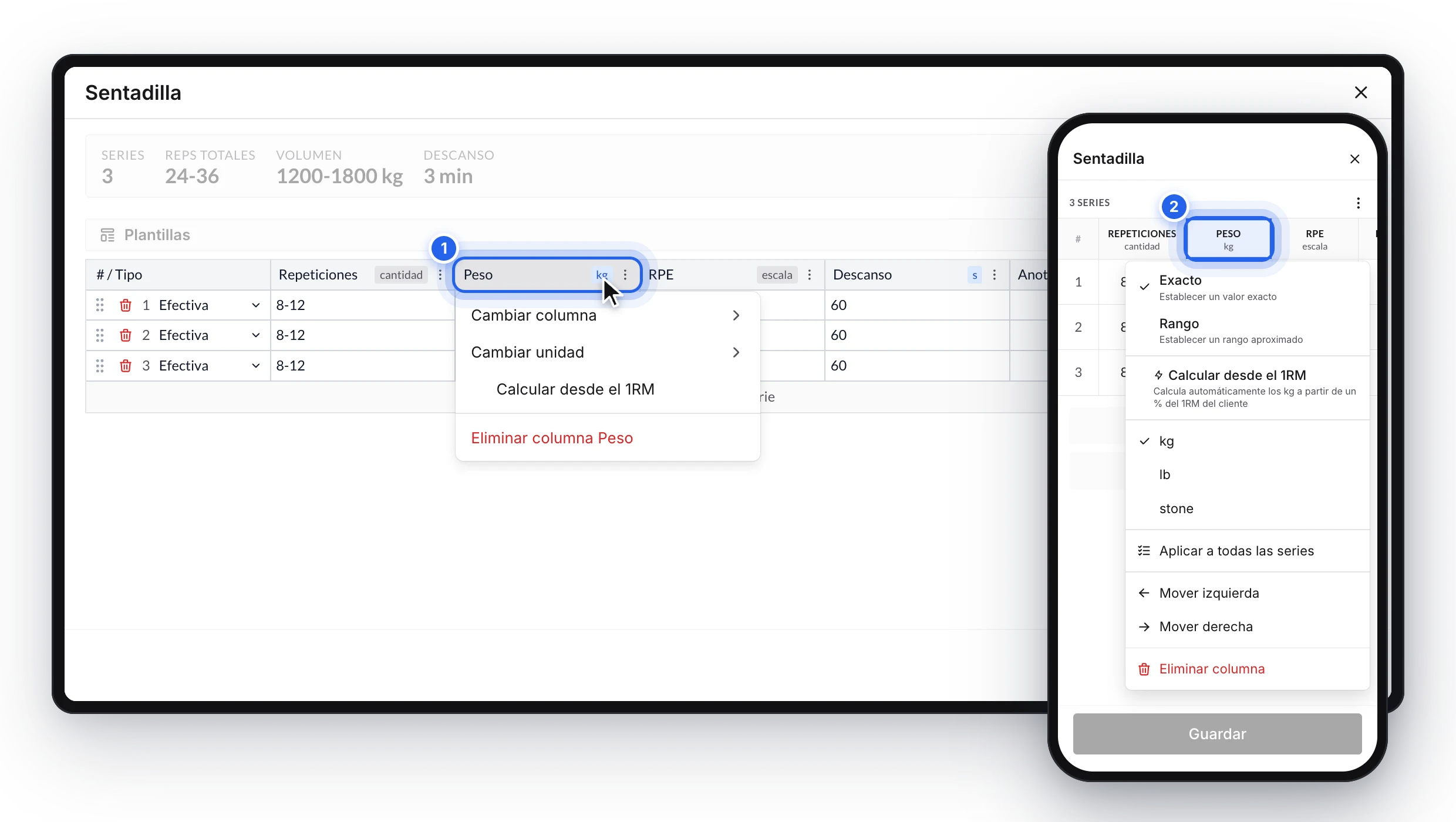
Each column's menu on desktop (1) and on mobile (2).
Notes
Notes is the only free-text column: "per leg", "slow lowering", "to technical failure". It is the last column of a new exercise and starts empty. Your client reads it exactly as written, below the set, and it does not go into any calculation. You have the details in Training variables.
Beyond strength: prescribing endurance
There is no "cardio mode" to turn on. To prescribe endurance, change the exercise's columns: remove Reps and Weight and add Distance or Work time together with Pace, HR zone or Power.

By changing the columns, the same editor works for prescribing a run, intervals or a bike session.
Two examples:
Squat — 4 sets
| Reps | Weight | RPE | Rest | Notes |
|---|---|---|---|---|
| 8-12 | 80 kg | 8 | 2 min |
400 m repeats — 8 sets
| Distance | Pace | Rest | Notes |
|---|---|---|---|
| 400 m | 4:00 min/km | 90 s | Walk to recover |
In intervals, each repeat is a set. You have more combinations (continuous running, cycling, swimming, rowing, isometrics, unilateral work) in Training variables.
Save time: set templates
If you often repeat the same structure, there is no need to build it every time:
- Quick presets: ready-made schemes, grouped into Strength (5×5…), Hypertrophy (4×8-12 RIR 1, Drop set…), Endurance (5K Z2, 20-min threshold…) and Speed (8×400m repeats…).
- Your templates: from the «Templates» menu, save the current columns and values with «Save current values as template» and bring them back in any exercise with «Load an existing template». A template can also include the notes column with its text.
- Repeat last session: copies the values the client logged for that exercise in their last session. It only appears when you edit a client's plan.
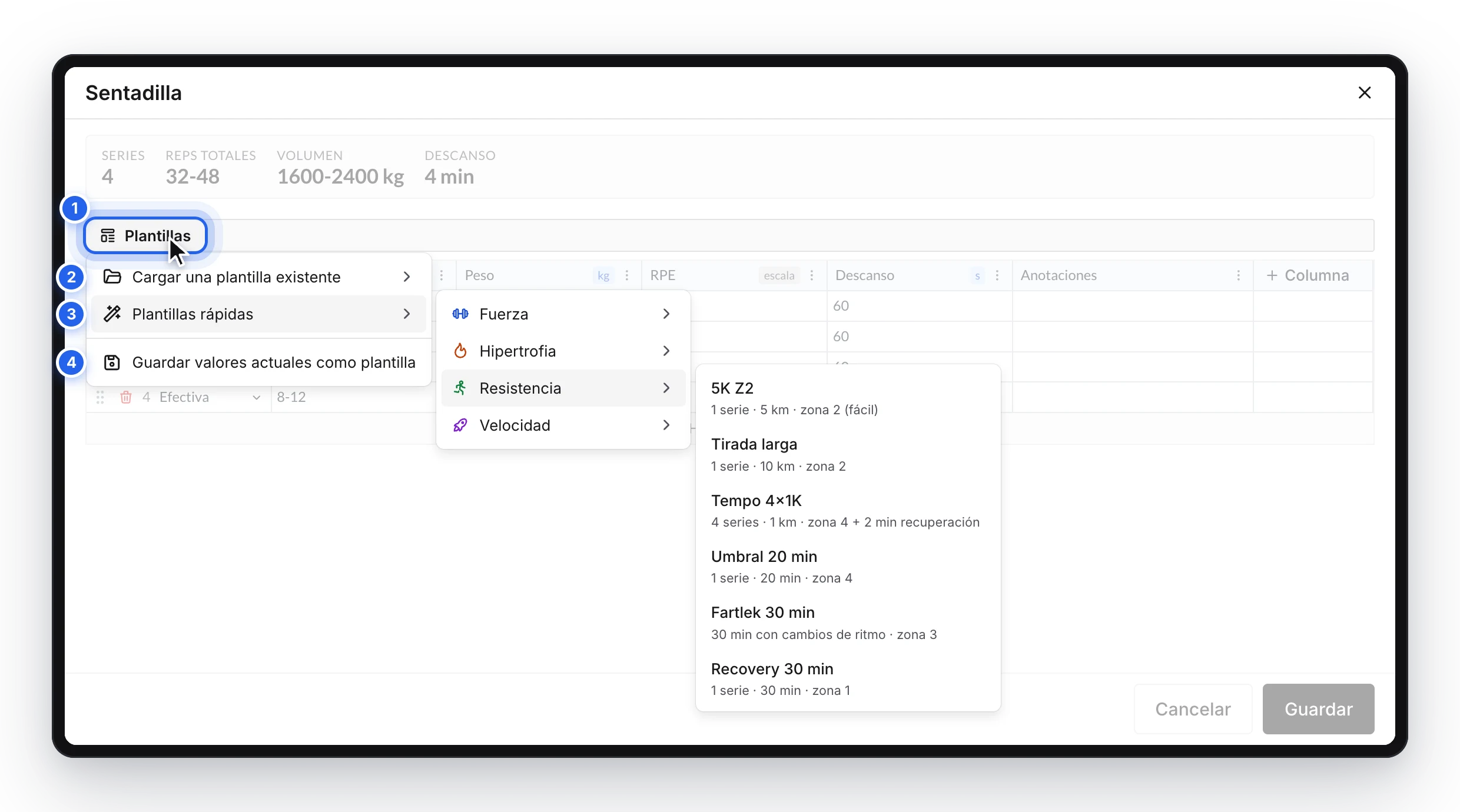
A template fills in sets and columns in one go.
To reuse whole days or blocks, see How to reuse sessions and blocks with templates.
What your client sees
In their app, your client sees each exercise with a summary of what was prescribed (for example, 4x8-12@80kg). When they open it to log their results, they find a table with the same columns you chose, with your targets as a reference in each cell. For each set they note what they did and mark it as completed. Notes appear below their set, read-only.
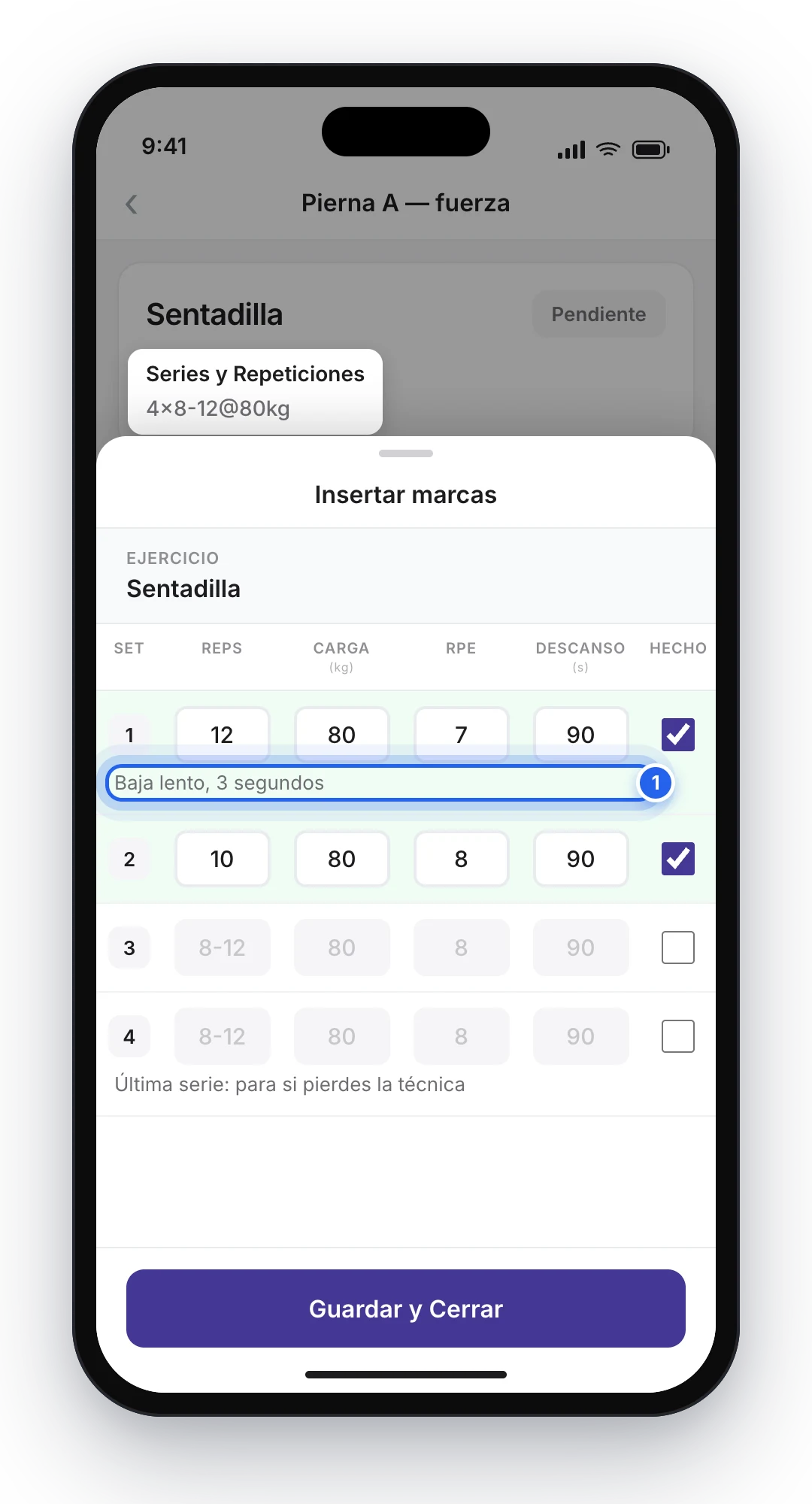
Your client logs each set on the same columns you prescribed.
Frequently asked questions
Can I have different columns in each exercise?▼
Yes. Columns are chosen exercise by exercise.
Can I have different columns in each set of the same exercise?▼
Columns are the same for every set of the exercise; what changes from one set to another are the values.
What happens to what I had written if I swap one column for another?▼
The values are kept. The exception is switching between Notes and a numeric column: text cannot be read as a quantity, so the column starts from scratch.
Do I have to fill in every column?▼
No. Delete the ones you do not use so your client only sees what matters.
Related guides
How to create routines?
Complete guide on how to use the routine planner to create and manage workouts for your clients.
Training variables
All the variables you can control in each set with TrainerStudio, organized into five categories. What each one means, which units it uses, when to use it and which ones feed the statistics, for both strength and endurance.