
How to manage your TrainerStudio subscription?
With TrainerStudio you pay according to the number of active clients you have. Every tier includes the same features (unlimited programs and nutrition plans, your own branded app, WhatsApp, chat, forms, metrics…); the only thing that changes is how many active clients you can have at the same time.
This guide explains how to subscribe, change tier, manage billing and what happens with the client limit. To see the current prices in your country, check the pricing page.
1. Open the subscription page
Go to Business → Subscription in the side menu (it is also in Settings → Subscription). If you are on the free plan, the Free plan box in the side menu shows how many slots you have left and the See plans button brings you here.
The Manage subscription page has the Plan tab (and, if your account has it enabled, AI Credits) and a ⋮ menu with the account actions.

Only people allowed to manage billing (usually the account owner) see this section. If you work as an employee in a team, ask the person in charge for plan changes.
2. Choose a tier and subscribe
While you do not have a paid subscription, the Plan tab lists every tier sorted by capacity: a free plan with a small number of clients, paid tiers of up to 5, 15, 30 and 50 active clients, and one with unlimited clients. For each tier you will see the monthly price and roughly how much it costs per client.
- TrainerStudio preselects the tier that fits your current active clients and labels it Recommended for you. If you want another one, click it.
- The top band sums up the selected tier and its monthly price. Click Subscribe.
- Stripe's secure checkout opens. Enter your payment details and confirm.
Back in TrainerStudio, your new capacity applies as soon as Stripe confirms the payment. The prices you see are adjusted to your country and in your currency, so they may not match another country's prices.
3. Manage an active subscription
With a paid subscription, the Plan tab shows the Active subscription card: the tier, the monthly price and an Active customers counter with your usage against the limit.
- Manage subscription opens the Stripe billing portal, where you can download your invoices, change your card or payment method and cancel the subscription.
- Change tier expands the list of tiers with your Current tier marked. The change is also made in the Stripe portal: you pick another plan and are only charged the prorated difference.
When the cancellation takes effect, your account goes back to the free plan.
4. The client limit
- Only active clients count. Archived clients do not take up a slot, so archiving people who no longer train with you frees up space (you can archive several at once with bulk actions).
- When you reach the limit you will see You've reached your customer limit and you cannot add new clients until you move up a tier or archive some.
- If you have more active clients than your plan allows (for example, after moving down a tier or cancelling), TrainerStudio shows the Subscription Issue notice and locks the dashboard until you fix it: move up a tier from Manage subscription or archive clients.
5. If you subscribed from your iPhone
If you bought TrainerStudio from the iPhone app, Apple charges the subscription. On the web you will see the notice Your subscription is managed by the App Store and the Stripe options are hidden. To change tier or cancel, open TrainerStudio on your iPhone and go to Settings → Subscription, or manage the subscription from your Apple ID.
6. Delete your account
If you want to close TrainerStudio for good, open the ⋮ menu on Manage subscription and choose Delete account. Enter your password to confirm and click Delete account.
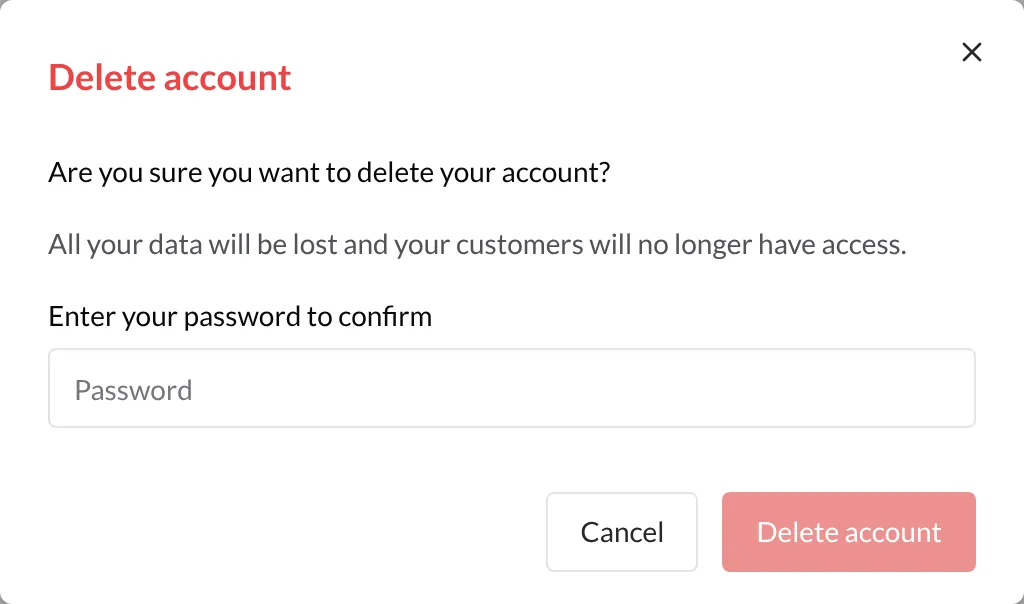
- It cannot be undone. All your data is deleted and your clients lose access to their app.
- Your Stripe subscription is cancelled automatically. If it cannot be cancelled, the account is not deleted and you will see a message asking you to try again.
- If you pay through Apple, TrainerStudio cannot cancel that subscription for you. The window asks you to click Manage Apple subscription, cancel automatic renewal there and confirm it by ticking the box before deleting the account.
Good to know
- Every feature in every tier. Changing tier only changes how many active clients you can have.
- Prices by country. The price depends on your account's country; the pricing page shows the current ones.
- Secure payment with Stripe. TrainerStudio does not store your card details: Stripe handles them.
- Invoices always at hand. Download them whenever you want from Manage subscription in the Stripe portal.
- Archiving frees up slots. Before moving up a tier, check whether you have clients who are no longer active.
Related guides
How to manage employees in TrainerStudio?
Add employees to your team, control their permissions, and assign specific clients. Scale your business while maintaining complete control.
How to earn money with the affiliate program?
Create your referral code, share your link with other trainers and earn 20% of their subscription payments for 12 months. Check your earnings and how many trainers you have referred.