
How do I log in?
To log in to TrainerStudio, open app.trainerstudio.io/login on your phone or computer. There are three ways to log in: your email and password, Google or Apple.
The one rule that sums it all up: always log in with the same method you used to create your account. Your account is tied to that email or to that Google or Apple account. If you log in another way, TrainerStudio can't tell it's you.
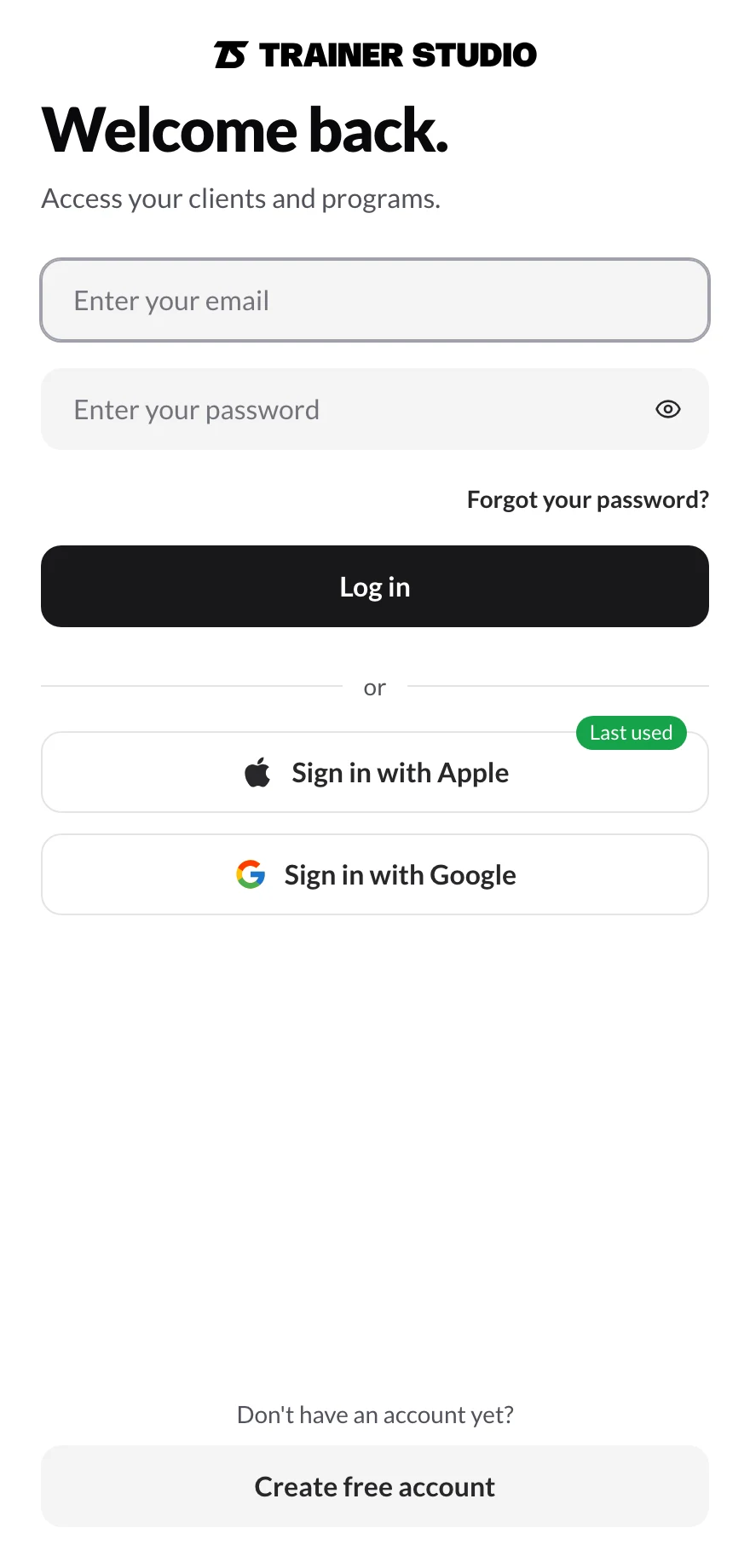
The “Last used” label shows how you last logged in on this device.
1. Choose your method
- With email and password: enter the email you signed up with and your password, then tap Log in.
- With Google: tap Sign in with Google and choose the same Google account you signed up with. If you have several, pay close attention to which one you pick.
- With Apple: tap Sign in with Apple and confirm with Face ID, Touch ID or your Apple password.
Don't remember which one you used? TrainerStudio remembers it on each device and marks it with the green Last used label. Use that one and you'll go straight into your account, with your clients.
Good to know: if you created your account with your email and password and then tap Sign in with Google with a Google account that uses that same email, you still get into your account, and from then on you can use both methods.
2. If you signed up with Apple and Hide My Email
When you sign up with Apple, your iPhone lets you hide your email. If you did, your account doesn't have your usual email but a made-up address like xxxxxx@privaterelay.appleid.com. That has one important consequence:
- Always use Sign in with Apple. If you tap Google or enter your Gmail, that email doesn't match the one on your account and we won't find it.
You can see which address your account uses in your account menu (top right on a computer) or in the Signed in as … notice during sign-up.
3. If there's no account with that email
If someone has already logged in to TrainerStudio on your device and you log in with a Google or Apple account that has no TrainerStudio account, TrainerStudio asks you before creating anything:
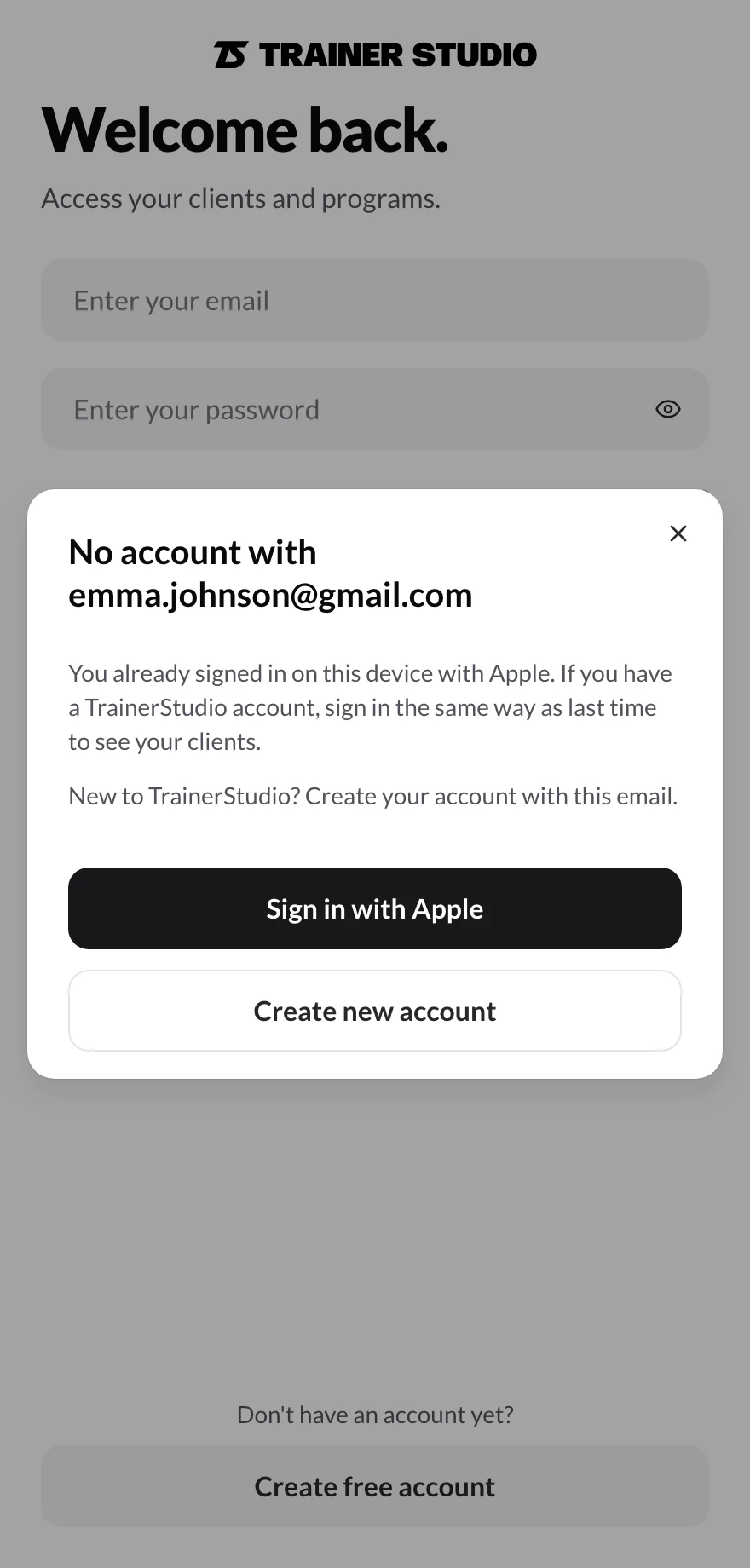
If you already have an account, log in the same way as last time. Only create an account if you're new.
- If you already have an account, tap the first button (for example, Sign in with Apple, or Use another Google account if you picked the wrong Google account). You'll get into your usual account.
- If you really are new, tap Create new account and continue signing up.
On a device where nobody has logged in before, you won't see this dialog: logging in with Google or Apple for the first time creates your account right away, just like when you sign up.
4. If you forgot your password
On the login screen, tap Forgot your password?, enter your email and we'll send you a link to create a new one. If you don't see it within a few minutes, check your spam folder.
If you signed up with Google or Apple, you don't have a password: log in with the same button. If you also want to be able to log in with email and password, request the Forgot your password? link with your account's email and create one.
5. If you log in and don't see your clients
It almost always means you've logged in to a different account, usually a new one that was created when you logged in with a different method (another Google account, or Google instead of Apple). You'll notice because it asks for your phone number as if you'd just signed up, or because your client list is empty.
- Leave that account. If you're on the phone number screen, tap Use another account. If you're already inside, log out as explained in step 6.
- Log in again with your usual method, the one with the Last used label or the one you used to sign up.
- If you don't need the new account, contact us from Help in the menu and we'll delete it. You can also do it yourself from Manage subscription → Delete account, which asks for that account's password.
6. Log out
When you log out, that device loses access to your account until you log in again. Your clients, programs and data don't change.
On your phone, tap More in the bottom bar, scroll all the way down and tap Log out.
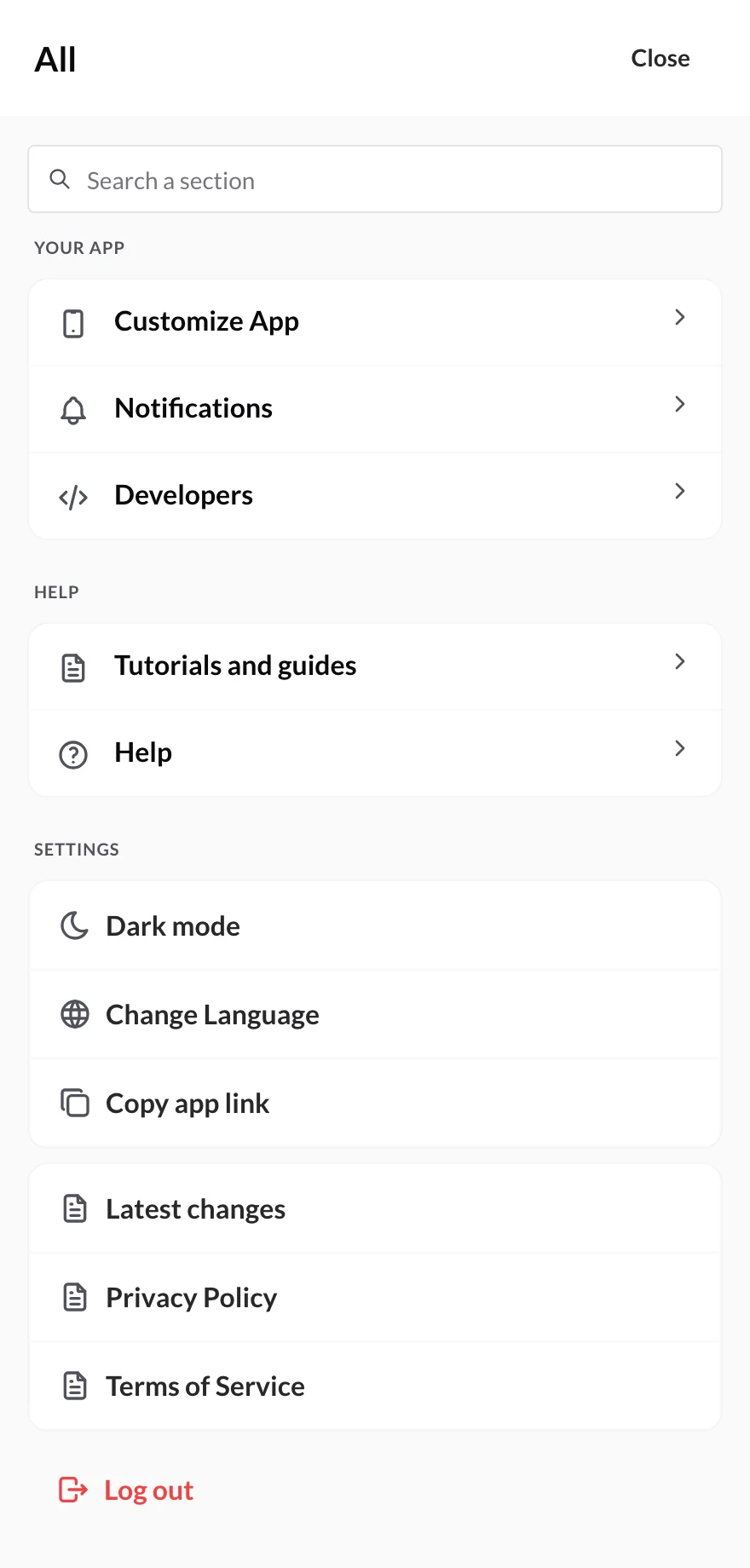
“Log out” is at the bottom of “More”.
On a computer, click your email or your logo at the top right and choose Log out, the last option in the menu.
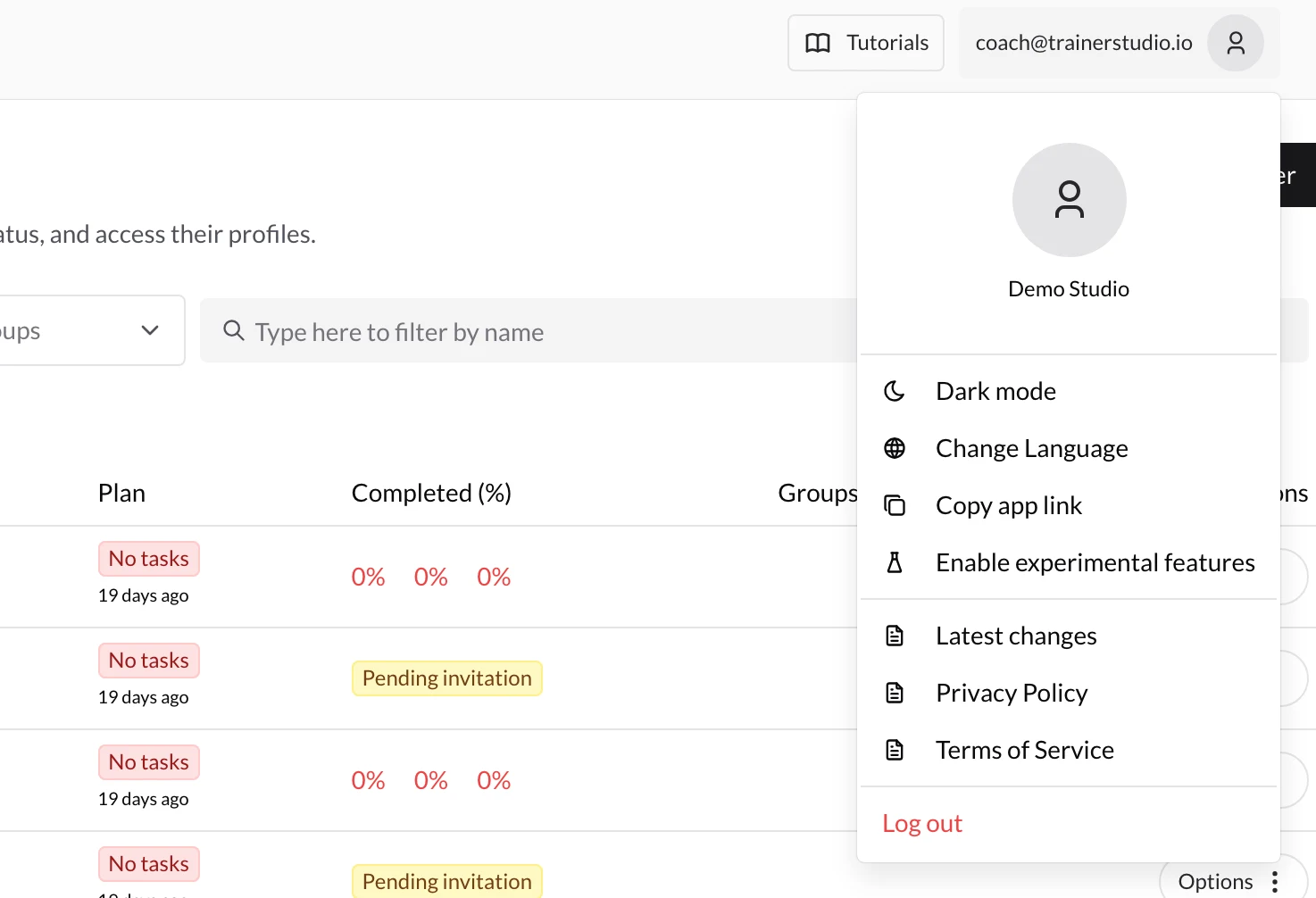
On a computer, your account menu is at the top right.
When you log in again, the method you used will still be marked as Last used.
Frequently asked questions
Can I log in with Google if I signed up with Apple?▼
Only if your Apple account shared the same email as your Google account. If you chose “Hide My Email”, your account has an Apple address that's different from your Gmail and won't match: always log in with “Sign in with Apple”.
Why don't I see the “Last used” label?▼
It's saved on each device and browser. If it's your first time logging in from that phone or computer, if you're using an incognito window or if you cleared your browser data, it won't show up until you log in again.
Can I stay logged in on my phone and my computer at the same time?▼
Yes. You can log in from all your devices with the same method and you'll see the same account on all of them. Logging out on one doesn't log you out on the others.
My clients don't log in here, right?▼
No. This screen is for coaches. Your clients log in to their own app with their access link: we explain how in How to give my clients access to the app?.
Related guides
- Create account: sign-up, step by step.
- How to manage your subscription: plans and how to delete your account.
- How to manage employees: how your team members log in.