
How to share files with your clients
TrainerStudio lets you decide which clients can access each file in your Academy. You can share a resource with everyone, limit it to specific clients, or upload it directly from a client's profile.
Your clients will find the available files in the Academy section of their app.
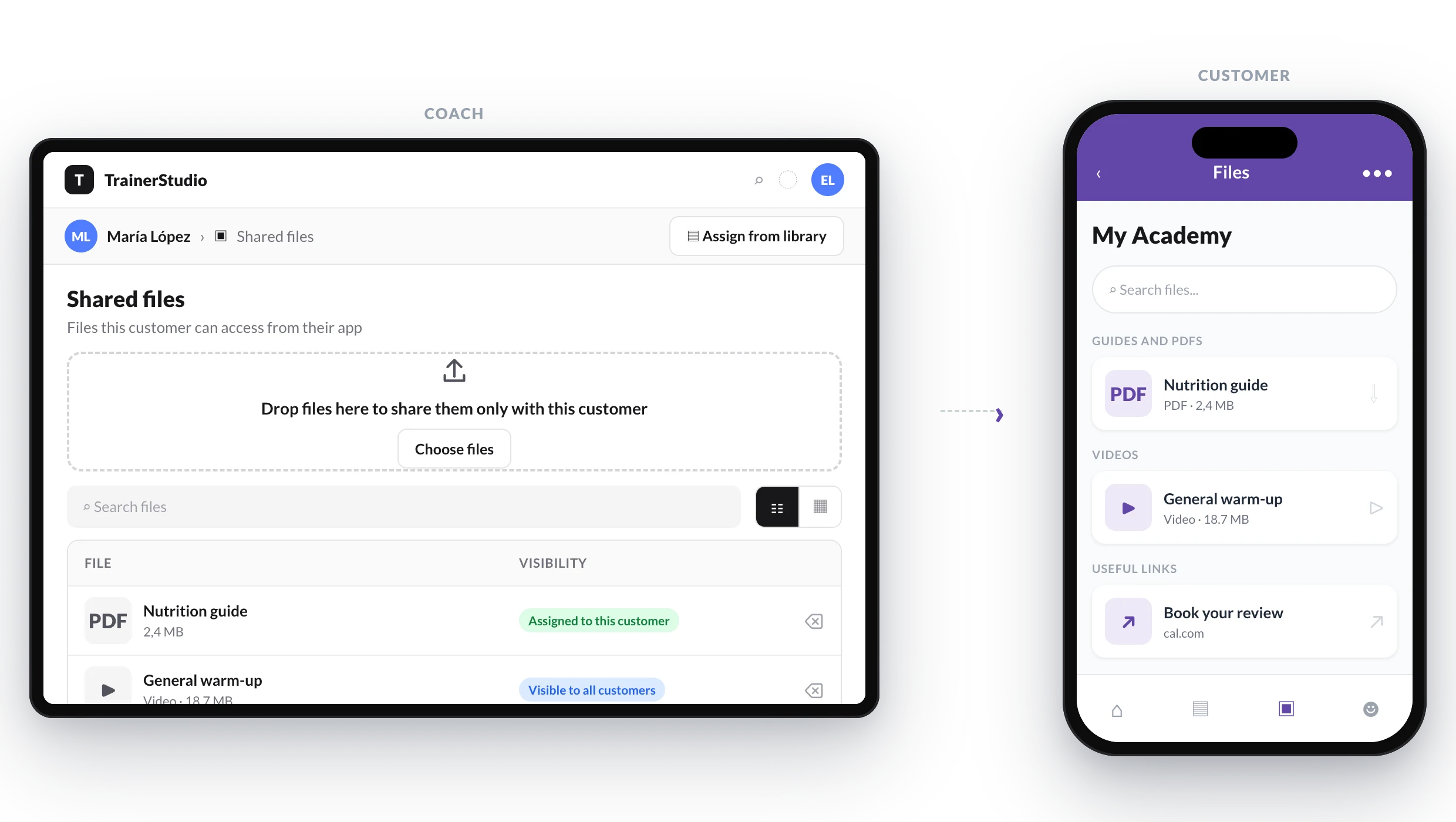
You decide who can access each file; every client sees only the resources available to them.
What you can share
- PDF documents up to 50 MB
- JPEG, PNG, GIF, and WebP images up to 10 MB
- MP4, WebM, and MOV videos up to 500 MB
- Links added from the Academy library
Share a new file with a client
Use this option when a file is intended for just one person:
- Go to Clients and open the client's profile.
- Open Shared files.
- Drag one or more files into the upload area or click Choose files.
- Wait for the confirmation message.
The file will be added to your Academy library and assigned only to that client.
If you upload several files, TrainerStudio processes them one at a time and shows the result of each upload.
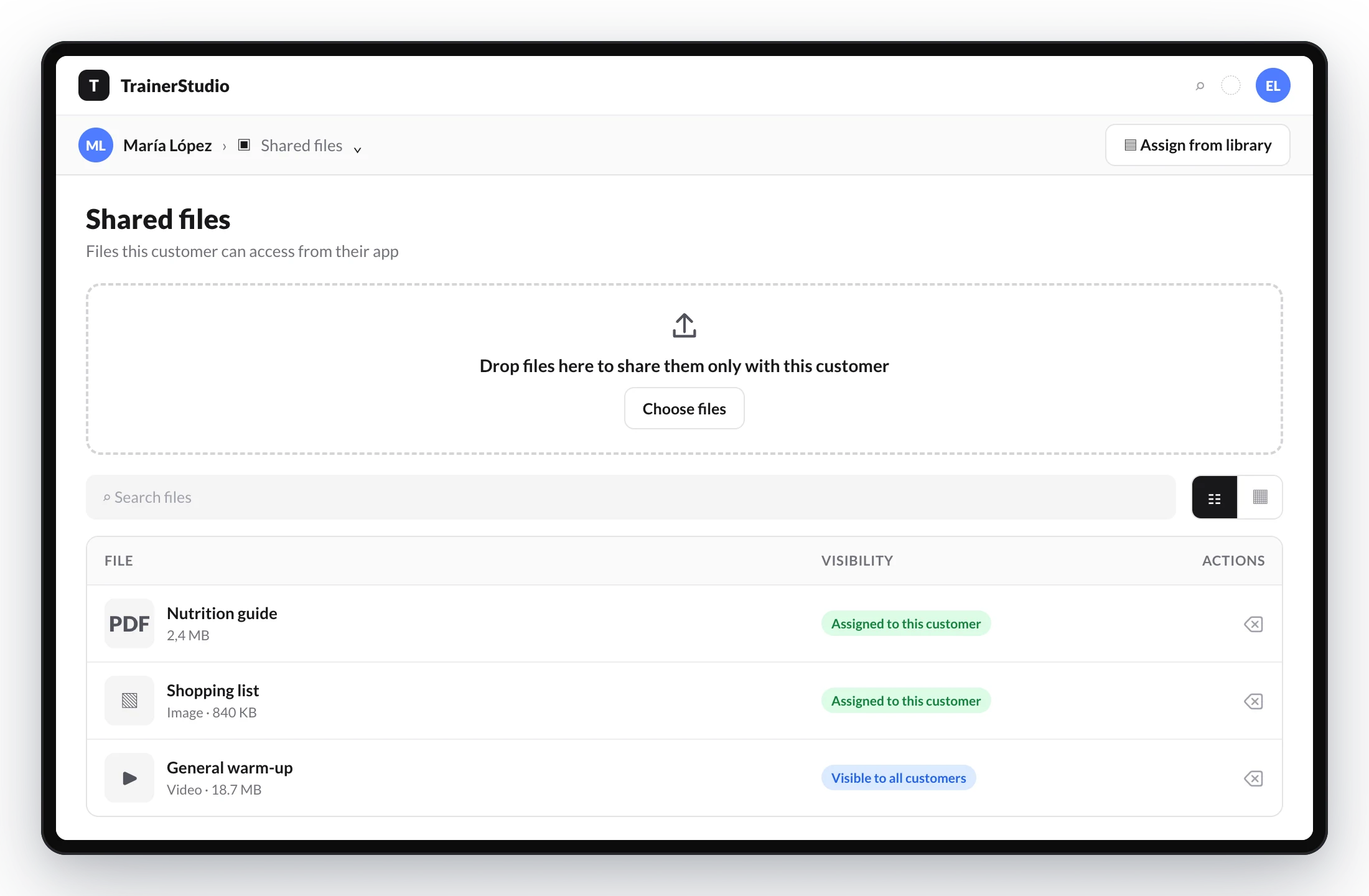
From a client's profile, you can upload files, search for them, and check why the client has access to each one.
Assign an existing file
You can reuse a file that is already in your library:
- Go to Clients and open the client's profile.
- Open Shared files.
- Click Assign from library.
- Select one or more files.
- Click Assign.
The list only shows restricted files that the client cannot access yet. Files visible to everyone are already available and do not need to be assigned.
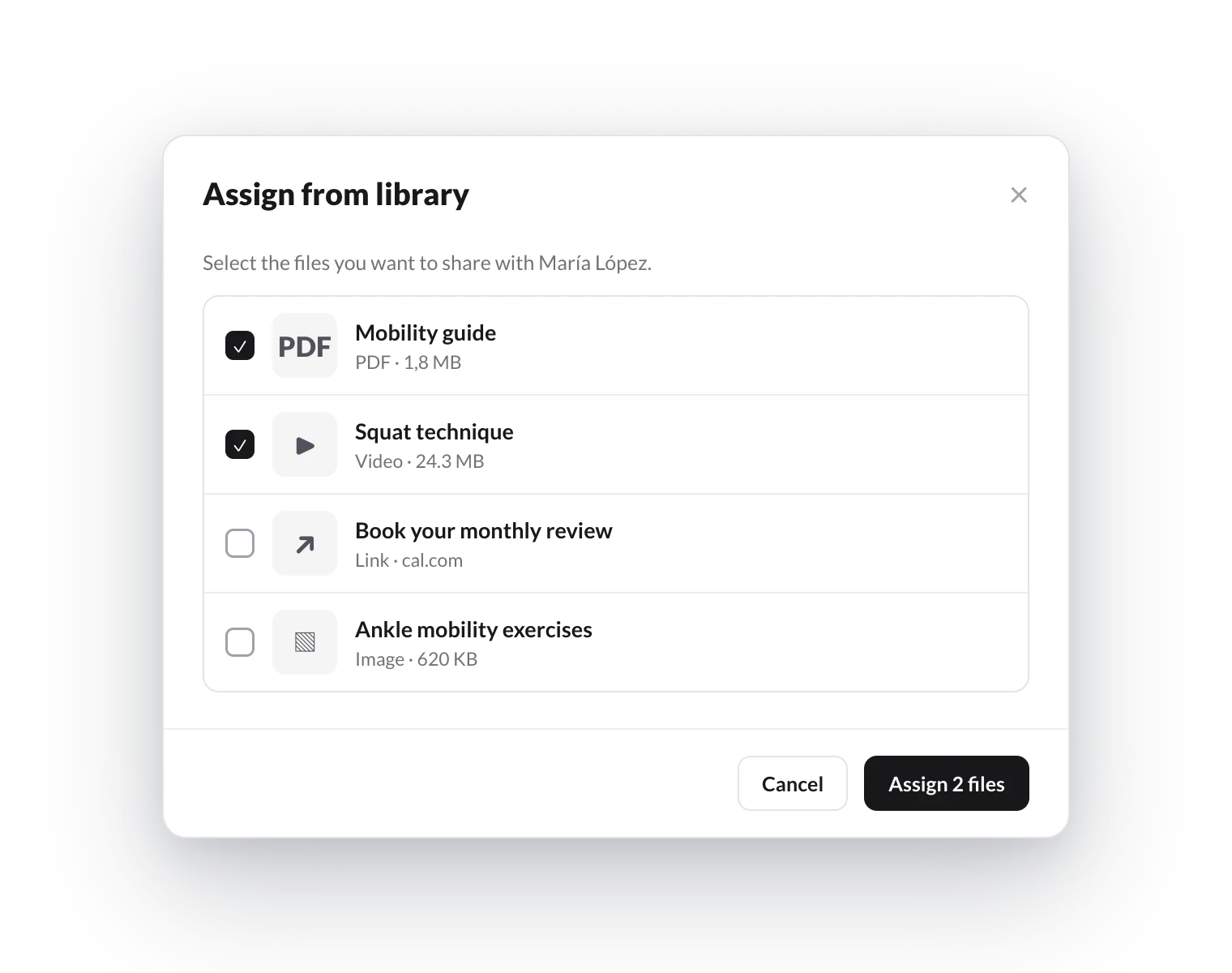
You can select several library resources and assign them at the same time.
Choose who can see a file
You can also configure visibility from the Academy:
- Go to Library → Academy → Files.
- Click Add file or edit an existing file.
- Under Visibility, choose an option:
- All clients: the file will be available to current clients and any clients you add in the future.
- Specific clients: only the people you select will be able to see it.
- If you choose Specific clients, search for and select at least one client.
- Complete the file details and save your changes.
The library's Visibility column shows whether a file is available to everyone or how many clients can access it.
Files created before per-client visibility was introduced remain visible to everyone until you change their settings.
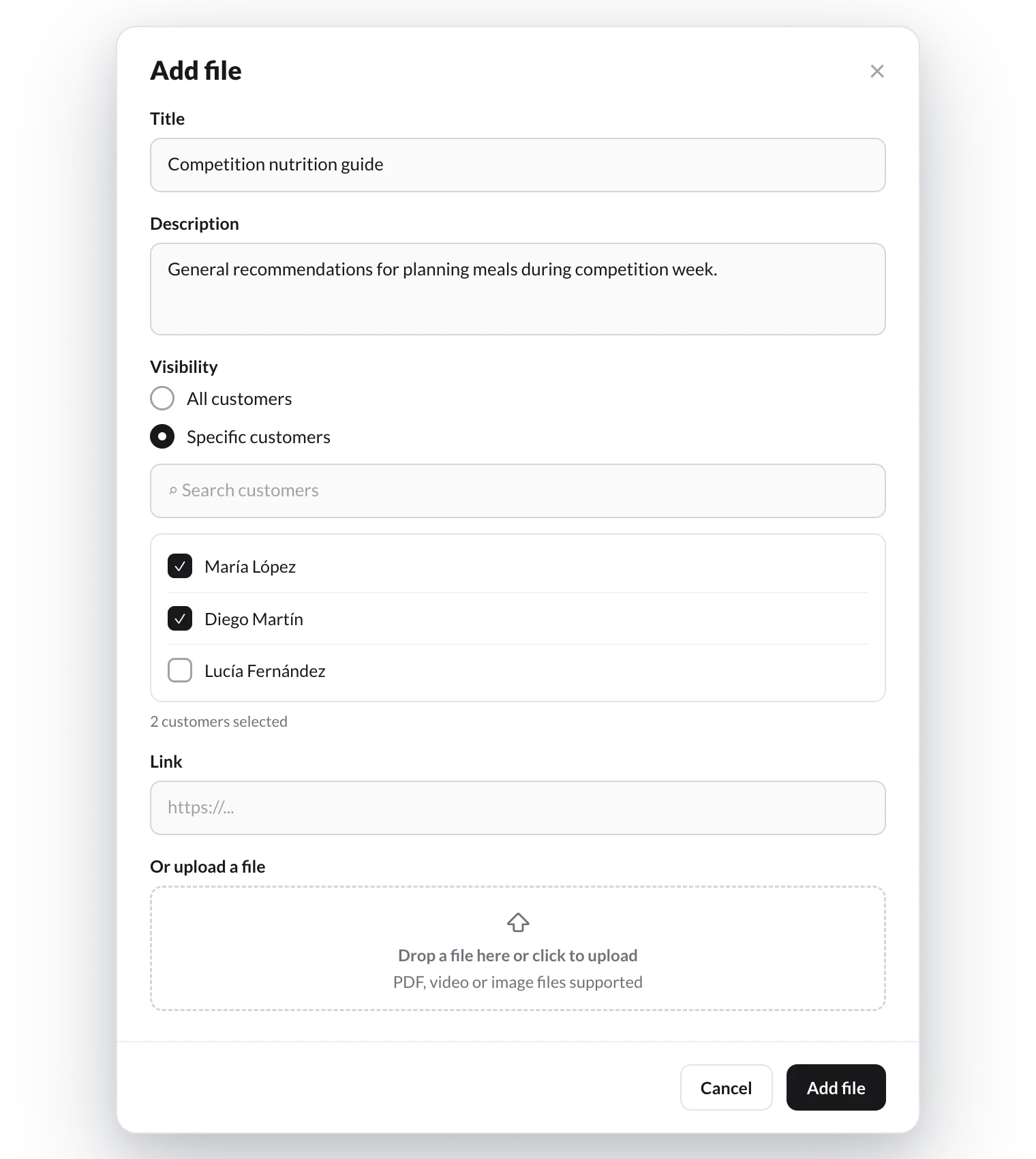
When adding or editing a file, choose whether it is available to everyone or only to specific clients.
Review a client's files
Go to Clients, open the person's profile, and select Shared files.
The list includes:
- Files assigned specifically to that client.
- Files shared with all clients.
The visibility label explains why the client can access each file.
Remove access
Under Shared files, use the remove action next to a file assigned specifically to that client.
You cannot remove a file that is visible to everyone from just one person. To do so, go to Library → Academy → Files, edit the resource, change its visibility to Specific clients, and select who should retain access.
If you remove the last client from a restricted file, TrainerStudio will ask for confirmation before also deleting the resource from the library. The stored file will only be deleted if it is not used in any other Academy content.
Delete a file for everyone
Delete the resource from Library → Academy → Files to remove it from the library and revoke access for all clients. TrainerStudio will show you the affected audience before you confirm.
If the same file is used in other Academy content, TrainerStudio will keep the stored file and notify you.
Request a signature for a PDF
If the file is a PDF — an informed consent, an authorisation, or your house rules — you can ask the client to sign it without leaving this screen. Open the file's Actions menu and click Request signature.
Read how to request a document signature to see the full process, the status of each request, and what information is kept as evidence.
What each client will see
Each person will only see standalone Academy files that:
- are shared with all clients; or
- have been assigned specifically to them.
Clients cannot discover or open files restricted to other people.
File visibility does not change access to lessons in a published course. Publishing the course still controls the availability of its lessons.
Frequently asked questions
Why can't I save a file?▼
It needs a title and a file or link. If you choose Specific clients, select at least one person.
Why can't I find a client?▼
Search by name. Only active clients you can manage are shown.
Why doesn't a file appear when assigning from the library?▼
The client already has access, the file is visible to everyone, or it belongs to a course instead of being a standalone resource.
Why does the upload fail?▼
Check that the format and size meet the limits under What you can share.