
How to reply to your clients on WhatsApp?
When you schedule WhatsApp reminders, your clients receive them from the TrainerStudio number. If they reply to that message, the conversation shows up in the WhatsApp inbox of your dashboard and you can answer from there, without sharing your personal number.
This guide explains where conversations come from, how to reply, what the 24-hour window is and how to translate a message with AI.
1. Open the WhatsApp inbox
Go to Customers → WhatsApp in the side menu. On the left you will see the list of conversations, sorted by latest activity, with the time since the last message (for example, "50m", "2d").
If you do not have any yet, the screen reminds you how it works:
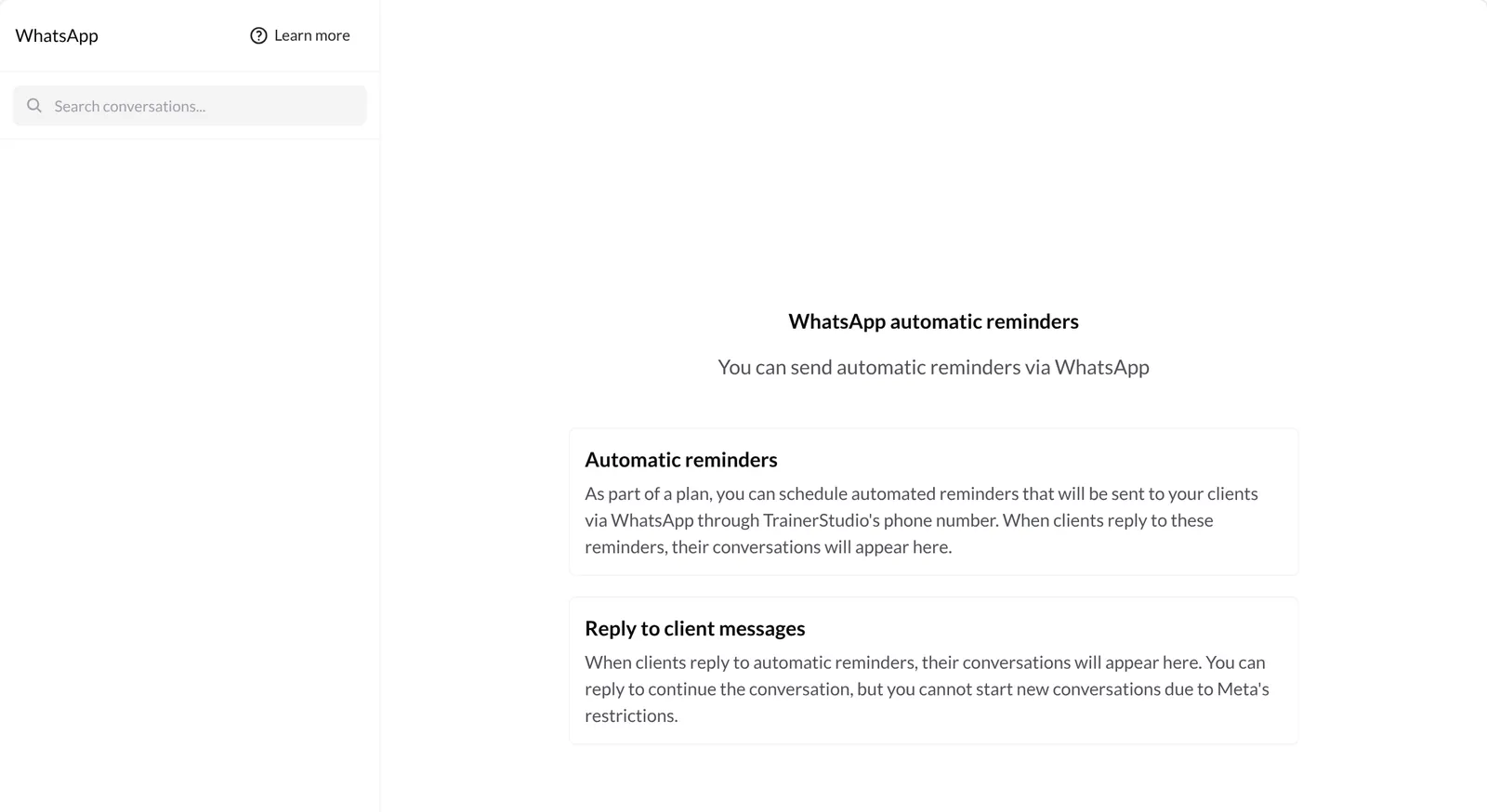
- Conversations start from your reminders. When a client replies to a WhatsApp reminder, their conversation appears here.
- You cannot start the conversation. This is a Meta restriction (Meta owns WhatsApp): the client has to write first.
The Learn more button opens a short tutorial with these same rules.
2. Read and reply to a conversation
Click a client to open the conversation. The messages you send (including reminders) appear on the right, in green; your client's messages appear on the left. If the conversation is long, click Load older messages at the very top.
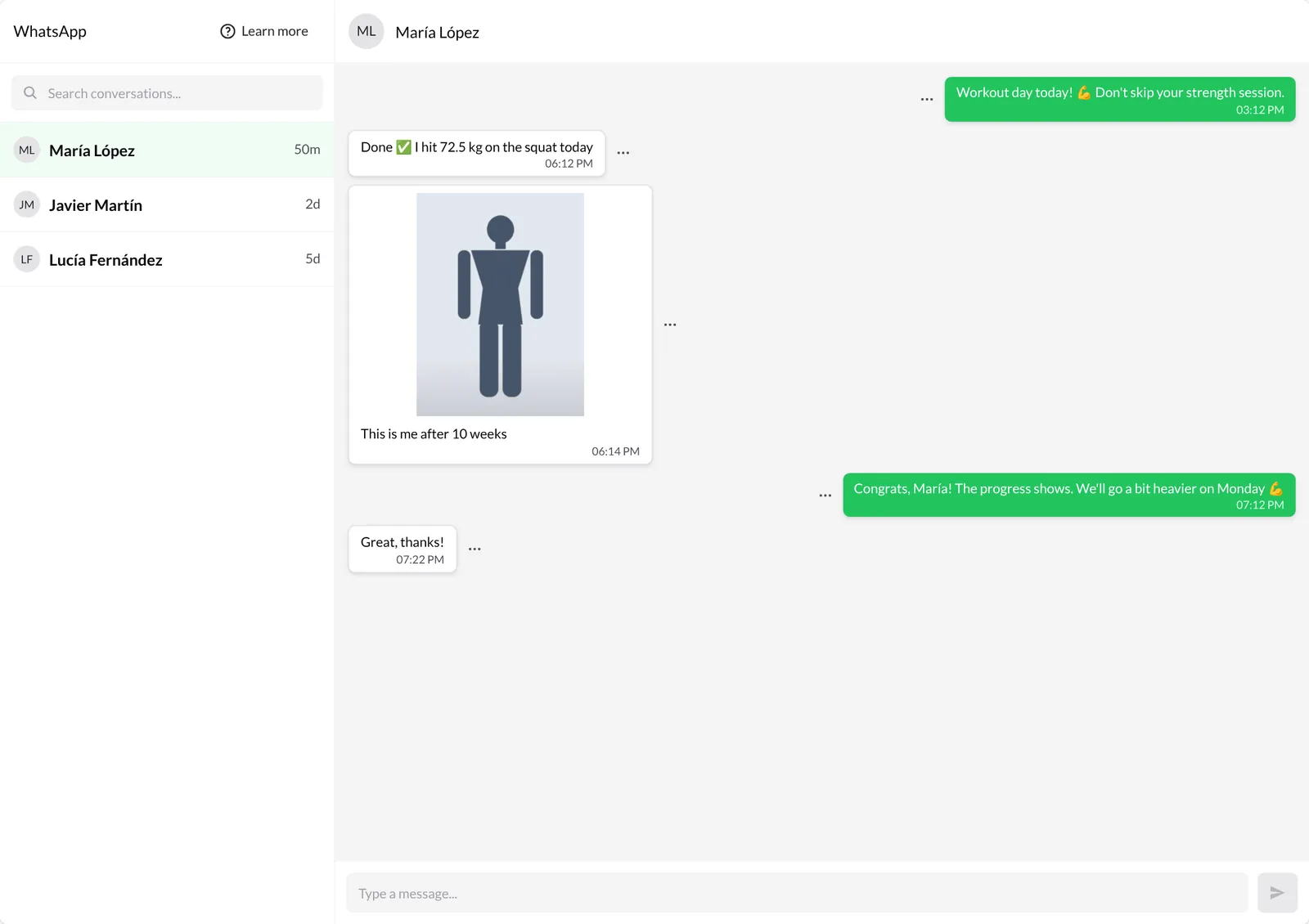
To answer, type in Type a message... and press Enter or the send button. Your reply reaches the client on WhatsApp from the TrainerStudio number.
Your clients can also send you photos, videos, voice notes and files: they are shown inside the conversation (photos and videos with their caption, if any, and files with a link to download them). From the inbox you reply with text.
3. Translate a message with AI
If a client writes to you in another language, hover over their message and click the ⋯ button next to it. Choose Translate with AI.
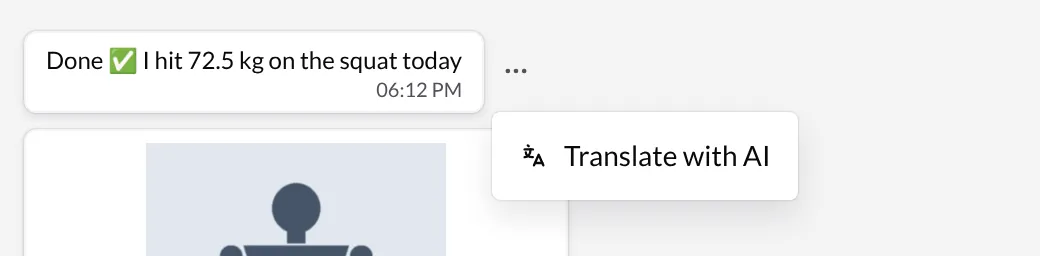
The translation appears under the original message, labelled Translation, in the language you use TrainerStudio in. To remove it, open the ⋯ menu again and click Hide translation. The original message does not change and your client sees nothing.
4. The 24-hour window
WhatsApp only lets you reply during the 24 hours after the client's last message. After that, the text box is replaced by the notice The 24-hour response window has ended:
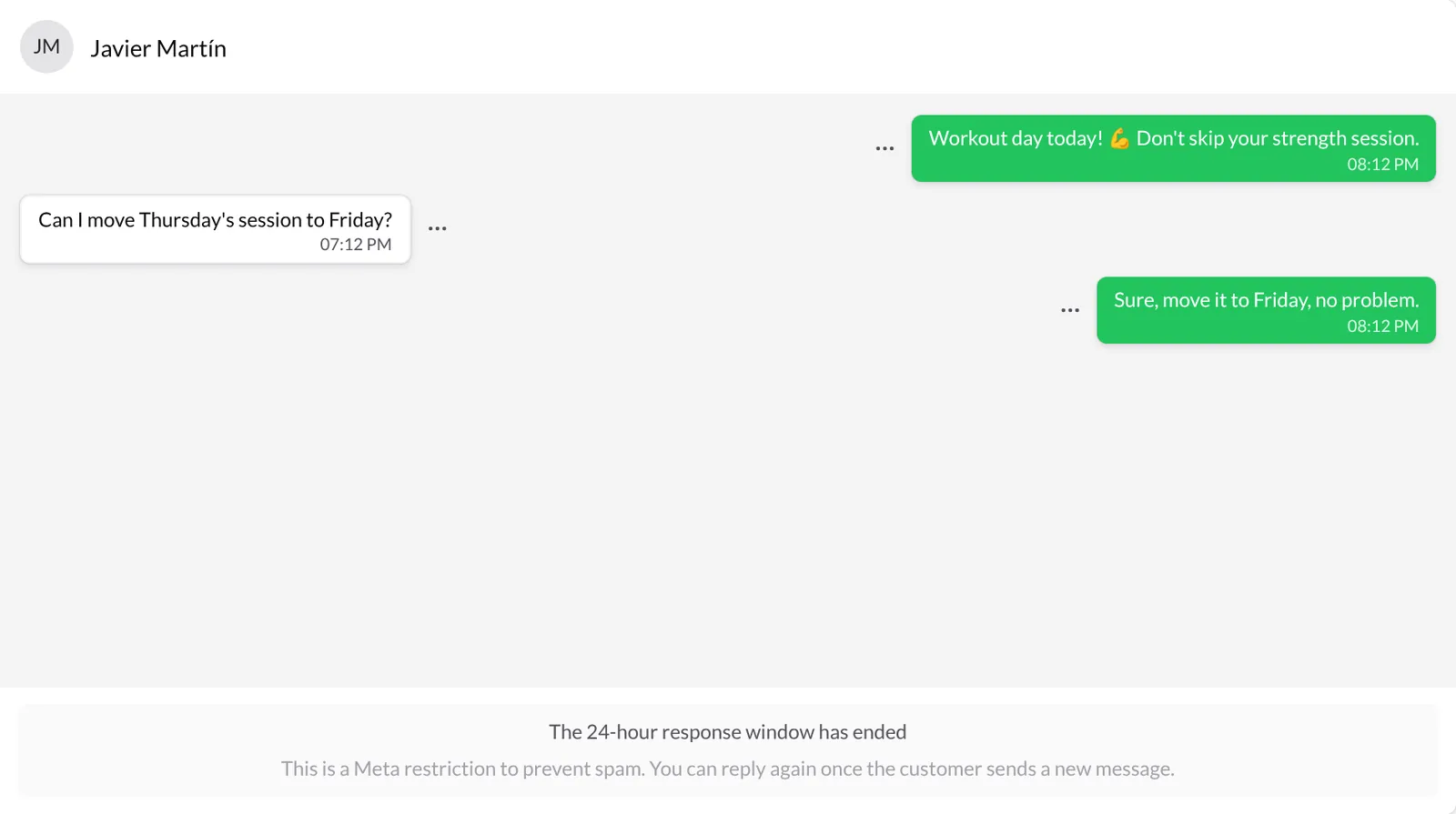
It is a Meta anti-spam measure. As soon as the client writes to you again (for example, by replying to your next reminder), the window opens again and you can answer.
If you need to talk to a client whenever you want, without waiting for them to write, use the TrainerStudio chat. WhatsApp is designed mainly for automatic reminders and quick replies.
Good to know
- Keep phone numbers up to date. Reminders, and therefore conversations, only work if each client has their correct phone number in their profile. Check it when you create or edit the client.
- One conversation per client. All the replies from the same client are grouped in the same conversation.
- Reply quickly. You have 24 hours from the client's last message; after that you have to wait for them to write again.
- Your number stays private. Everything goes through the TrainerStudio number: the client never sees your personal phone.
- WhatsApp or chat. Use WhatsApp for reminders and one-off replies, and the in-app chat for ongoing conversations.
Related guides
How to use TrainerStudio chat?
Communicate directly with your clients from TrainerStudio without needing external apps like WhatsApp or Telegram.
How to set up your notifications?
Choose which client actions alert you by push notification or WhatsApp, enable notifications in your browser or on your phone, review the notification history and manage your linked devices.