
How to use the public exercise library?
The public library gathers ready-made exercises, with a name, instructions and classification, organised into themed libraries. You don't have to build them from scratch: copy them to My Exercises and from then on they are yours to edit and use in any program or client plan.
1. Open the public library
Go to Library → Exercises and open the Public Library tab. The Origin column shows which library each exercise belongs to.
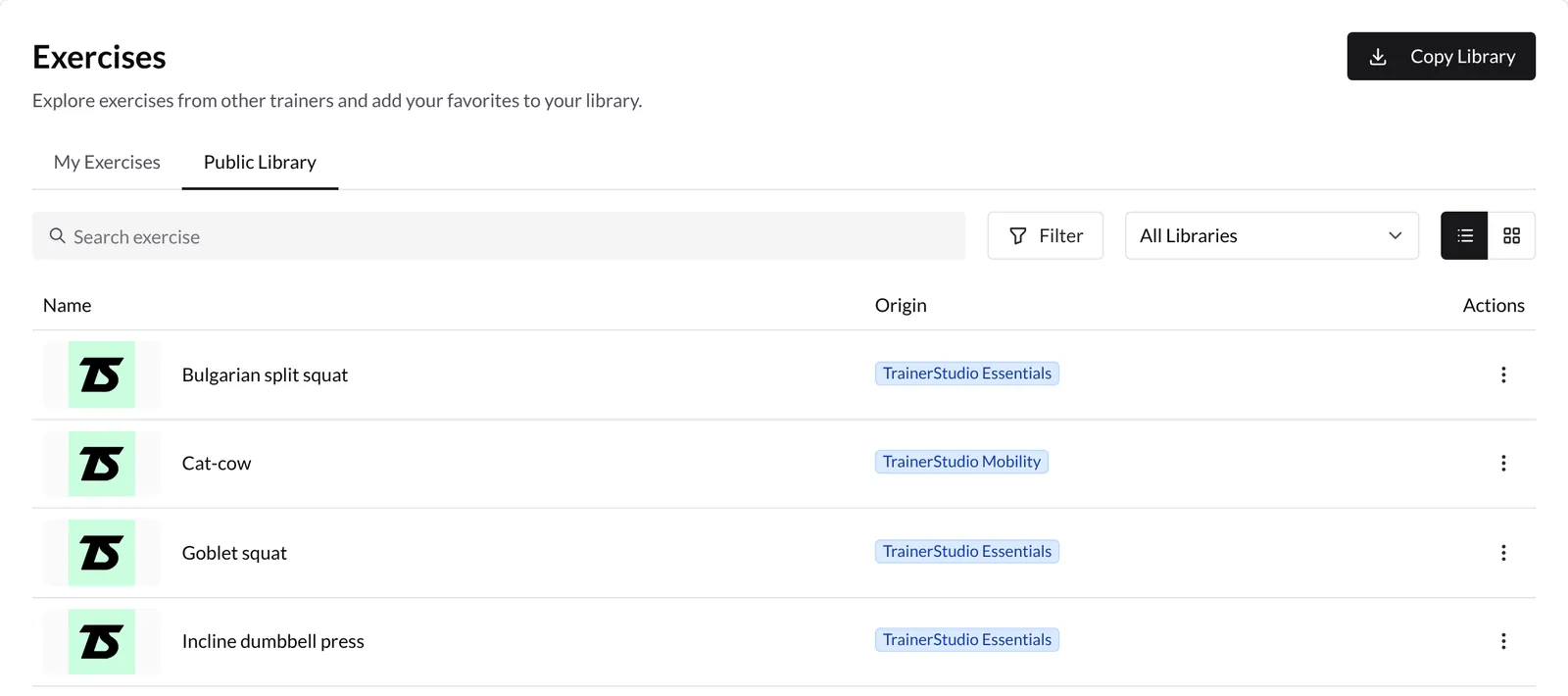
Names and instructions are shown in the language you use TrainerStudio in. Switch between list and grid view with the buttons on the right.
2. Search and filter
- Search exercise: type part of the name.
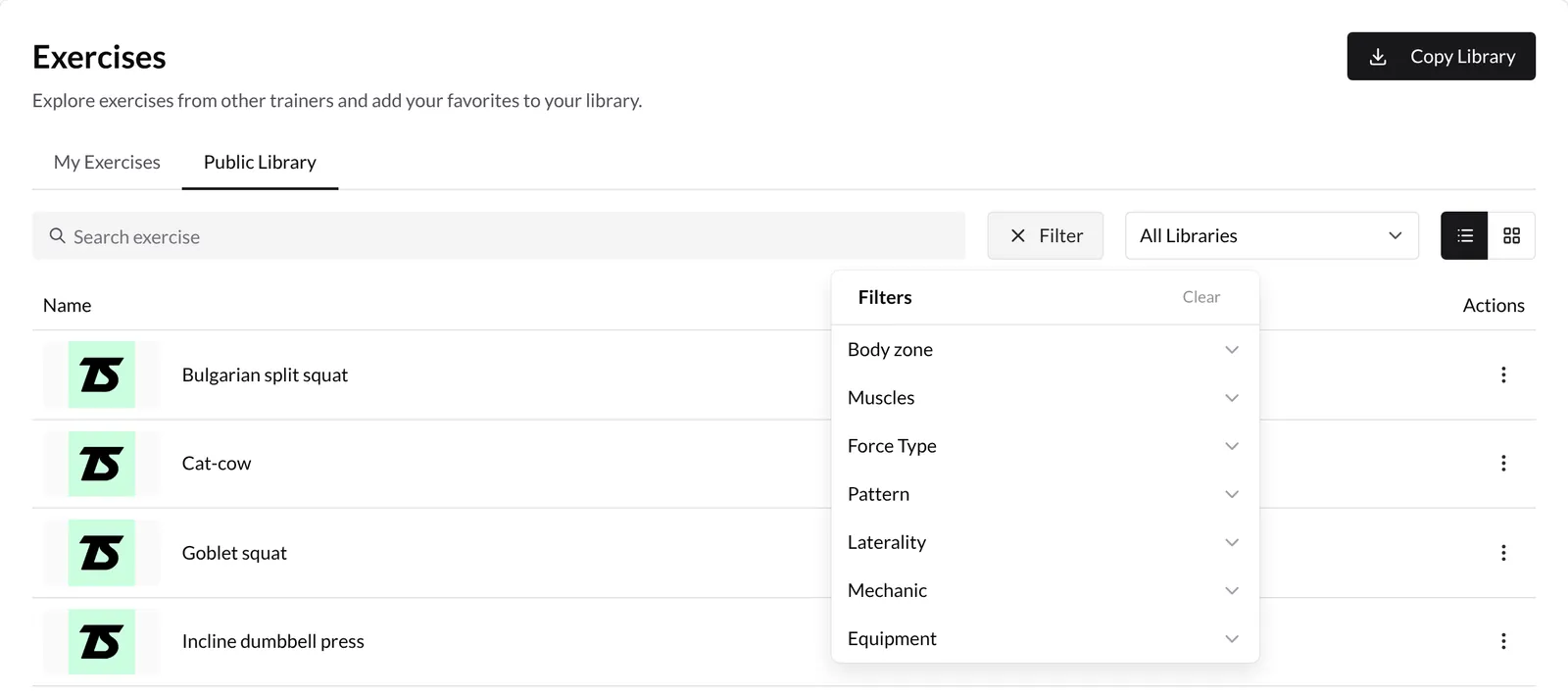
- Filter: filter by Body zone, Muscles, Force Type, Pattern, Laterality, Mechanic and Equipment. You can combine several; Clear removes them all.
- All Libraries: pick one library to see only its exercises.
3. Copy one exercise to your library
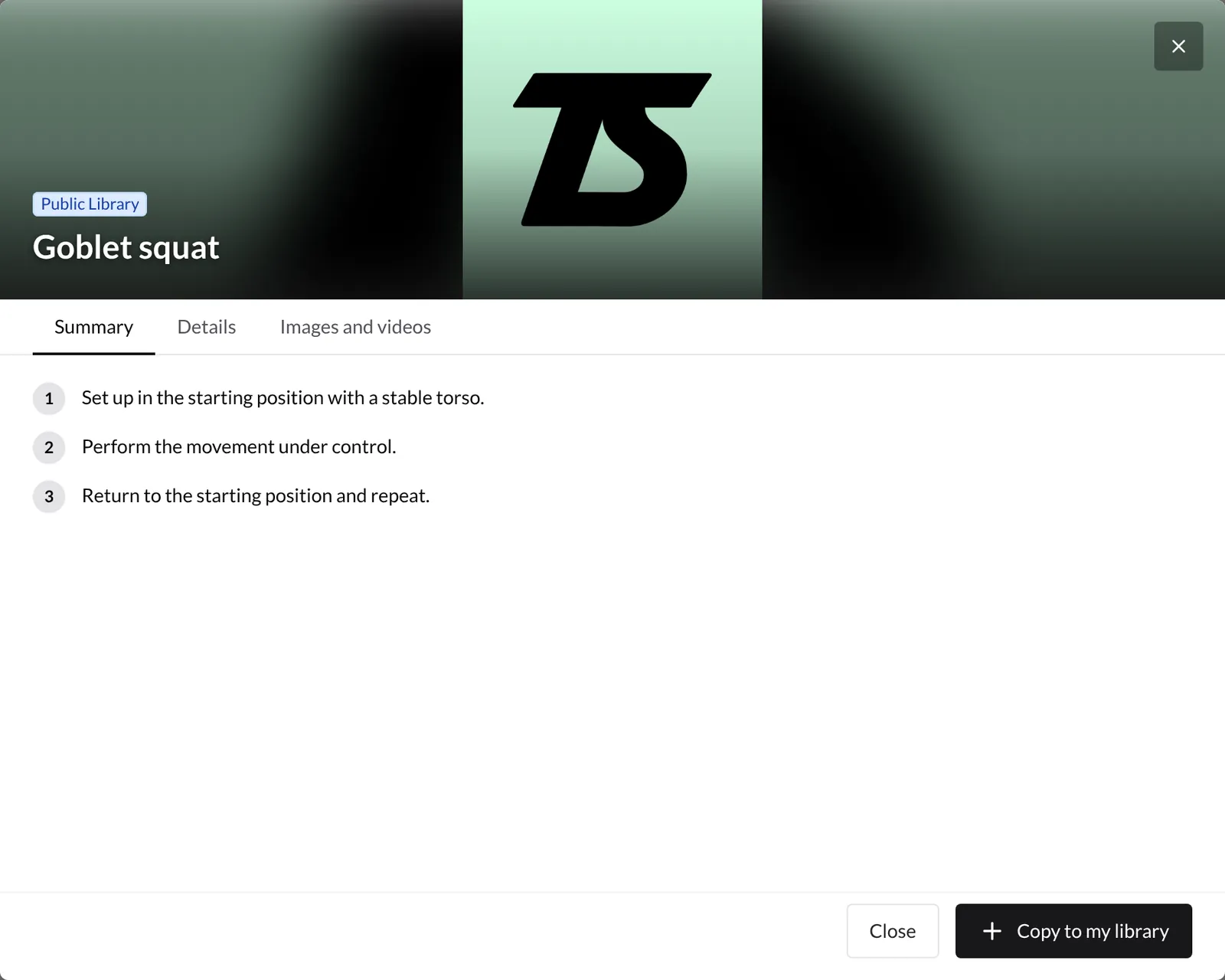
Click an exercise to open its details: Summary (step-by-step instructions), Details (muscles, pattern, equipment…) and Images and videos. If it suits you, click Copy to my library.
You can also do it without opening the details: in the exercise's ⋮ menu, choose Add to my library.
4. Copy a whole library
To bring in many exercises at once:
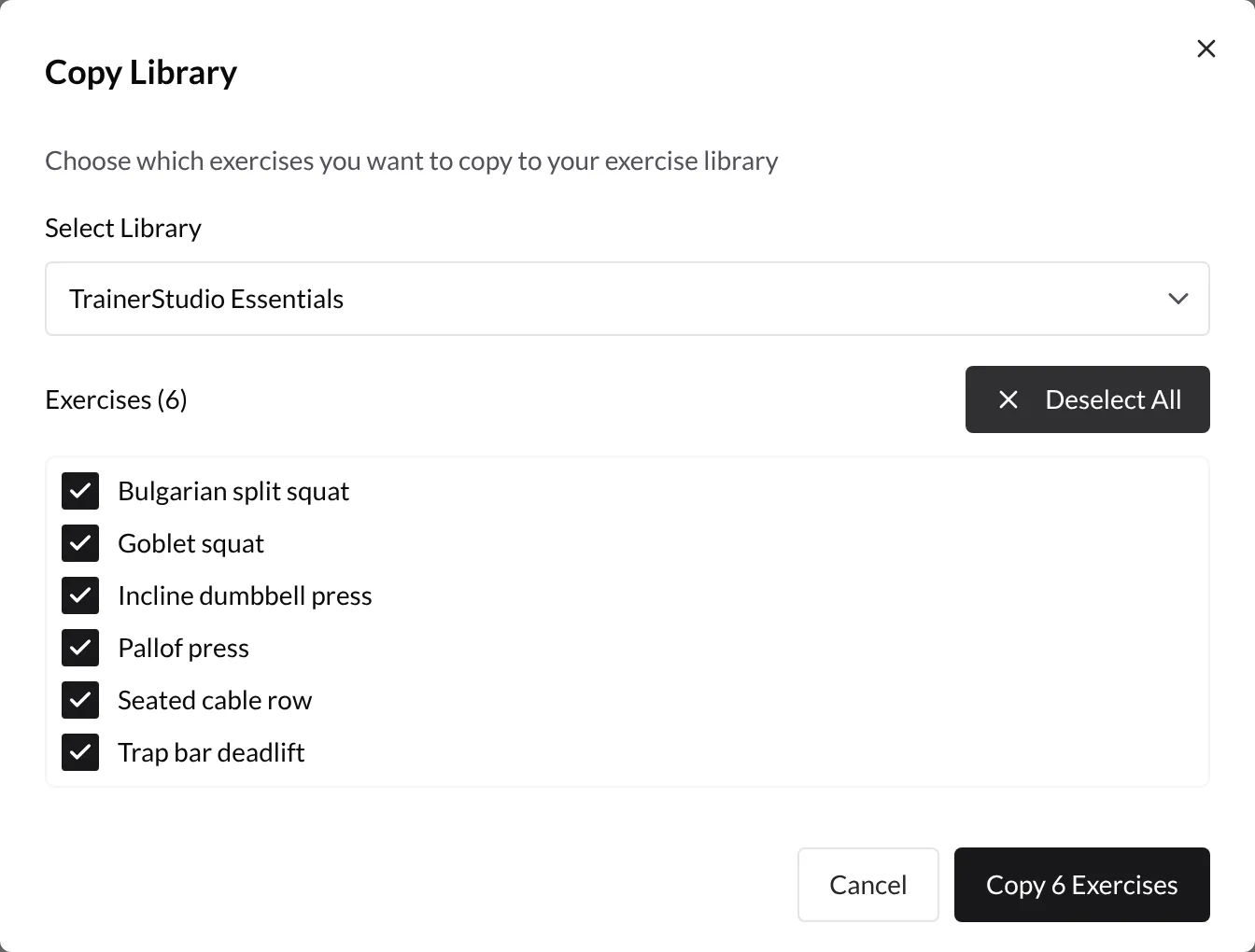
- Click Copy Library (top right).
- Under Select Library, choose the library.
- Tick the exercises you want, or click Select All.
- Click Copy N Exercises.
When it finishes you'll see the Import Summary: how many exercises were processed, how many were imported and how many were skipped.
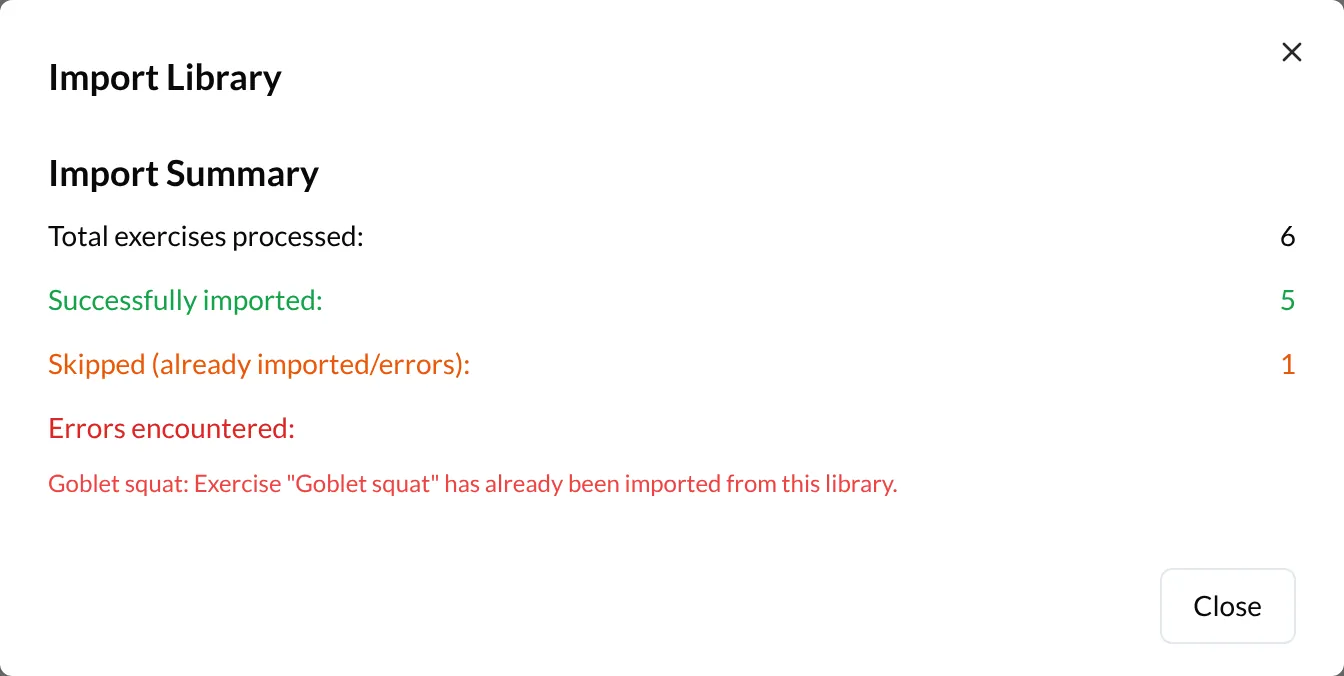
Duplicates are skipped. If you had already copied an exercise, it isn't created again: it shows as skipped and the summary explains why. So you can copy the same library again later to bring in only the exercises you're missing.
5. Find the copied exercises
Copied exercises are in My Exercises, labelled Imported from followed by the library name in the Origin column.
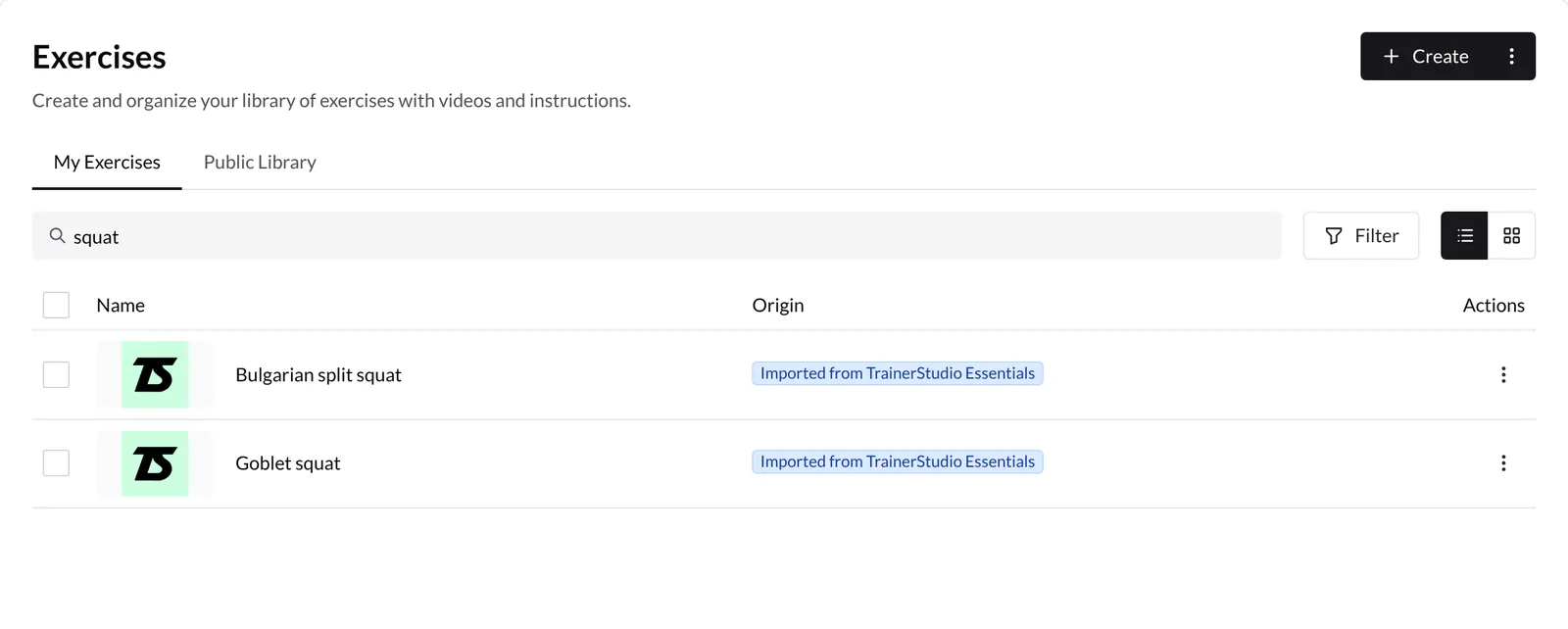
From now on they are your exercises: you can change the name, instructions or videos without affecting the public library, and use them when you prescribe workouts like any other exercise.
Good to know
- The copy is made in your language. The name and instructions are copied in the language you have set in TrainerStudio at that moment.
- Your changes don't sync. Editing a copied exercise doesn't change the public version, and later changes to the public library don't change your copy.
- Missing an exercise? Create it yourself: How to create exercises?
Related guides
How to create exercises?
Create custom exercises in TrainerStudio with your instructions, tags, videos, cover, classification, and workload settings.
How to let your clients swap an exercise?
Give your clients the option to swap an exercise for an alternative you approve. You define the list, they choose during the workout and your programming stays intact.