
Export workouts to PDF and Excel
Export a library program to keep a reusable routine, or a client plan to get that client’s schedule with the adjustments you have made.
The file is a snapshot of the content when you export it. Later changes in TrainerStudio do not update that copy, and editing the Excel file does not change the plan in the app.
Choose a format
| Format | When to use it |
|---|---|
| To print or send to your client. | |
| Excel | To edit and adjust, one sheet per week. |
In the dialog, the format is chosen under Format with a PDF | Excel segmented control; PDF is selected by default, and a hint underneath says what each one is for.
The PDF uses A4 pages and comes in two layouts, chosen under Layout (only shown for PDF):
| Layout | What it looks like |
|---|---|
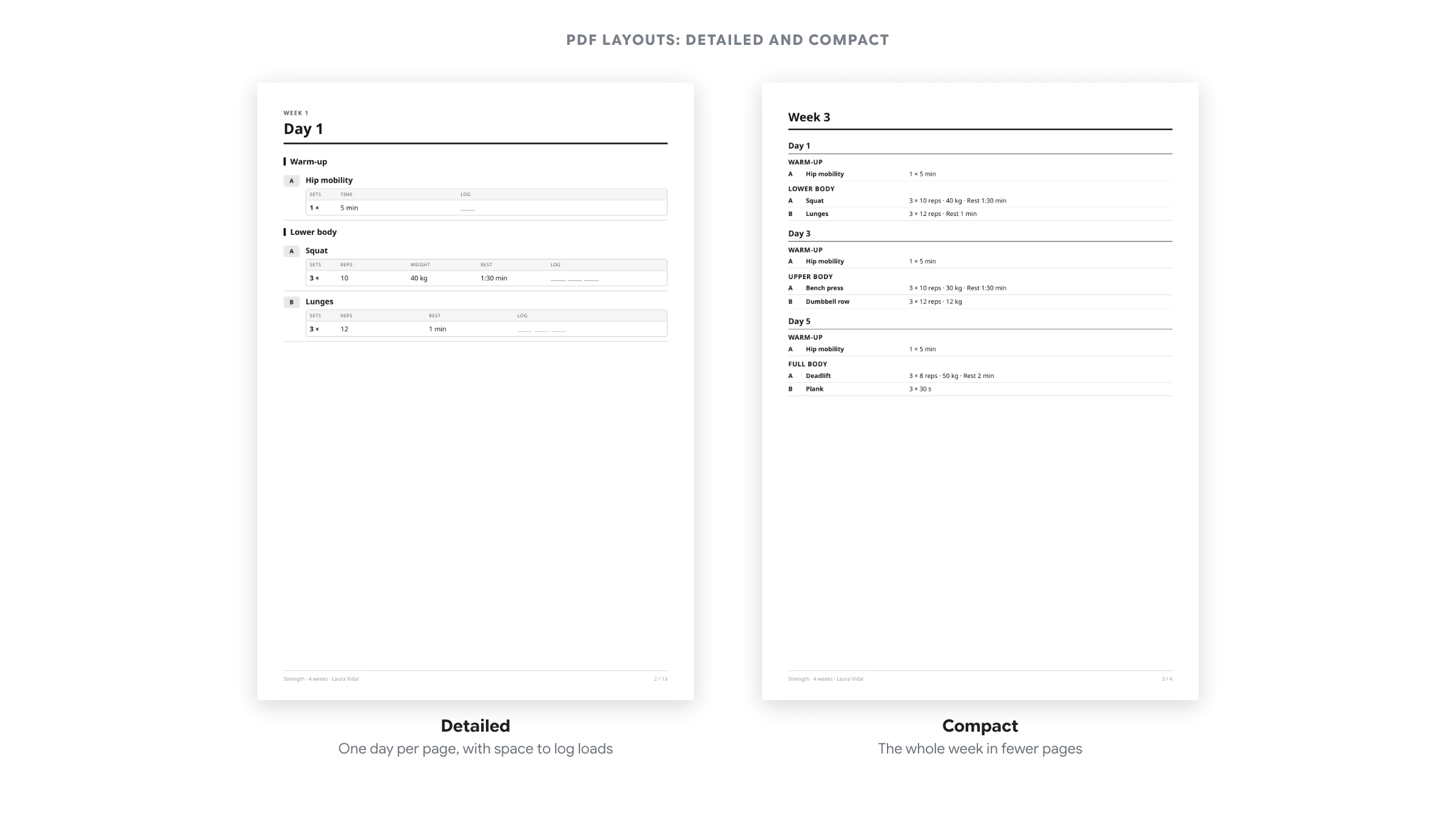
| Detailed | One day per page, with space to log loads. Each training day starts on a new page, with the week as a small heading and the day as the page title, followed by its blocks and exercise tables with a Log column. This is the default layout. |
| Compact | The whole week in fewer pages. Each week flows continuously, one line per exercise, for example “4 × 8 reps · 80 kg · Rest 2 min”. There is no Log column. |
Both layouts open with a cover showing the program or client name, the period, number of weeks and sessions, the coach and the program description, followed by an Overview grid of weeks × days with the name of each session and rest days marked. Days without training do not get pages: they only appear in the overview. The whole PDF is grayscale, designed to print on any printer. Every page footer shows the title, the coach and the page number.
The Excel file opens with a Summary sheet (title, period, weeks, sessions, coach, generation date, description and the same weeks × days overview), followed by one sheet per week. Each week sheet has a header row with #, Exercise, Sets, Set type when needed, one column per variable with its unit in the header (for example “Weight (kg)”), Log and Notes. Days and blocks appear as coloured banner rows, supersets and circuits as label rows, and each group of identical sets takes a single row. Numbers are stored as numbers, so you can use them in formulas. Sheets are set up to print in landscape with the header row repeated on every page.
Where to find Export
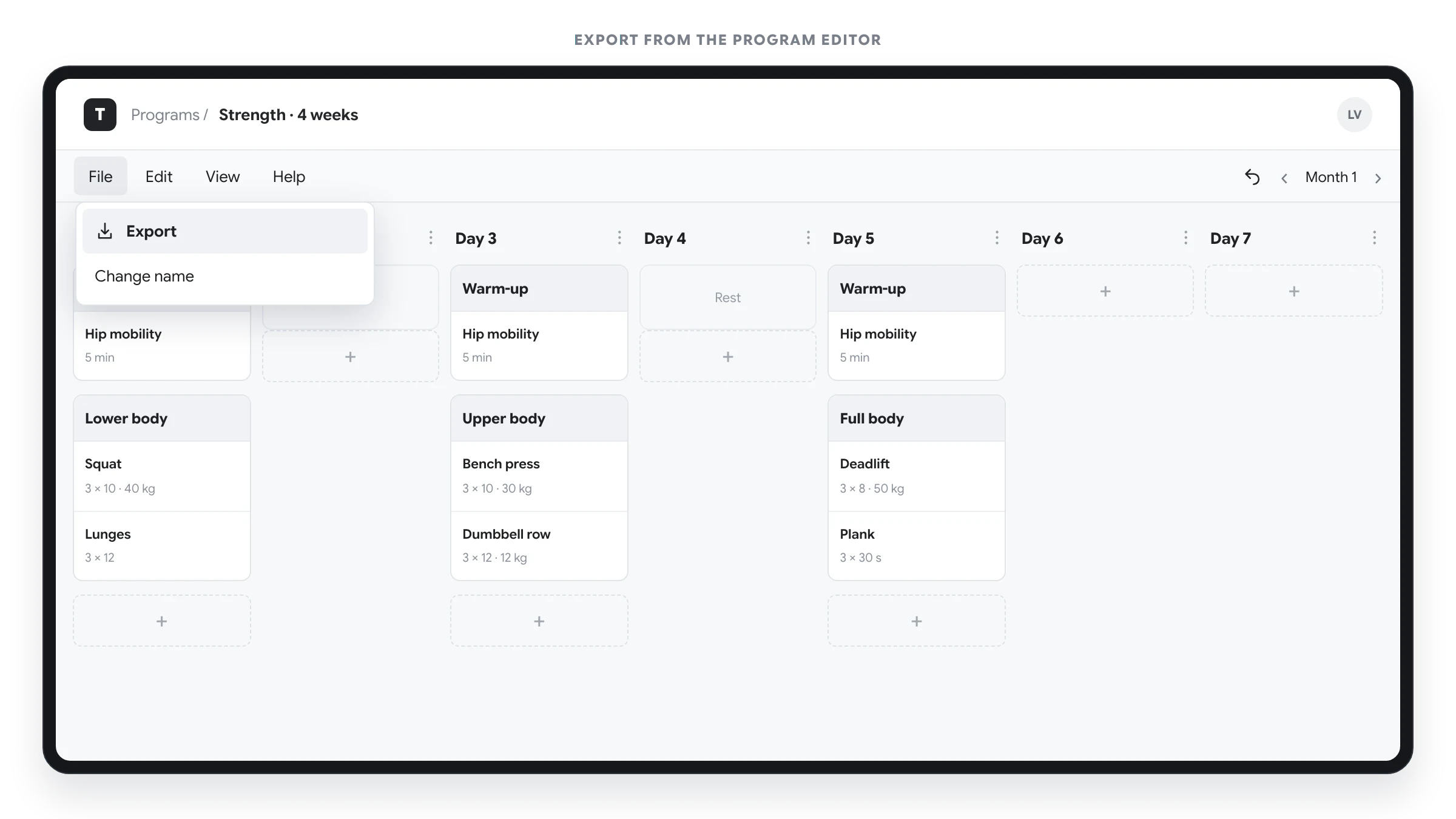
In Library → Programs, open the program’s three-dot menu and choose Export. In the program editor, open File → Export.
For a client, open their Planner and choose Export from the plan options. It is available in both the weekly and monthly views. On mobile, look in the options menu.
The export dialog
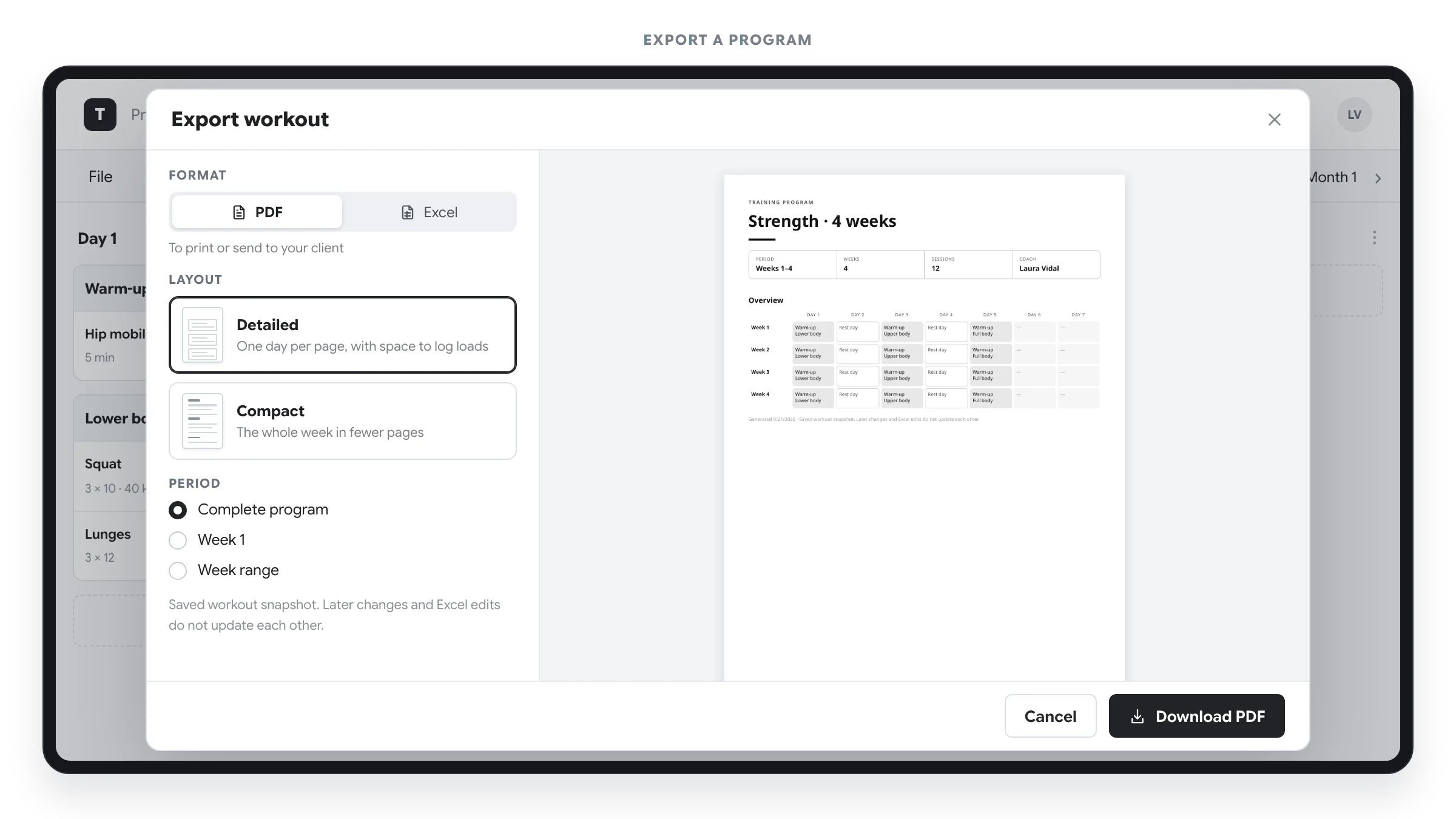
The Export workout dialog has two panes: the options on the left (Format, Layout and Period, followed by a notice that the file is a snapshot) and a Preview of the file on the right. On mobile it fills the screen and the preview appears below the options.
The preview refreshes automatically when you change the layout or the period:
- PDF: shows the actual pages of the PDF you are about to download (up to 12). If the file has more, it tells you how many more pages are in the file.
- Excel: shows the sheets like a spreadsheet, with tabs for Summary and each week.
If the period has no workouts, the preview says so and the download button is disabled. If the file cannot be prepared, a Try again button appears.
Export a library program
- Open Export for the program you want to download.
- Under Format, choose PDF or Excel.
- For a PDF, choose the Detailed or Compact layout.
- Under Period, select Complete program, the current week or Week range.
- Check the preview and click Download PDF or Download Excel. In the mobile app, the button reads Share PDF or Share Excel.
The dialog opens with PDF, Detailed and Complete program selected. The period is a list of options: Complete program, Week N (the current week, shown with its number) and Week range, which adds First week and Last week fields. From the program list, the current week is week 1; from the weekly editor, it is the week you are viewing, and from the monthly editor, the first week of the selected month.
“Complete program” reaches the last week containing content, even if there are empty weeks in between. It includes all seven days of that final week: an empty day is marked as having no plan, not as rest. Empty weeks after the last content are not added.
The program is organized into weeks and days, without assigning a client’s dates. If you need to deliver a version adapted to a person, export from their planner.
Export a client’s plan
- Open the client’s Planner and choose Export.
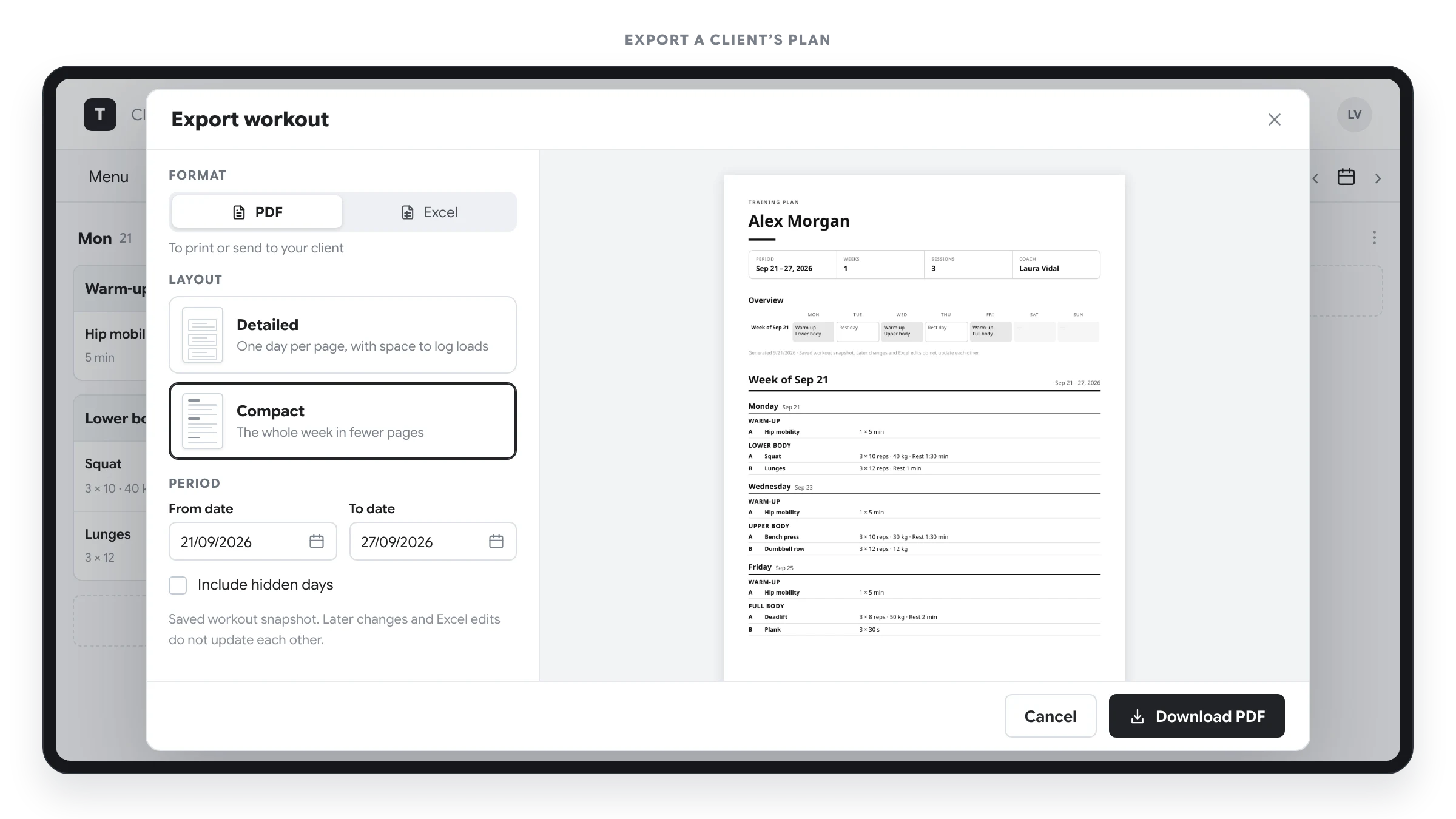
- Under Format, select PDF or Excel and, for a PDF, the Detailed or Compact layout.
- Check the From date and To date of the period you want to provide.
- Decide whether you need to Include hidden days. Check this option carefully before sharing the file with the client.
- Check the preview and click Download PDF or Download Excel (Share PDF or Share Excel in the mobile app).
The initial period is the week you are viewing, or the selected month when you open export from the monthly view. You can edit both dates; there is no option to export the client’s entire history.
Include hidden days is initially unchecked, so those days are omitted. If you check it, they are included and marked as hidden. All days within the chosen period are exported, including weekends, even if the planner shows only five days.
The export uses the current content of the client’s plan, including your changes. It does not copy the original library program again. Both the start and end dates are included in the exported period.
What the file contains
The export contains the prescribed workout, preserving the order of days, blocks, exercises and sets.
| Content | How it appears |
|---|---|
| Exercises and sets | Order codes (A, B, C…) and prescriptions with their variables, values, ranges and units: reps, load, rest, RIR/RPE, duration, distance, tempo and other configured variables. Identical consecutive sets are collapsed into one line, for example “4 × 8–10 reps · 80 kg · 2:30 min”. |
| Log column | Blank slots for each set so the client can write down the actual loads at the gym. In the PDF, it only appears in the Detailed layout. |
| Circuits and supersets | Numbered B1, B2… and shown together in one table, with the circuit format, rounds and duration when available. |
| Daily alternatives | Shown under “Choose one of these options” as Option 1, Option 2…, rather than sessions that must all be completed. |
| Instructions and notes | Text from blocks, exercises and tasks. |
| Rest and days without training | A planned rest day is distinguished from a day without a plan. In the PDF they are shown in the overview; in the Excel file they appear as rows. Hidden days are labelled as such. |
| Tasks, forms, metrics, reminders and attachments | References to view them in the app. |
Relative loads retain the 1RM percentage. If a calculated load is available, it is added as a reference; if the required personal record is missing, the file does not invent a weight. A calculated value reflects the data available at export time, not a reconstruction of past records.
Results logged by the client do not replace the prescribed sets. This file is not an adherence or progress report.
Save and share
The file is created and saved in a single step.
- On the web: click Download PDF or Download Excel. When the download starts, you will see a “File downloaded” message and the dialog closes. Look for the file in your browser’s download list or configured folder.
- In the iOS or Android app: tap Share PDF or Share Excel, then choose an app or a save option from the system share sheet. Available options depend on your device.
The button is disabled while the preview or the file is being prepared, and when the period has no workouts. Cancel closes the dialog without exporting. If you close the share sheet without choosing a destination, you have not shared the file; open Export again to retry.
The file is not sent to the client automatically. You choose where to save it or whom to share it with.
Limits and common questions
Does it include videos, images and attachments?
The document contains text. Media and interactions, such as answering forms or logging results, remain available in TrainerStudio.
Can I import the Excel file again?
This exporter does not offer reimporting. Editing the file outside TrainerStudio does not sync changes to the program or client plan.
Can I export offline?
You need a connection to retrieve current data and create the file. Once saved, you can open it with a compatible app without entering TrainerStudio.
What if there is no content or the export fails?
The preview tells you when the period has no workouts: check the period and whether the content is on hidden days. If an error appears, check your connection and click Try again. For long plans, split the export into smaller periods.
Are changes I am still editing included?
Finish editing and wait for changes to save before exporting. If you change the workout afterwards, export again to get an updated copy.