
How to let your clients swap an exercise?
You can give your clients the option to swap an exercise on their own during the workout, but only for alternatives that you approve.
For each exercise, you define a list of valid alternatives. When that exercise appears in the client's plan, they get the Swap exercise button to choose between those options — and no others. It is a closed list: nobody improvises with something you have not chosen. Useful when the bench is taken, equipment is missing or their shoulder is bothering them that day, without them having to message you.
This guide covers both parts: how you prepare the alternatives and what your client sees.
1. Open the exercise for editing
Alternatives are managed at exercise level, so you can configure them from two places (you will see the same list in both):
- Your exercise library (Exercises tab) → on the exercise card, open the ⋮ menu and press Edit exercise. You can also click directly on the card.
- A client's plan → tap an exercise to open its details.
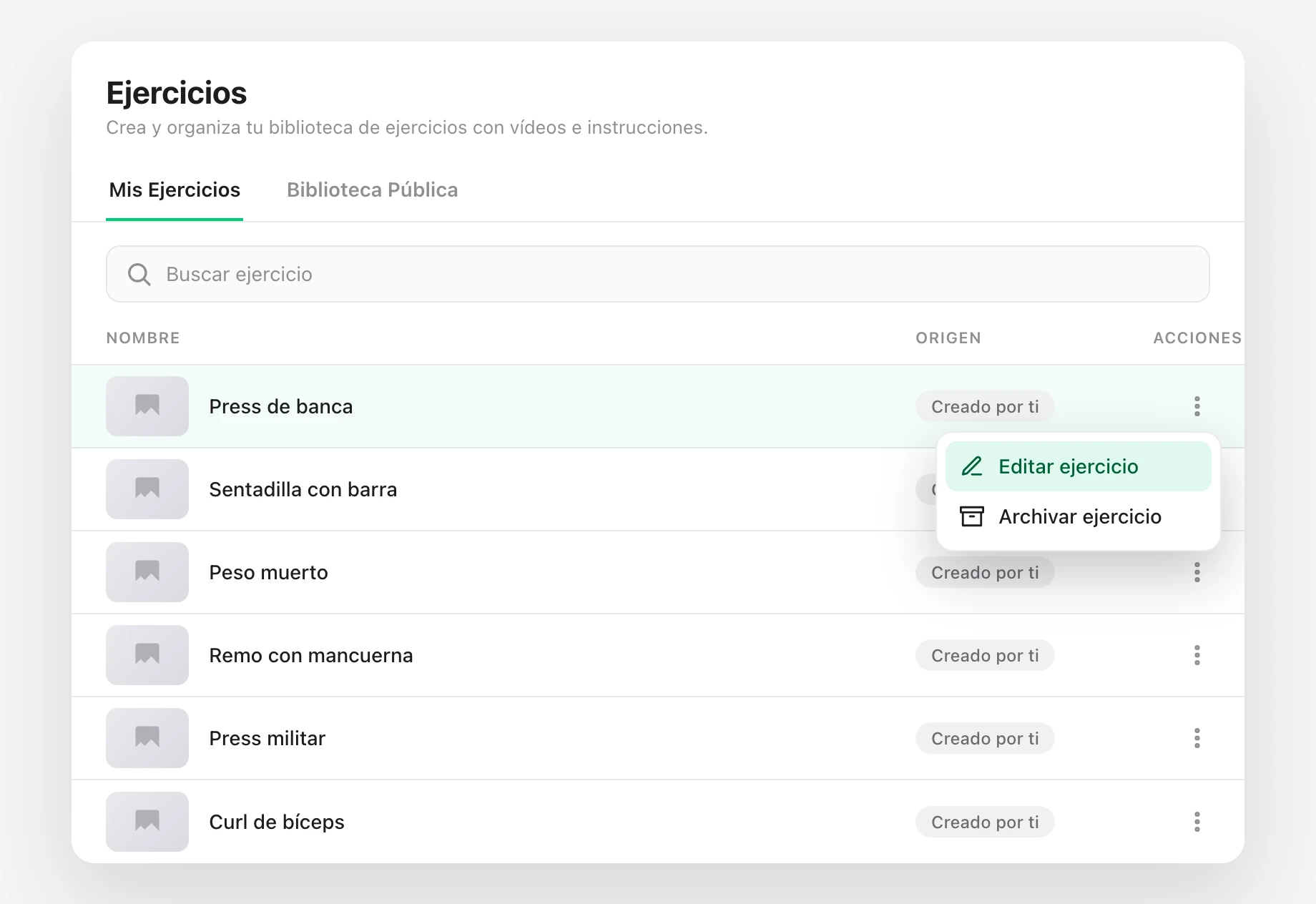
2. Open the "Alternatives" tab
Once inside the exercise editor, switch to the Alternatives tab.
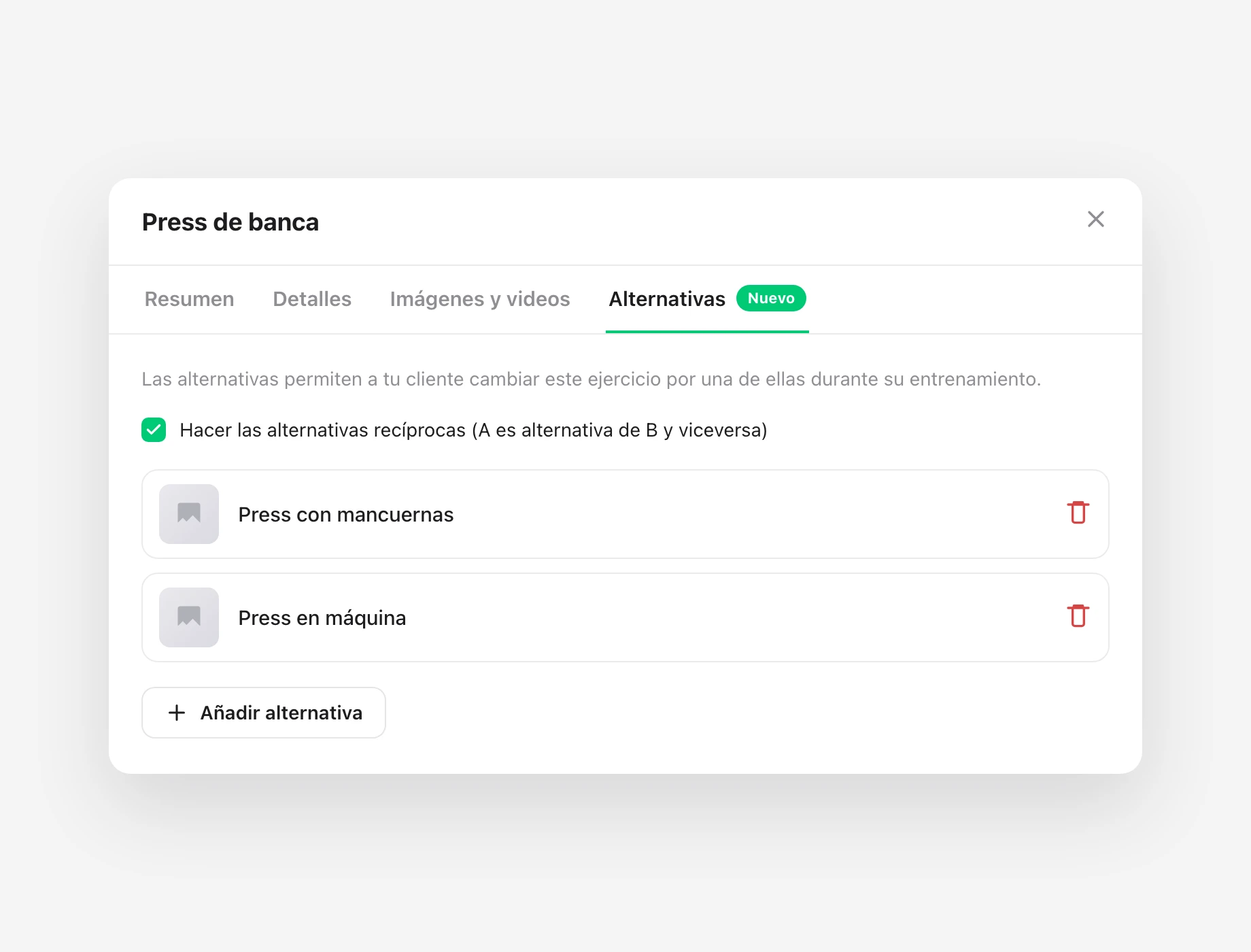
Because alternatives live in the exercise in your library, whatever you configure here applies to every client who has that exercise in their plan. There is no need to repeat it client by client.
3. Decide whether the alternatives are reciprocal
Just below the help text you will see the Make alternatives reciprocal (A is an alternative of B and vice versa) checkbox, ticked by default.
- Ticked (recommended): if you add "Dumbbell press" as an alternative to "Bench press", "Bench press" is automatically added as an alternative to "Dumbbell press". The link goes both ways.
- Unticked: the link goes one way only. Useful when you want a hard exercise to be swappable for an easier one, but not the other way round.
4. Add the alternatives
Press Add alternative. The exercise search opens: type the name and select the one you want from your library.
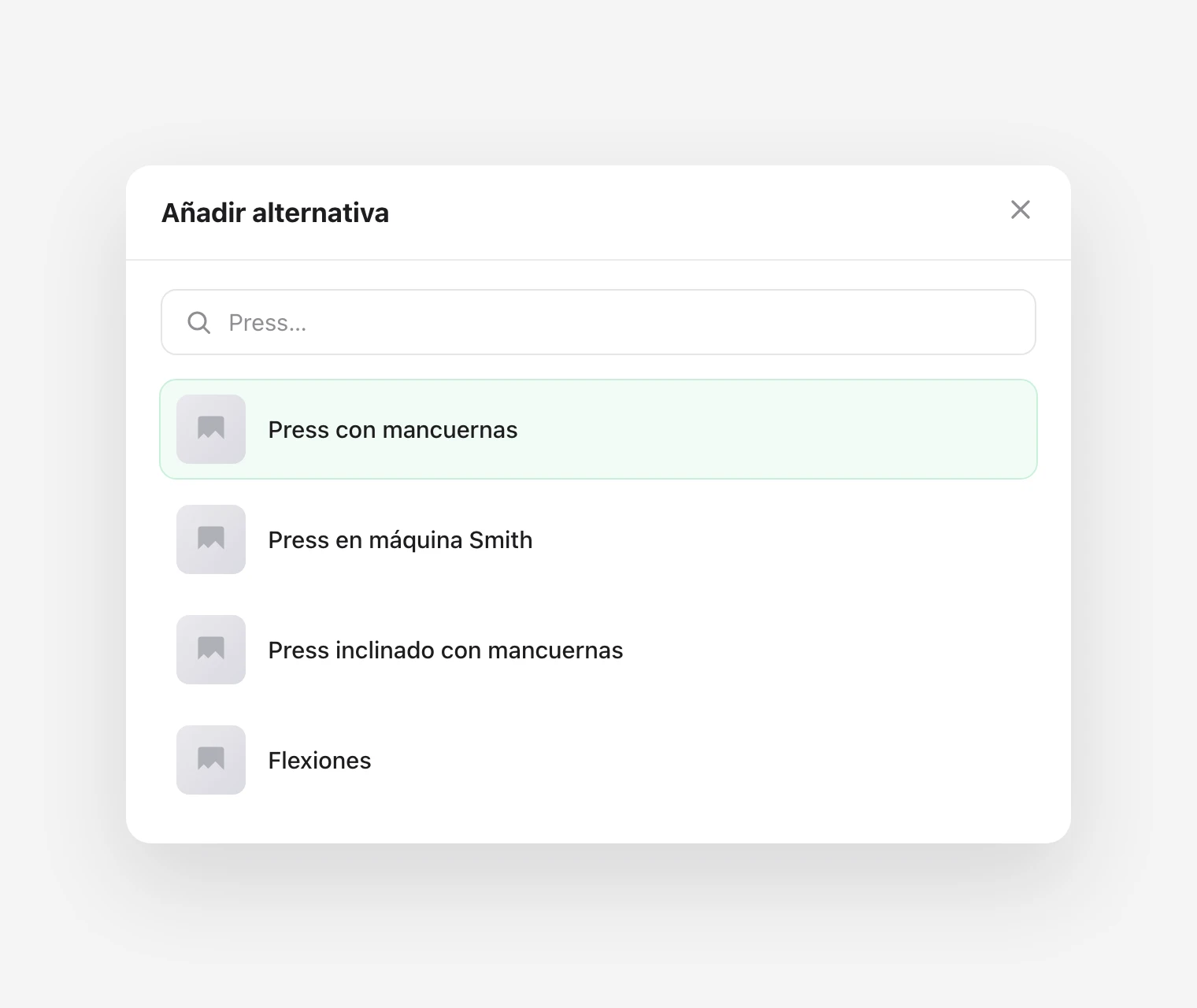
Repeat for each alternative you want to offer. Each one appears in the list with its thumbnail; to remove one, press the bin icon on its right.
A couple of details to keep in mind:
- An exercise cannot be an alternative of itself.
- You can only choose exercises from your own library.
5. What your client sees
In the client app, when an exercise has alternatives, the Swap exercise action appears (on the exercise card and on its detail screen). If an exercise has no alternatives, the button is not shown.
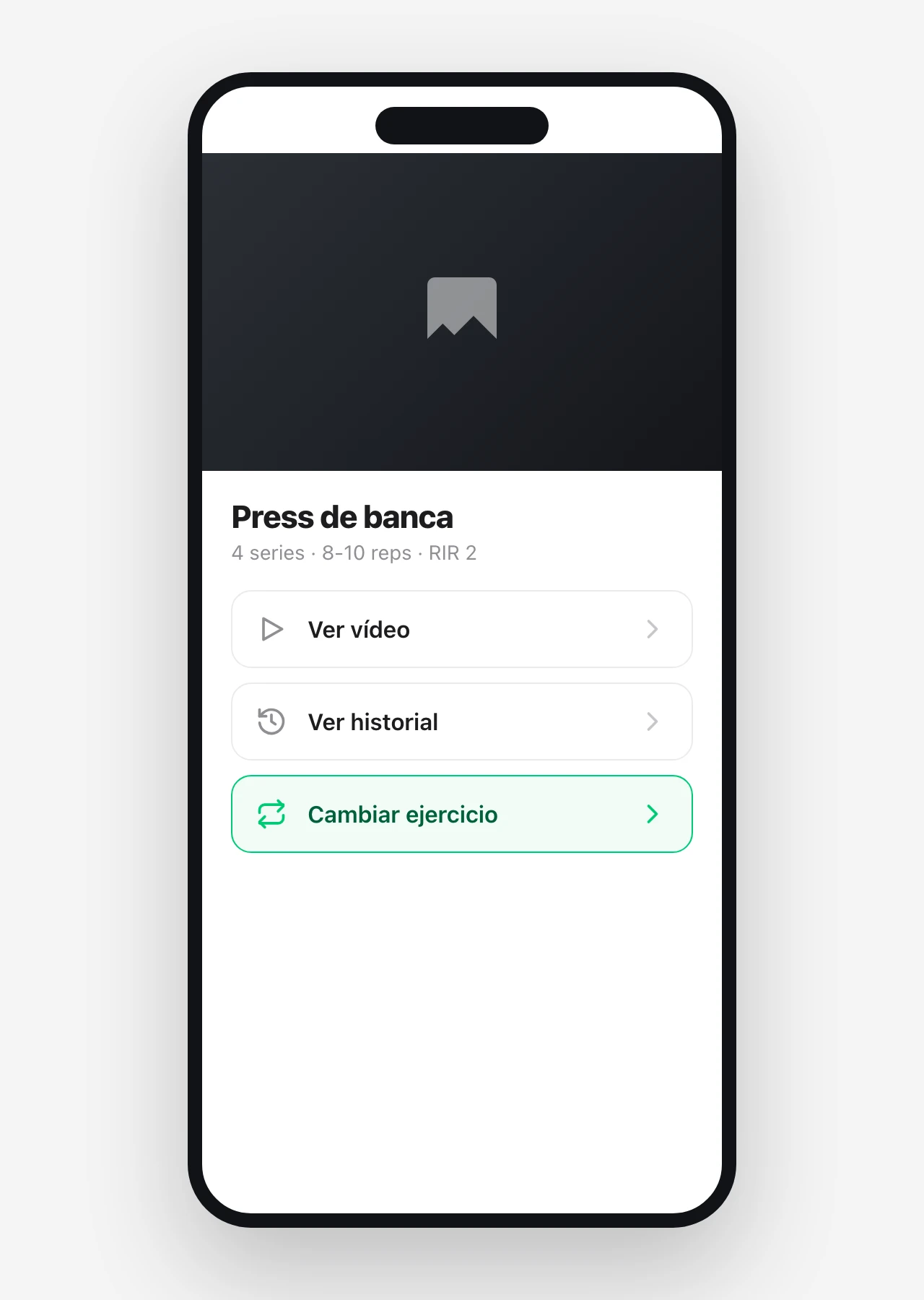
Tapping it opens a window with the alternatives you approved. Before choosing, the client decides the scope of the change:
- Always (default option): swaps the exercise in this workout and in the following ones.
- Only today: swaps the exercise only in today's session; the rest of the plan stays as it was.
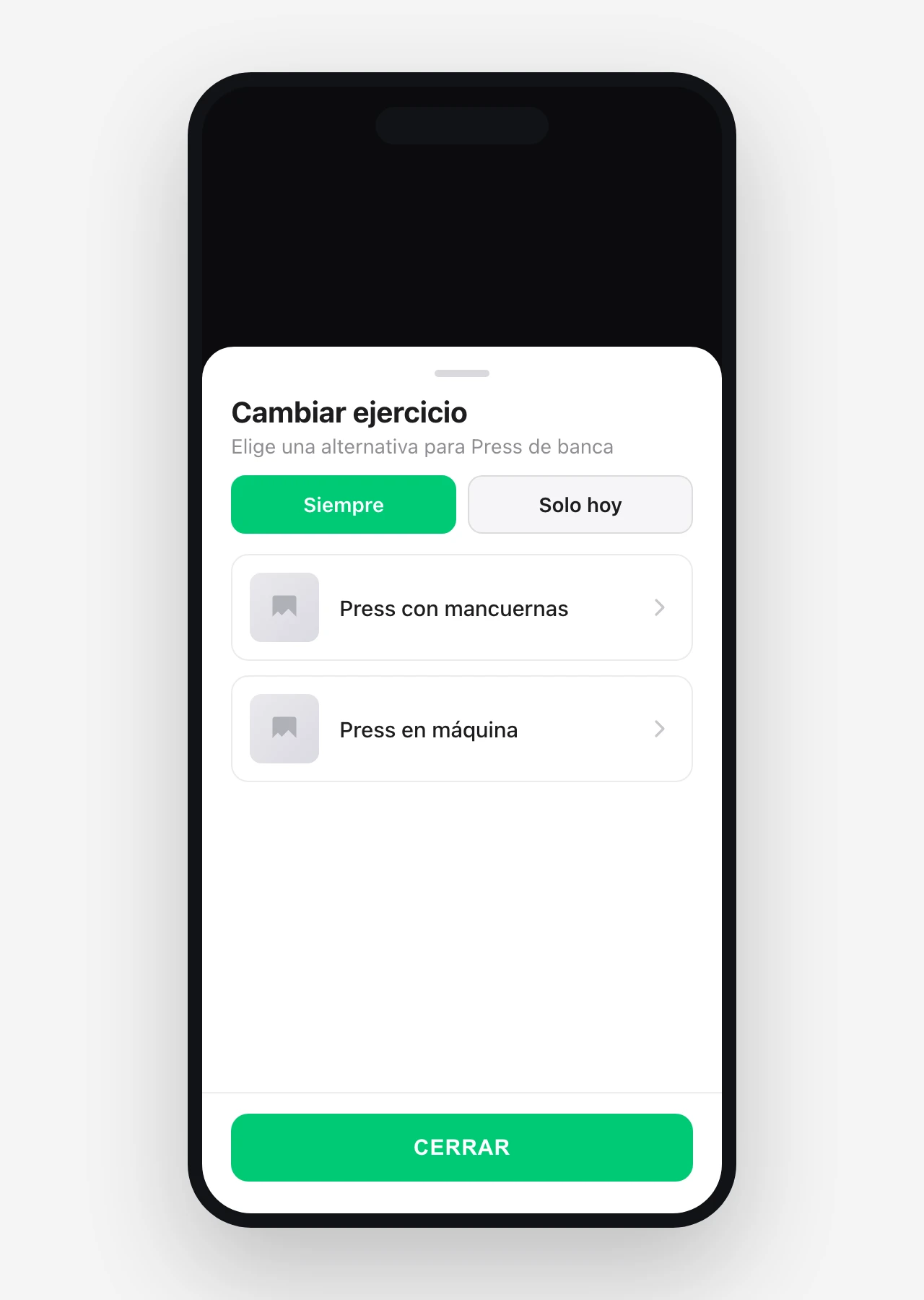
The client taps an alternative and the exercise is swapped instantly. They cannot go outside your list: if they tried to swap it for an exercise that is not approved, the app prevents it.
Good to know
- Closed list. The client only swaps between the alternatives you define. Your programming intent is always respected.
- It is configured once. Alternatives are saved in the exercise in your library, so they apply to every client who has it, with no extra work per client.
- The client chooses the scope. "Always" for a permanent change (a long-term injury, equipment they do not have at home), "Only today" for a one-off hiccup.
- Reciprocal by default. Unless you untick it, adding A as an alternative to B also adds B as an alternative to A. Leaving it ticked is the usual choice.
- Fewer messages for you. The client solves the day's hiccups without messaging you, and you stay in control of what they can and cannot do.
How to create exercises?
Create custom exercises in TrainerStudio with your instructions, tags, videos, cover, classification, and workload settings.
How to let your clients create their own workouts?
Turn on a permission so your clients can create and manage their own workouts with blocks, exercises, supersets, circuits, sets and variables.