
How to recover plans changed by mistake?
It has happened to all of us: you copy a week wrong, overwrite a mesocycle that was fine, assign the wrong program… and suddenly the client's plan is a mess. That is what the Change history is for: each plan keeps up to 10 snapshots you can go back to in two clicks. This guide takes you step by step from opening it to leaving the plan exactly as it was before the mishap.
To revert the last change you just made, you do not need the history: press Undo (Ctrl/Cmd + Z) or the back-arrow icon in the planner's top bar. The history is designed to recover the plan as it was hours, days or weeks ago, when undo no longer reaches that far.
1. Open the history panel
Inside the client's plan, open the View menu in the top bar and choose Change history. It is the same bar where you have Edit, Undo and the week controls.
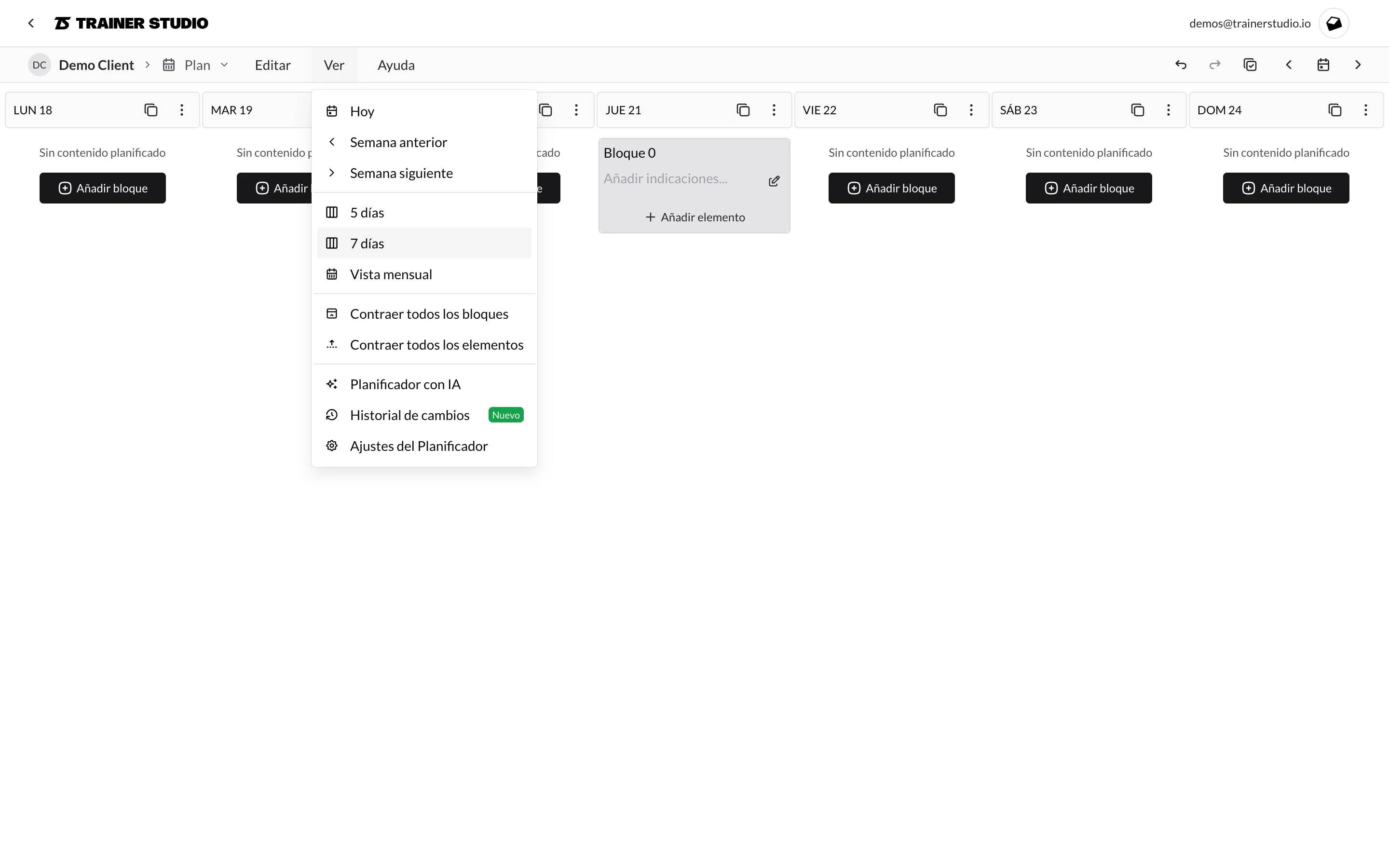
When you press it, a side panel opens on the right with all the versions of that client's plan. It does not affect anyone else: each client has their own history.
2. Find the version you want to recover
Versions are listed from newest to oldest. For each one you see the date, how long ago it was saved and where it came from. There are three types:
- Manual version — you saved it on purpose from this same panel (with or without a label). These are the most reliable because you know which point of the plan you wanted to freeze.
- Automatic snapshot — TrainerStudio created it for you while you were editing. They act as a safety net when you forget to save.
- Before restoring — a copy created automatically right before applying another restore. It is your way back if you make a mistake when restoring.
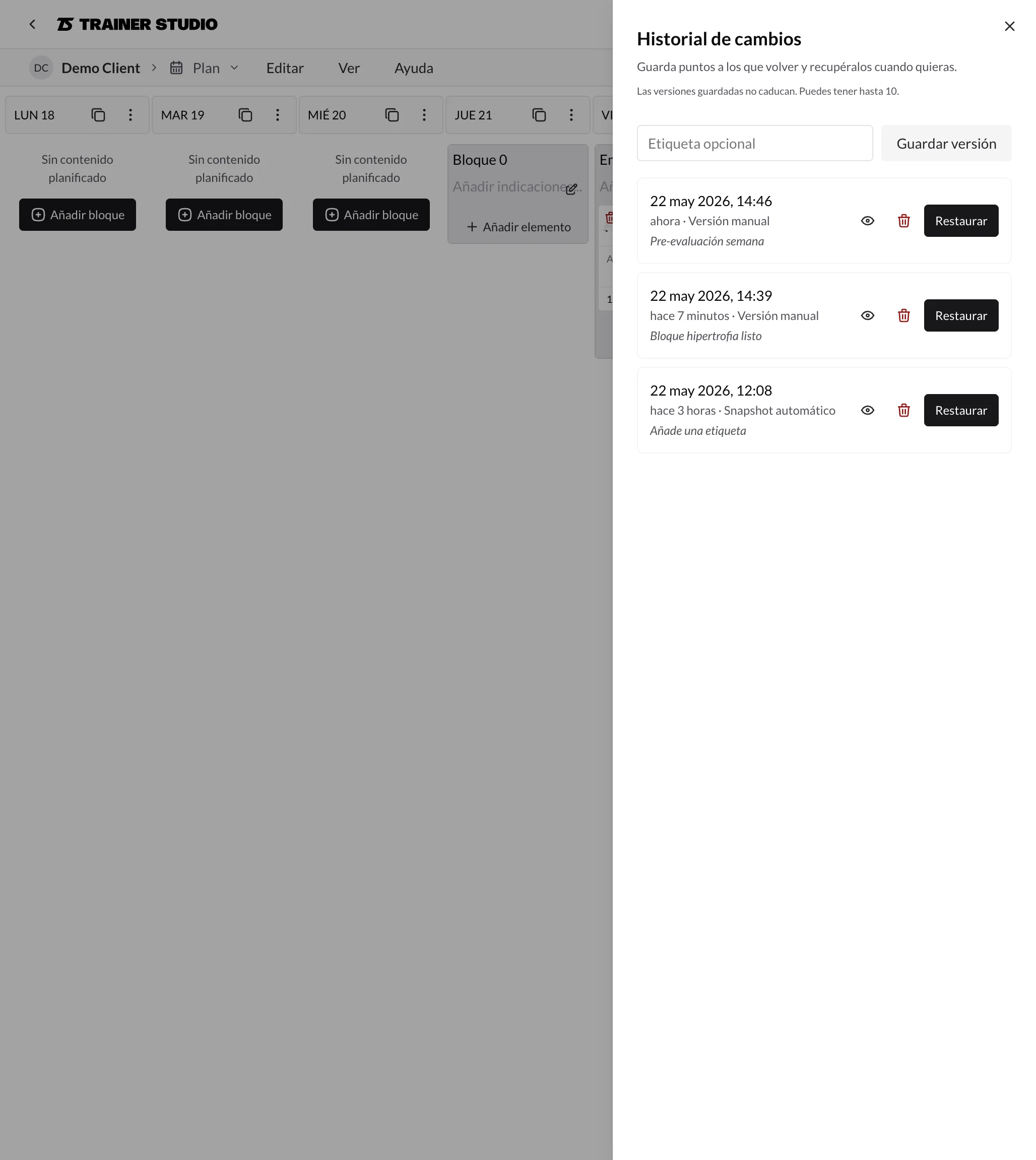
If the version has no name, click on "Add a label" to give it one (for example "Before changing the strength block"). It is optional, but it saves you doubts later when you have several versions piled up.
3. Check the content with the preview
Before applying anything, press the eye icon that appears to the left of the Restore button. A read-only window opens with the days, blocks, exercises and sets as they were in that snapshot. It does not change anything — it just lets you look.
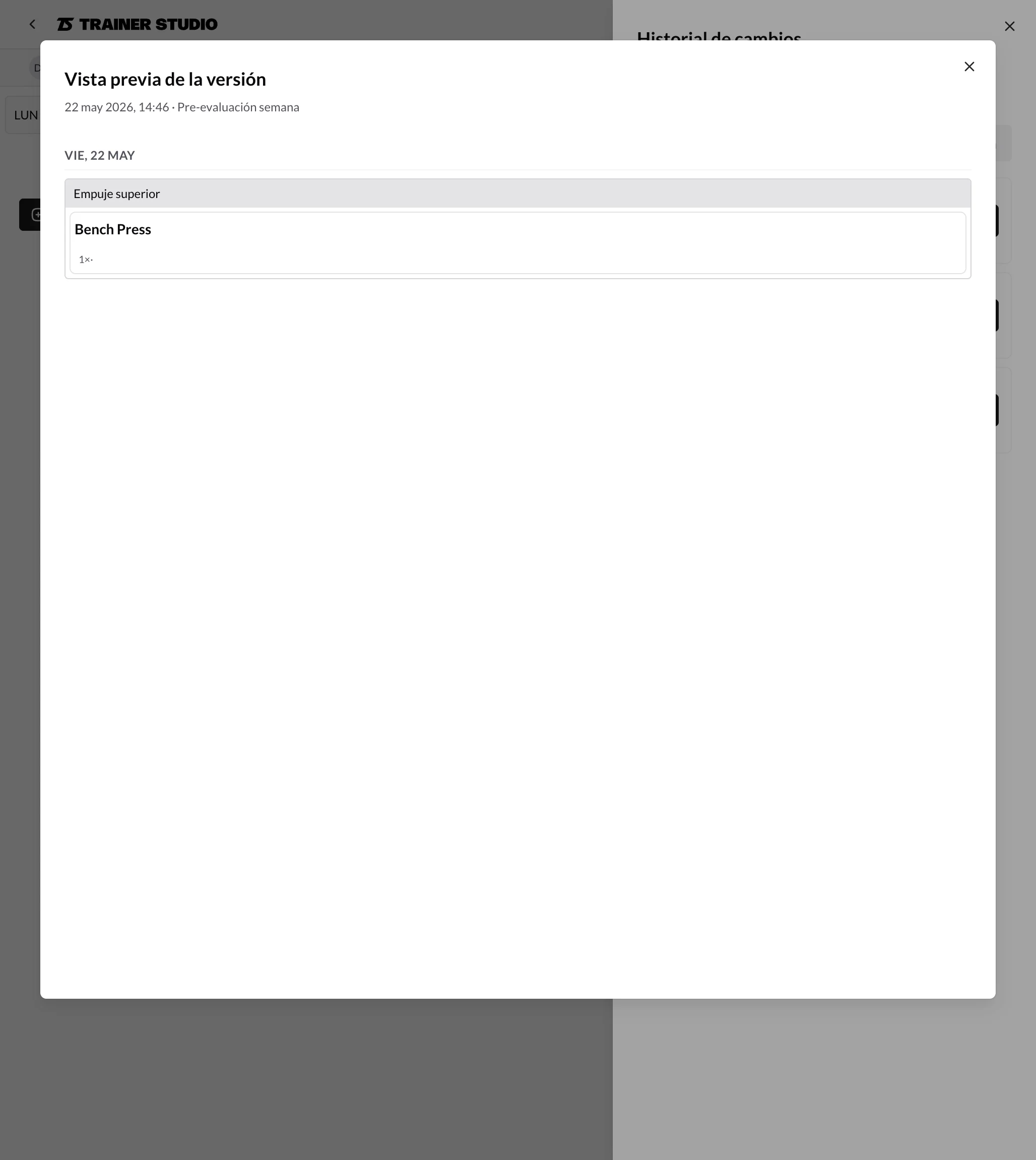
If you picked the wrong version, close the window and try another one. Once you confirm it is the right one, you can restore it from the preview itself or from the panel — either way, the result is the same.
4. Restore the version
Press Restore on the chosen version and confirm the warning. TrainerStudio does two things in this order:
- It automatically saves a "before restoring" version with the plan you had up to that moment. If you change your mind, you have it in the panel to go back.
- It replaces the client's future workouts with those of the chosen version. Sessions that have already happened are not touched.
If after restoring you realize it was not what you wanted, there are two ways out: Undo (Ctrl/Cmd + Z) reverts the whole restore instantly, or you can restore the "before restoring" version that was just created in the panel.
Good to know
- Up to 10 versions per client. When you reach the limit, the Save button is disabled until you delete one (bin icon next to Restore). Deleting a version only removes the snapshot — it does not touch the client's current plan.
- Versions do not expire. They stay there until you decide to delete them, even if months go by.
- It only affects the future. Restoring only replaces workouts from today onwards. The history of sessions the client has already completed stays intact.
- Teamwork. If several coaches work on the same client, give a heads-up before restoring: whatever your colleague was editing is replaced by the version you choose.
- Save a version yourself before big changes. If you are going to rewrite a mesocycle or assign a new program, take two seconds to press "Save version" with a clear label. It is the quickest way to have a known point to return to if things do not go as expected.
Log exercise weight and track progress
Clients can log the weight and repetitions performed in every set. Review that history in their plan to follow progress exercise by exercise.
How to create exercises?
Create custom exercises in TrainerStudio with your instructions, tags, videos, cover, classification, and workload settings.