
How to create your account?
Creating your TrainerStudio account is free and takes less than a minute. Go to app.trainerstudio.io/register on your phone or computer and choose how you want to sign up: with Google, with Apple or with your email.
Already have an account? Don't create another one: log in instead, using the same method you used the first time. If you sign up again with a different email, you'll end up with a second, empty account without your clients.
1. Choose how to sign up
The first screen gives you three options. They all lead to the same place, and from then on you'll always log in the same way:
- Continue with Apple or Continue with Google: no password to come up with. You skip steps 2 and 3.
- Your email: enter it and tap Continue.
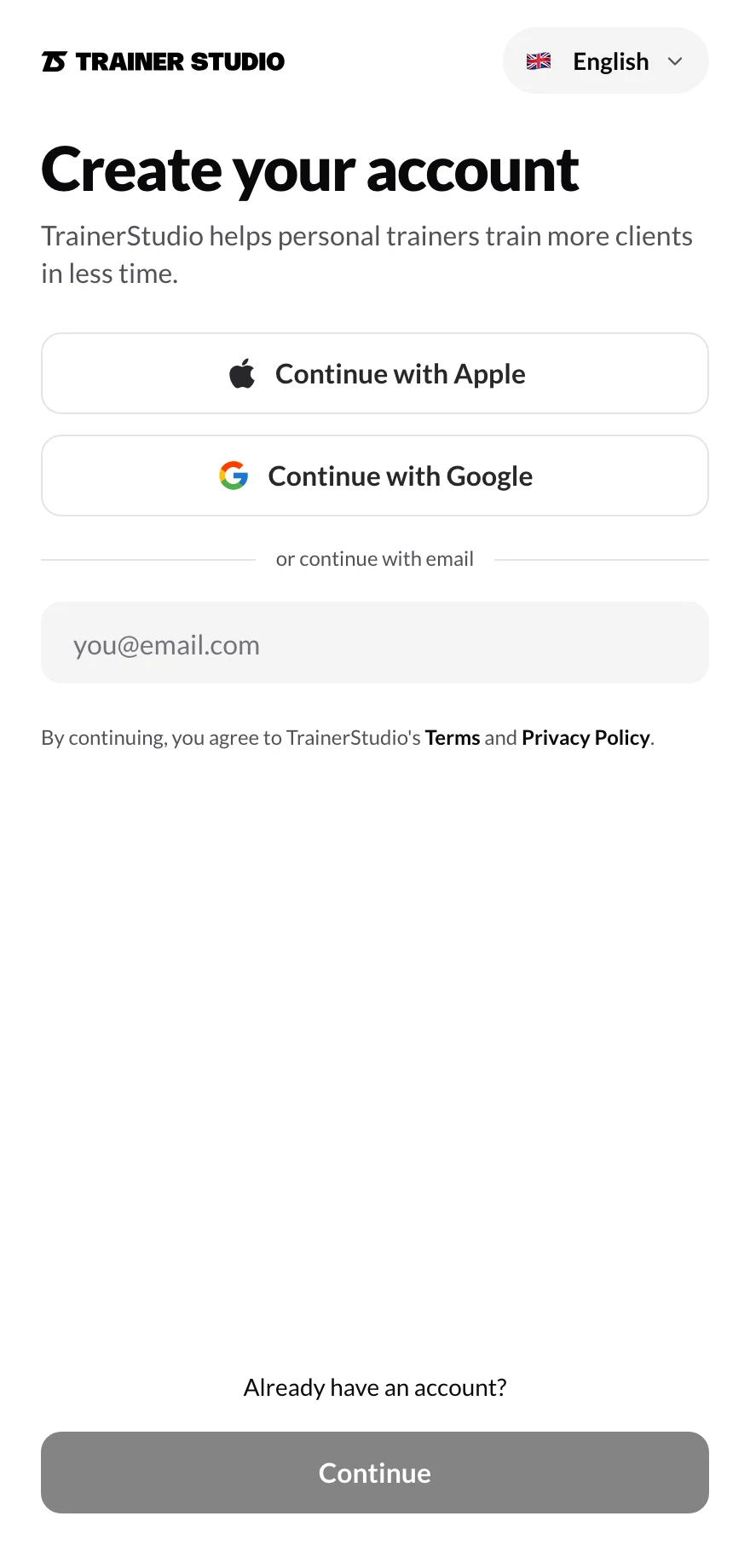
Apple, Google or your email. You can change the language at the top right.
If the email you enter already has an account, TrainerStudio doesn't create another one: it takes you to log in with that email already filled in.
If you choose Apple: Hide My Email
When you sign up with Apple, your iPhone asks whether you want to share your email or hide it. If you hide it, Apple gives us a made-up address like xxxxxx@privaterelay.appleid.com that forwards to your real email. It works fine, but keep two things in mind:
- Your account is tied to Apple, not to your Gmail or your usual email. To log in again, always use Sign in with Apple. If you ever log in with Google or sign up with your real email, TrainerStudio can't tell it's you and would create a new account.
- That address is the one you'll see in your account (for example, in Signed in as …). TrainerStudio emails still reach you, because Apple forwards them.
If you'd rather log in with your usual email, choose Share My Email when Apple asks, or sign up with Google or with your email.
2. Choose a password
If you sign up with your email, the next step is your password. The screen reminds you which email you're signing up with, in case you mistyped it.
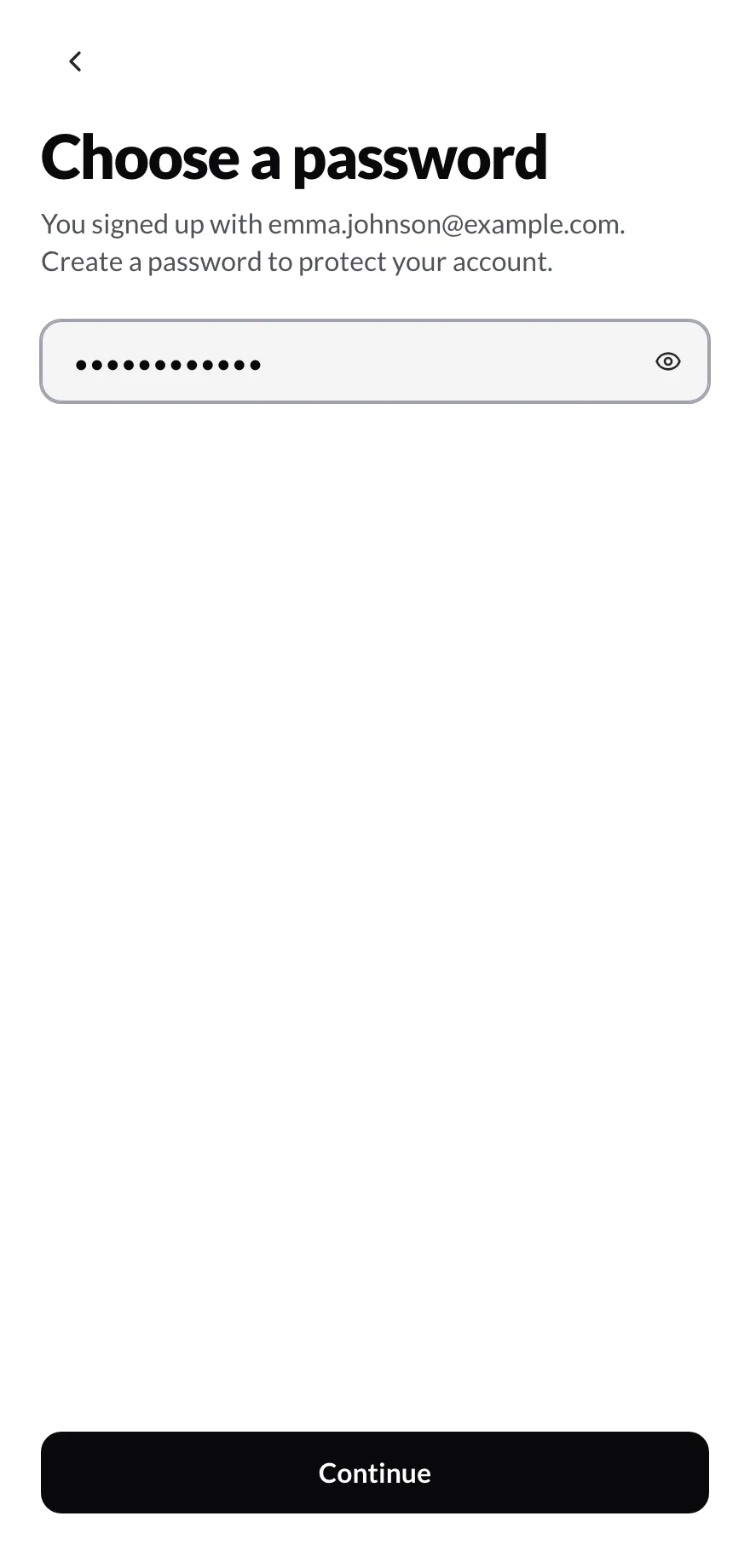
Tap the eye icon on the right to see what you're typing.
3. Enter your name
Your first and last name are what your clients will see in their app, so enter the name you want them to know you by.
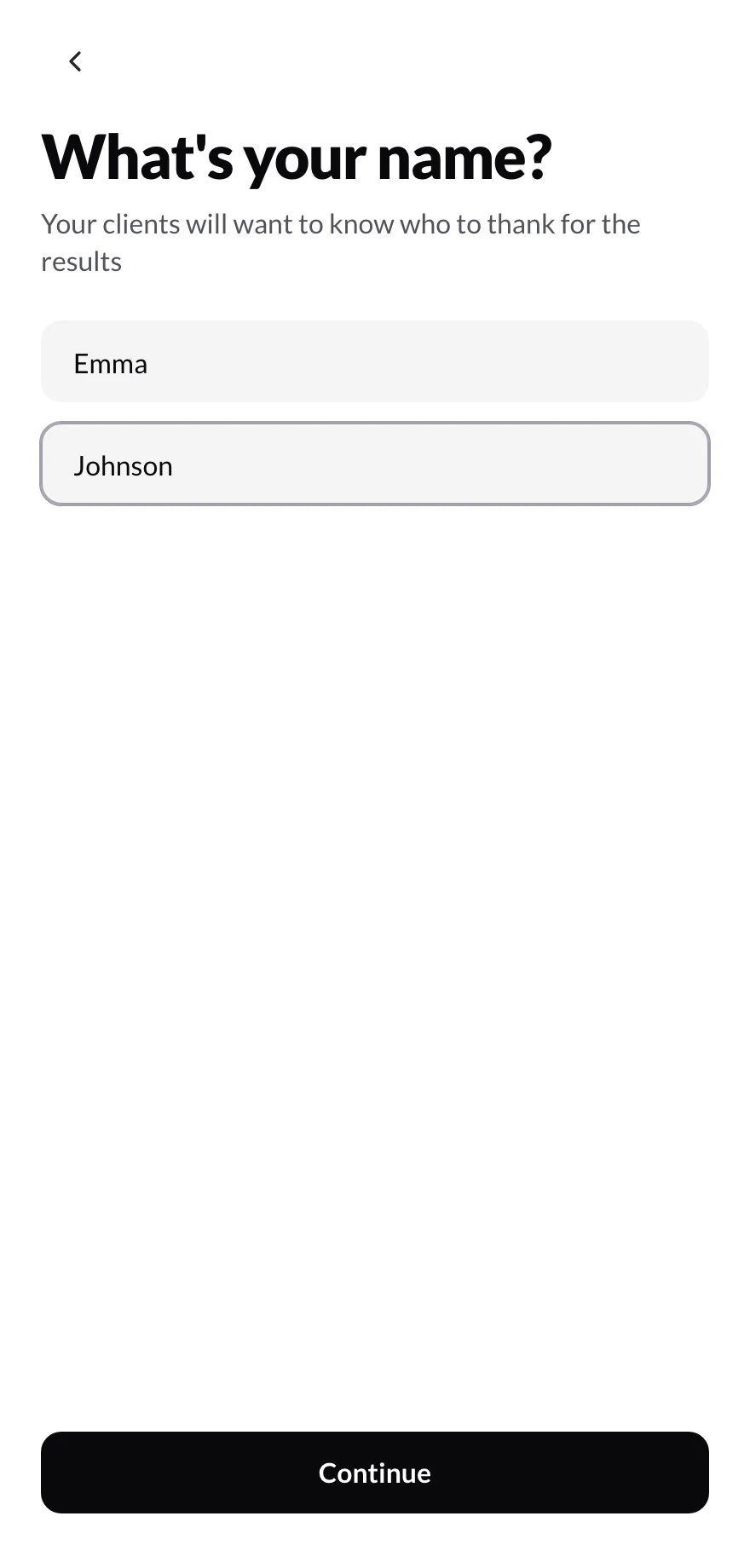
Tapping “Continue” creates your account.
4. Add your phone number
The last step, even if you signed up with Google or Apple, is your phone number. It's used to protect your account and recover access if you need to. Choose your country code and enter the number.
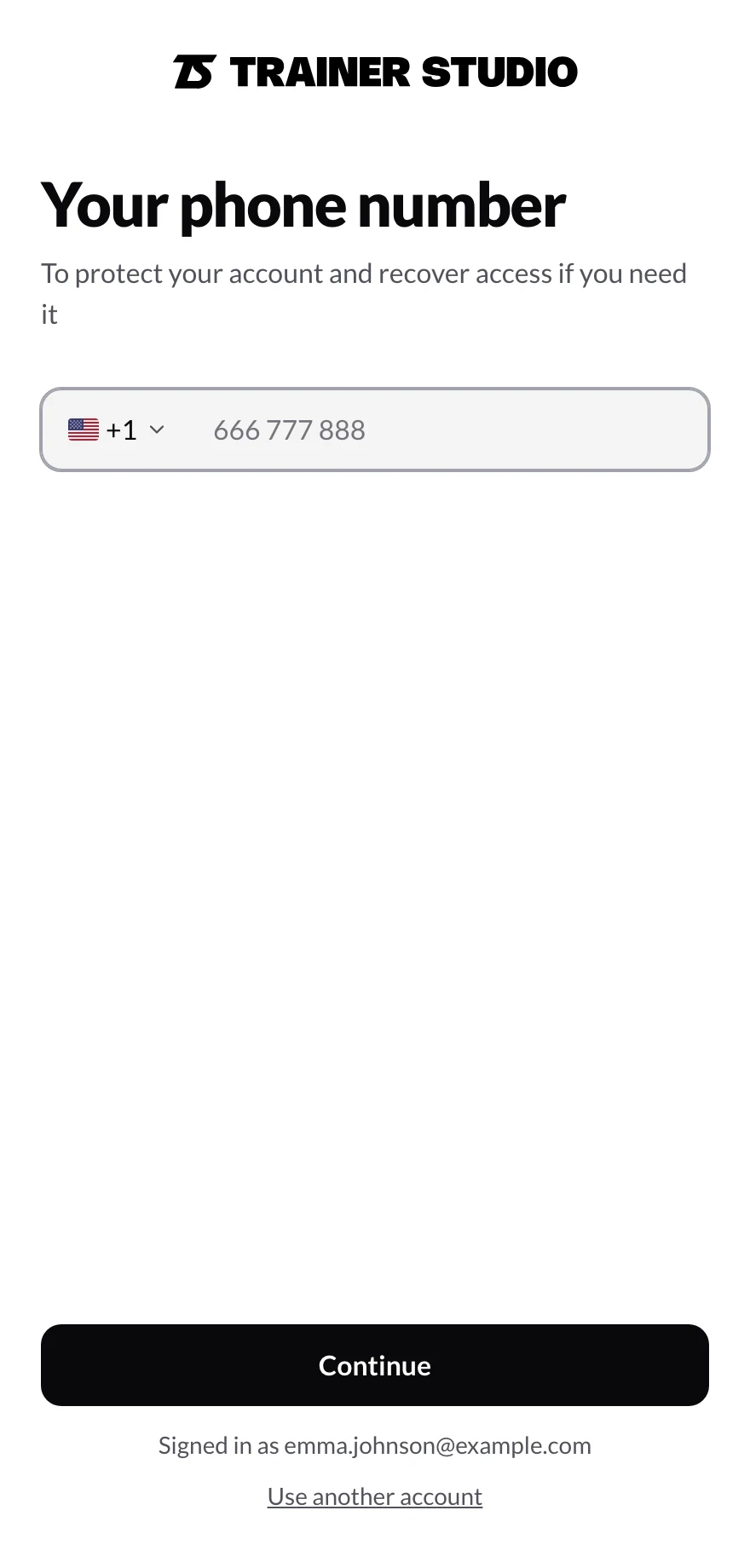
Below the button you can see which account you're signed in with. If it isn't yours, tap “Use another account”.
Check Signed in as …, below the button. If it isn't the email you expected (for example, because you picked a different Google account), tap Use another account and log in again with the right one. That way you don't get stuck in an account you didn't want.
5. What's next
Once your phone number is saved, a short walkthrough helps you get off to a good start: create your first client (or try a sample client), watch a 2-minute video and customize your app. You can skip it and come back whenever you want.
From then on, every time you come back, log in with the same method. On each device, TrainerStudio remembers how you logged in last time and marks it as Last used.
If this device already has an account
If someone has logged in to TrainerStudio on this phone or computer before, the sign-up screen reminds you before you create a new account by mistake, and marks the method that was used.
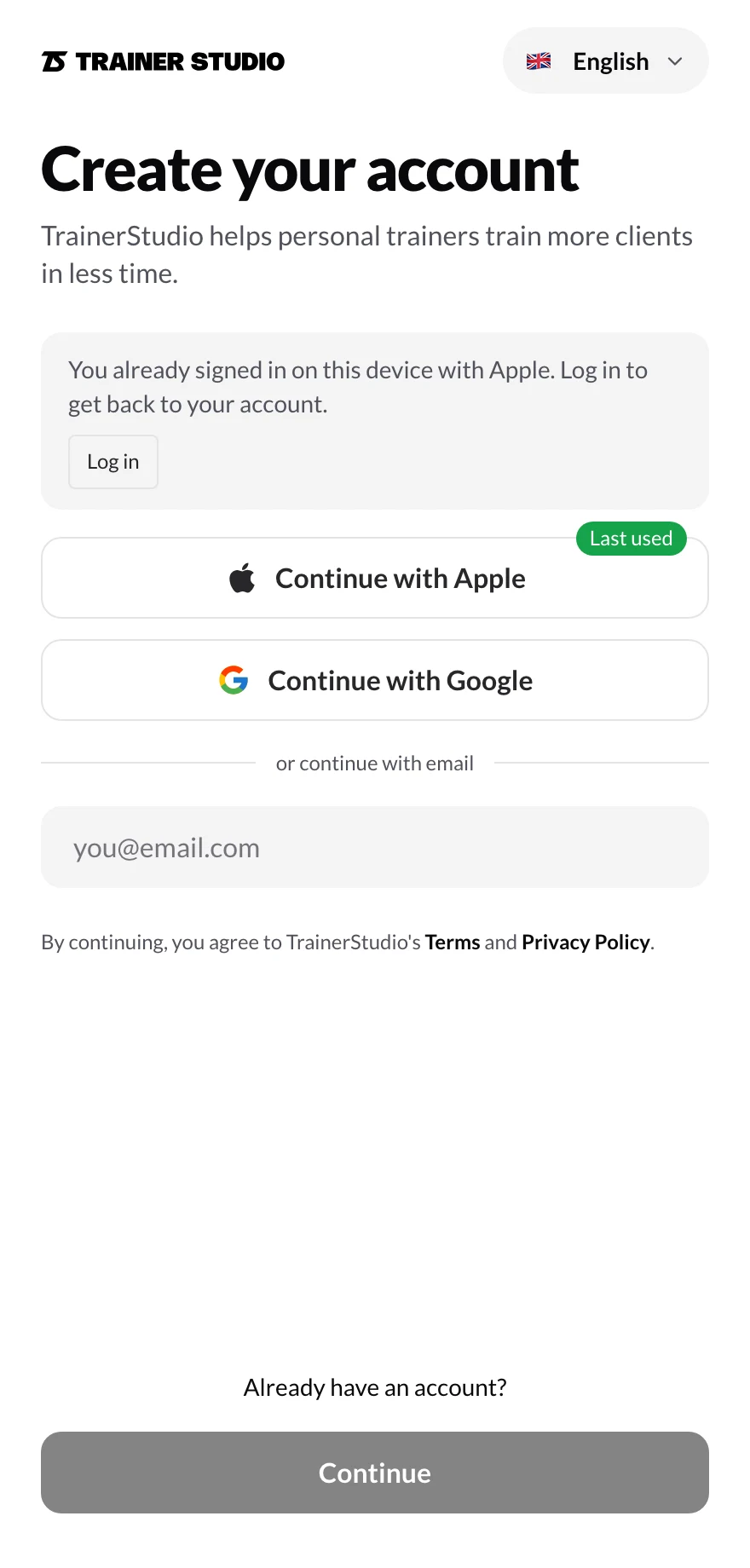
If you already have an account, tap “Log in” instead of signing up again.
If it's your account, tap Log in. If you really want a new account (for example, because the device is shared), keep signing up as usual.
Related guides
- How do I log in?: log in with email, Google or Apple, recover your password and log out.
- How to create clients: add your first client.
- How to customize your app: your logo, your colors and your name in your clients' app.
- How to manage your subscription: plans, the client limit and how to delete your account.
Guides
Practical TrainerStudio guides with videos or screenshots for specific tasks.
How do I log in?
Log in to TrainerStudio with your email, Google or Apple. Why you should always use the same method as the first time, how to recover your password if you forgot it, what to do if you don't see your clients and how to log out.