
Calculate weight from 1RM
If you work with 1RM percentages (60%, 80%, 3 × 5 at 85%...), each client usually has a different max and you have to open a calculator to turn it into kilos. In TrainerStudio you can prescribe directly as a percentage and the app shows you the resulting kilos next to it, using the client's latest recorded 1RM for that exercise.
How to turn on auto-calculation in a column
Inside the set editor, any load column (weight, band tension…) can switch to "calculate from 1RM" mode.
- Open the exercise's set editor.
- Press the Weight column header (or the options icon on mobile).
- Tick Calculate from 1RM.
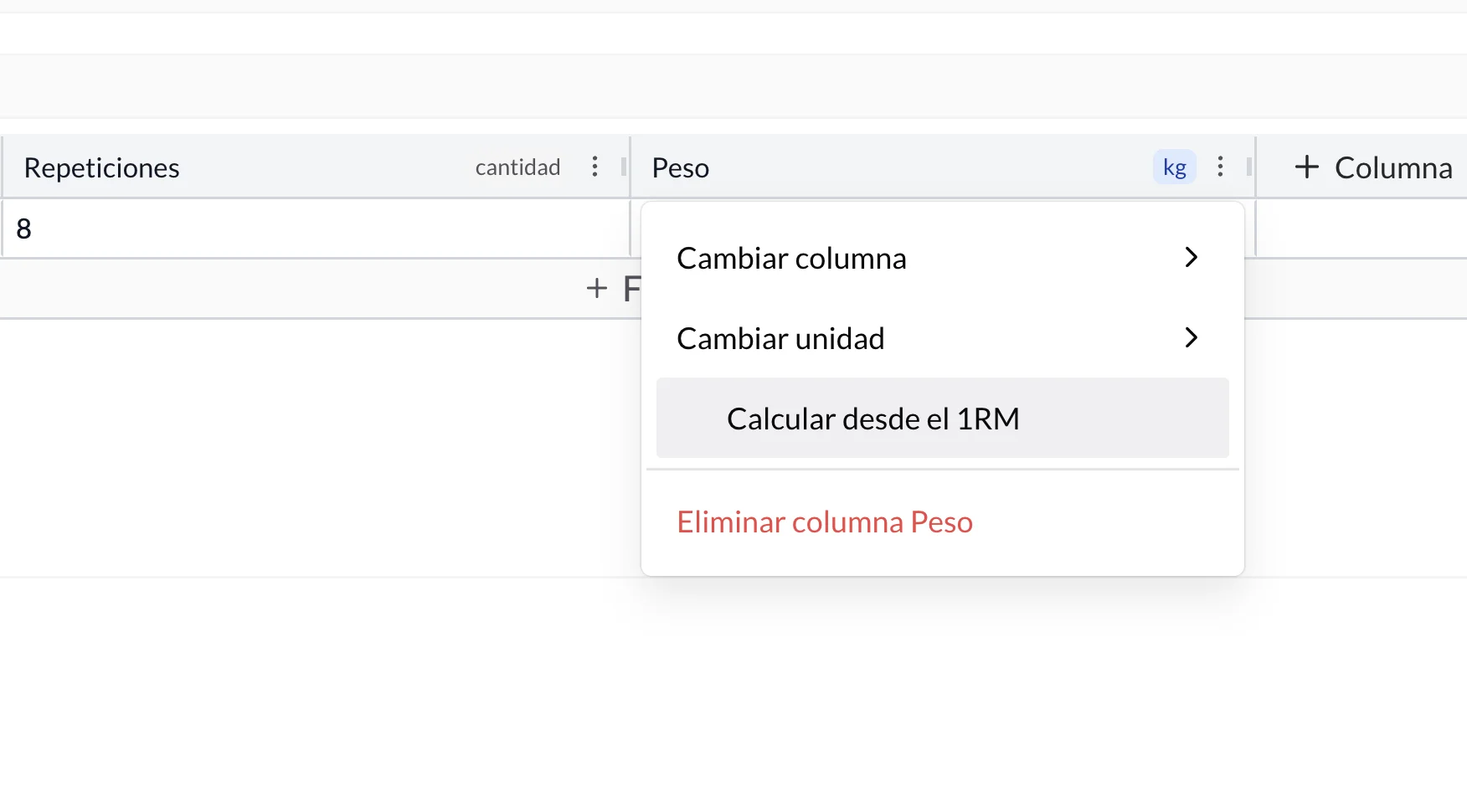
From then on, every cell in that column accepts a percentage instead of an absolute value, and below it you will see the kilos calculated from the client's latest 1RM.
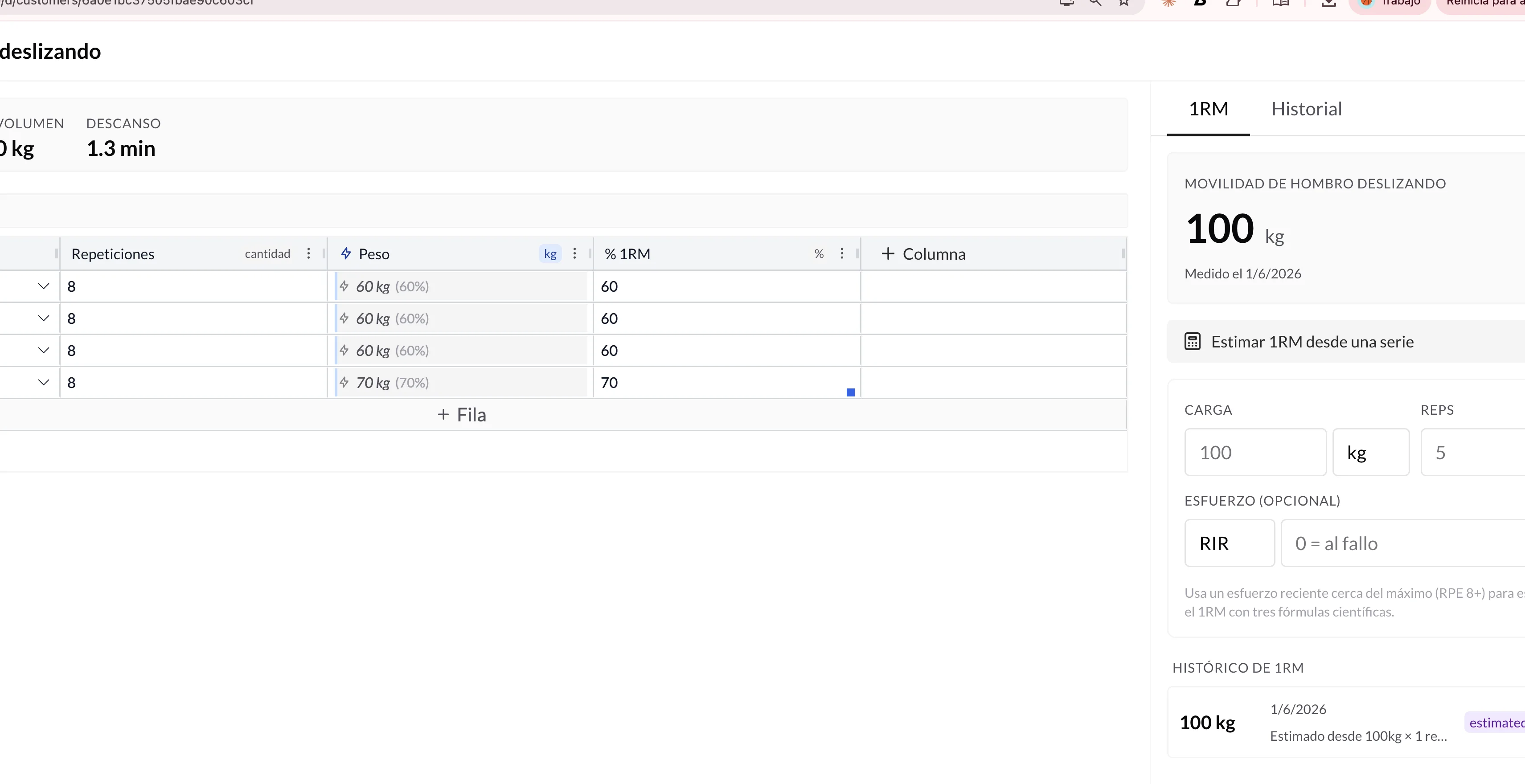
Edit the percentage
- On desktop, the cell shows the resulting kilos in large type and, right next to them, the percentage in brackets. Click the percentage to open a small inline editor.
- On mobile, the cell only shows the kilos. Tap them to open the percentage editor (it accepts a single value or a range, e.g.
70-80 %).
Any change to the percentage is reflected in the kilos instantly, without waiting to save.
When the client has no recorded 1RM
If you turn on "Calculate from 1RM" mode for a client who does not have a recorded max for that exercise yet, the cells show a Set 1RM prompt. Press the button and a small form opens to record the max without leaving the editor: enter the kilos and unit, save, and the calculated kilos appear immediately.
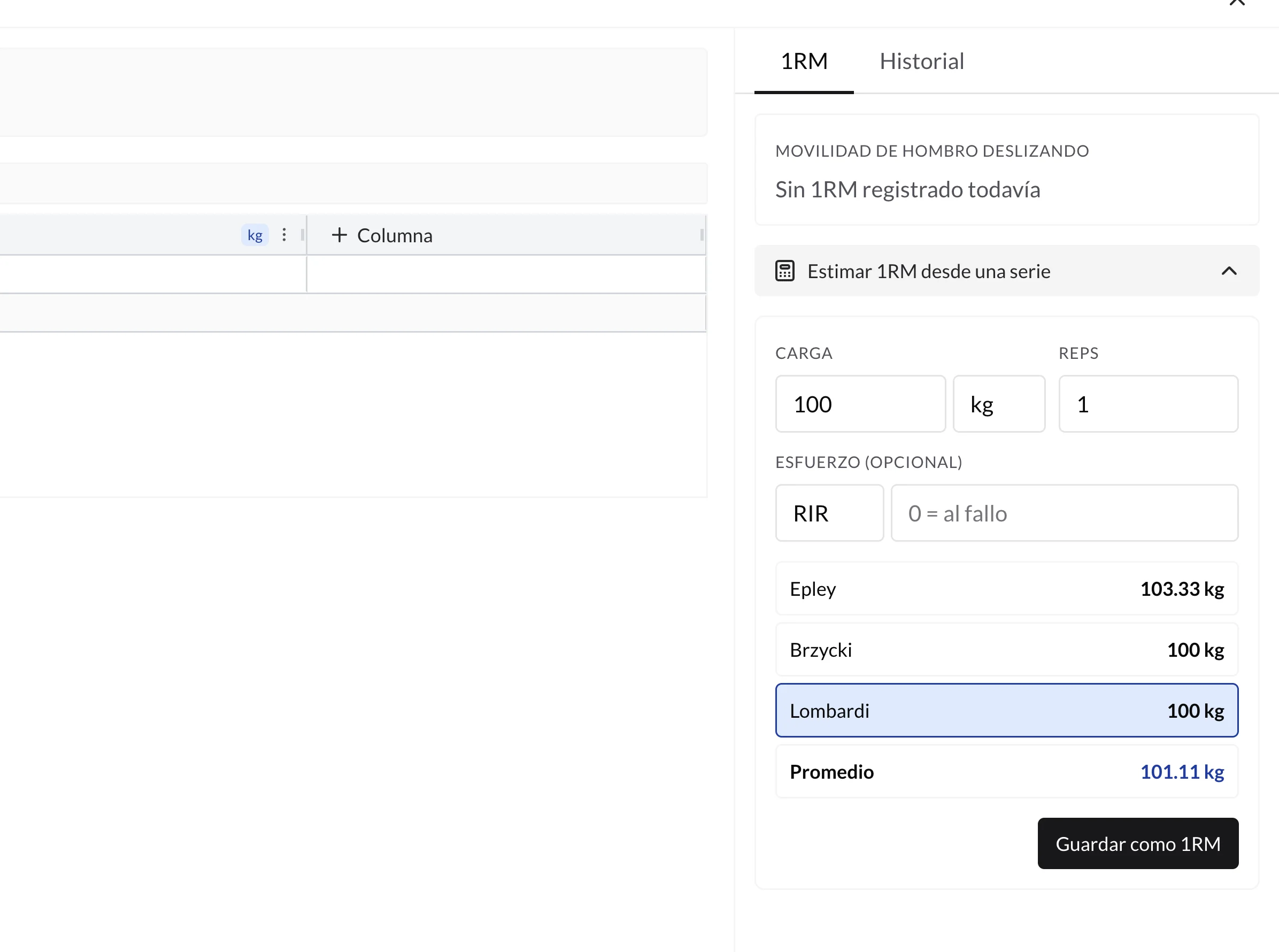
If you prefer to record the 1RM calmly (you do not remember whether it was 100 or 102, you want to add context…), you can do it from the editor's side panel:
- The 1RM tab in the right-hand panel of the set editor.
- Or from the client profile → Personal Records tab.
Estimate the 1RM from any set
No recent test to failure? You can estimate the 1RM from a submaximal set you already know:
- In the set editor, open the right-hand side panel (1RM tab).
- Press Estimate 1RM from a set.
- Enter the weight, the reps and optionally the effort (RIR or RPE).
- TrainerStudio shows you the estimate with three scientific formulas (Epley, Brzycki, Lombardi) and an average.
- Choose the value that fits best and save it as the client's new 1RM.
The estimate is most useful when the client logs a set close to failure (RPE 8+ or RIR ≤ 2). The more submaximal the set, the less accurate the calculation.
How % 1RM and the weight column stay in sync
When you turn on auto-calculation in the weight column, TrainerStudio automatically adds a % 1RM column if there was not one already. From then on, both columns are kept in sync within each set:
- If you edit the percentage from the weight cell, it is updated in the
% 1RMcolumn. - If you edit the percentage directly in the
% 1RMcolumn, the kilos in the weight column are recalculated.
That way you can prescribe however is most comfortable at any given moment without losing consistency.
When the 1RM panel does not appear
To keep the editor focused, the side panel with the 1RM, the estimator and the history only appears if the routine has a load column (weight, band tension…). In cardio, mobility or accessory work without weight, the panel is reduced to the History tab with the client's logged sessions.
Good practices
- Keep the 1RM up to date. Auto-calculation always uses the latest recorded 1RM. If you have not touched it for weeks and the client has progressed, the kilos will be lower than they should be.
- Use ranges when it makes sense. Both a single percentage (
75 %) and a range (70-80 %) are valid. A range is useful for deloads, autoregulation or RIR-based work. - Combine it with RIR / RPE. The 1RM percentage sets the load zone; RIR or RPE fine-tune the specific day. The % 1RM column and the intensity column work side by side without any problem.
- If you work on mobile, remember that only the resulting weight is shown: to see and edit the percentage, tap the weight and the inline editor opens.
Frequently asked questions
Do I have to turn on 1RM mode for each exercise? Yes. It is a decision per column and per exercise. That way you can freely mix absolute prescriptions (squat at 100 kg) and relative ones (bench press at 75%) in the same routine.
What happens if I change the 1RM later? Routines you had already saved are recalculated automatically the next time the client opens them. You do not have to edit them again.
Is the resulting weight saved, or the percentage? The percentage is saved. The kilos are a projection; what defines the prescription is the % 1RM + the client's current 1RM at any given moment.
Can I use this in reusable templates not assigned to a client? Yes, but since there is no 1RM, the cells show the percentage without kilos. When you assign the routine to a client with a 1RM, the kilos appear automatically.
What your client sees
The guided full-screen circuit player: color-coded countdown by phase, current and next exercise, beeps, vibration, pause, skip and a final summary with 'Mark all as done'.
Log exercise weight and track progress
Clients can log the weight and repetitions performed in every set. Review that history in their plan to follow progress exercise by exercise.