
How to set up your notifications?
TrainerStudio can alert you when your clients do something important: finish a workout, complete a task, upload a progress photo, record a measurement or answer a form. You decide which actions alert you and through which channel: push notification (in the browser or in the app) or WhatsApp.
1. Open the notifications page
Go to Your app → Notifications in the side menu (you will also find it in Settings → Notifications). The page has three tabs:
- Preferences: enable the device and choose what alerts you.
- History: the alerts we have sent you.
- Advanced: the devices that receive your push notifications.
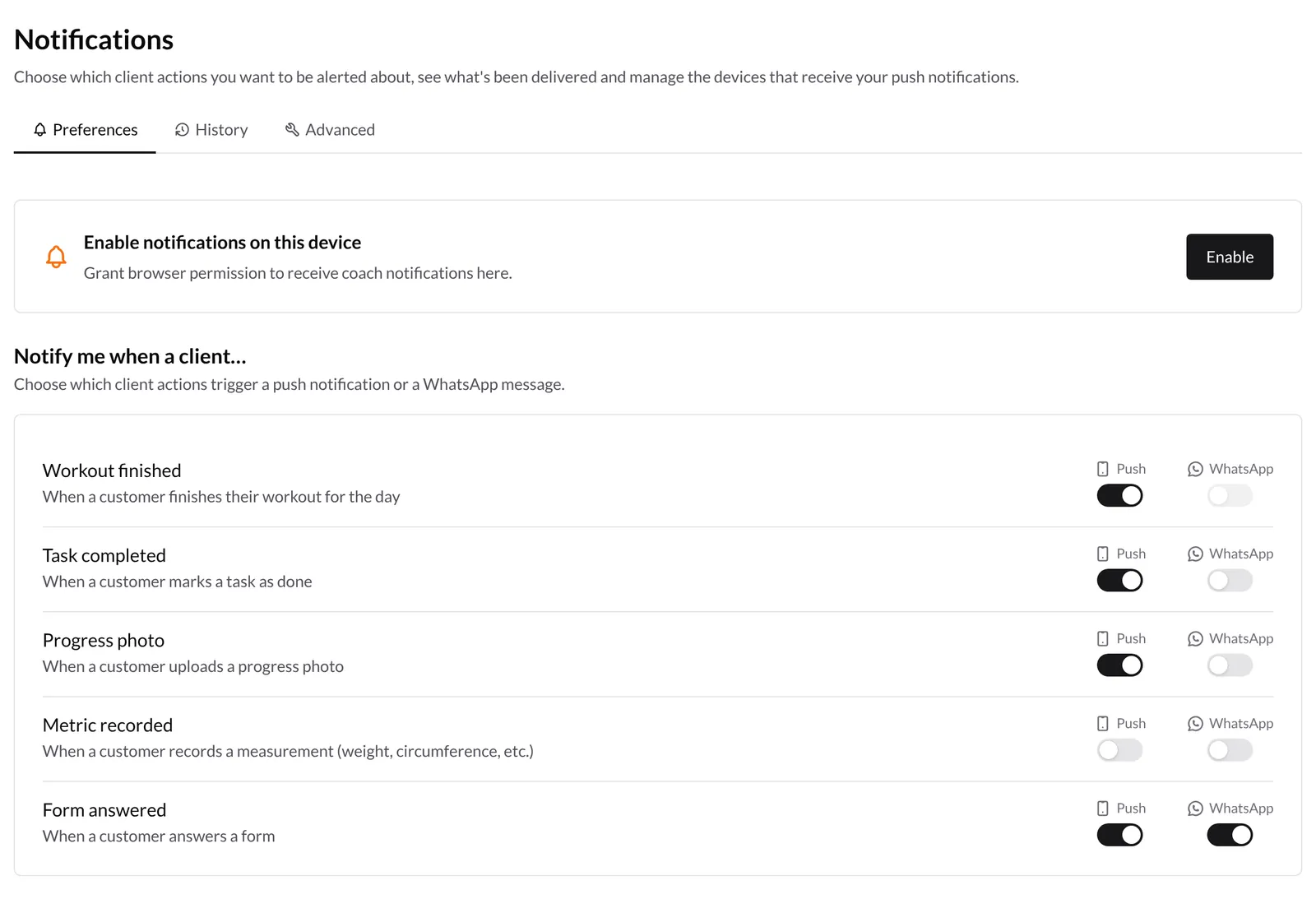
2. Enable notifications on this device
Push notifications reach every browser or phone you register. The top card tells you the state of the device you are using:
- Enable notifications on this device: click Enable and accept the permission your browser asks for.
- Device Not Registered: you already gave permission, but this device still has to be registered. Click Register Device.
- Device ready: this device already receives your push notifications.
Repeat the process on every browser or phone where you want to get alerts (for example, your work computer and the app on your phone).
If notifications are blocked
If you ever rejected the permission, you will see Notifications blocked. TrainerStudio cannot ask again: you have to unblock it yourself from the browser.

- Click the lock icon (or the site settings icon) in the address bar.
- Set Notifications to Allow.
- Refresh the page and, if asked, click Register Device.
3. Choose which actions alert you
Under Notify me when a client… there is one row per action, each with a Push switch and a WhatsApp switch:
| Action | When it alerts you |
|---|---|
| Workout finished | When a client finishes their workout for the day |
| Task completed | When a client marks a task as done |
| Progress photo | When a client uploads a progress photo |
| Metric recorded | When a client records a measurement (weight, circumference, etc.) |
| Form answered | When a client answers a form |
You can turn on one channel, both or none for each row. Changes are saved instantly. By default only the push alert for Workout finished is on.
WhatsApp alerts
When you turn on a WhatsApp switch, the alert reaches you as a WhatsApp message on your own phone. If you do not have a number in your profile yet, the Add your WhatsApp number window opens: type it in international format (for example, +34612345678) and click Save and enable.
If a row's WhatsApp switch is grey and cannot be turned on, that alert is not available on WhatsApp in your language yet; you can use push instead.
4. Check the history
The History tab shows your latest alerts, newest first: which client did what and when. On the right, one badge per channel shows what happened to each alert:
- Sent: the alert went out through that channel.
- Off: that channel was switched off for that action.
- Failed: it could not be delivered (the reason appears in red underneath).
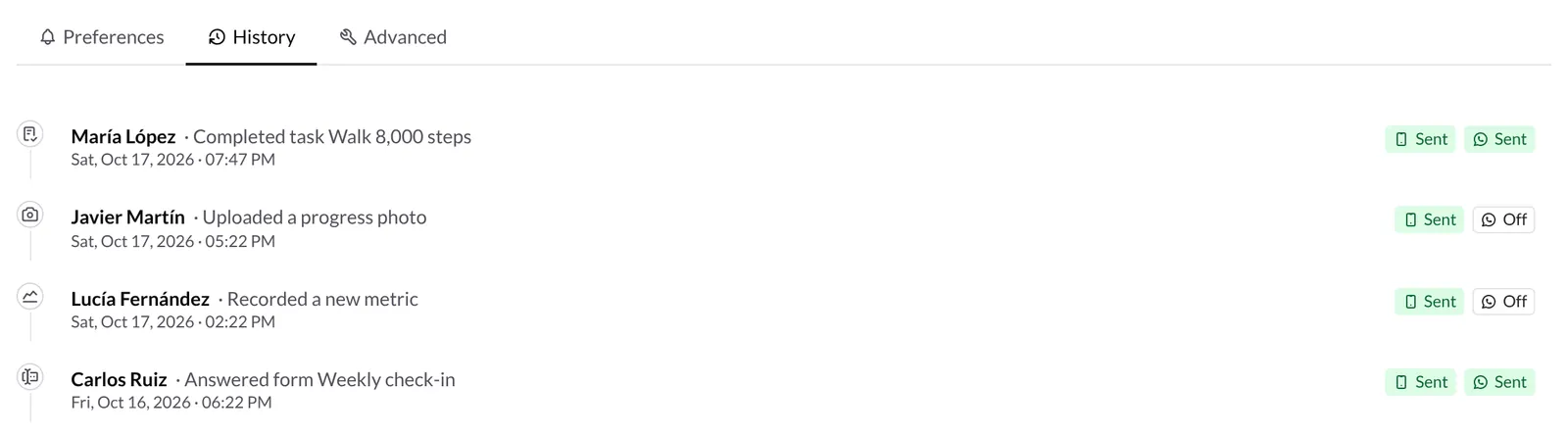
Click an alert to go straight to that client's profile. If there are more alerts, click Load more at the end of the list.
5. Manage your linked devices
The Advanced tab shows your Linked Devices: every browser or phone that has registered to receive your notifications, with its system and its last activity.
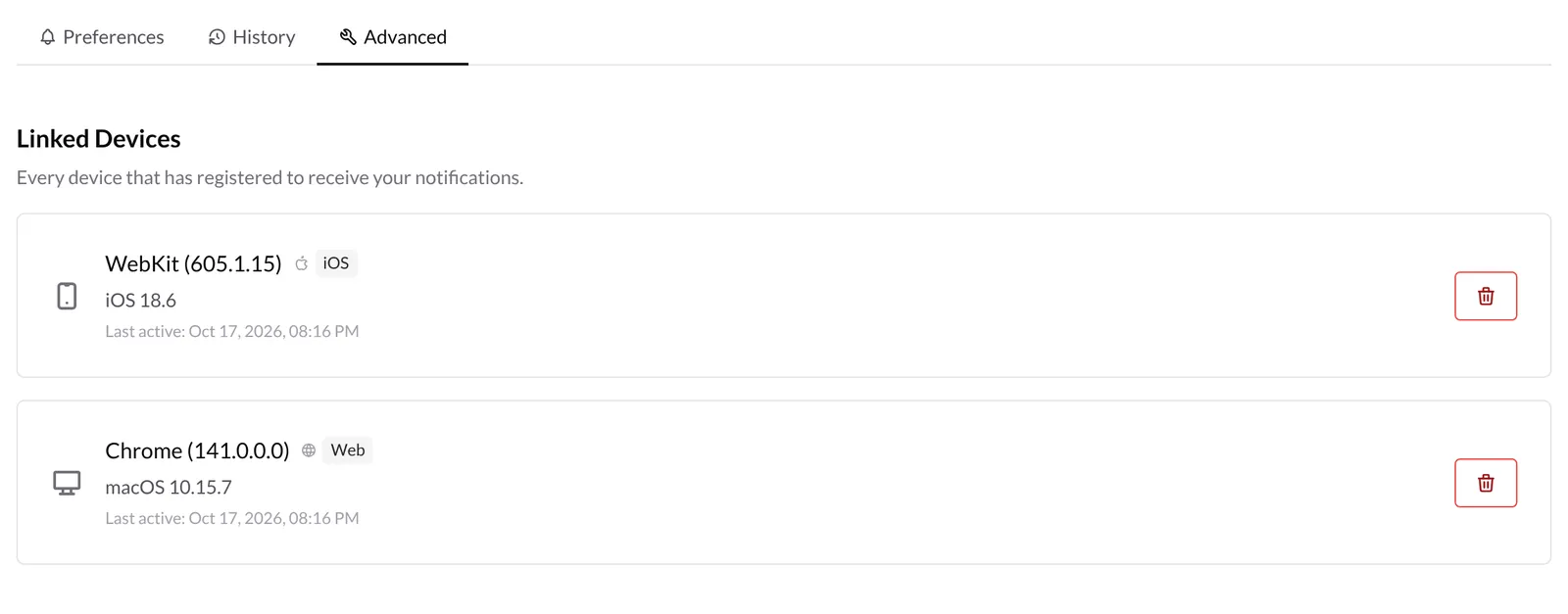
Click the trash icon to stop sending notifications to a device you no longer use (for example, an old computer). If you remove the device you are using by mistake, go back to Preferences and register it again.
Good to know
- Each device is enabled separately. Enabling notifications on your computer does not enable them on your phone, and vice versa.
- Preferences are personal. If you work with a team, each coach sets up their own alerts.
- WhatsApp reaches your phone. Make sure the number in your profile is correct.
- The history is temporary. Alerts are deleted automatically after 90 days.
- Not getting anything? Check that the device shows Device ready, that the action's switch is on and that your operating system is not muting notifications from the browser or the app.
Related guides
How to reply to your clients on WhatsApp?
Use the TrainerStudio WhatsApp inbox to follow the conversations your clients start when they answer your reminders, translate messages with AI and understand Meta's 24-hour window.
How to manage employees in TrainerStudio?
Add employees to your team, control their permissions, and assign specific clients. Scale your business while maintaining complete control.