
How to add WhatsApp reminders
Making sure a client does not skip their workout should not depend on you remembering to message them. With WhatsApp reminders you schedule a message that reaches their phone at the time you choose —"Training day today! 💪"— and the app sends it on its own when the time comes.
You add it inside a day of your client's plan, alongside the exercises. You write the text, choose the time and you are done: it arrives on WhatsApp even if they do not have the app open.
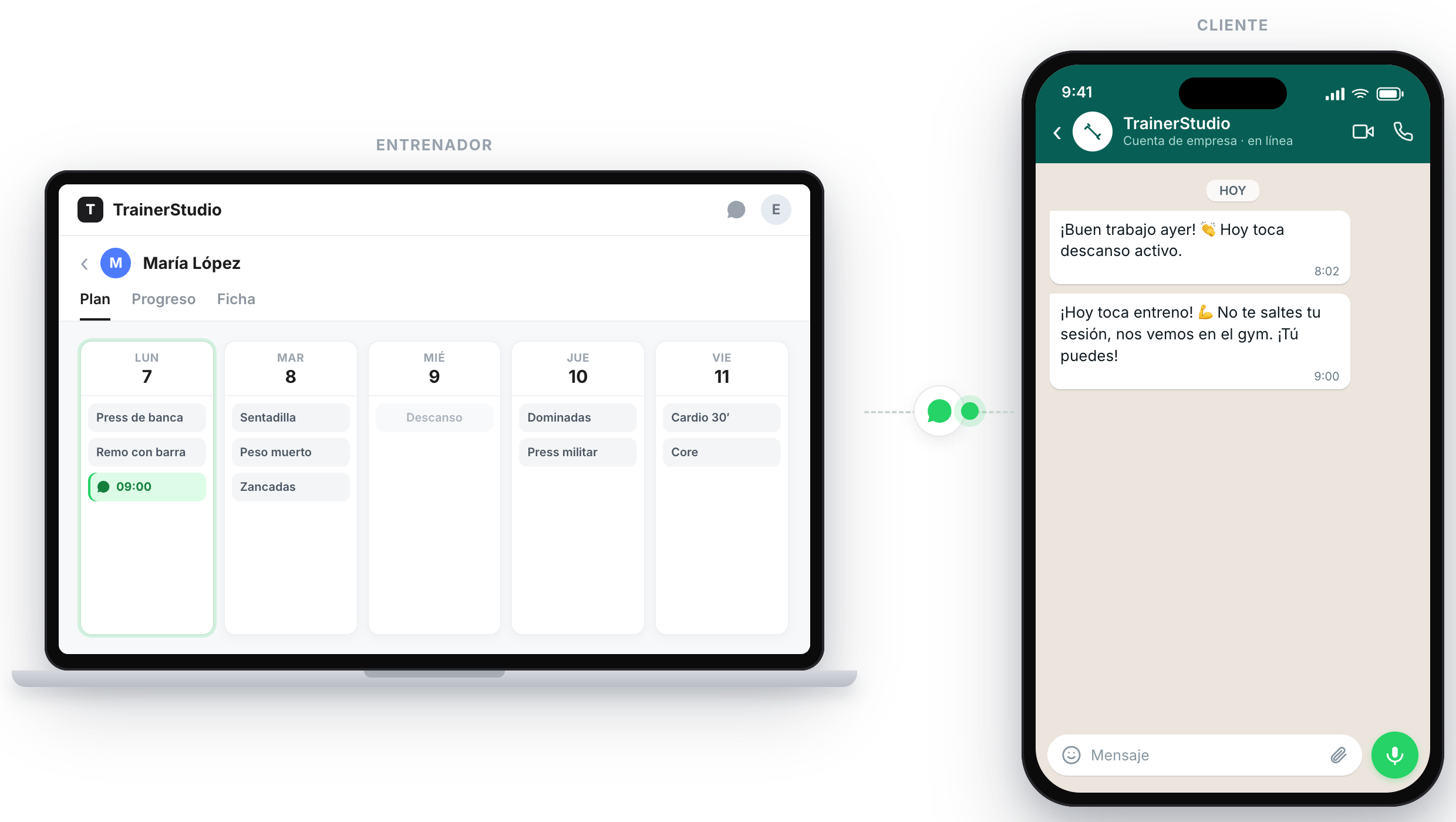
You schedule the reminder in your client's plan; at the set time the WhatsApp message reaches them automatically.
1. Add it to a day of the plan
Reminders live inside your client's plan, as one more piece of content for the day. Open a client's plan, go to the day you want and, in a block, press «+» to add content. In the list, choose «WhatsApp reminder».
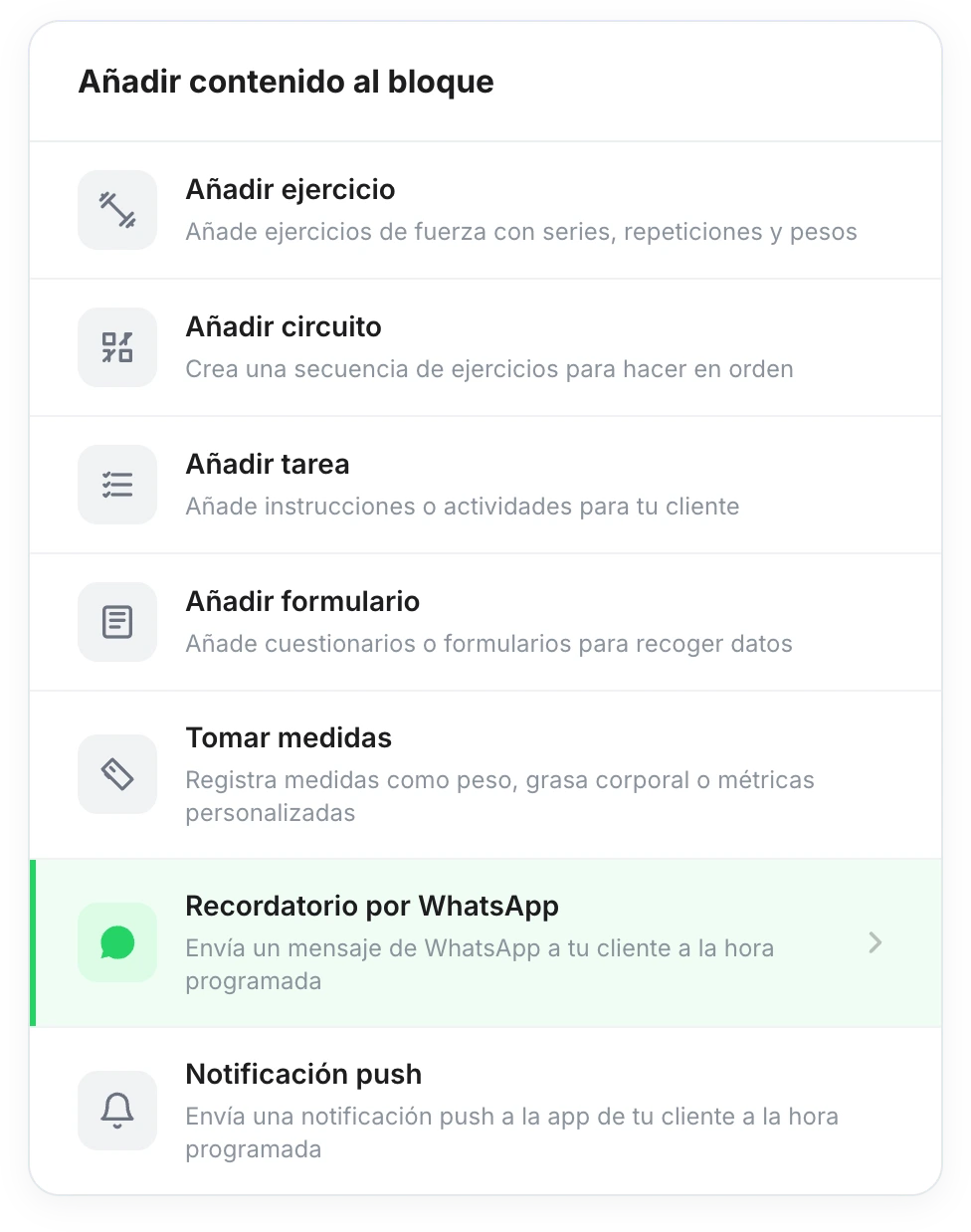
«WhatsApp reminder» is one more piece of content for the day, alongside exercises, tasks or measurements.
It is the same thing you add when you create the routine: instead of an exercise, you add a reminder. You can add one reminder per day.
2. Write the reminder
The «Add Reminder» dialog opens. You only need to fill in:
- Channel — leave it on WhatsApp (further down you will see the push notification alternative).
- Reminder Message — the text your client will receive, up to 100 characters. Write it the way you would say it: "Training day today! 💪 Don't skip your session."
- Scheduled Time and time zone — what time of day it should arrive. The time zone is pre-filled; adjust it if your client is in a different one.
On the right you have a preview of how the message will arrive, so you can check it before saving.
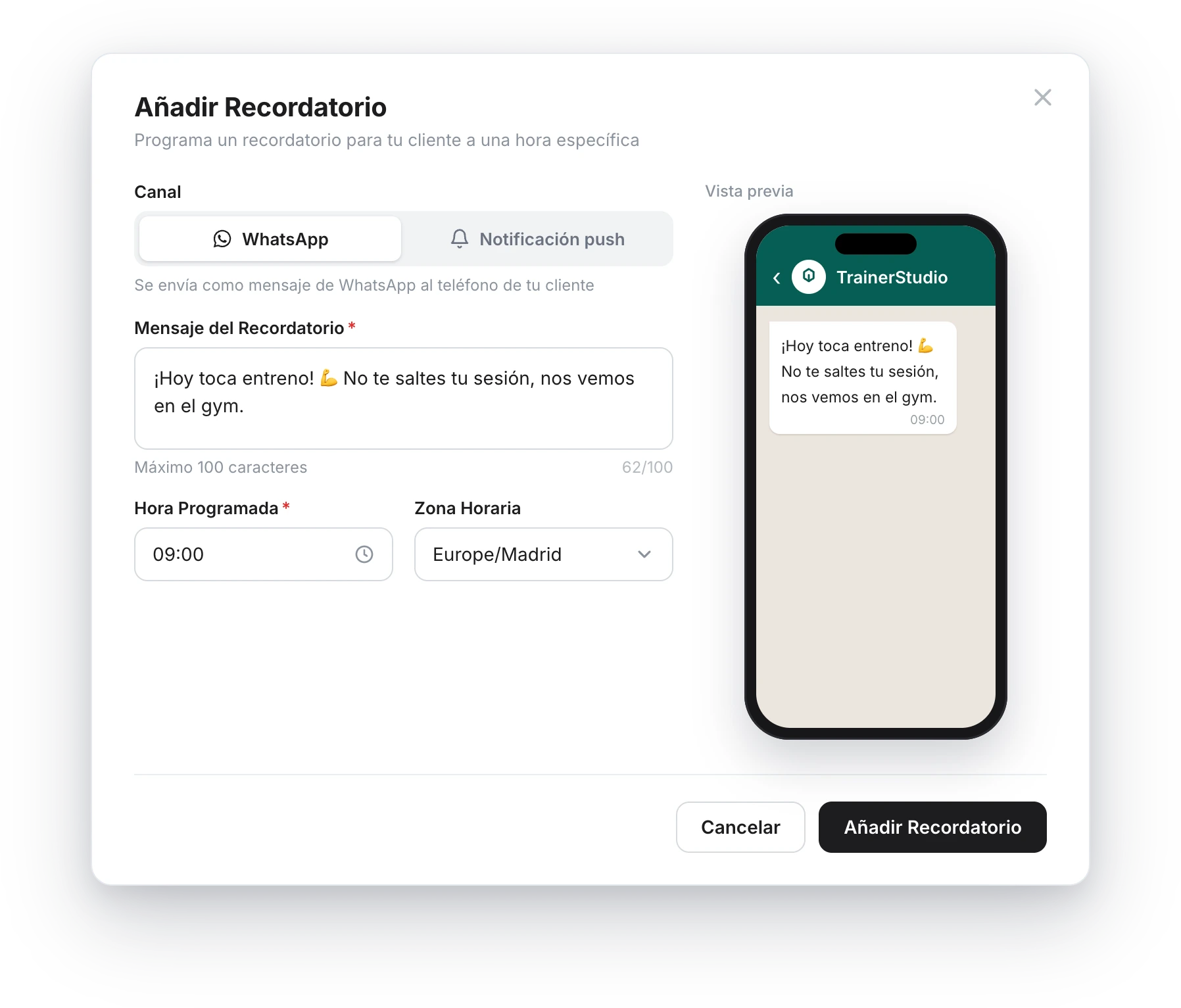
You write the message, choose the time and instantly see how your client will receive it.
For the WhatsApp message to be sent, your client needs a phone number on their profile. If it is missing, add it when you create or edit the client.
3. What your client receives
At the scheduled time, your client receives the message on WhatsApp, exactly as you wrote it. It comes from the TrainerStudio number —not from your personal number—, so you do not have to connect anything or share your phone.
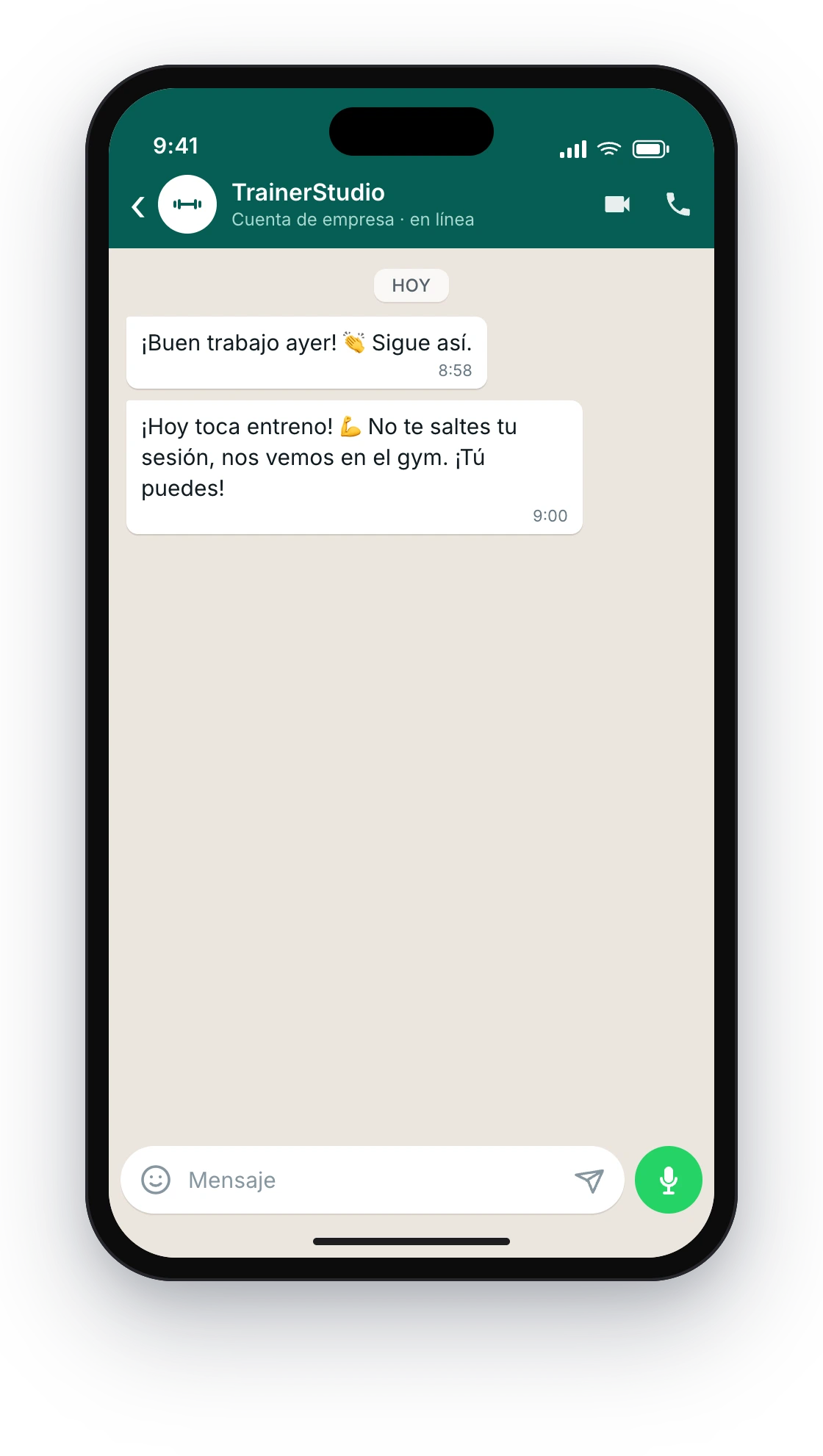
The reminder arrives as a regular WhatsApp message, even if the client does not have the training app open.
That same message is logged in your WhatsApp conversation with the client, so if they reply, you carry on the conversation from there.
4. In your programs too
If you work with reusable programs, you can add reminders to the program's days just like here. When you assign the program to a client, its reminders are scheduled automatically on the dates that apply to them. That way you set up the sequence once ("remind them on Monday, Wednesday and Friday") and it is applied to each client when you assign it.
Good to know
- It is sent from the TrainerStudio number. You do not connect your WhatsApp or share your phone; the message goes out from TrainerStudio's business account and is signed as such.
- Your client needs a phone number. Without a number on their profile, the WhatsApp message cannot be sent. Check it when you create the client.
- One reminder per day. Each day of the plan allows one reminder. If you need another nudge, put it on another day.
- 100 characters max. Designed for a short, clear nudge, not a long message.
- They are not sent "late". If the time has already passed when you schedule it (or when the program is assigned), that reminder is not sent. Always schedule it with some margin from the current time.
- WhatsApp or push? In the same dialog you can choose Push notification instead of WhatsApp: in that case the alert reaches the client's app (with your name) instead of their WhatsApp. Useful if the client uses the app a lot; WhatsApp works better for people who do not open it every day.
How to use the «Finish workout» button
Turn on the «Finish workout» button in the client app. When they finish their session for the day they mark it with one tap —they can mark every exercise at once— and you get an alert (push or WhatsApp) right away.
Circuit timer
Turn any circuit into a guided, against-the-clock workout: you choose a format (Tabata, EMOM, AMRAP, For time…) and your client runs it with a full-screen timer, with beeps and vibration.