
Move, rename and delete
Move a template

Drag it from the list and drop it onto a folder in the tree (on a computer). To take it out of any folder, drop it onto No folder.

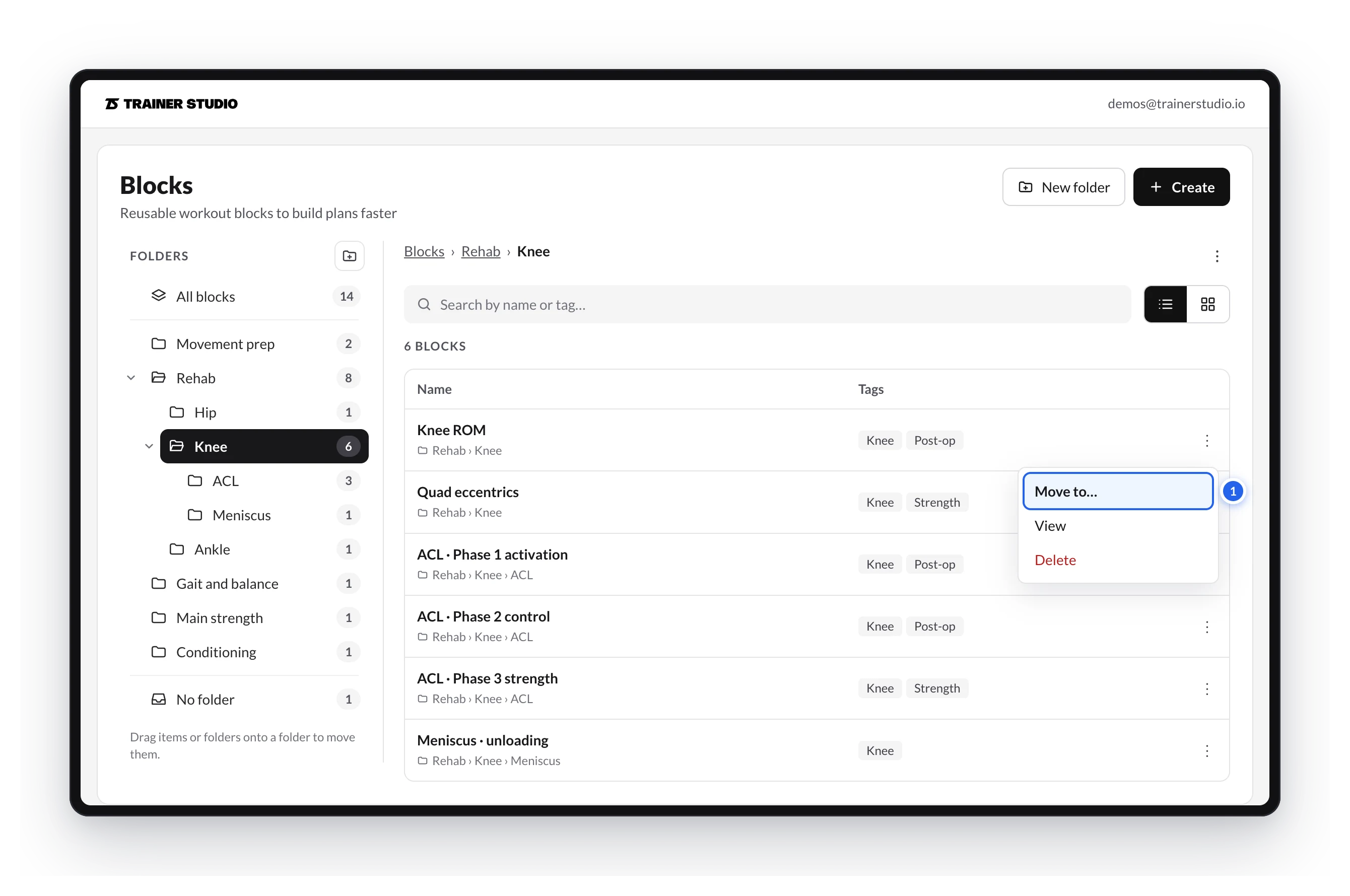
Or open its ⋮ menu and choose Move to…:
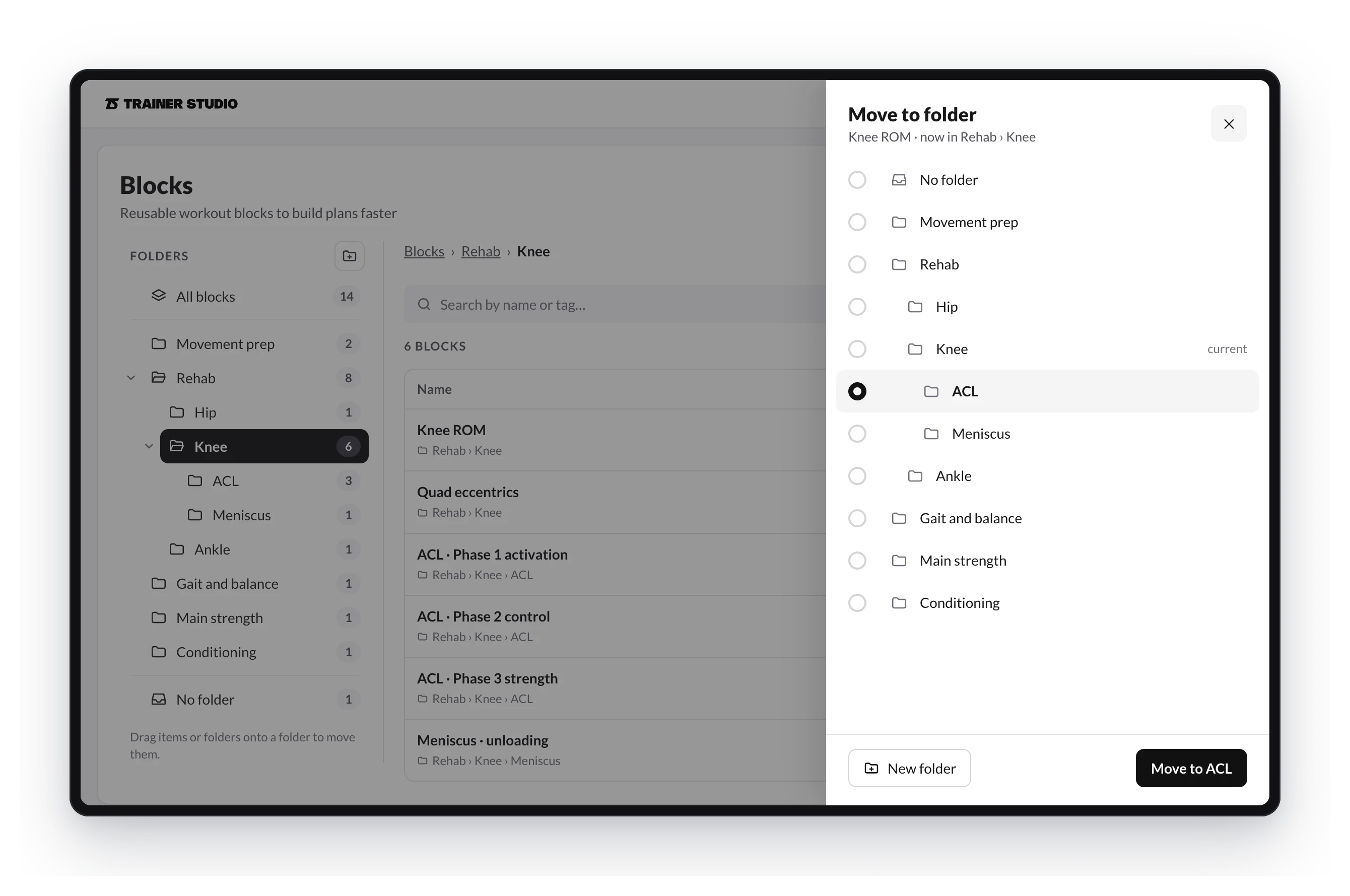
Move to folder opens with all your folders and the current one marked. Pick the destination (or No folder) and click Move to… with the folder's name. New folder creates one without leaving the panel, inside the destination you have selected.
Moving a template does not change its content or anything you have already loaded into client plans.
Move a folder
Drag the folder onto another one to nest it, or onto No folder to bring it to the top level. It moves with everything it contains. You can't drop a folder into itself or into its own subfolders.
You can also use the folder's ⋮ → Move to….
Rename or delete a folder
Hover the folder in the tree and open its ⋮ (or use the ⋮ next to the path of the open folder):
- Rename changes its name.
- Delete folder removes it. No program, session or block is ever deleted: whatever was inside (templates and subfolders) moves up one level, to the parent folder, or to No folder if it was at the top level.
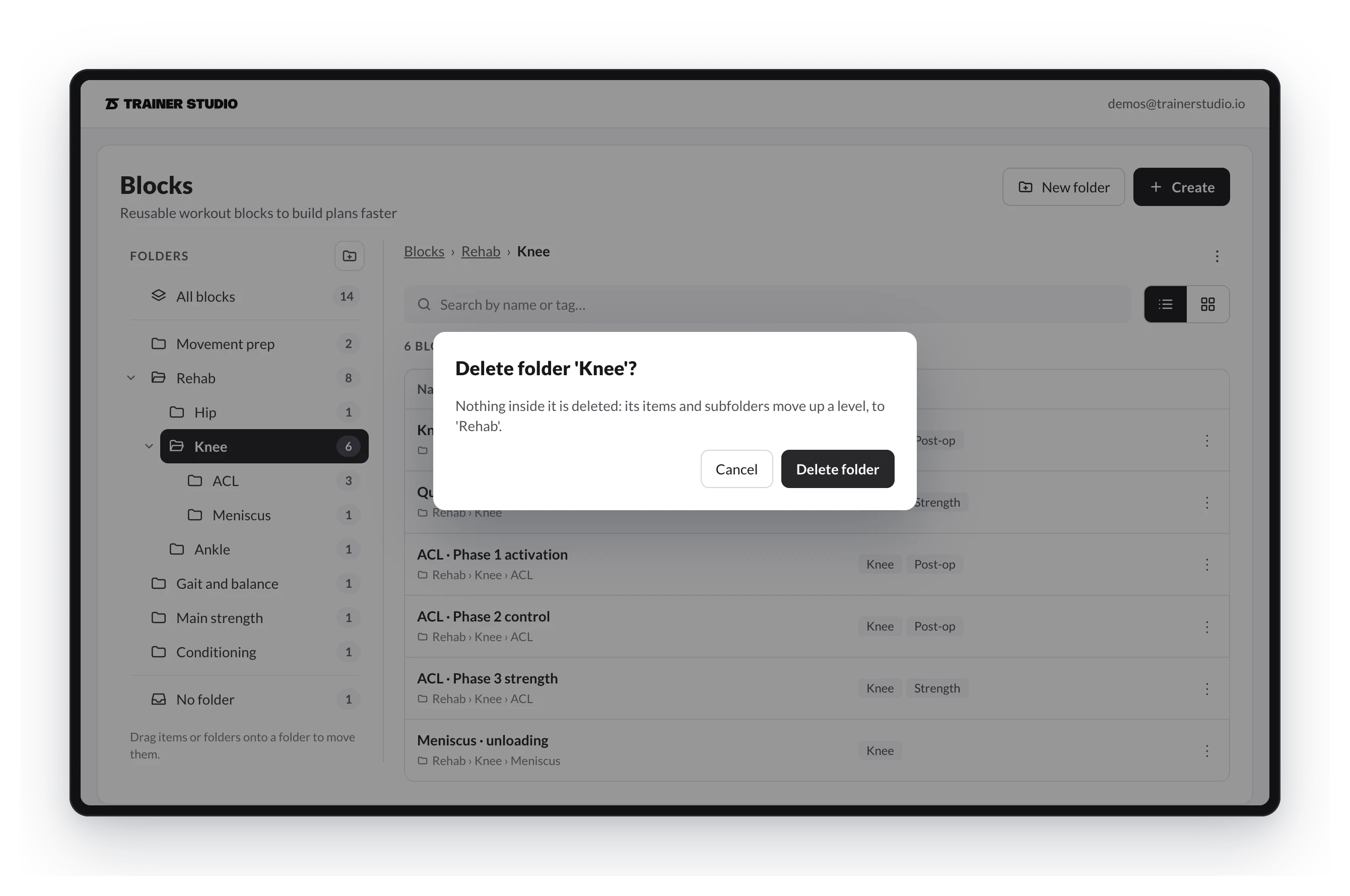
If what you want is to delete a template, use Delete in its own ⋮ menu.
Create and browse folders
How to create folders and subfolders in your programs, sessions or blocks library and how to move around them with the tree, the path and the list and grid views.
Search and use your folders while planning
The library search looks in every folder and tells you where each result is; when you load a template while planning, your sessions and blocks are grouped by folder.