
GuidesHow to organize your library with folders?
In the mobile app
On your phone folders work the same way, but you move folder by folder instead of with the tree.
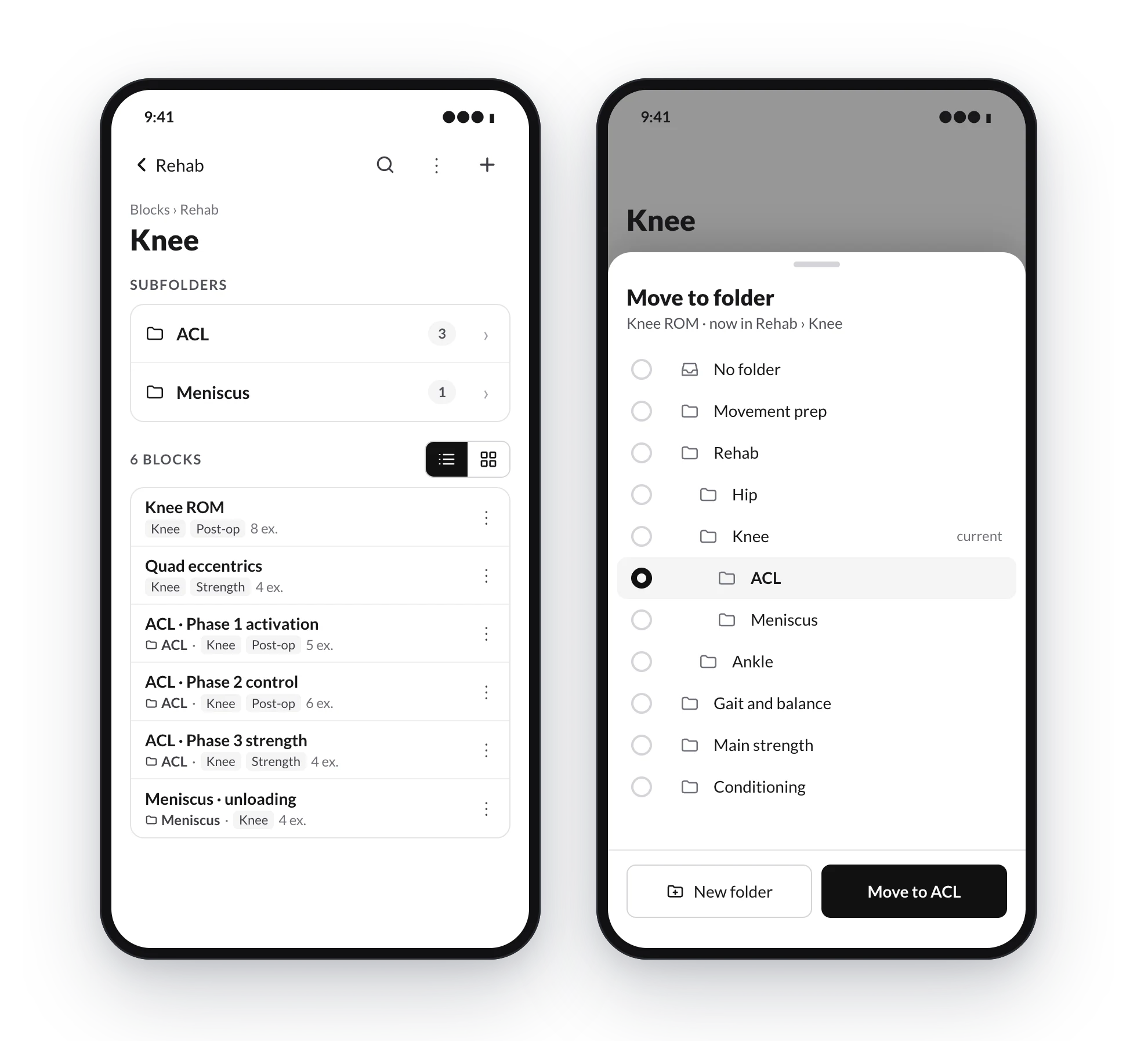
- Browse. When you open Programs, Sessions or Blocks you see All, your folders and No folder. Tap a folder to open it: at the top you see its subfolders and below all its templates, including those in subfolders. Go back with the arrow at the top; the path is above the title.
- Create. On the first screen, the menu at the top has New folder. Inside a folder, the + creates a template in it and the ⋮ has New subfolder, Rename, Move to… and Delete folder.
- Search. The magnifying glass at the top searches the whole library and each result shows its folder.
- Move. Tap a template's ⋮ and choose Move to…. A sheet opens with all your folders: pick the destination (or No folder) and confirm. You can also create a New folder from there.
There is no dragging on the phone: to move, always use Move to….
Search and use your folders while planning
The library search looks in every folder and tells you where each result is; when you load a template while planning, your sessions and blocks are grouped by folder.
Folders or tags, and ideas to get organized
When to use folders and when to use tags in your TrainerStudio library, and practical ways to organize programs, sessions and blocks by phase, body area, client type or part of the session.