
Create and browse folders
Open Library and go to Programs, Sessions or Blocks. On a computer you see the folder tree on the left and the content on the right.
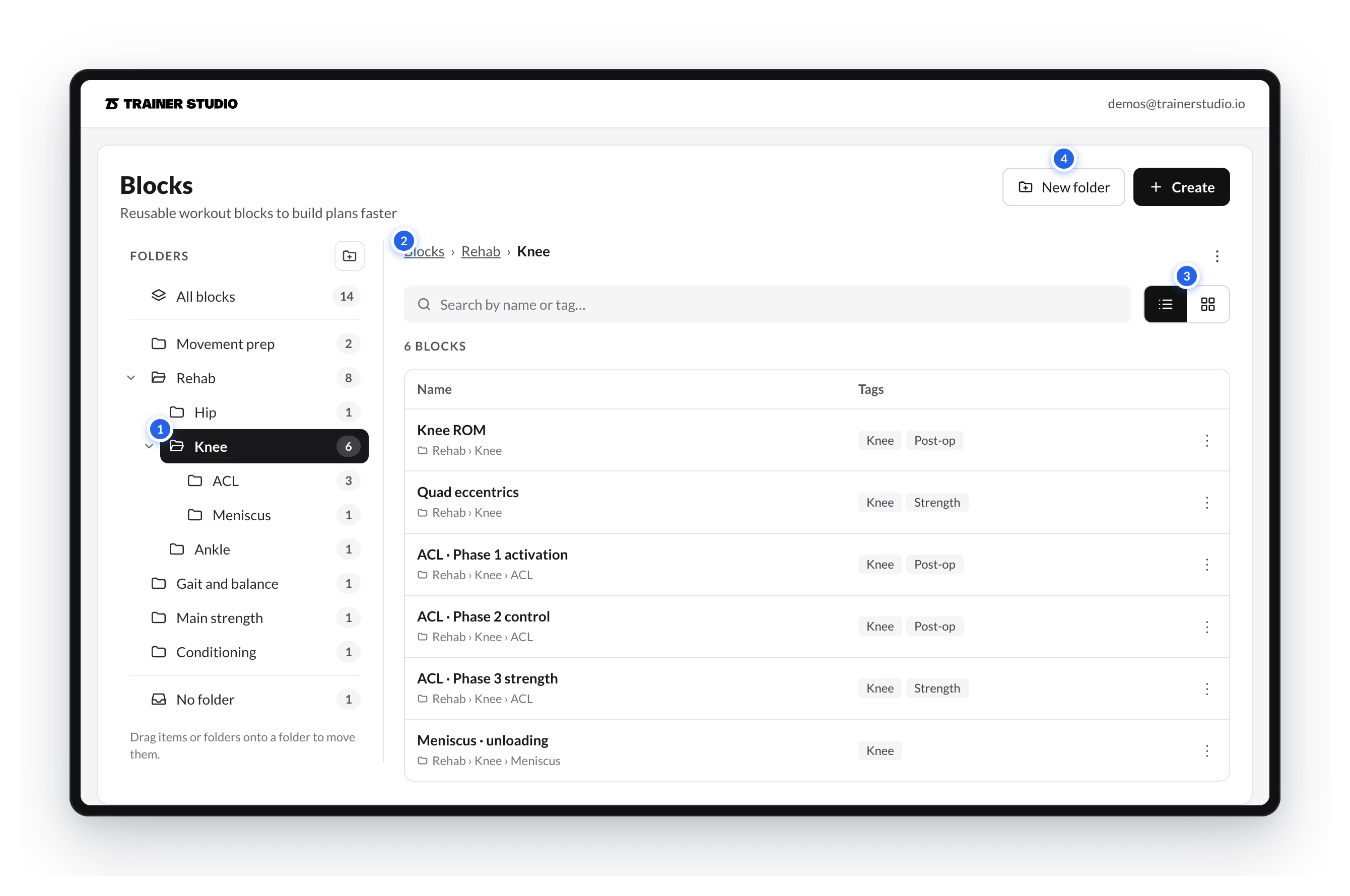
- The tree. Click a folder to open it and the arrow to expand or collapse its subfolders. The number is everything inside it, subfolders included. At the top you have everything together (All blocks, for example) and at the bottom No folder.
- The path. It tells you where you are. Click any level to go back to it. The ⋮ on its right holds the actions of the open folder.
- List or grid. The list is more compact; the grid shows a summary of each template.
- New folder. Creates it inside the folder you have open.
Create a folder or a subfolder
- New folder (top right) or the button next to Folders in the tree: they create it inside the selected folder, or at the top level if none is selected.
- Hover a folder in the tree and open its ⋮ → New subfolder.

Type the name and click Create. For a subfolder, the dialog tells you which folder it will be created in and gives you a few ideas to get organized.
What you see when you open a folder
You see everything inside it, including what is in its subfolders. Opening Knee shows its blocks and those in ACL and Meniscus, each with its path under the name so you know where it is.
If you create a template with a folder open, it is saved in that folder.
How to organize your library with folders?
Sort your programs, sessions and blocks into folders and subfolders, move them by dragging and find the template you need, also while planning and on your phone.
Move, rename and delete
How to move programs, sessions, blocks and folders by dragging or with “Move to…”, and how to rename or delete folders without losing any template.