
View the schedule
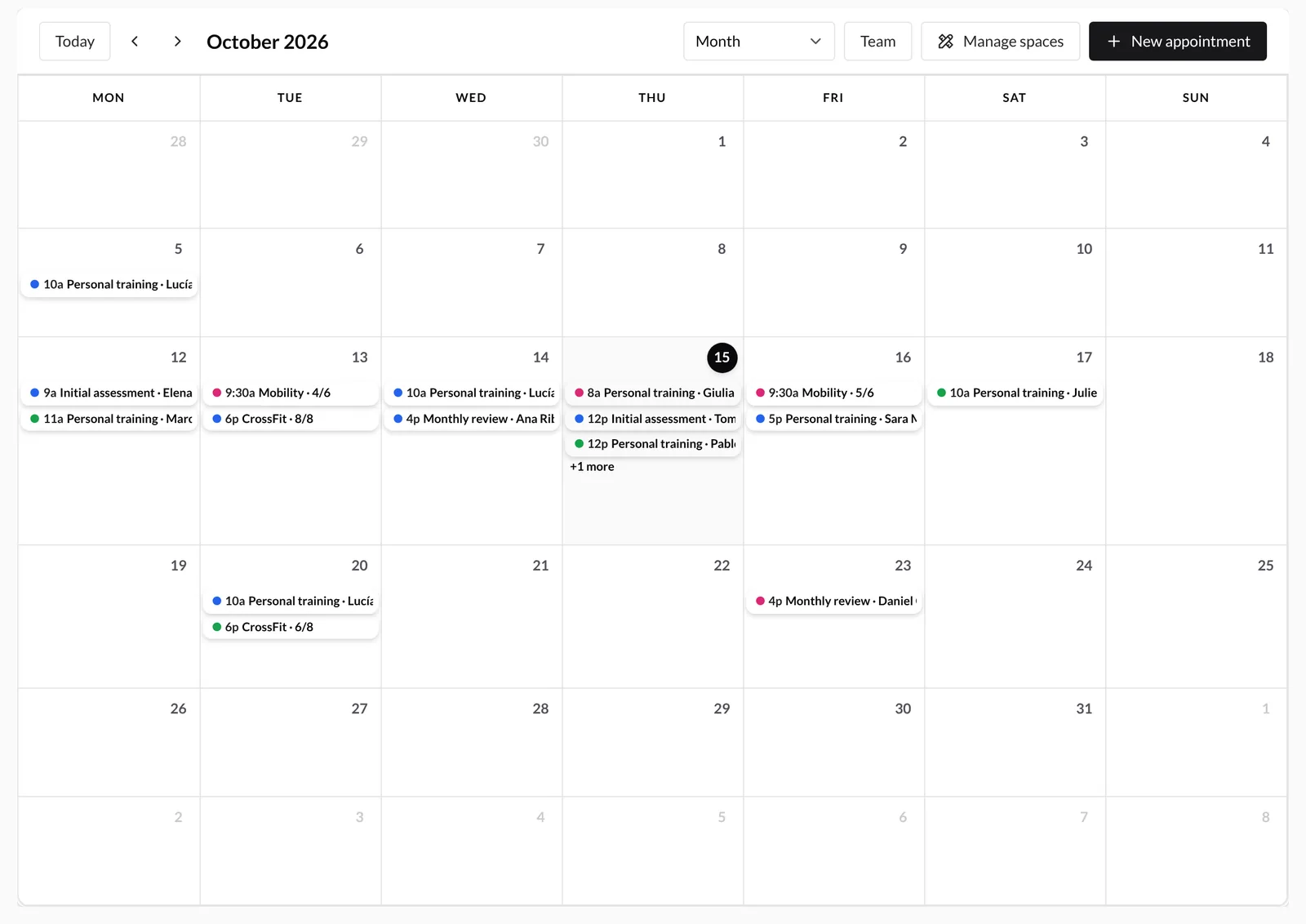
By default, the Calendar shows every active trainer's schedule. Each uses a different color. Events show their title and, when provided, the client's name; select one to open its details.
Navigate dates
- Today: returns to the period containing today.
- Previous and next: moves by month, week, or day according to the current view.
- Current period: identifies the month, week, or day being displayed.
- View selector: switches between Month, Week, Day, Agenda, and Resources.
- Team: displays one or several schedules without leaving the calendar.
Weeks always start on Monday.
Choose the right view
- Month: an overview that shows up to three appointments per day before grouping the rest.
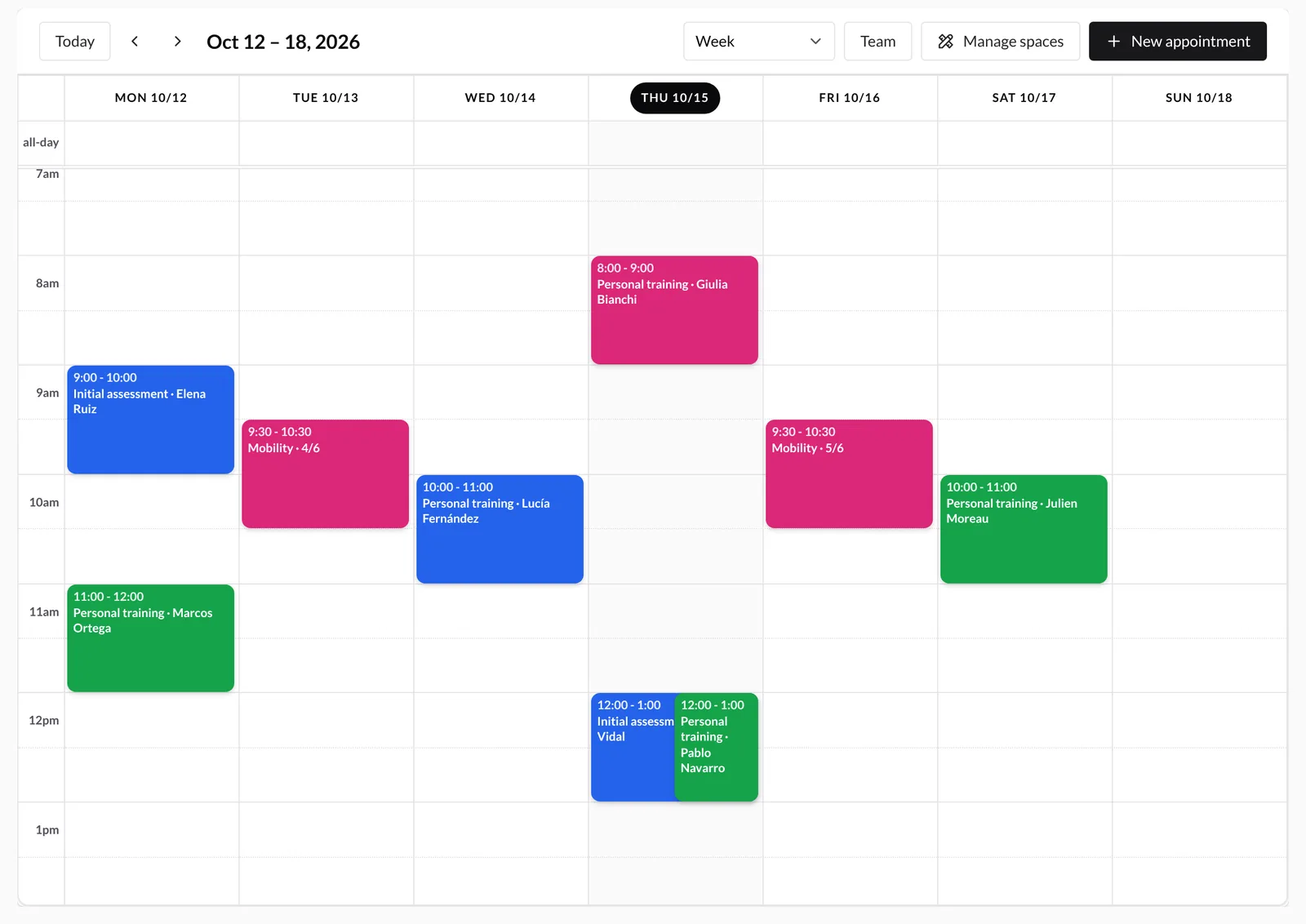
- Week: appointments arranged by hour, ideal for organizing and moving sessions.
- Day: one expanded day for tightly packed schedules.
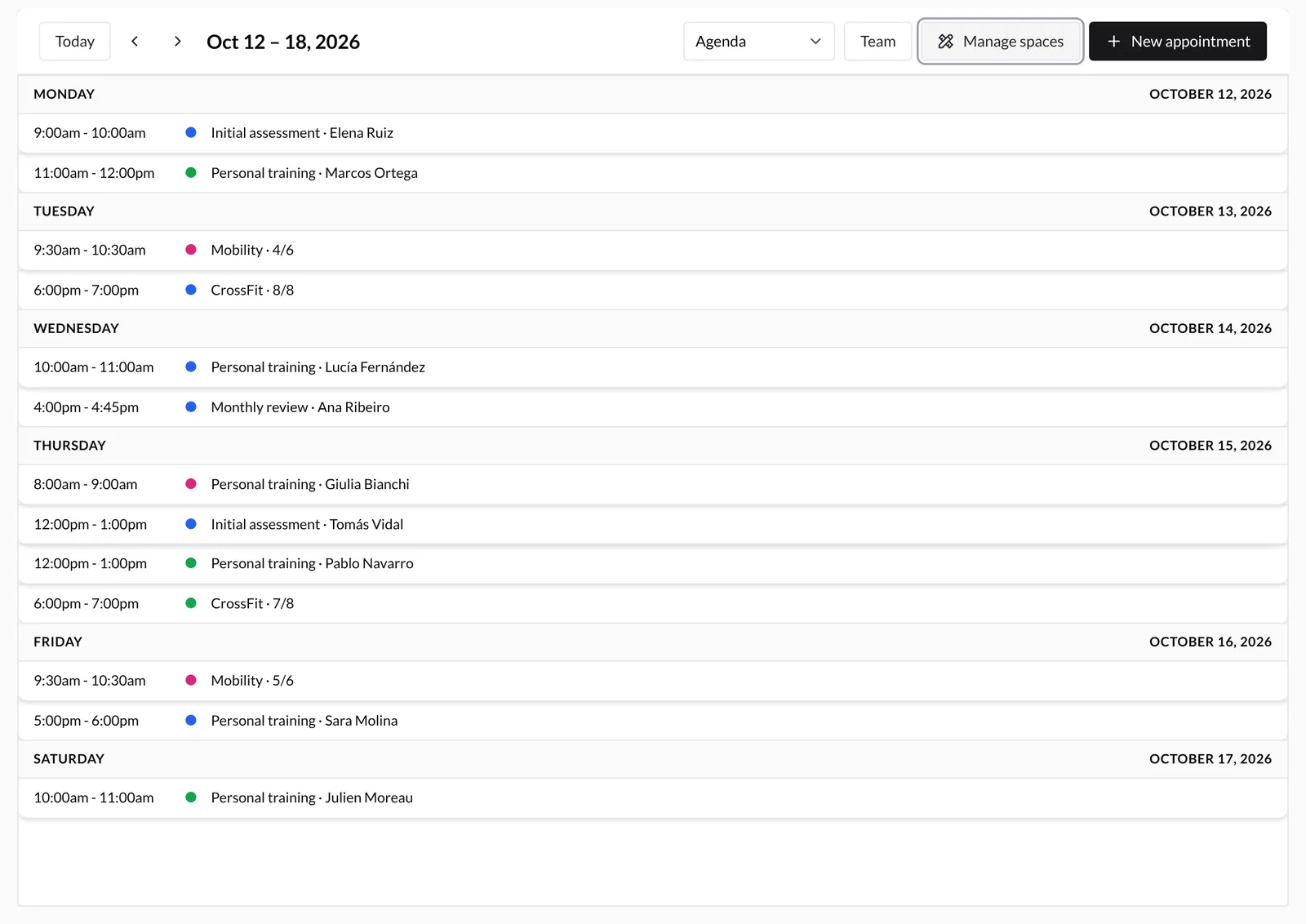
- Agenda: a chronological weekly list, especially useful on a narrow screen.
- Resources: rooms in rows and time horizontally; choose Day, 3 days, or Week.
Desktop starts in Month; mobile prioritizes Agenda. You can change views at any time.
Filter by trainer
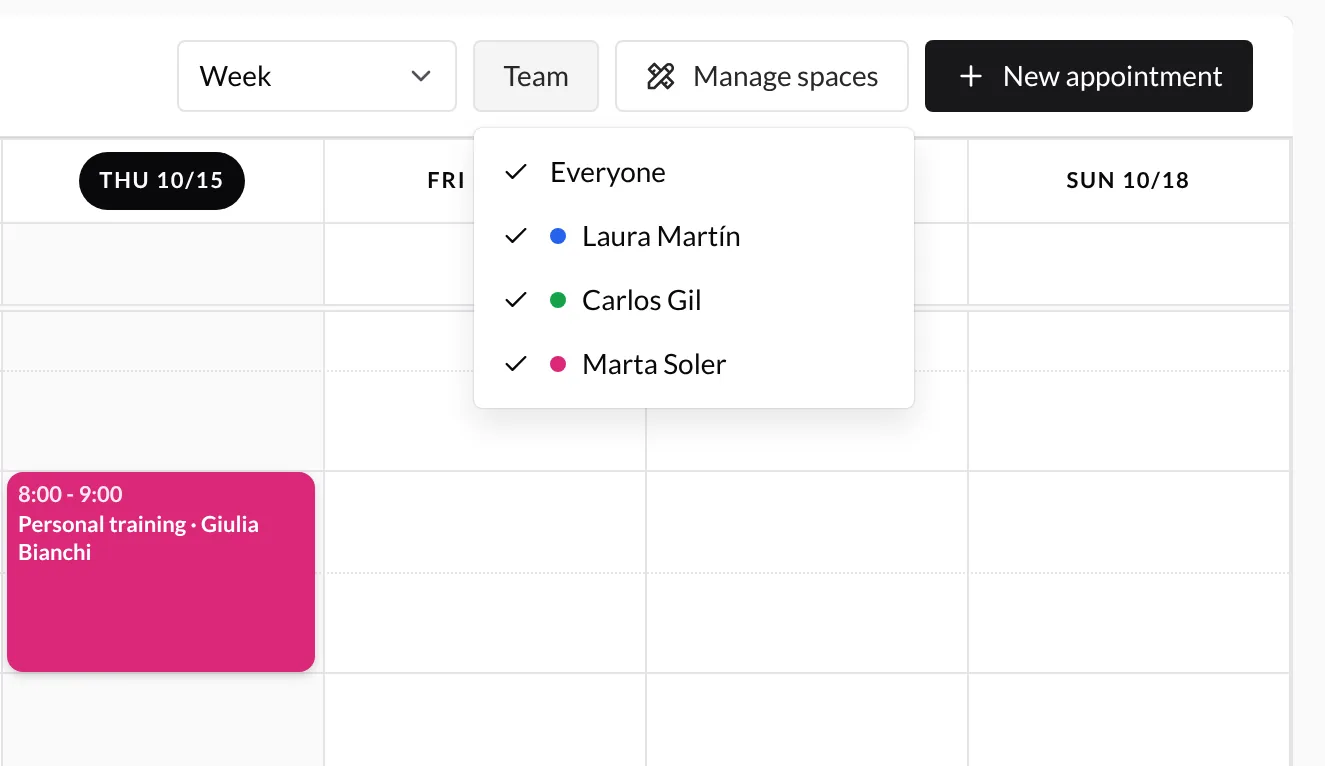
Use Team beside the view selector. All restores every schedule; select or clear individual trainers to show or hide them. Colors match their appointments, and you can leave several—or none—visible.
Filters only affect what you see. They do not change permissions or resource conflict checks, which always consider every company schedule.
If the schedule does not load
Use Retry in the error message. Changes require a connection; offline mode is not currently available.
Next, learn to create and manage appointments.