
Spaces and resources
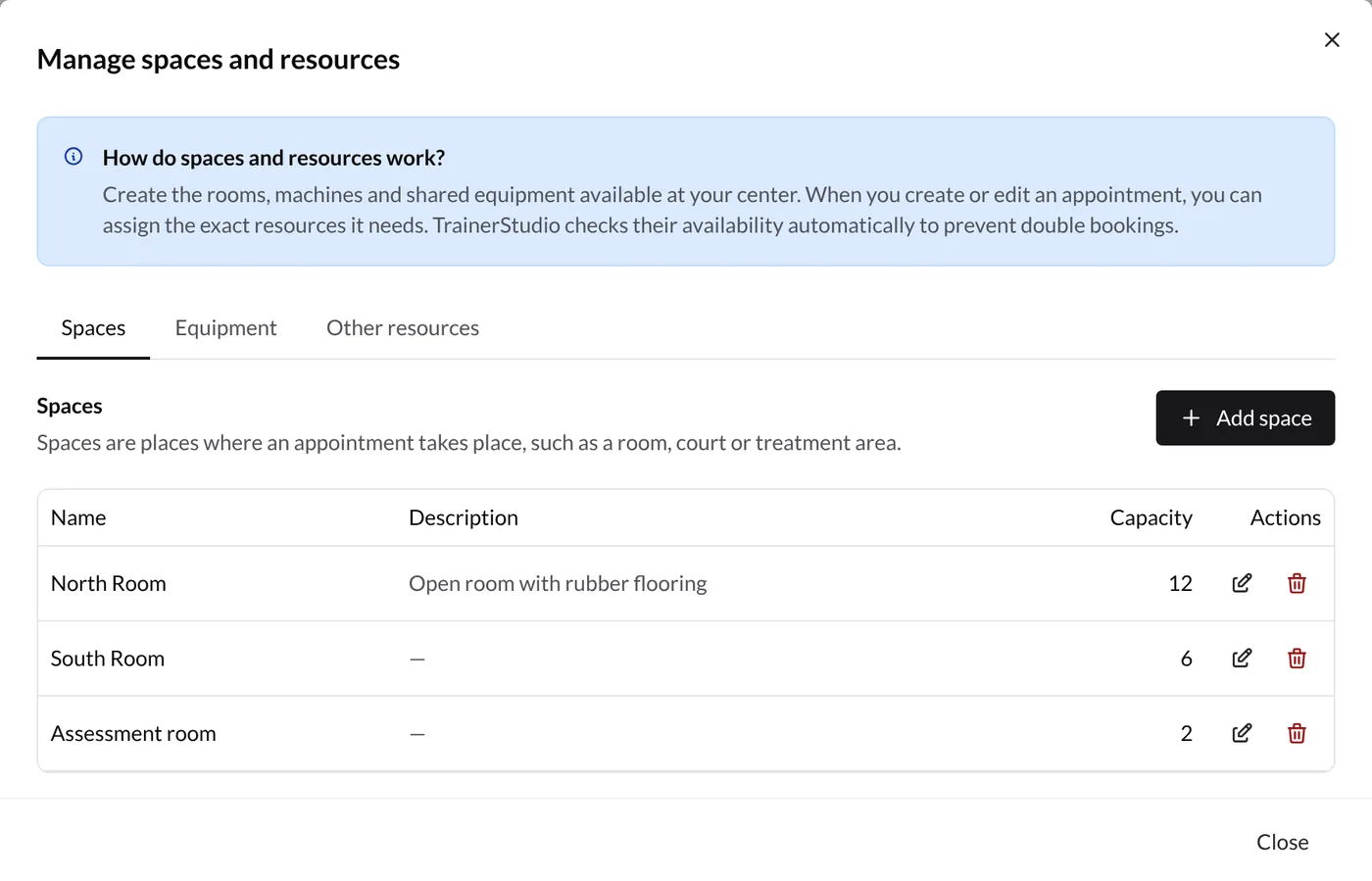
Resources are shared items needed for a session: rooms, courts, treatment tables, measurement devices, or equipment. Manage spaces appears in the Calendar toolbar for team managers. Employees can select resources in their own appointments but cannot create or edit them.
Categories
- Rooms and spaces
- Equipment and materials
- Other resources
Open Manage spaces, select a tab, and choose Add. Enter the required name and optionally capacity and description. The list lets managers edit or delete each item after confirmation.
Assign resources
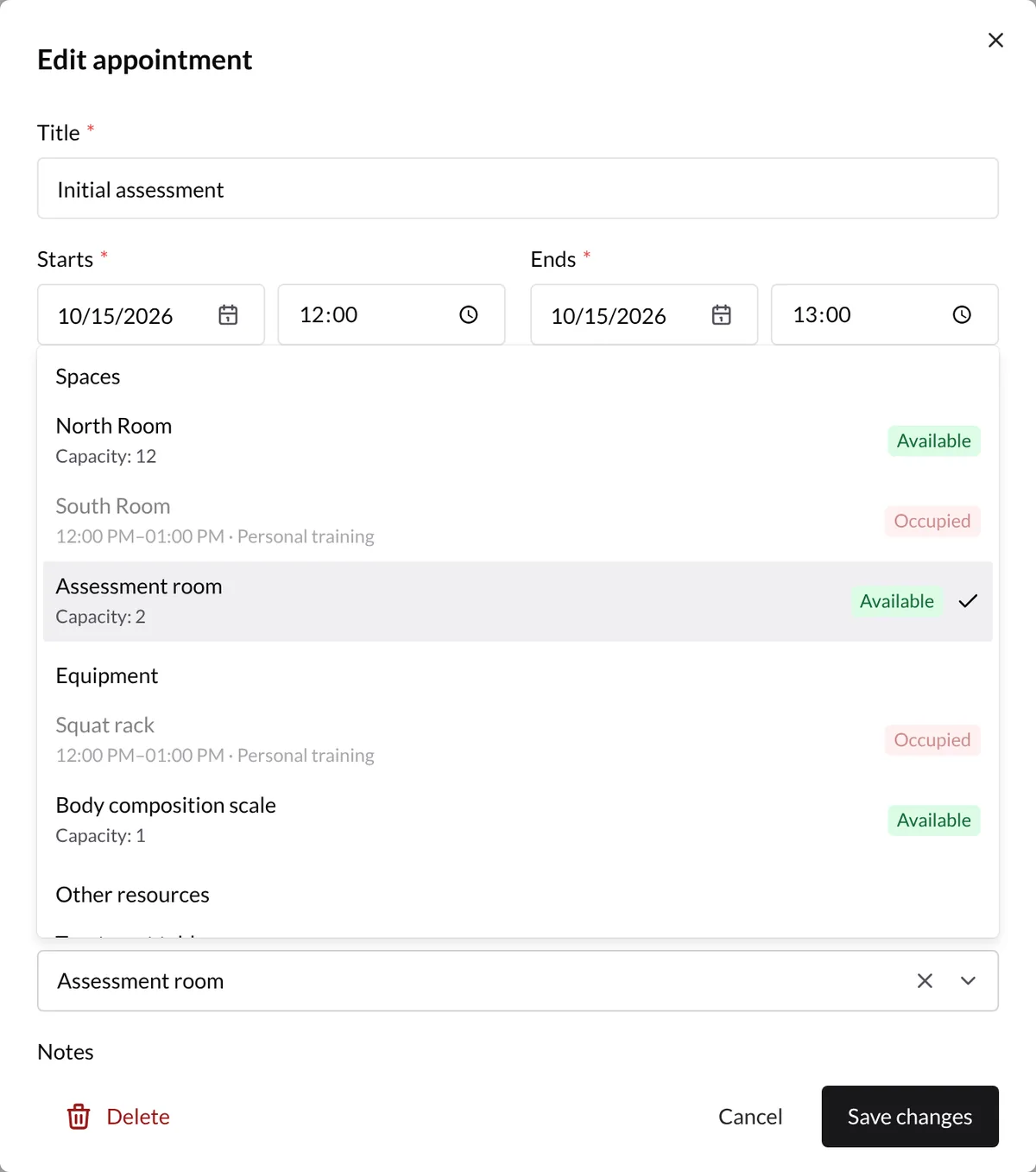
Open an editable appointment, expand Spaces and resources, and select one or more items. They are grouped by category and show whether they are free or busy for that time. Busy items also show the conflicting interval and appointment. Saving checks every trainer's schedule.
Conflict rules
- Confirmed and Tentative appointments hold resources for their entire interval.
- Cancelled appointments release them.
- Back-to-back appointments are allowed.
- Hidden schedules are still checked.
- A conflict rejects the save or restores a moved appointment to its previous time.
Capacity is informational; it does not allow simultaneous reservations up to that number. This feature coordinates the internal team and is not a public high-concurrency booking engine.
View room availability
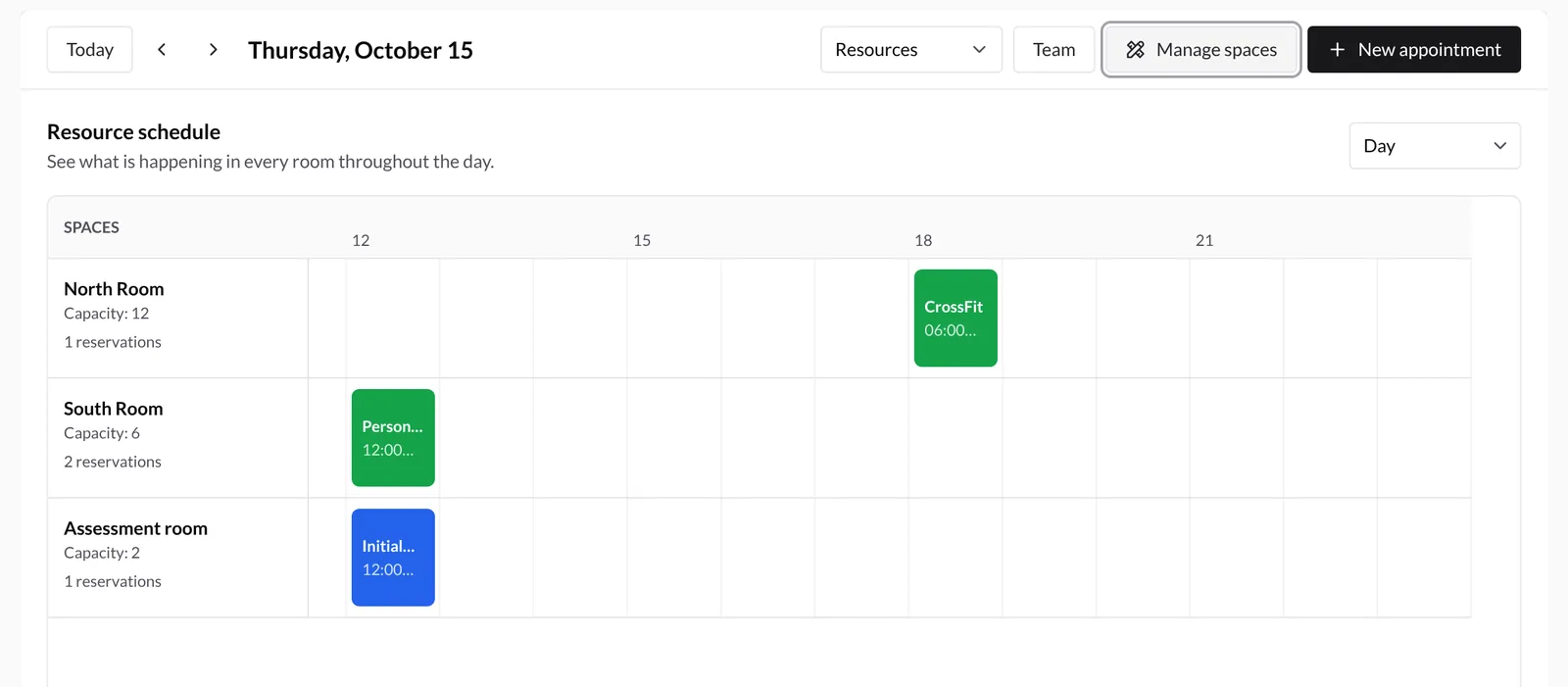
Choose Resources in the Calendar view selector. Rooms appear in rows with time horizontally. Choose Day, 3 days, or Week, navigate periods, and select a booking for details. If no rooms exist, the view displays other available resources.
Return to the Calendar and appointments overview.