
Create and manage appointments
Create an appointment with New appointment—which suggests the next half-hour and a one-hour duration—or select an empty interval in Month, Week, or Day. In Agenda, use the button.
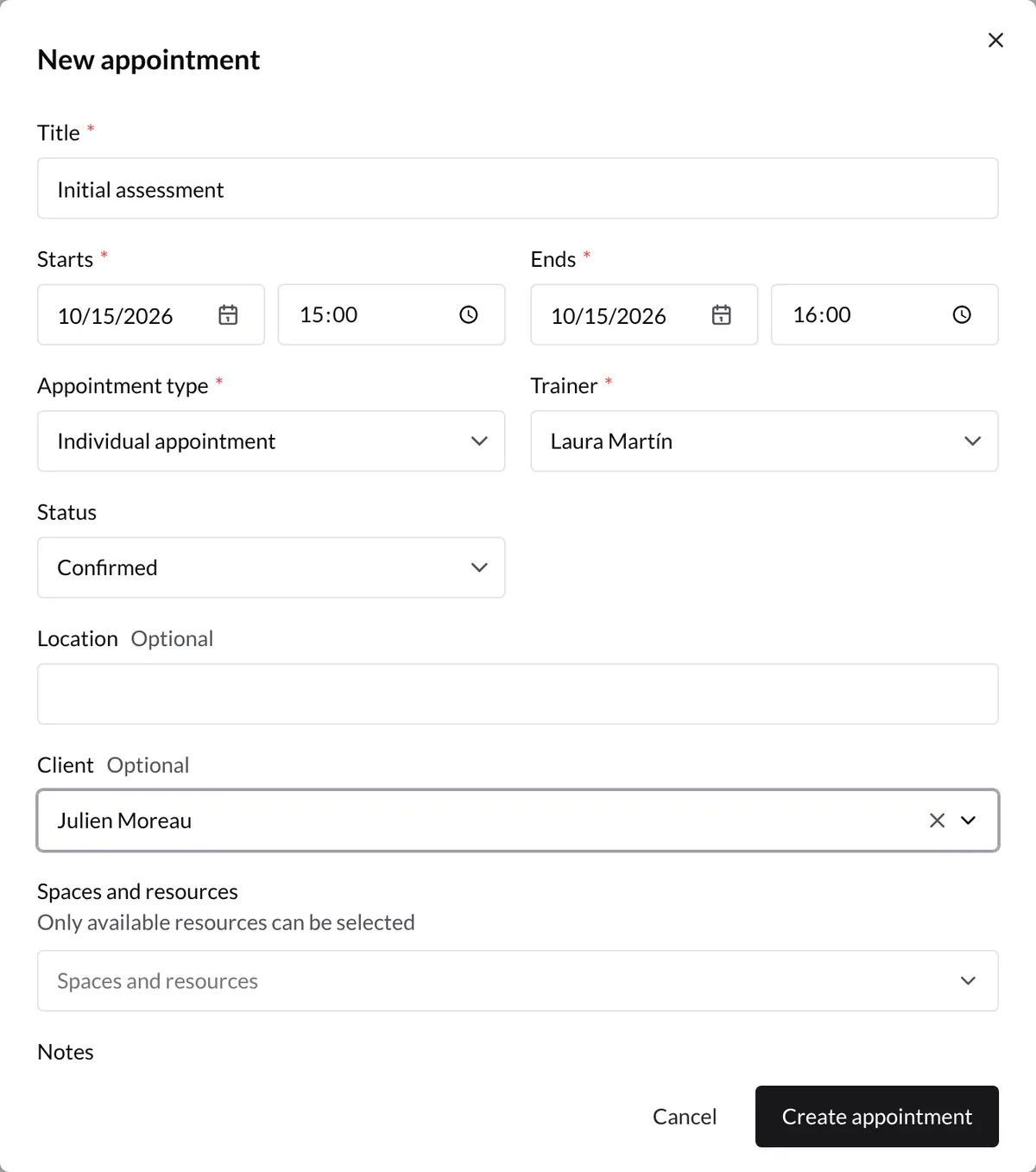
Complete the appointment
- Title: required.
- Starts and ends: the end must be later than the start.
- Trainer: the schedule where it will be saved.
- Status: Confirmed, Tentative, or Cancelled.
- Appointment type: Individual appointment or Group class.
- Client: optional company-client search that stores the selected client's reference details.
- Location: optional free text.
- Spaces and resources: grouped by category and marked free or busy; busy resources cannot be selected.
- Notes: additional internal information.
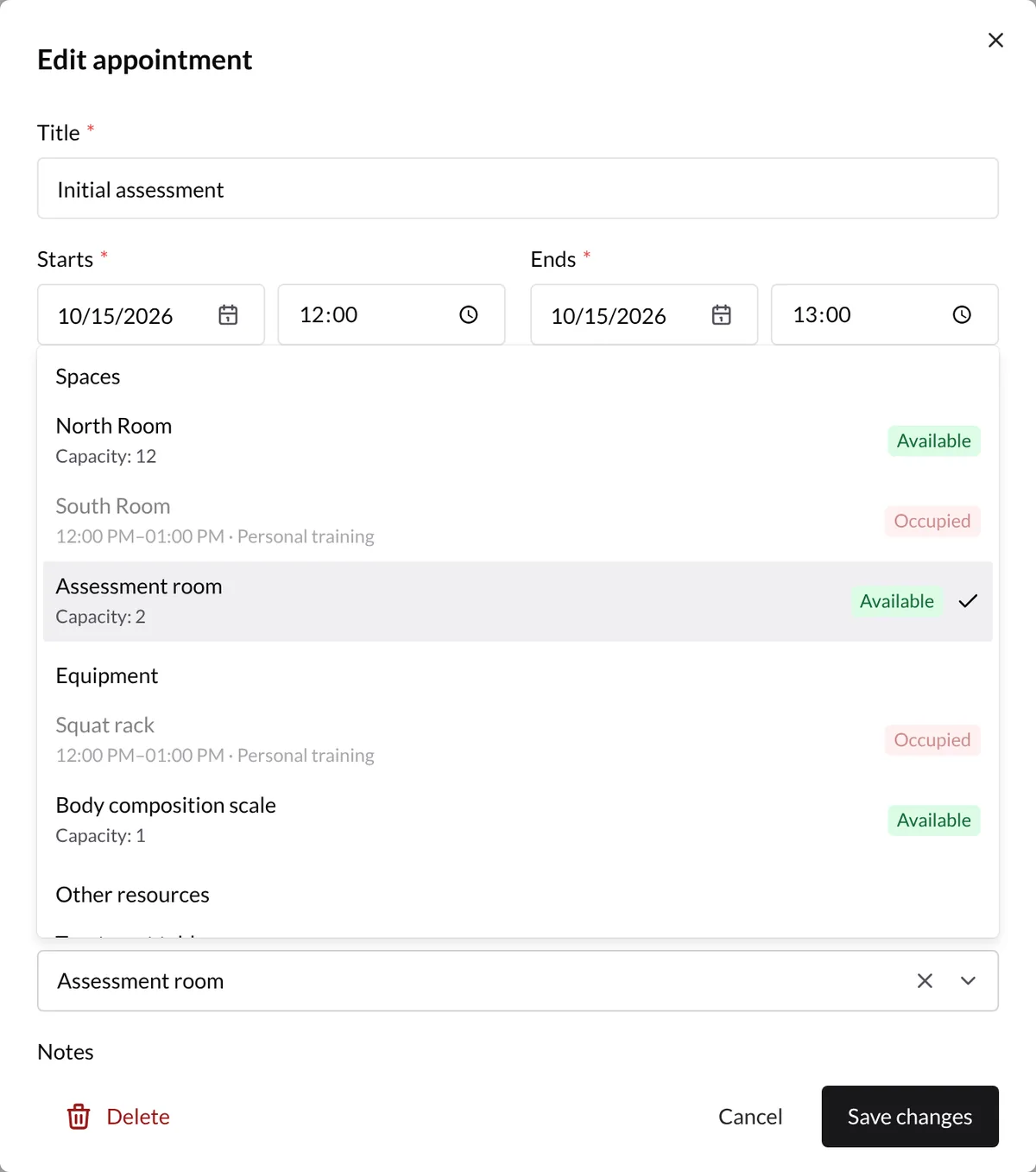
Times use the device's local time zone and five-minute increments. Select Create appointment. Invalid required fields, time ranges, or resource conflicts prevent saving and display a warning.
Group classes
Choose Group class when several people share one time and space. You can set capacity, add attendees, and manage a waitlist. See group classes.
Edit an appointment
Open an appointment and, if permitted, change its fields. In Month, Week, and Day you can drag it to reschedule; in Week and Day you can drag its edges to resize it. You can also change trainer in the form or permanently delete it after confirmation. Failed moves or resizes return to their previous position.
Statuses
- Confirmed and Tentative reserve selected resources.
- Cancelled remains visible but releases its resources.
Linking a client does not send email, reminders, or calendar invitations, and does not add the appointment to their app.
Recurring appointments, automatic reminders, video calls, attachments, external-calendar sync, and public self-booking are not currently available. See team permissions.