
Review responses and progress
Open the client profile and go to Form responses. This screen contains the forms placed in their plan, including both completed and pending ones.
Review each response
The Responses view groups forms by week. Each card shows the name, date, status, and a short summary; open it to read every question and answer.
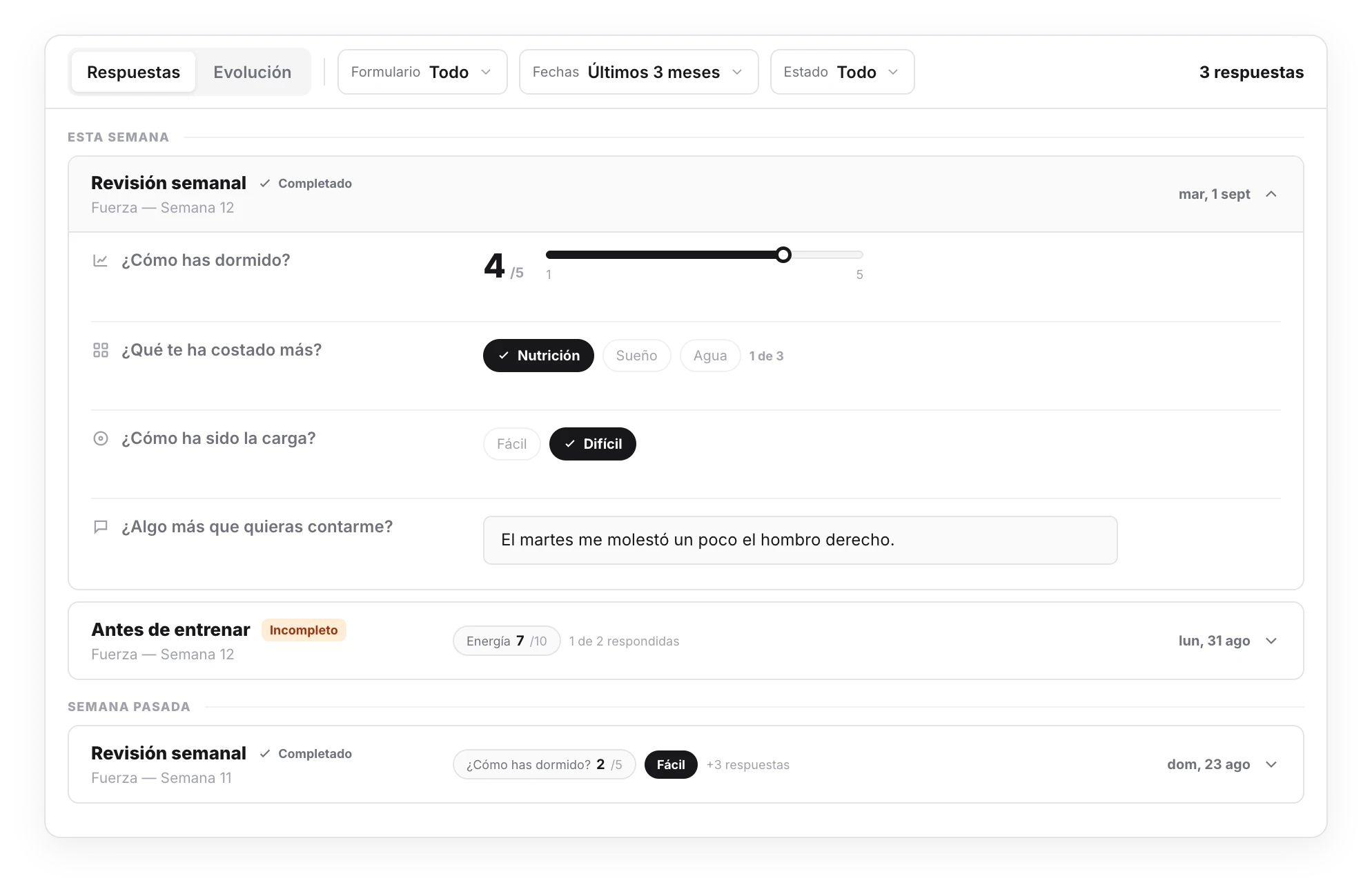
Use the filters at the top to narrow the review:
- Form: show one or several specific questionnaires.
- Dates: last 30 days, last 3 months, this year, all time, or a custom range.
- Status: all, completed, or incomplete.
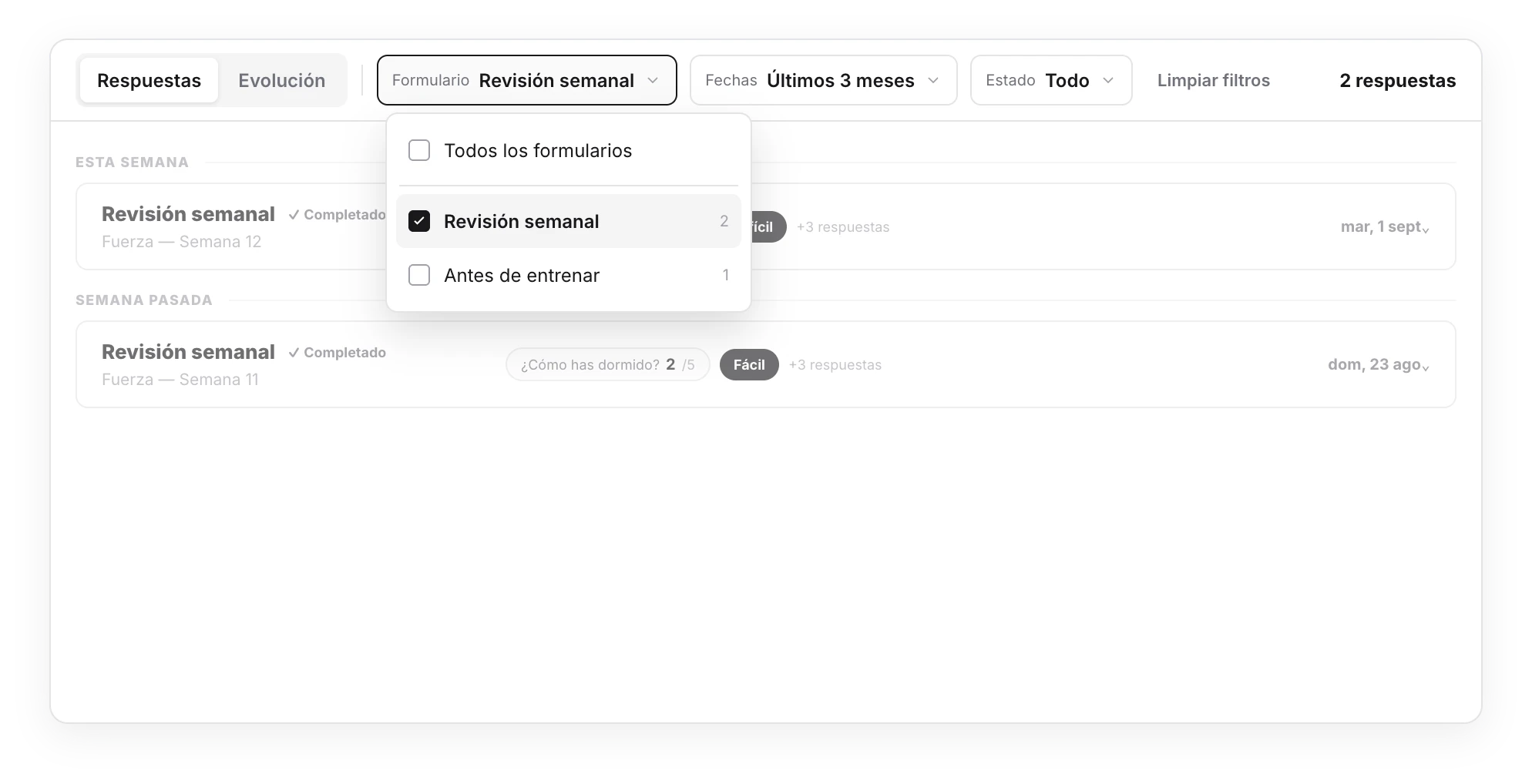
The last three months are shown by default. The Incomplete filter helps you find scheduled forms the client has not finished yet.
Compare progress
Open the Progress view and choose one form. TrainerStudio compares questions that have the same text within that form:
- Scales become a chart with the latest value, the change from the previous answer, and the average.
- Choice questions show how often each option was selected.
- Text responses appear chronologically, with the newest first.
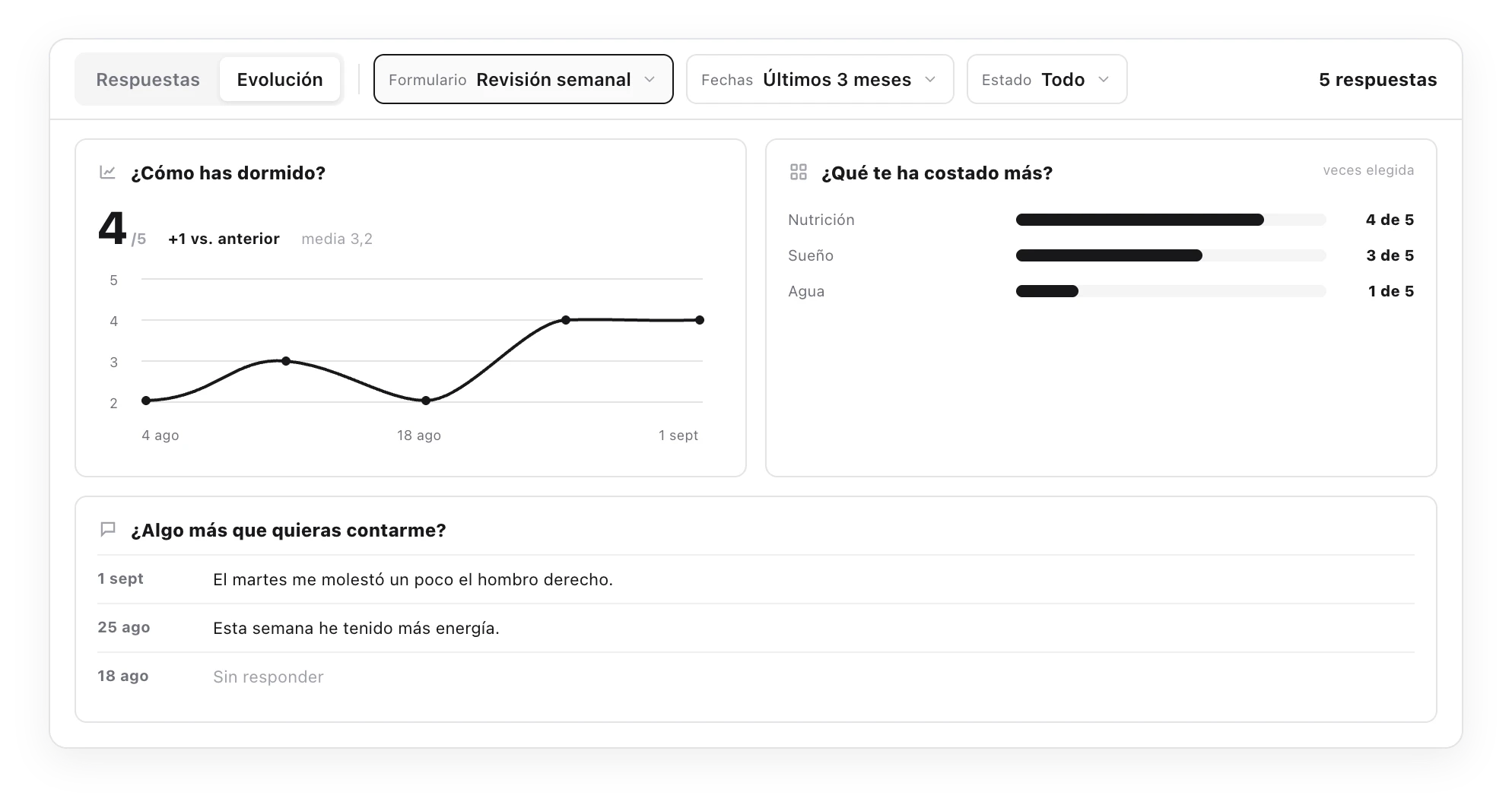
Responses are compared only within the same form. The question text also acts as its identifier: if you change it in a new version, TrainerStudio treats it as a different question in the progress view.
No recurring check-in yet? Go back to create and assign the form on several dates; the comparison will appear as the client responds.