
What your client sees
When you assign an advanced nutrition plan, your client sees it in the Nutrition section of their app. Everything you built —the plan's name and description, the days, the meals and the recipes— appears clearly and in order, ready to follow.
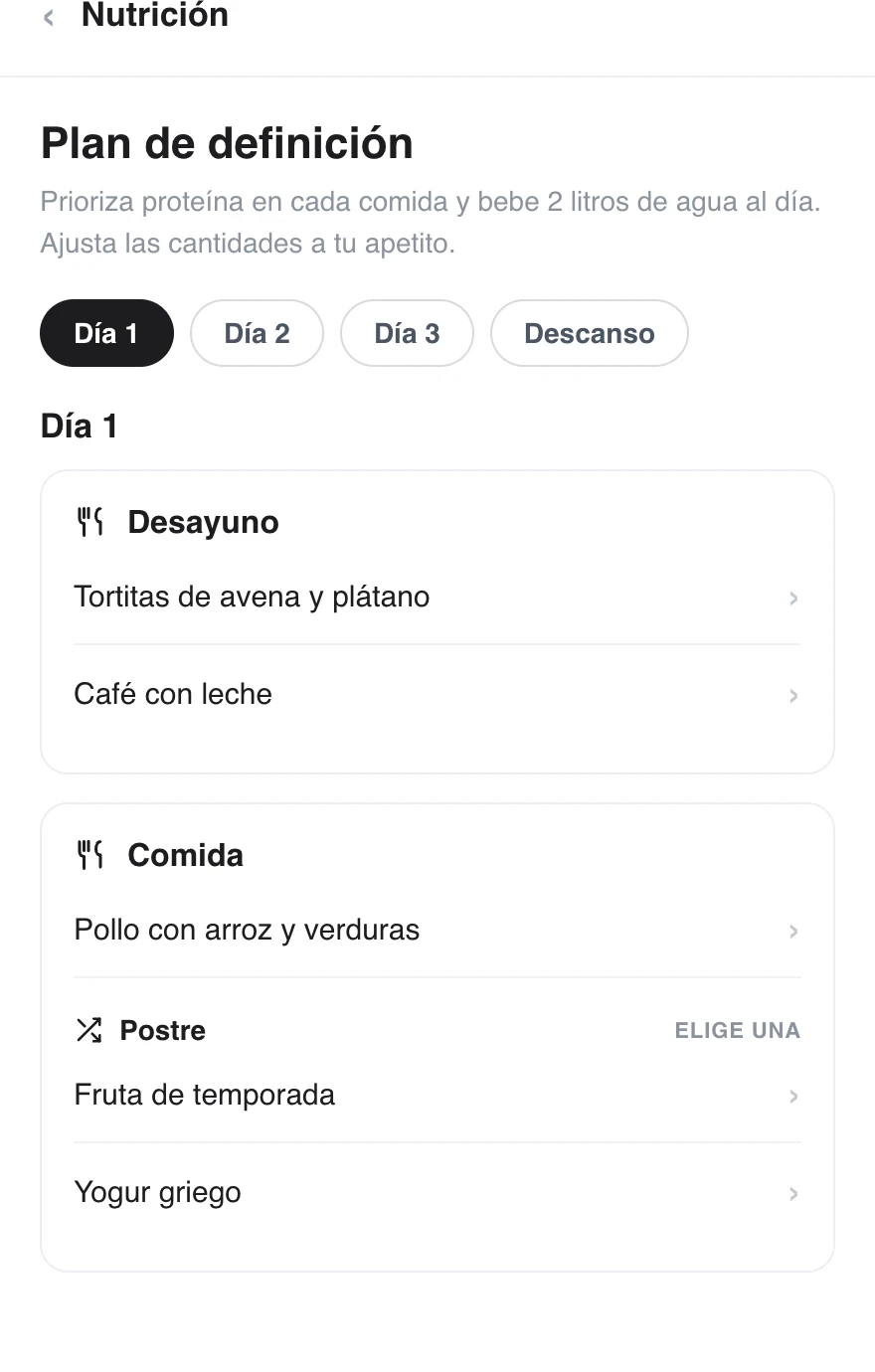
The client moves through the days and their meals, and opens each recipe to see its ingredients, instructions and macros.
How they go through it
- Days: if the plan has several days, the client switches between them with the tabs at the top.
- Meal blocks: each day shows its meals (Breakfast, Lunch, Dinner...) with the note you wrote and their recipes.
- Recipe details: tapping a recipe opens a card with its description, the time, servings and complexity, the list of ingredients with their amounts, the instructions and the calorie and macro breakdown in a pie chart.
- Choose an option: in blocks with "choose one" options, the client opens the alternatives and keeps the one they prefer.
Macros appear inside each recipe card, not as an overall calorie counter: the client app does not track daily macros against a target.
Recipe photos and videos
Each recipe card shows its images and videos. Uploaded videos play from the card; video links open when tapped.
Recipes customized for a client keep the photos and videos of the original recipe, along with the amounts and instructions you adapted for that person. If the original recipe is no longer available, the client can still see their customized version.
What they cannot do
The client app is read-only: they follow the plan you designed for them, but they do not edit it. Any change (adjusting amounts, swapping recipes, moving meals) is made by you from their profile, and they see it updated instantly.
That closes the advanced nutrition loop: from your library to your client's plate.