
Nutrition plans
A nutrition plan organizes your recipes into days and meals, with calorie and macro targets. It is the template you then assign to your clients: you build it once in the library and reuse it with anyone you want.
You will find them in Library → Nutrition plans.
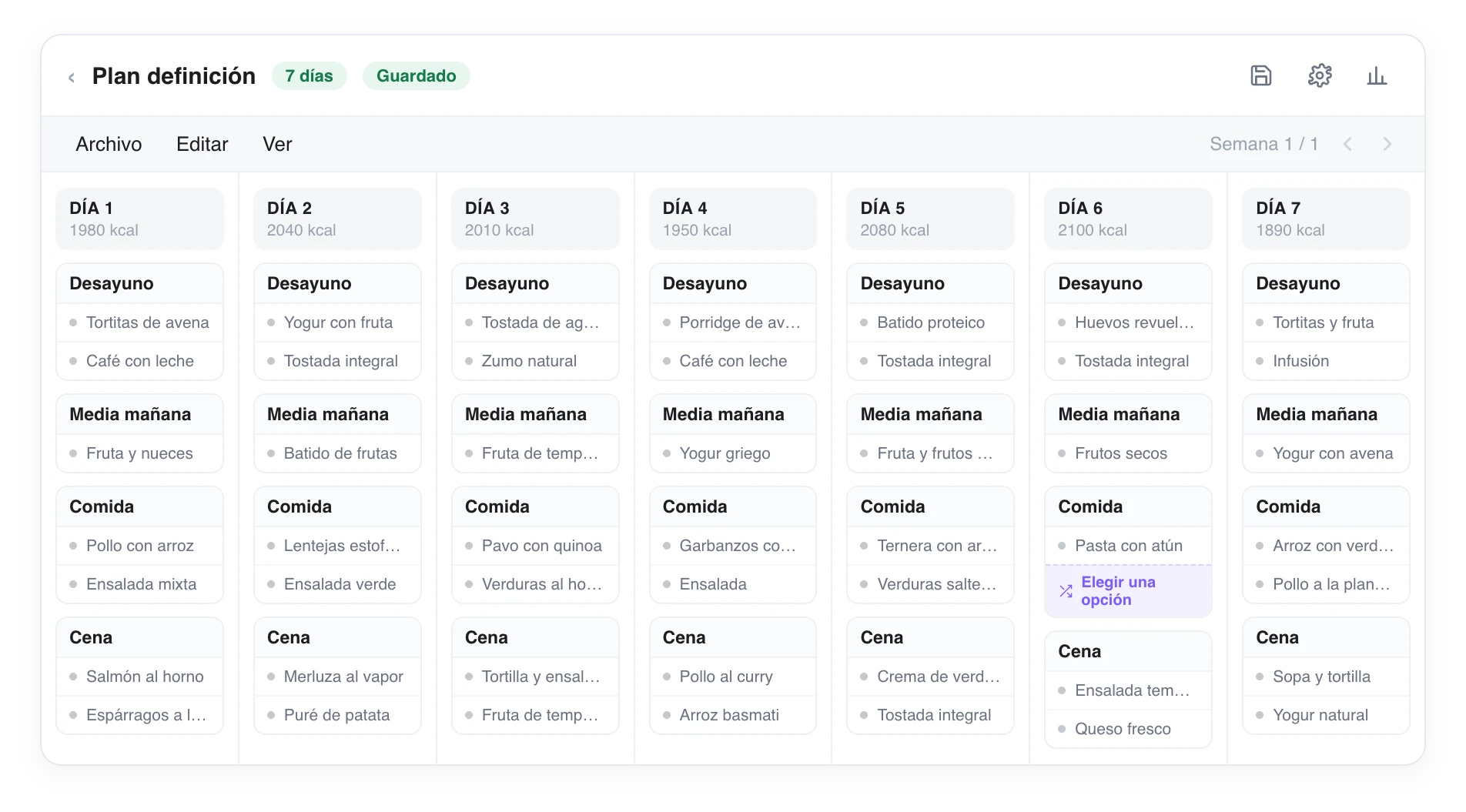
A plan spans several days —here a full week—. Each day is a menu with its meals, and you move between weeks from the top bar.
The structure of a plan
- Days: a plan has one or more days (for example, a full week). You can reorder the blocks and move them from one day to another.
- Meal blocks: inside each day you define the meals (Breakfast, Mid-morning snack, Lunch, Dinner...). Each block can carry a formatted note to give context or tips.
- Block recipes: inside each meal you place your recipes.
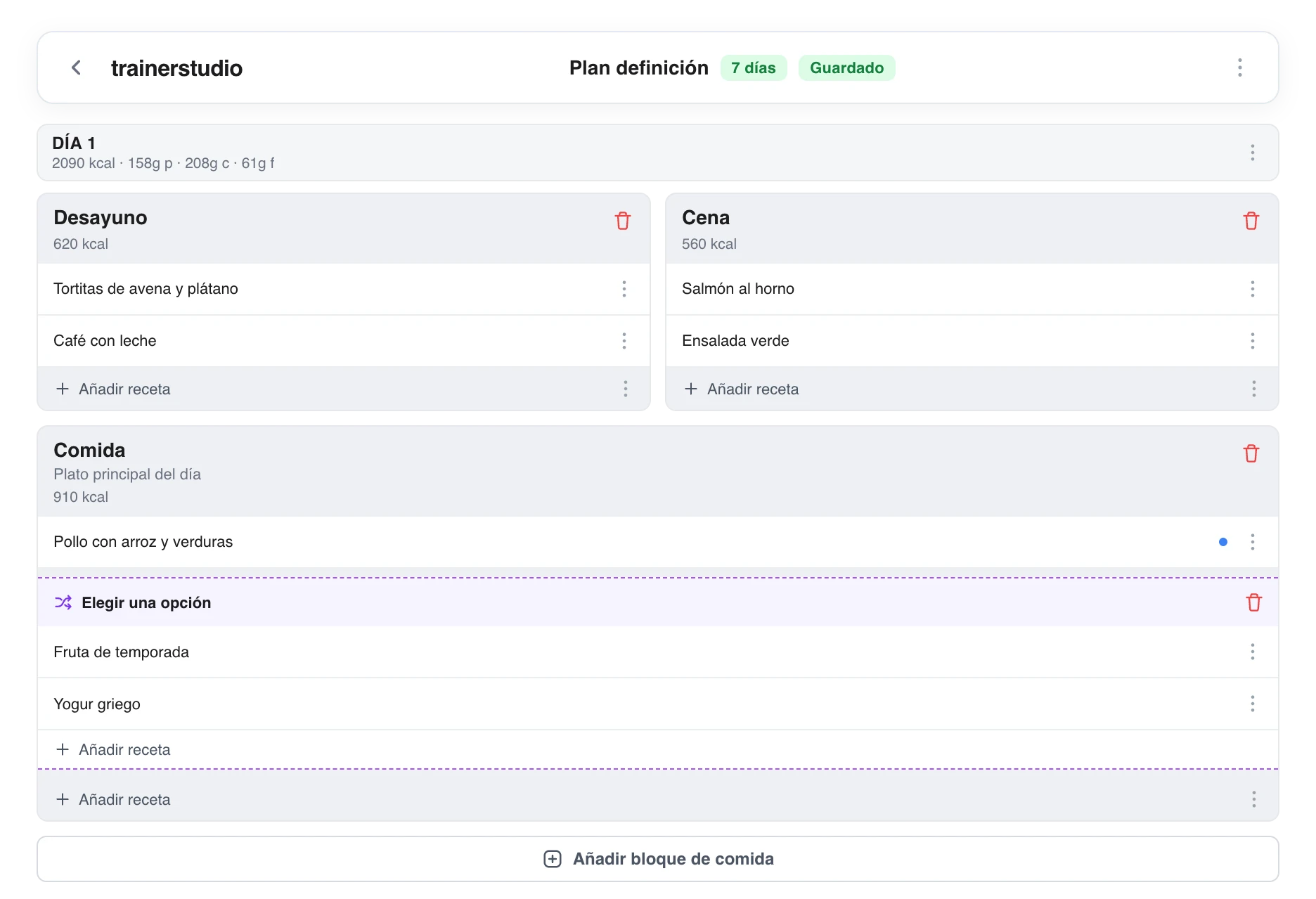
The detail of one day: its meal blocks with their recipes. The "Choose an option" group offers alternatives for the client to pick from.
Fixed recipes and options to choose from
Inside a block you can combine:
- Fixed recipes: the ones the client has to make that day, no matter what.
- Option groups ("Choose an option"): several alternatives from which the client picks one (for example, "choose your protein source"). Ideal for giving flexibility while keeping control of the plan.
Targets and statistics
Each block shows its calories, protein, carbs and fat right in its header, both in the library and when editing a client's plan. The values update as you adjust the amounts, without opening any menus. This lets you compare blocks when you use them as meal options.
If a food or recipe has alternatives, the block total uses the main option; it does not add up all the alternatives. The day total still adds up all its blocks.
In the plan settings panel you set the macro targets: calories, protein, carbs and fat (alongside the plan's name and its number of days).
In a separate statistics panel —not in the day view— TrainerStudio shows you how the plan is doing against those targets:
- Daily average of calories and macros.
- Weekly total.
- Difference from the target, color-coded (green/orange/red) so you can see at a glance whether you are falling short or going over.
That way you adjust the amounts until the plan matches the targets you set, without pulling out a calculator.
When you are happy with the plan, it is time to assign it to a client.
Recipes
Combine ingredients into recipes with their amounts in grams; the macros are calculated automatically. Add instructions, preparation time and complexity.
Assign the plan to a client
Give a client an advanced nutrition plan — load it from your library or create a custom one, with macro targets and recipes customized just for that person.