
Nutrition by text
The quickest way to give a diet is to write it by hand in a formatted text editor. It is ideal for some guidelines, a simple menu or a shopping list: you write, format it and your client sees it exactly like that in their app.
You choose it in the client profile → Nutrition → Write Manually.
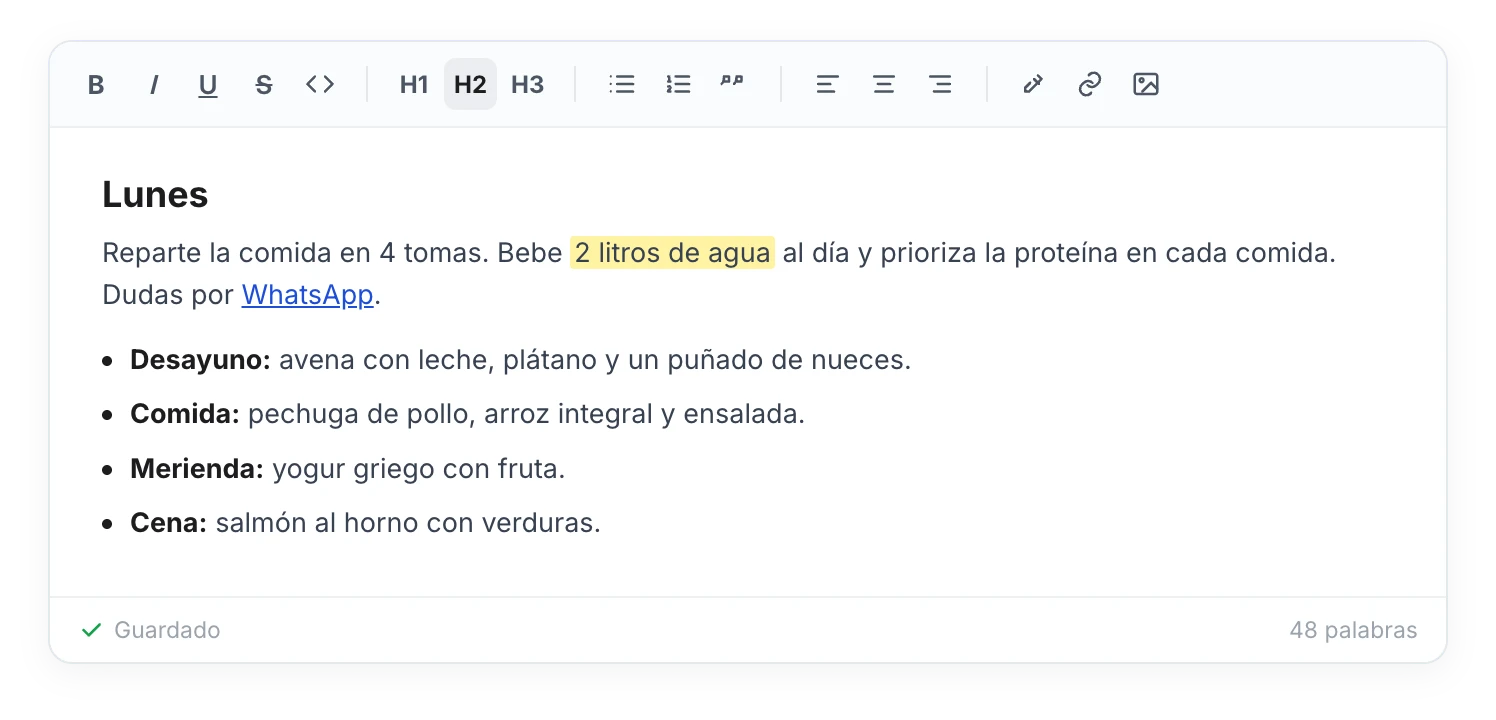
A formatted editor to write the menu: headings, lists, bold, highlights, links and images. It saves automatically as you type.
What you can do
- Format text: bold, italic, underline, strikethrough and code.
- Structure it: headings (H1, H2, H3), bulleted or numbered lists and quotes.
- Highlight and link: mark text with color and add links (for example, to a video or an external recipe).
- Align text left, center or right.
- Insert images: drag them in or paste them into the menu.
It saves automatically
There is no save button: changes are saved automatically as you type. At the bottom you see the status (Saving…, Saved or Unsaved changes) and a word count.
What your client sees
Your client sees the menu with the same formatting you gave it, in the Nutrition section of their app. If you edit it later, they will see the updated version.
Need something more structured, with recipes and macros? Move on to advanced nutrition.
And if your client wants it on paper? You can export the diet to PDF to print it.
Nutrition
Give each client their diet from their profile: by writing it as text, uploading a PDF or with advanced nutrition (day-by-day plans with recipes, ingredients and macros).
Attach a PDF
Upload your client's diet as a PDF file and they can view and download it from their app. Ideal if you already have the plan in a document.