
What your client sees
When a circuit has a timer, your client sees it grouped as a circuit inside the day's workout. When they open the circuit, a Start circuit button appears above the exercises. Pressing it opens the guided full-screen player, which walks them through the whole workout.
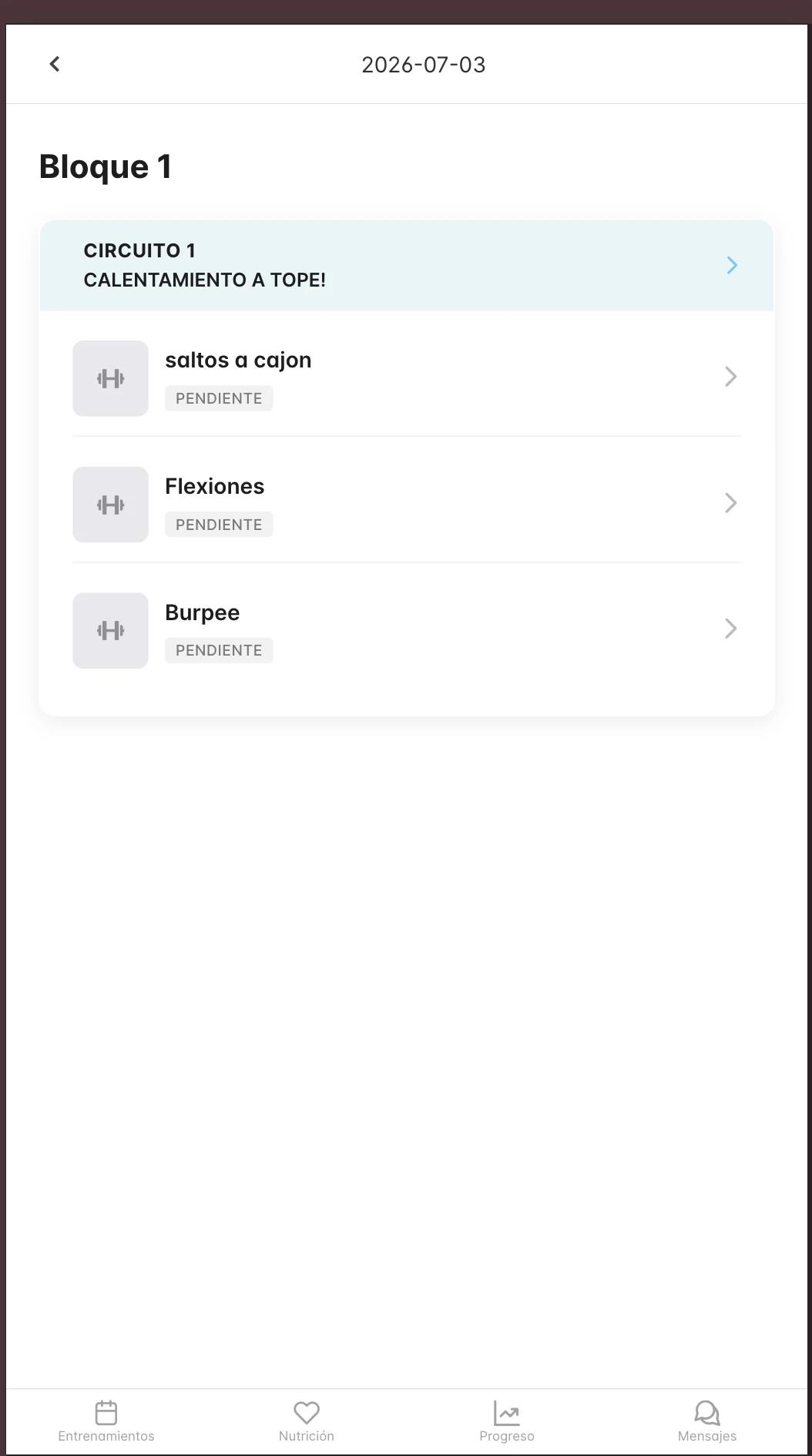
In the day's workout, the circuit appears grouped and keeps its exercises inside.
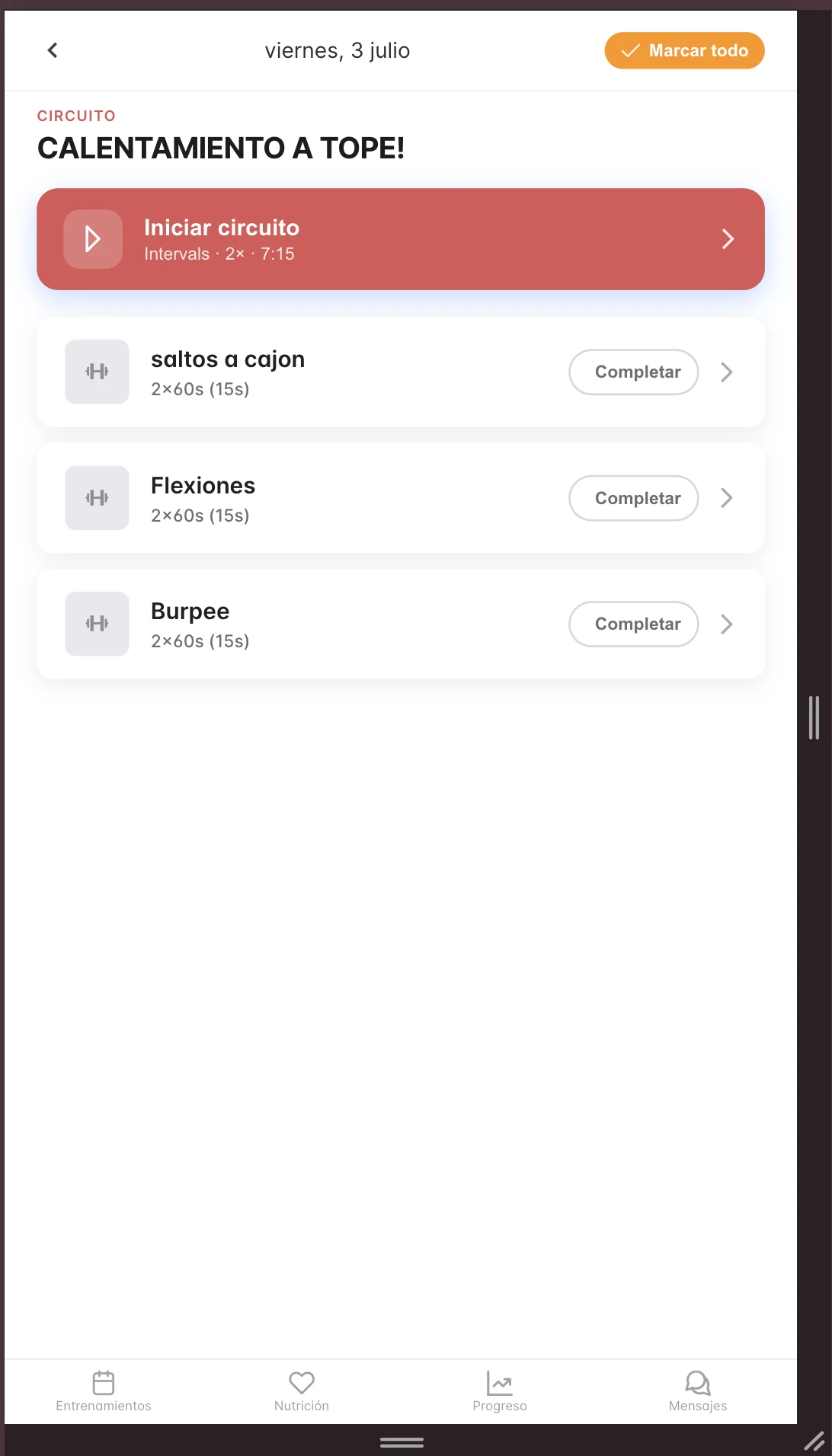
The «Start circuit» button shows the format, the rounds and the total duration when the circuit has a timer.
The player screen
During the circuit, your client sees a large countdown that changes color with the phase, and everything they need to stay on track:
- The circuit name and the current round (Round 3/8).
- The phase in large type: Get ready, Work or Rest.
- The current exercise and the next one.
- An overall progress bar for the circuit.
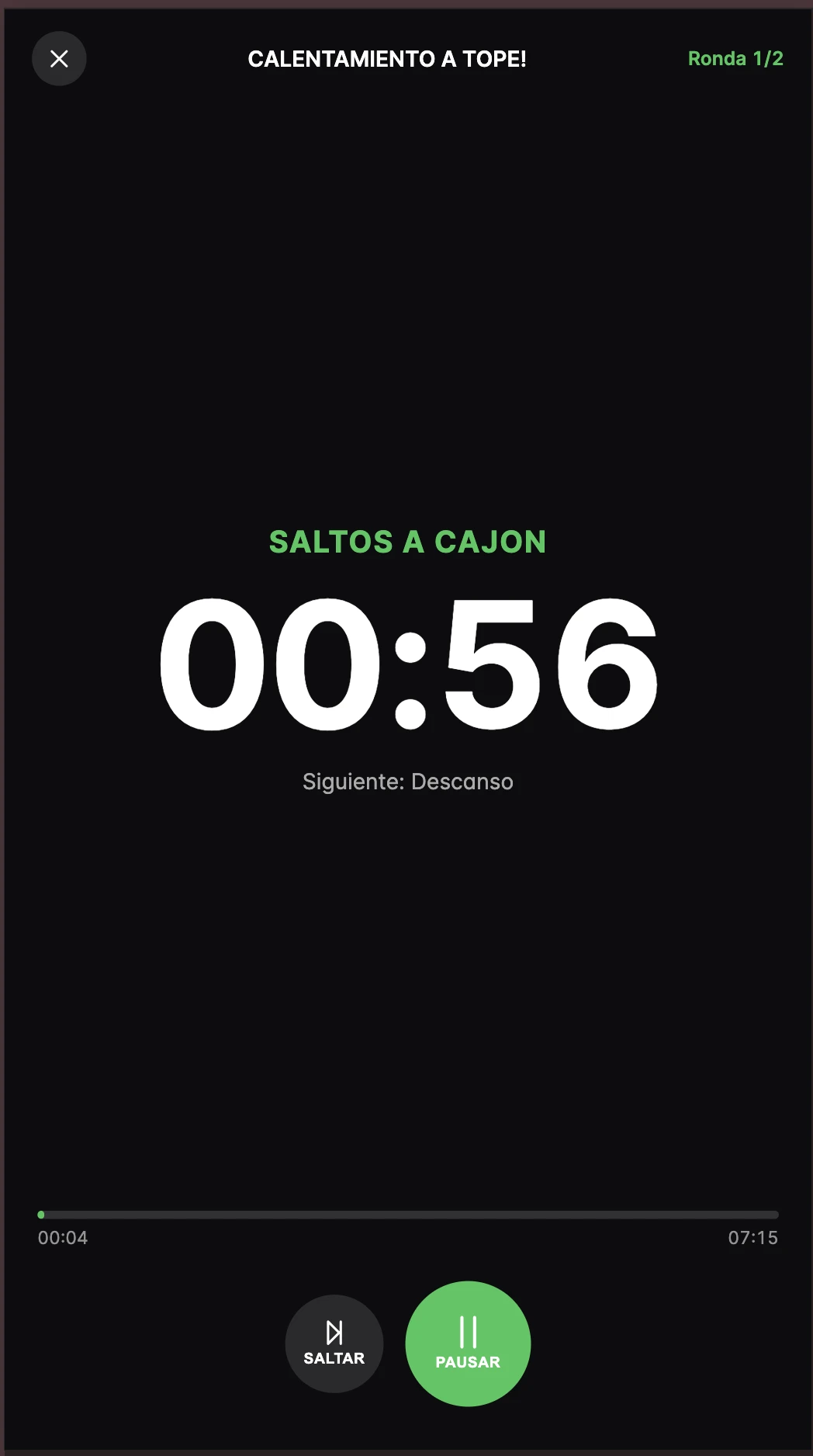
During work, the main color is green and the center of the screen shows the active exercise.
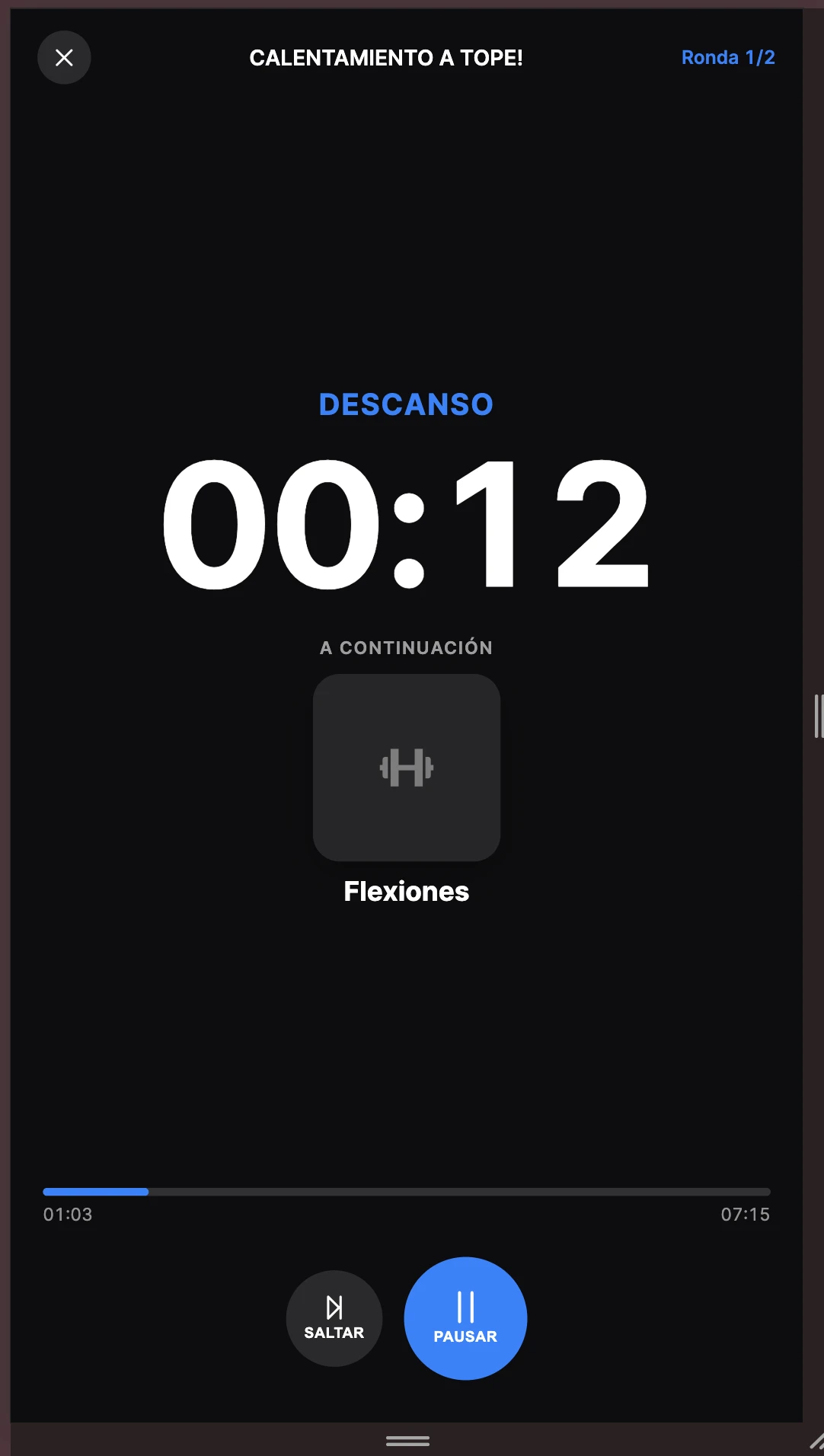
During rest, the player turns blue and shows which exercise comes next.
The color changes with the phase so your client knows what to do without reading:
- Orange — preparation (Get ready).
- Green — work.
- Blue — rest.
- Purple — circuit finished.
- Red — time cap exceeded (in against-the-clock formats).
Beeps, vibration and screen kept on
The player is designed so your client can train without staring at their phone the whole time:
- Beeps — 3-2-1 at the end of each segment, a tone when the phase changes and a triple beep at the end.
- Vibration on phase changes (in the mobile app).
- The screen stays on while the circuit is running.
- Notification — if your client leaves the app, they get a notification when the circuit should have finished.
Controls
- Pause / Resume — stops the clock when needed.
- Skip — moves to the next segment (for example, to shorten a rest).
- Finish — in against-the-clock formats, marks the end once the work is complete.
- Exit — closes the player.
If the session is interrupted
The player saves progress, so it survives the app going to the background or being closed. If your client comes back to a circuit that is in progress, the app offers to resume where they left off or discard it and start over.
When it ends: summary and mark as done
When the circuit ends, your client sees a summary with the total time and, where applicable, the rounds completed. From there they can press Mark all as done and every exercise in the circuit is logged as completed in one go — you will see it reflected in their tracking just like any other exercise.
Configure the timer
How to add a timer to a circuit from the coach app: choose the format, adjust rounds, preparation, interval, duration or time cap, and read the timeline bar.
Calculate weight from 1RM
How to prescribe loads as a percentage of the client's 1RM and let TrainerStudio work out the kilos for you — from desktop or mobile, inside the set editor.