
Circuit timer
When you build a circuit in a client's routine (or in a program in your library), you can add a timer to it. As soon as you do, that circuit stops being a simple list of exercises: your client sees a Start circuit button and runs it with a full-screen clock that walks them through each phase — preparation, work and rest — with a countdown, beeps and vibration.
It is the way to make a Tabata, an EMOM or an AMRAP get trained the way it should be: without your client having to keep count with a separate watch.
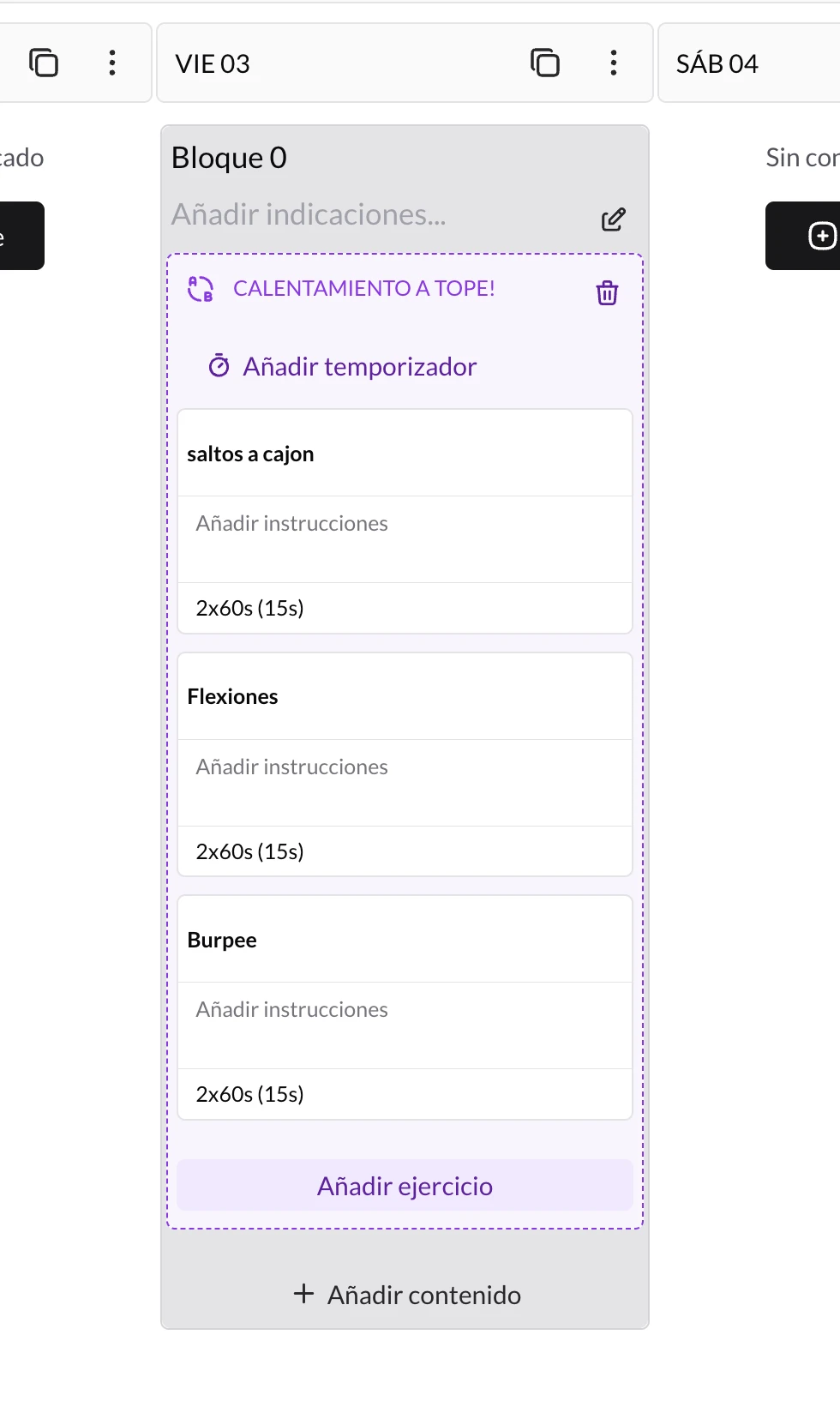
From the circuit in the planner you can add the timer and turn it into a guided workout.
What it includes
- 11 formats: Tabata, Intervals, Stations, EMOM, AMRAP, Density, For time, Rounds for time, Chipper, Ladder and Rounds only.
- Fields adapted to the format: rounds, work, rest, preparation, interval, total duration or time cap.
- Timeline preview: a proportional bar shows preparation, work and rest before you send it to the client.
- Client player: full screen with the current phase, round, current exercise, next exercise, progress, pause and skip.
- Session wrap-up: when they finish, the client can mark every exercise in the circuit as done in one go.
How it is saved in the routine
In Tabata, Intervals and Stations, the timer controls the time prescription: the rounds, the work time and the rest fill in each exercise's timed sets. While that kind of timer is active, you cannot add or remove sets by hand from the exercise, because the timer sets them.
In formats such as EMOM, AMRAP, Density, For time or Chipper, the timer does not rewrite the coach's sets: it keeps the reps, loads, distances or notes you already have, and only adds the corresponding clock logic.
Exercises without timed sets are left out of interval timers —the editor warns you— but they stay in the circuit as a reference.
Start here
- Available formats — what each format is (Tabata, EMOM, AMRAP, For time, Rounds for time…) and when to use each one.
- Configure the timer — how to add it, choose the format and adjust the times from the coach app.
- What your client sees — the guided full-screen player: phases, beeps, vibration, pause and summary.
How to add WhatsApp reminders
Schedule a WhatsApp message that reaches your client at the time you choose —"Training day today!"— without you having to remember. You add it to a day in their plan, write the text and the app sends it for you.
Available formats
The circuit formats (Tabata, Intervals, Stations, EMOM, AMRAP, Density, For time, Rounds for time, Chipper, Ladder and Rounds only) and when to use each one.