
Configure the timer
The timer is configured from the coach app, in the circuit you want to add it to. It works the same way in both places where you build circuits: in a client's routine and in a program in your library.
1. Add the timer
In the circuit header you will see an Add timer button. When you press it, TrainerStudio creates an initial configuration and opens the timer side panel. If the circuit already has a timer, the button shows a summary with the format and the total duration; from there you can edit it again.
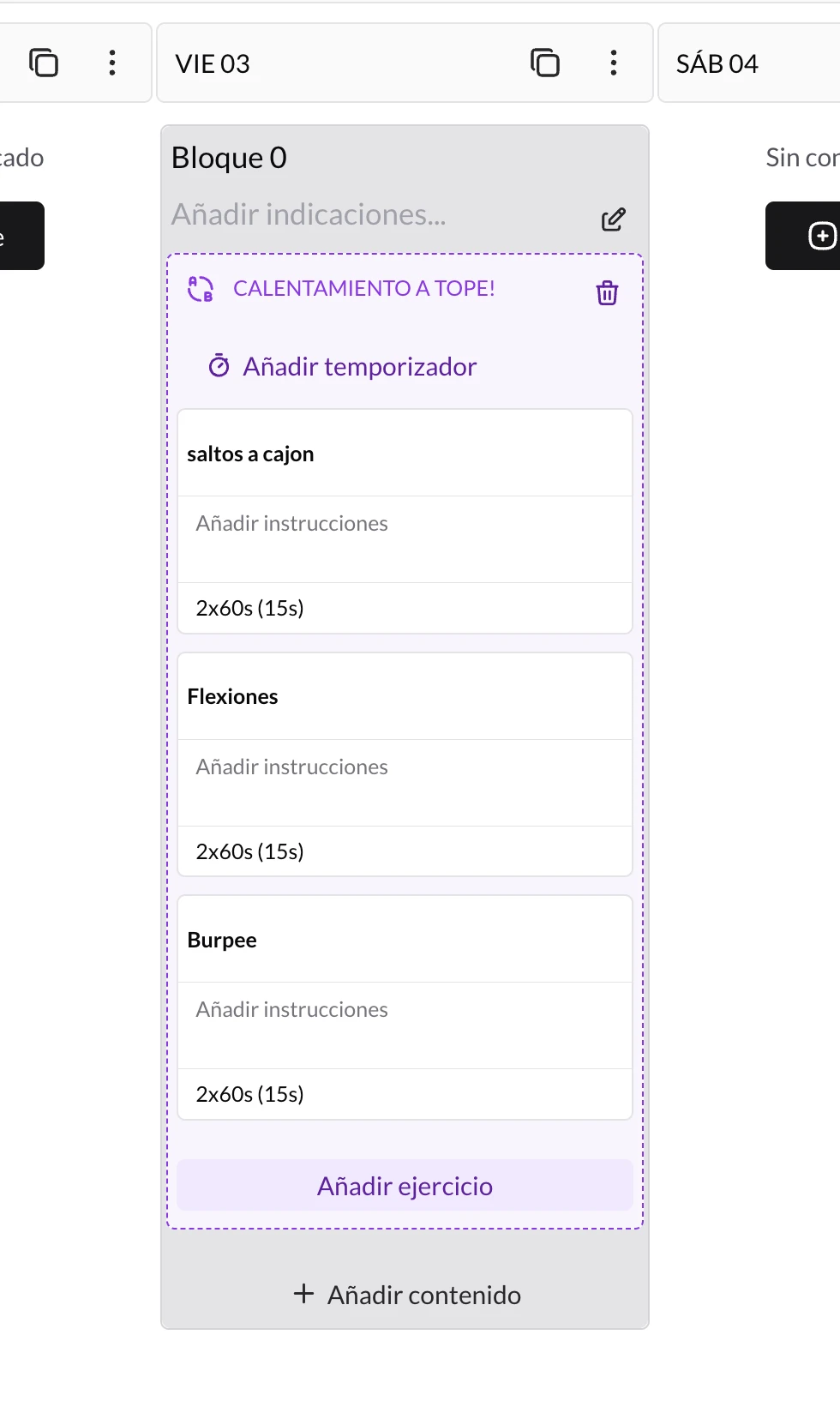
The «Add timer» button appears inside the circuit, above the exercises.
2. Choose the format
Open the format selector and choose the one that fits your circuit. Each option comes with a description of what it does, so you get it right without having to remember the theory behind each method.
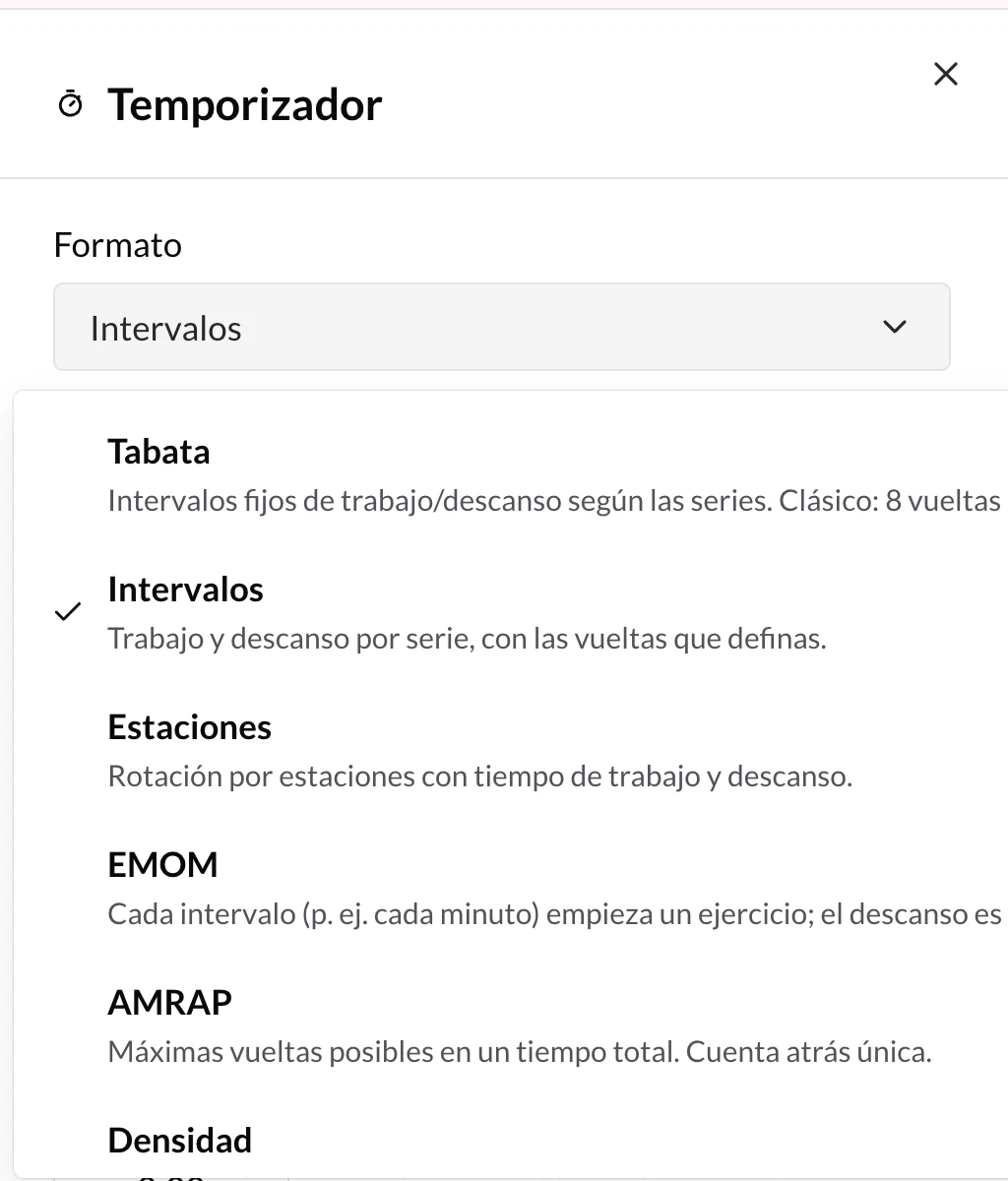
Eleven formats, each with its description. If you switch formats, compatible settings are kept.
See the details of each option in Available formats.
3. Adjust the times
Depending on the format you choose, different fields appear:
- Rounds — number of circuit rounds (1–50) in formats that work in rounds.
- Work time (Tabata, Intervals and Stations) — duration of each exercise block.
- Rest between exercises or Rest between rounds (Tabata, Intervals and Stations) — pause after each work block. If the circuit has a single exercise, the rest is treated as rest between rounds.
- Preparation — countdown before starting, so your client can get into position.
- Interval (EMOM) — how often a new exercise starts. You have 1′, 2′ and 3′ shortcuts, or you can type it in.
- Total duration (AMRAP and Density) — how long the countdown lasts.
- Time cap (For time, Rounds for time, Chipper and Ladder) — optional time limit. If you leave it empty, the stopwatch is open-ended.
Times are entered in mm:ss format.
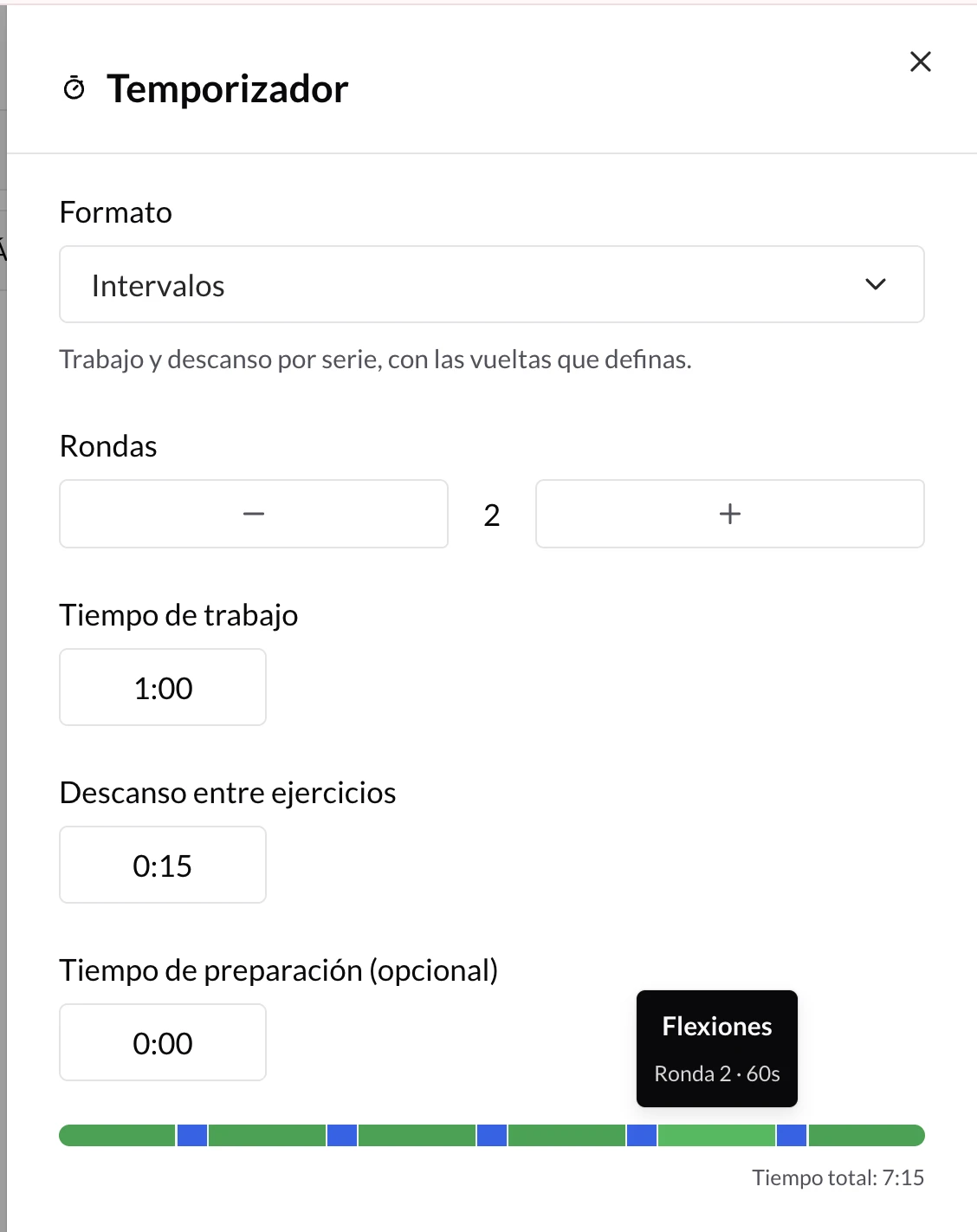
The panel brings together the format, the times and the preview of the circuit your client will run.
4. Read the timeline bar
Below the settings you will see a colored bar representing the circuit from start to finish — with the rounds already laid out — and the estimated total time. It is the same count your client's player will run, so it lets you check at a glance that the circuit lasts as long as you want.
When you hover over a section, the bar shows the exercise, the round and the seconds of that segment.
The colors are:
- Orange — preparation.
- Green — work.
- Blue — rest.
Sets and exercises left out
In Tabata, Intervals and Stations, the timer controls the circuit's timed sets. If you set 8 rounds, each exercise gets 8 timed sets with the configured work and rest. That is why you cannot add or remove sets by hand while that timer is active: you will see an explanation in the set editor and a shortcut to remove the timer if you want to edit freely again.
In the other formats, TrainerStudio keeps the coach's prescription: you can keep sets with reps, load, distance or notes, and the timer only adds the clock behavior.
An exercise without timed sets cannot go into the bar of an interval timer: it stays out of the clock (the editor flags it with a yellow warning), although it still appears in the circuit.
Remove the timer
To go back to a normal circuit, use Remove timer. The circuit keeps its exercises; only the clock configuration and the Start circuit button in your client's app go away.
Once it is ready, check what your client sees.
Available formats
The circuit formats (Tabata, Intervals, Stations, EMOM, AMRAP, Density, For time, Rounds for time, Chipper, Ladder and Rounds only) and when to use each one.
What your client sees
The guided full-screen circuit player: color-coded countdown by phase, current and next exercise, beeps, vibration, pause, skip and a final summary with 'Mark all as done'.