Home screen
Navigating the calendar and dashboard
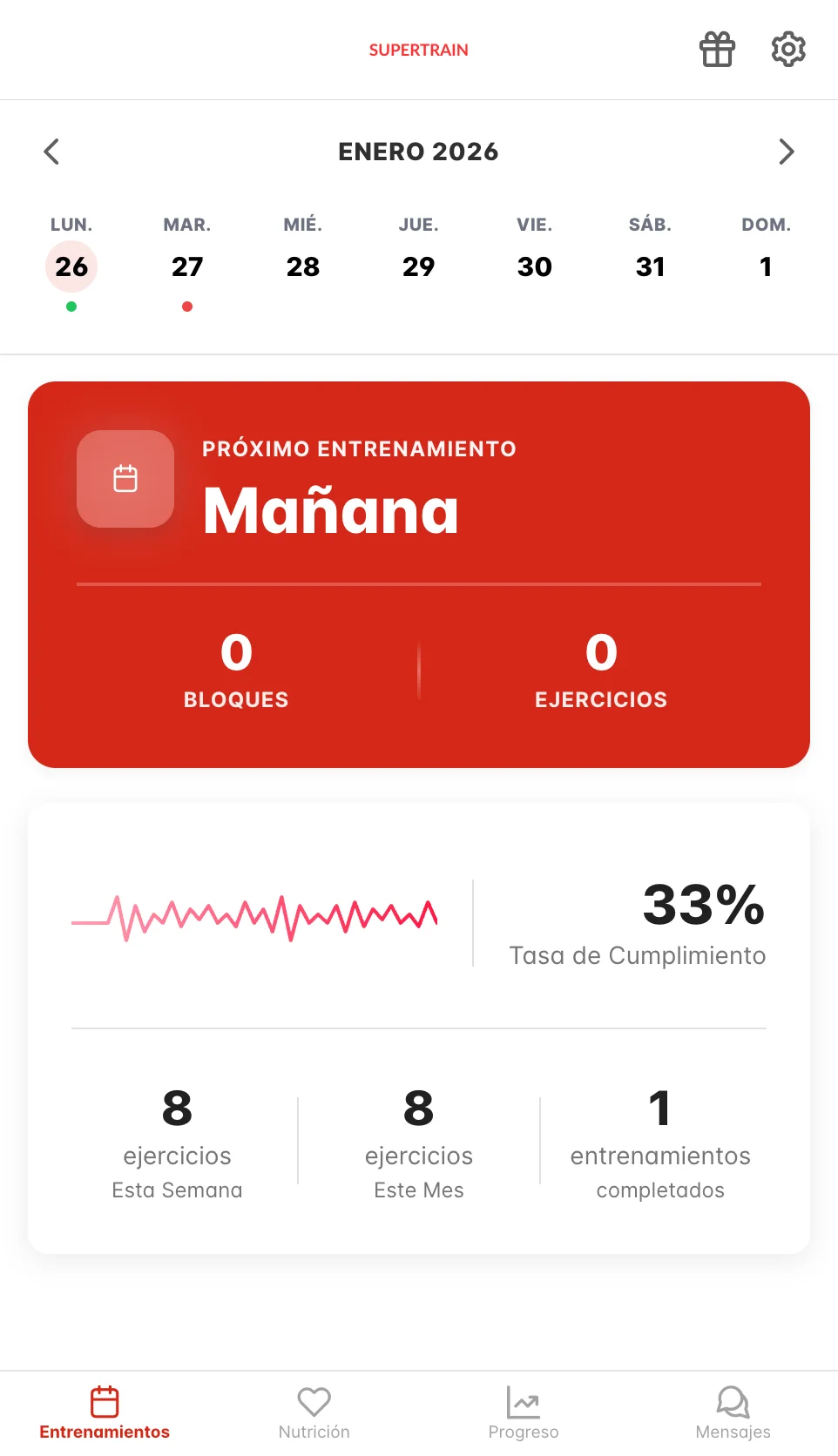
The home screen shows your monthly calendar, the next scheduled workout and a summary of your progress.
Monthly calendar
At the top you will see the monthly calendar with arrow navigation. Days with a workout have a color indicator:
- Green - Workout completed
- Red - Workout pending
You can move between months using the left and right arrows next to the month name.
Next workout
Below the calendar you will see a card highlighted in red showing your next workout. This section tells you:
- When it is - For example, "Tomorrow" or the specific date
- How many blocks the workout has
- How many exercises it includes
Tap this card to go straight to the workout.
Progress stats
Further down you will find a summary of your progress that includes:
- Completion rate - Percentage of workouts completed
- Exercises this week - Total exercises done in the current week
- Exercises this month - Total exercises done in the current month
- Workouts completed - Total number of workouts finished
Opening a workout
You can open a workout in two ways:
- From the calendar - Tap any day with a color indicator (green or red)
- From the next workout card - Tap directly on the highlighted red card
Bottom menu
At the bottom of the screen you will find a navigation menu with four main sections:
- Workouts - Your main dashboard with the calendar and upcoming workouts (current screen)
- Nutrition - Your nutrition plan
- Progress - Progress photos and metrics
- Messages - Communication with your coach
The icon and text of the active section are highlighted in red to show which screen you are on.