Answering a form
How to answer the forms and check-ins your coach sends you

Your coach can ask you to fill in a form: an intake questionnaire, a weekly check-in or how you felt after a session. You will find it in today's workout, as one more card labeled FORM with the status Pending.
Answering and sending

- Tap the form card to open it.
- Answer every question. Depending on the question, type your answer, pick one option, check all the options that apply or tap a number on the scale.
- Tap Send.
Once it is sent you will see Answers sent to your trainer, and the button at the top switches to Completed. In the day's list, the form card shows Completed too.
If an answer is missing
You need to answer every question to send the form. If you tap Send with a question left blank, nothing is sent: the app takes you to the first unanswered question, marks every missing one in red with Answer this question and, above the button, reminds you to Answer every question to send the form. Each message goes away as soon as you answer that question.
If you leave before sending
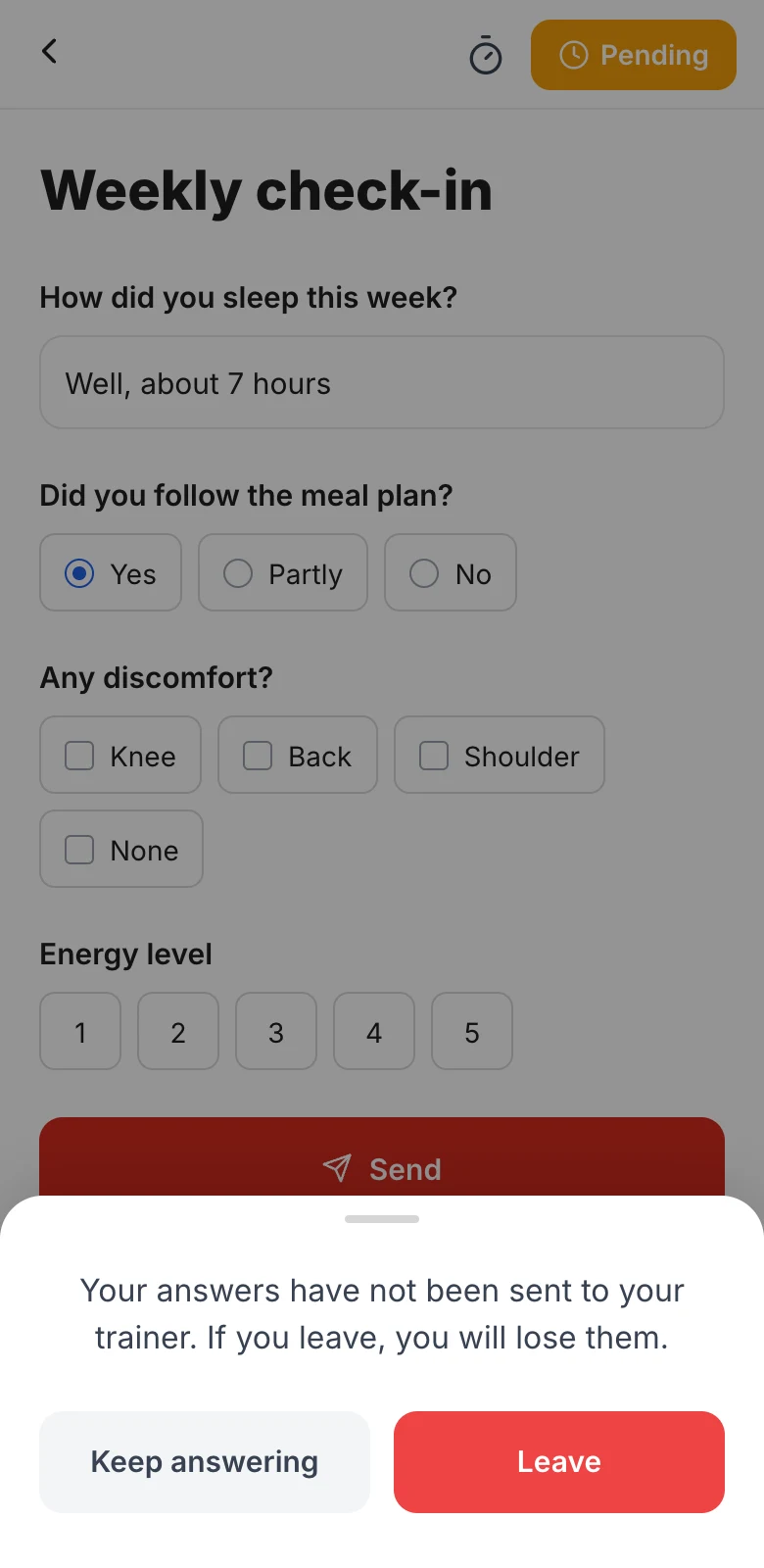
Your answers are not saved until you tap Send. If you try to leave the form with answers you have not sent, the app asks first: tap Keep answering to go back to the form, or Leave if you would rather discard them.
Changing your answers
Made a mistake, or has something changed? Open the form again, fix what you need and tap Send again. Your coach will see your new answers.