

A conversation on every exercise: ask for photos and videos, comment and stay on top of everything with the new bell
Every plan item now has its own conversation: ask for photos and videos, review what your client logs and reply right there. The bell sums up each client's day, and their app changes to make talking to you easier.
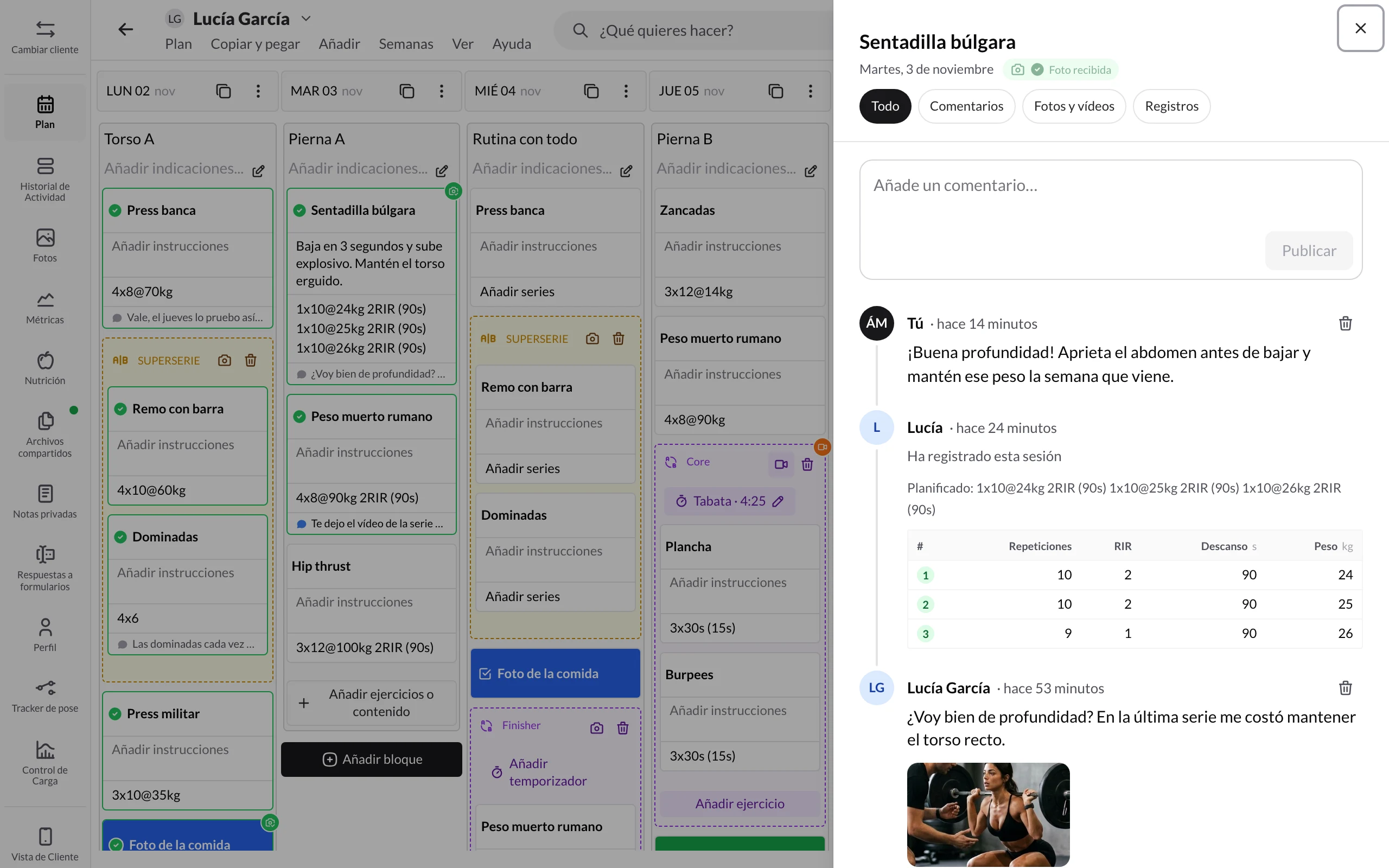
Until now, following up on an exercise was split between the chat, the history and scattered notes. "Is my depth OK?" came in one place, the video in another and the sets somewhere else. Starting today, everything that happens on a plan item stays with it: what your client tells you, their photos and videos, the sets they log and what you reply.
In short:
- Ask for a photo or video on any exercise, superset, circuit, task, form or measurement check-in. Your client can't complete it without posting it.
- Every item has its own activity: a panel with comments, photos, videos and logs, and the plan card shows you the latest thing that happened.
- Reply right there, without going to the chat. Your client gets a notification.
- The bell, redesigned: one row per client per day with a summary of what they did.
- Your client's app changes so the conversation flows more smoothly: each exercise has its own comments, sets save automatically, they see what they did last time and find out as soon as you reply. We walk you through it below, with a message you can send them.
You don't need to do anything to turn it on: it's already available for all your clients.
Ask for a photo or video on any item
Want to see how they squat, what they ate today or whether they really did their mobility work? Ask for it on the plan item itself.
- Hover over the item's card and, in the bar that appears, click the camera icon.
- Under Ask the client for, choose A photo or A video. To remove the request, choose Nothing.
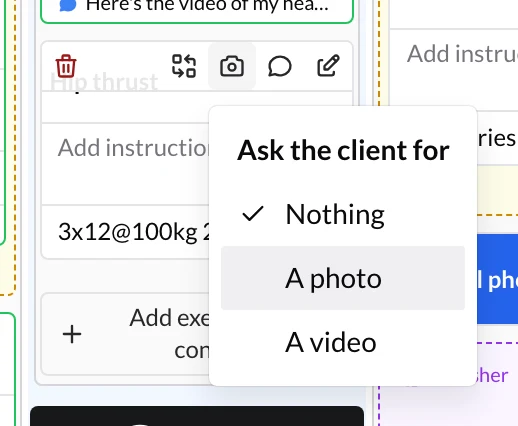
You'll also find it in the Instructions tab of an exercise's edit panel and in a task's dialog. It works in a client's plan, in programs and in templates: the item keeps the request wherever you use it.
Your client sees the Photo required (or Video required) label and a card to take it with the camera or pick it from the gallery. Until they post it, they can't mark the item as completed.
The plan card tells you where things stand without opening anything: the orange Photo requested badge turns into a green Photo received as soon as it arrives. Click it to see the photo.
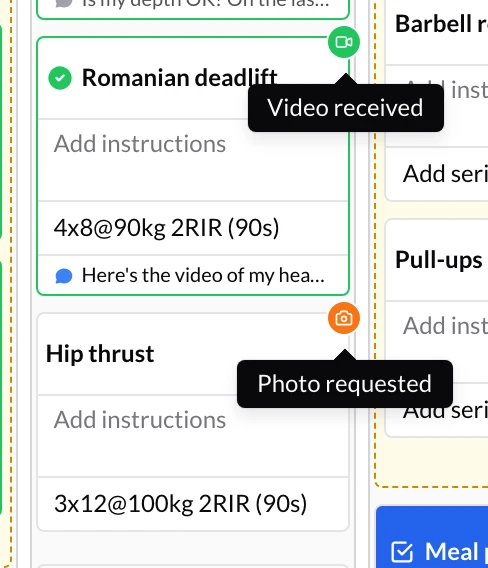
What you ask for with Ask the client for works even if you have File uploads turned off in Your app → Customize App: your client can always post what you've asked for.
Every item has its own activity
Every exercise, superset, circuit, task, form or measurement check-in in your client's plan now has its own Activity panel, with everything that has happened on it, newest first. You can get there from:
- Activity, in the bar that appears when you hover over the card.
- The card footer, which shows the latest thing your client did on that item. If you haven't replied yet, it's highlighted.
- The badge for the photo or video, which opens their photos and videos directly.
- View, in the chat or on an entry in the bell.
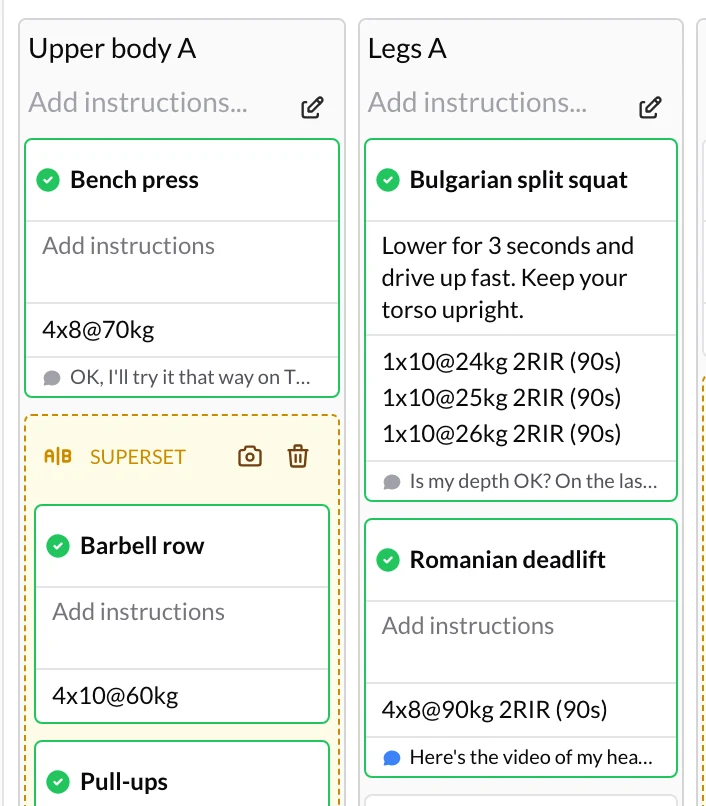
At the top of the panel you have four filters:
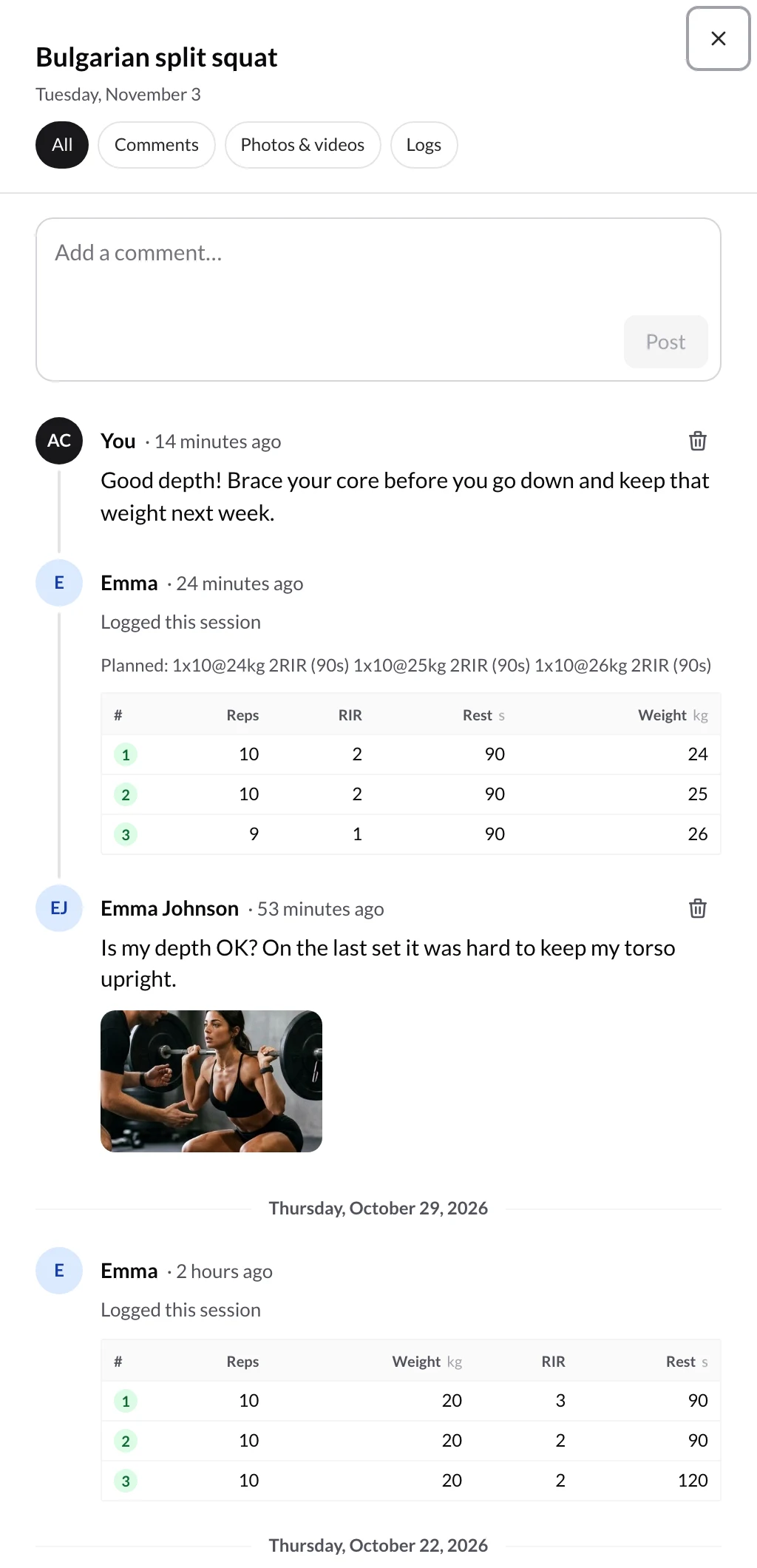
- All: comments, photos, videos and logs together.
- Comments: only what you and your client have written.
- Photos & videos: what your client has posted. Click a photo or video to see it larger.
- Logs: the exercise's progress chart and the sets from This session and Previous sessions, each with what you had prescribed above it so you can compare at a glance.
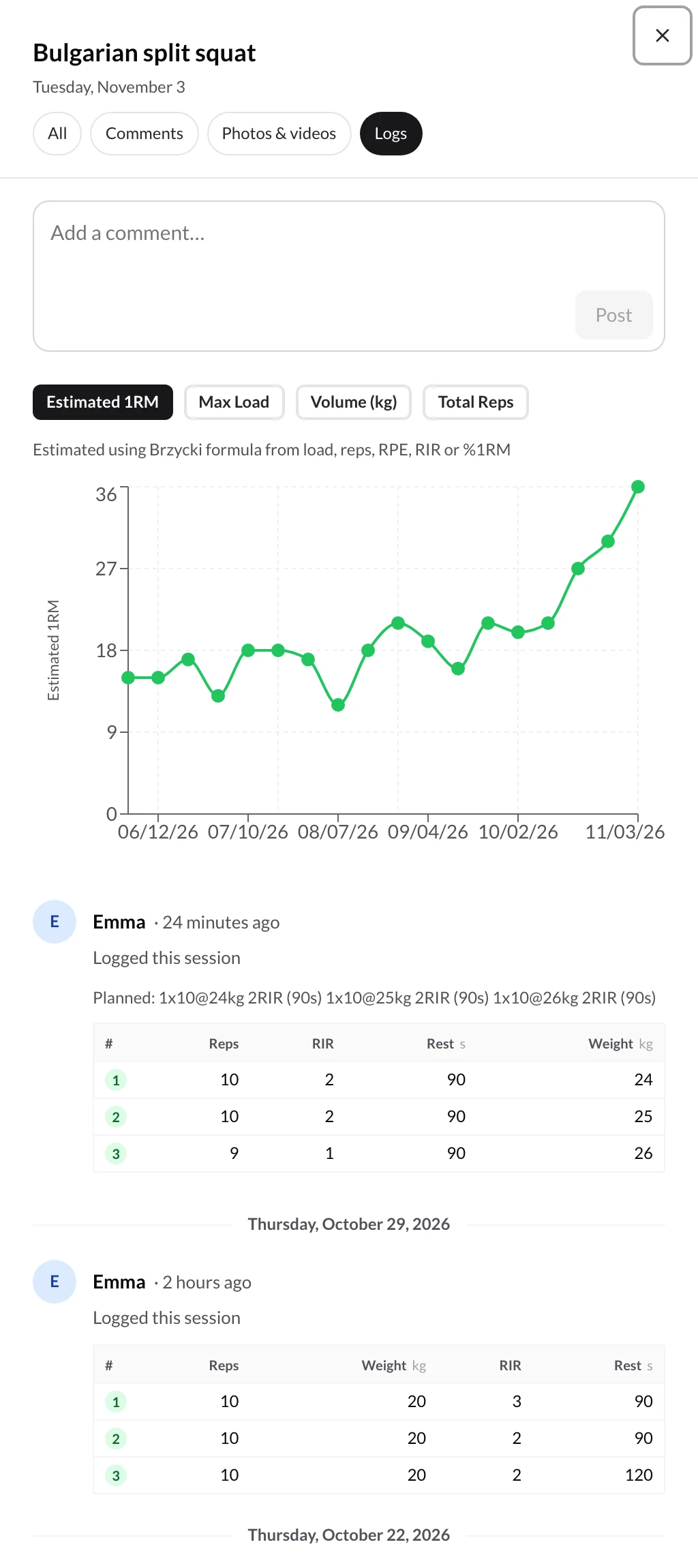
Reply without leaving the plan
In the same panel, type in Add a comment… and click Post (or press Ctrl/⌘ + Enter). Your reply stays next to the video or comment you're answering, so a month from now you'll still know what you meant.
Your client gets a push notification and sees your comment in that exercise's Comments tab. If you delete a comment, your client can no longer see it.
The bell: your work inbox
The bell in the header has been redesigned so you don't have to go client by client. It now groups what each client does into one row per day, with a summary, for example "Finished their workout (8/8) · 3 comments · 2 videos", a dot if anything is unread and how long ago it happened.
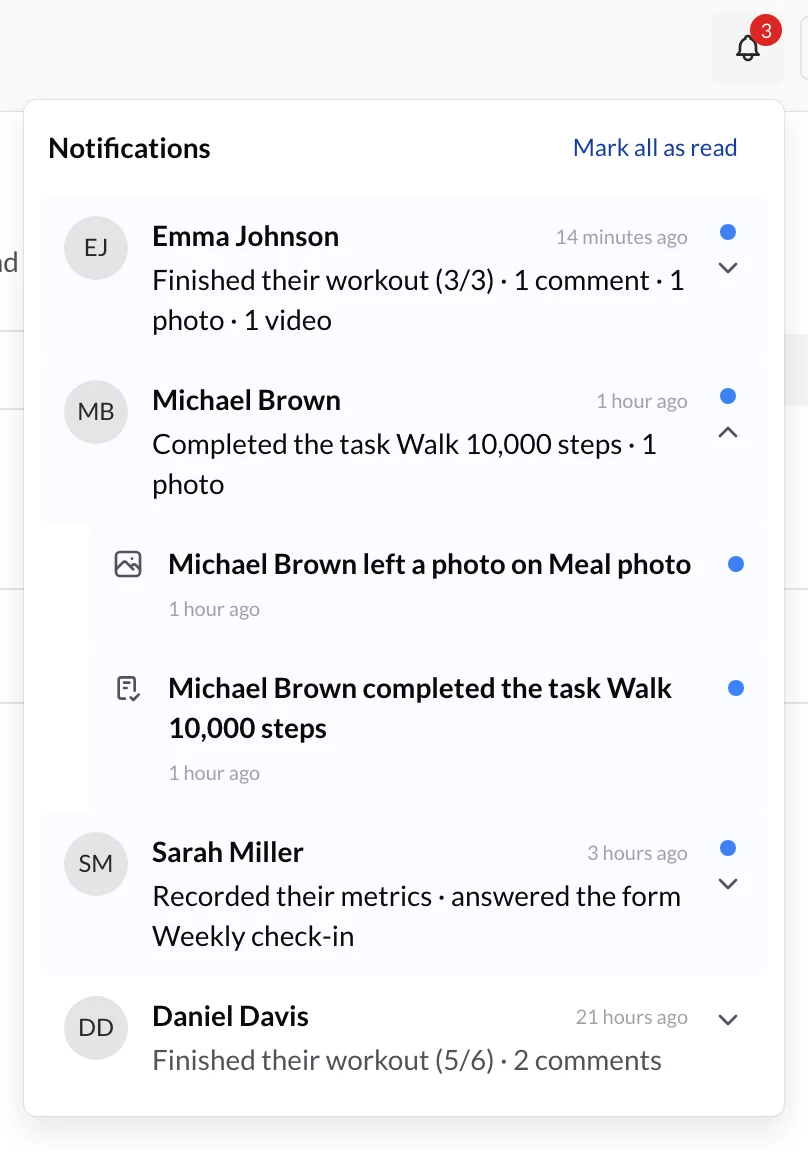
- Click a row to expand its entries one by one.
- Click an entry to go where it happened: a comment, photo or video opens that item's activity, ready for you to reply.
- Mark all as read resets the counter. When there's nothing left, you'll see You're all caught up.
The number on the bell tells you how many clients have news. On desktop, you'll find it in the app header and on each client's profile; on mobile, in the client list.
The bell shows the comments, photos and videos on plan items, as well as finished workouts, completed tasks, progress photos, metrics and answered forms, whether or not you have push or WhatsApp alerts turned on for that action.
In the chat
When your client comments, or posts a photo or video, on an item in their plan, a centered line appears in your conversation, for example "Laura left a video on Squat", with a View button. Click it to open that item with its activity. The same happens when you're the one commenting.
That way, the chat stays for talking with your client, and technique corrections stay with their exercise.
How your client's app changes
Your clients will notice the change as soon as they open their workout, so it's worth knowing what they'll see. The idea is that talking to you about an exercise feels as natural as sending you a message: they write to you where it belongs, see your reply next to their sets and find out as soon as you reply.
Every exercise has its own conversation with you
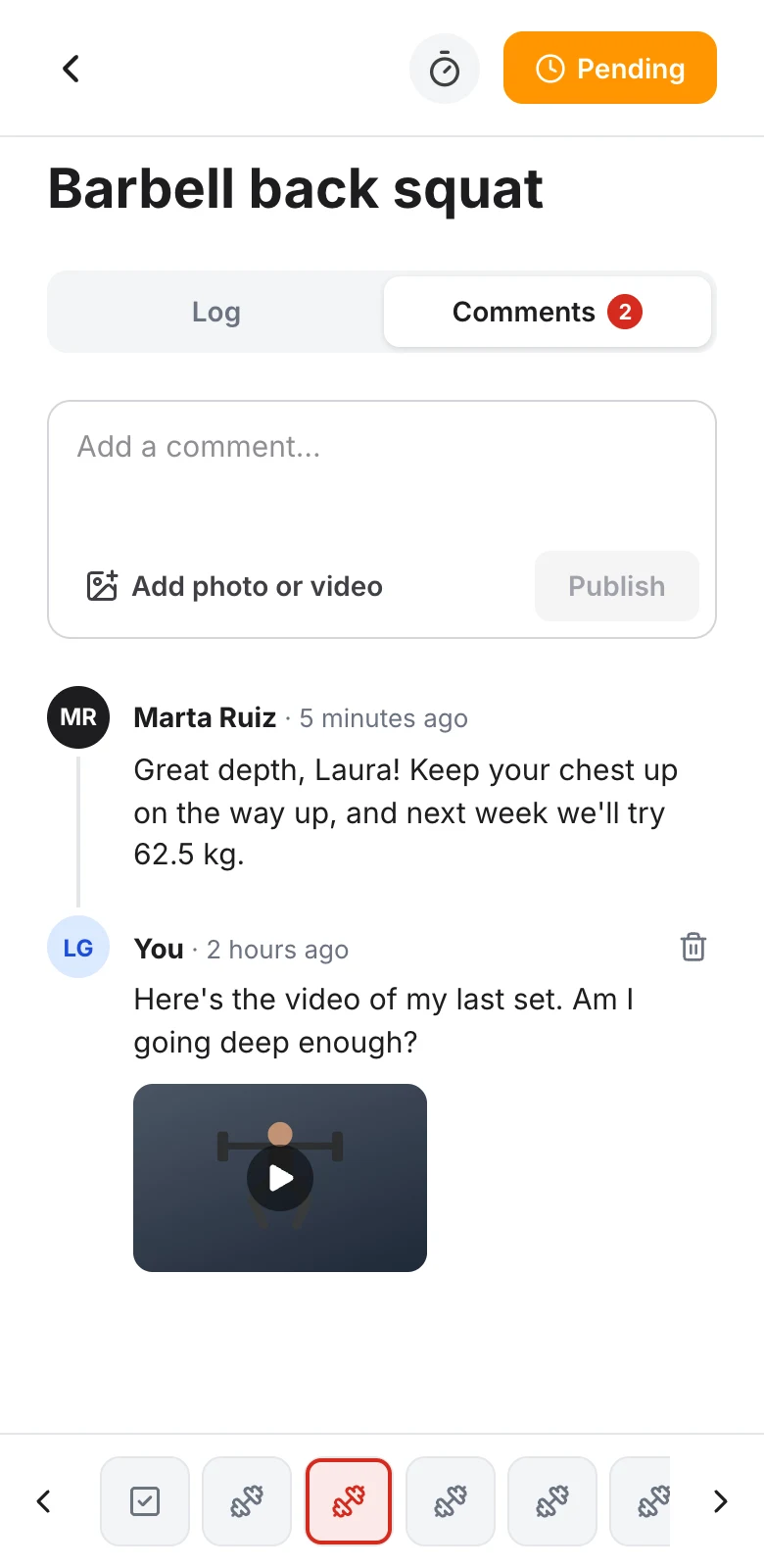
When they log sets, each exercise has two tabs:
- Log: your instructions, their sets and the View all sessions link.
- Comments: their conversation with you about that exercise, newest first. The number on the tab tells them how many comments there are.
On items without sets, such as a task, there are no tabs: they see the comments below the content.
To write to you, they tap Comments, type in Add a comment… and tap Publish. If you have File uploads turned on, or you've asked them for a photo or video, they also see Add photo or video to attach up to 6 files of up to 100 MB each. Publishing a comment doesn't complete the exercise: for that, they keep using the Pending button, which switches to Completed.
You see their comment in that item's activity, in its card footer and in your bell.
They log their sets without tapping save
The sets table is now on the exercise screen itself, in the Log tab:
- It saves automatically as they type. There's no need to tap Save and Close or open another screen anymore.
- They mark each set by tapping the square checkbox with its number. It turns green with a ✓ and any missing prescribed values fill in automatically. If they uncheck it, what was filled in automatically is cleared and what they typed themselves stays.
- Below each set they see in gray the date of their last session and what they did in each column, so they know what to match or beat.
- View all sessions opens the exercise's full history.
In supersets and circuits, each exercise is still logged from Record marks. And if you let them decide what to track on an exercise, they tap Log data, pick the variables in What do you want to track? and add rows with Add set.
They know when you ask for a photo or video
If you ask them for a photo or video, below the exercise name they see the Photo required (or Video required) label and a card with Take a photo or Record a video. They choose Camera or Gallery, wait for it to upload and the photo is posted in their Comments, where you see it.
While it's missing, the Pending button is disabled (on a form, the Send button) and the app reminds them with Add a photo to complete.
They find out as soon as you reply
When you comment on something, your client gets a push notification and sees it in the bell at the top right of Plan, Nutrition and Progress, with the number of unread notifications. Each notification tells them where you commented, for example New comment on Squat, with the start of your comment. Tapping it takes them straight to that exercise's Comments tab.
And they see it in the chat too
In your chat, a gray line appears for each comment or photo on their workout, for example New comment on Squat, with the View button to open that exercise. If they'd rather see only your messages, they tap Hide updates in the chat header (and Show updates to bring them back). The app remembers their choice on that device.
Tell your clients about it
They don't need to do anything to get started, but a heads-up from you helps them use comments from day one. You can send them something like this:
"New in the app! Every exercise now has a Comments tab: write to me there about how it went, if something bothers you or if you have technique questions, and I'll reply right on the same exercise. Your sets save automatically as you log them, and below each one you'll see what you did last time. When I reply, you'll get a notification in the bell."
And if they want the details, they have the guides for their app: Today's workout, Commenting on an exercise, Sending a required photo or video and Notifications.
What has moved
- The charts from the History tab of an exercise's edit panel are now in the Logs filter of its activity. The History link, at the bottom of the edit panel, takes you there.
- The client's note that used to appear at the bottom of the card is now the card footer, with the latest thing your client did on that item.
- The 1RM tab is in the set editor.
- Your client no longer taps Save and Close to save their sets on a standalone exercise: they save automatically in the Log tab.