Tips
How to view the app as your client?
Want to see exactly what your client sees when they open their app? TrainerStudio lets you view the app as if you were your client, directly from your trainer dashboard.
How to access
- Go to "Clients" in the sidebar menu
- Click on the client's name you want to preview
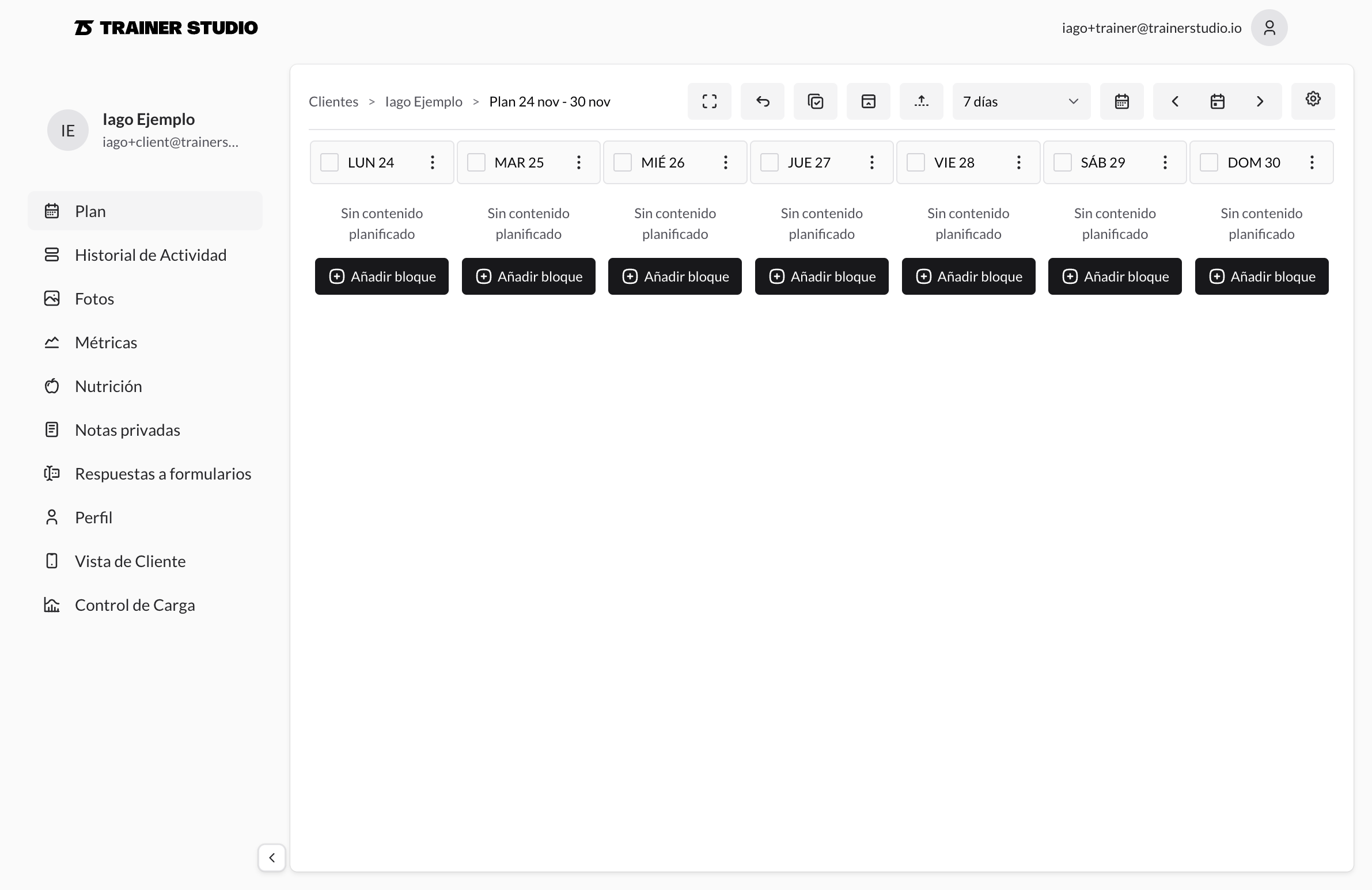
- In the client sidebar menu, select "Client View"
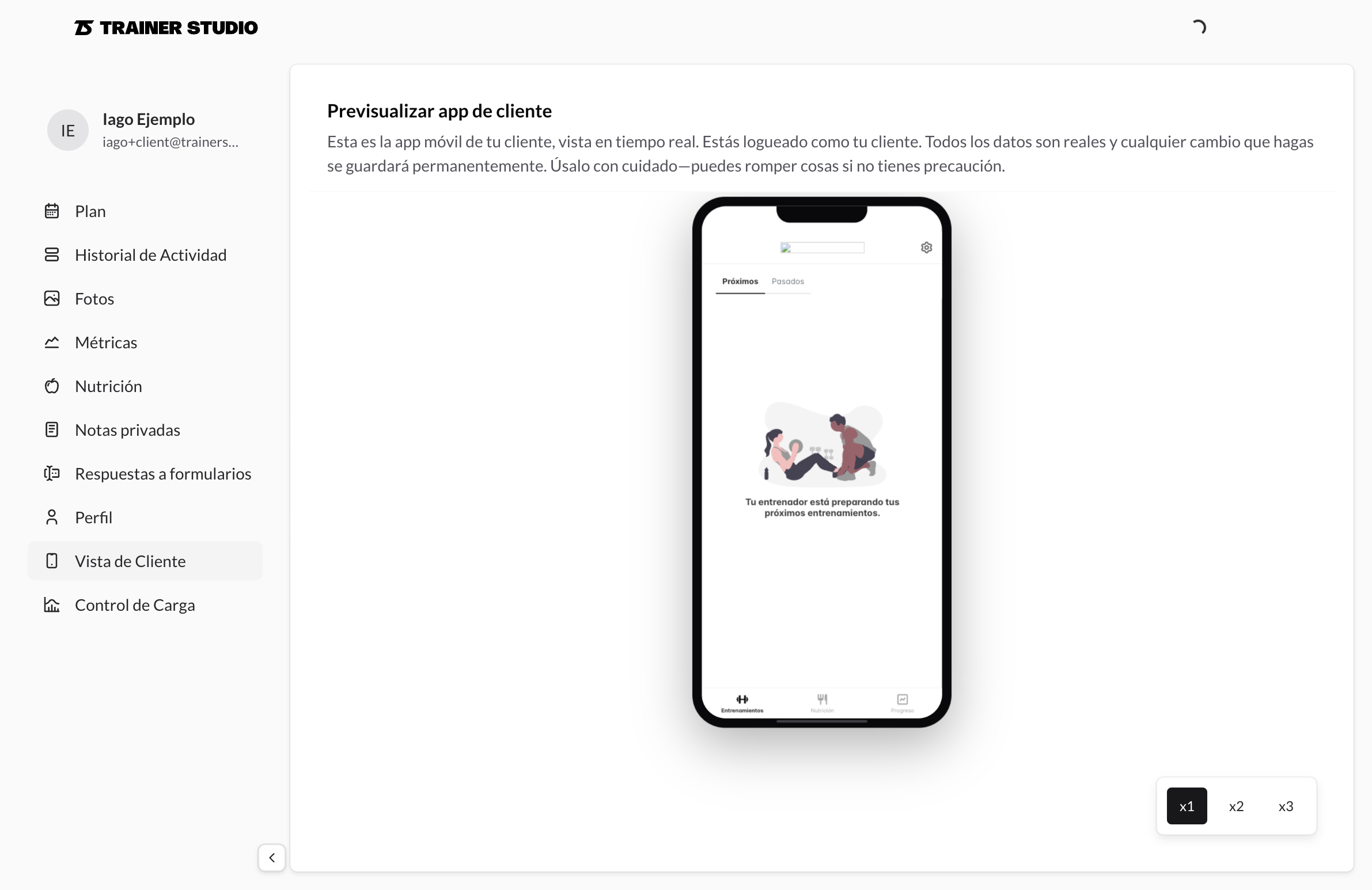
You will see a mobile phone simulation with your client's app loaded inside.
What you can do
You can interact fully with the app: navigate all screens, view workouts, complete exercises, check metrics, and test all features.
⚠️ Important: You are logged in as your client. Any changes you make (completing workouts, marking exercises, etc.) will be permanently saved to their account. Be careful when interacting.
When to use it
- Before sending new workouts - Make sure everything looks correct
- To troubleshoot issues - If a client says something isn't working, check it yourself
- To show potential clients - Show them what their experience will look like
💡 Remember: To edit the plan, you need to return to the trainer dashboard. Reload the view after making changes to see them reflected.