How to use TrainerStudio's chat?
Tired of switching between different applications to talk to your clients? TrainerStudio's integrated chat centralizes all communication in one place, giving you complete control over how and when you communicate with each client.
The Chat feature lets you hold direct conversations with your clients without leaving the platform, and share files, images, videos, and audio messages.
Why do you need the integrated chat?
Keeping in touch with your clients is essential for delivering a great service, but using external apps like WhatsApp or Telegram comes with significant drawbacks. With TrainerStudio's integrated chat, all communication stays organized alongside your clients' data, you have full control over who can chat with you, you can share files, images, videos, and audio, and you create a professional experience that sets your service apart from the rest.
💡 Tip: You can use the chat as a value differentiator by offering it only to premium clients, increasing the perceived value of your services.
How does it work?
TrainerStudio's chat works similarly to other messaging apps, but with complete control for you as the trainer. You decide which clients can access the chat, and you are always the one who starts conversations.
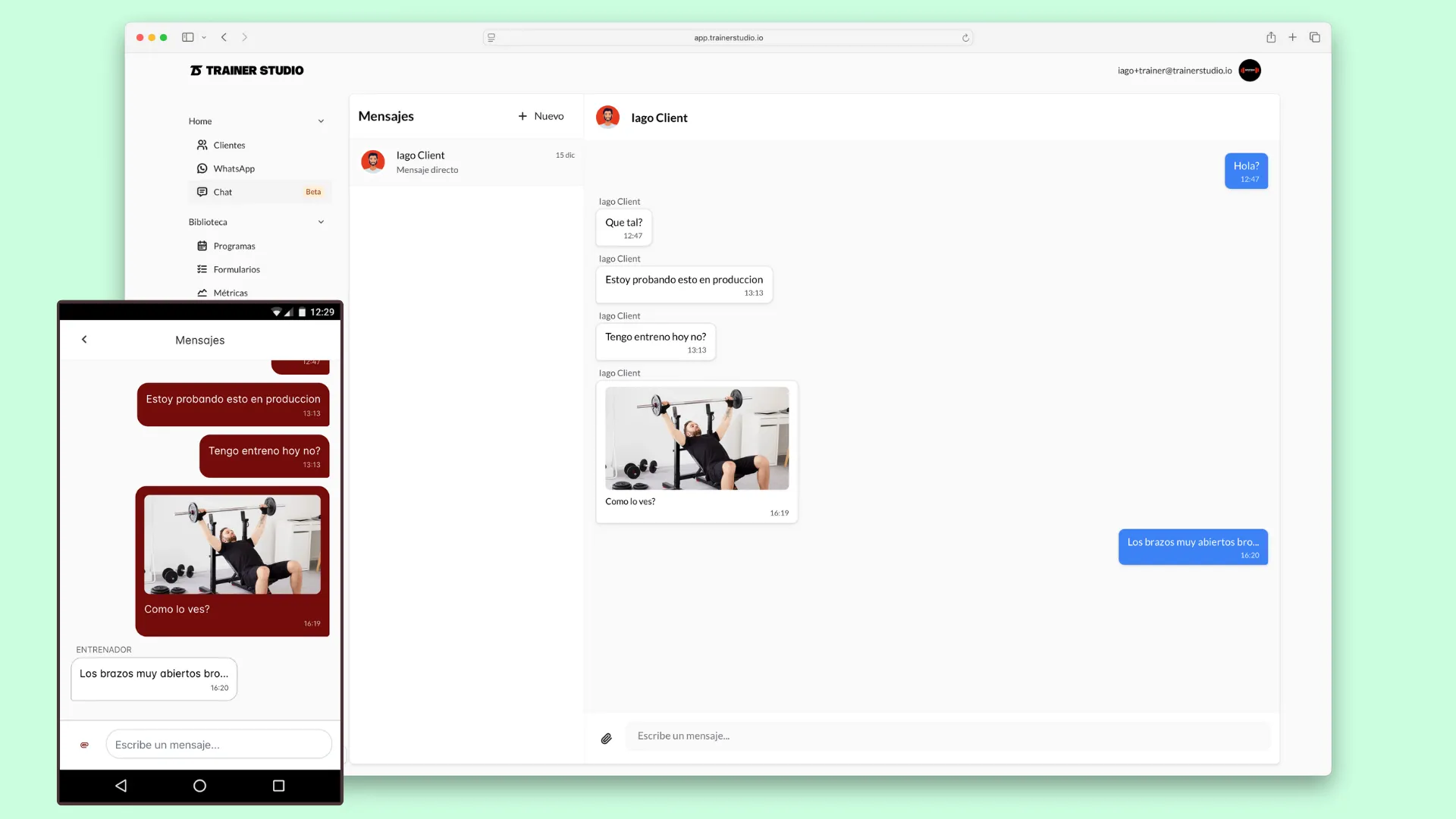
When you activate the chat, a new section appears in your sidebar menu where you can manage all your conversations. Conversations are automatically sorted by the date of the last message, with the most recent at the top, so you can quickly identify what needs your attention.
Important: Clients can never start conversations on their own. You always have to take the first step. This gives you full control over when and with whom you communicate.
Advantages over external apps
| Feature | TrainerStudio Chat | WhatsApp/Telegram |
|---|---|---|
| Access control | You decide who can chat | Anyone with your number |
| Centralized history | Everything alongside workouts | Separate in another app |
| No time restrictions | Reply whenever you want | 24-hour window |
| Privacy | Only you and the client see the conversation | May be visible in other apps |
| Integration | All within TrainerStudio | Requires external app |
Activating the Chat
Before you start using the chat, you need to activate it at the account level and also for each client you want to have access.
Step 1: Activate chat on your account
To activate chat on your account, go to the "Chat" section from the sidebar menu. If it's your first time, you'll see a message inviting you to activate the chat. Click "Activate chat" and chat will be enabled for your account.
Once activated, you'll see the chat interface with an empty conversation list and a button to create your first conversation.
Step 2: Enable chat for specific clients
Not all your clients have access to the chat automatically. This is intentional to give you full control over who can communicate with you.
To enable chat for a specific client:
- Go to the "Clients" section from the sidebar menu
- Select the client you want to grant access to
- In their profile, find the "Chat" section
- Enable the "Enable chat" toggle
Once enabled, the client will see the chat option in their app and you'll be able to start conversations with them.
💡 Tip: You can use this to offer different service tiers. For example, "premium" clients with chat access and standard clients with workouts only. This lets you justify a higher price for premium services.
Direct conversations
TrainerStudio's chat works with 1-to-1 direct conversations between you and each client. This format is ideal for:
- Answering specific questions about workouts
- Providing personalized follow-up
- Sharing files, images, videos, or audio on an individual basis
- Private and confidential communication
- Offering a premium, differentiated service
Each client has their own conversation with you, maintaining privacy and allowing you to give personalized attention to each one.
Creating conversations
Once you have the chat activated and have enabled it for some clients, you can start creating conversations.
Starting a conversation
To start a conversation with a client:
- Go to the "Chat" section from the sidebar menu
- Click the "New conversation" button (or the "+" icon, depending on the interface)
- Select a client from the list that appears (only clients with chat enabled will appear)
- Confirm that you want to start the conversation
- Type your first message in the text field
- Click send or press Enter
The conversation is created immediately and the client will receive a notification that they have a new message. From that point on, both you and the client can send messages in that conversation without any time restrictions.
Chat features
Text messages
Send and receive text messages instantly. Messages are delivered in real time and you can see when they were sent.
Sharing files and media
You can share different types of content with your clients:
- Text messages: Instant written communication
- Images: Technique photos, before/after, exercises, etc.
- Videos: Exercise demonstrations, technique corrections
- Audio: Voice messages for quick explanations
- Files: PDF documents, guides, training plans, etc.
All content types are displayed directly in the conversation, allowing rich and complete communication with your clients.
Notifications
Both you and your clients receive notifications when there are new messages:
- Push notifications on mobile
- Unread message indicator in the app
- Badge in the chat menu
Client view
When a client has chat enabled, they will see a new "Chat" option in their app menu.
What can the client do?
- View all their conversations with you
- Send text messages
- Share photos, videos, audio, and files
- Reply to your messages
What can the client NOT do?
- Cannot start conversations: You always have to be the one to initiate the first conversation
Managing conversations
Organization
Conversations are automatically sorted by the date of the last message, with the most recent at the top. This lets you quickly identify which conversations need your attention.
Mark as read
When you open a conversation, it is automatically marked as read and the unread message indicator disappears. This helps you keep a clear track of which conversations you've already reviewed.
Common use cases
Premium service
Offer chat only to clients on higher-tier plans:
- Create different service tiers
- Activate chat only for premium clients
- Use chat as a value differentiator
This lets you justify a higher price for premium services and create an exclusive experience for your best clients.
Onboarding new clients
Create a welcome flow:
- Activate chat when a client signs up
- Start a conversation with a welcome message
- Share initial resources (guide, calendar, etc.)
- Answer questions in real time
Technique correction
Use the chat to review and correct your clients' technique:
- Ask your client to record a video performing an exercise
- The client shares the video via chat
- You review the video and send feedback with corrections
- You can share example videos or explanatory images
Personalized follow-up
Keep in constant contact with your clients:
- Send motivational messages
- Ask about their progress
- Share personalized tips and advice
- Answer questions about training or nutrition
Frequently asked questions
Can I deactivate the chat after I've activated it?▼
Yes, you can deactivate the chat at the account level or for specific clients at any time. Existing conversations are kept but new messages cannot be sent.
Are messages saved?▼
Yes, the entire conversation history is stored and you can access it at any time. Messages are saved permanently alongside your clients' data.
Does it work on mobile?▼
Yes, the chat is available on both the web version and the mobile app, for both you and your clients. You will receive push notifications when there are new messages.
Is there a message limit?▼
There is no limit on the number of messages you can send or receive. You can communicate with your clients as much as you need, without restrictions.
Can clients start conversations?▼
No, clients cannot start conversations on their own. You always have to be the one to take the first step and initiate the conversation. Once started, the client can reply and participate normally.
Is there a time restriction for replying?▼
No, TrainerStudio's internal chat has no time restrictions. You can reply to your clients whenever you want, with no reply window limits. This is different from WhatsApp, which has a 24-hour window.
What types of files can I share?▼
You can share text messages, images, videos, audio, and files of any type (PDFs, documents, etc.). All content types are displayed directly in the conversation for a seamless experience.
TrainerStudio - Centralized communication, total control