How to manage employees with TrainerStudio?
When you have many clients, you will likely need to hire a team to help manage them. This team will also use TrainerStudio, but you will probably want to control what they can do — for example, only allowing them to see certain clients, preventing them from deleting exercises or routines, or blocking access to sensitive data like your company's billing information.
The Teams feature lets you add employees to your company within TrainerStudio and control what permissions they have.
Why do you need teams?
As your business grows, managing all clients by yourself becomes impossible. You need help, but you also need to stay in control. With the Teams feature you can add collaborators without losing control of your business. You protect sensitive information such as billing and company settings, assign specific clients to each employee to avoid confusion, and decide what each team member can do based on their role and experience.
How does it work?
In TrainerStudio there are three types of people who can use the platform: you (the account owner), your employees, and your clients. You have complete access to everything: clients, settings, billing, and the team. Your employees can only see and do what you allow them to. And your clients only have access to their own workouts and data.
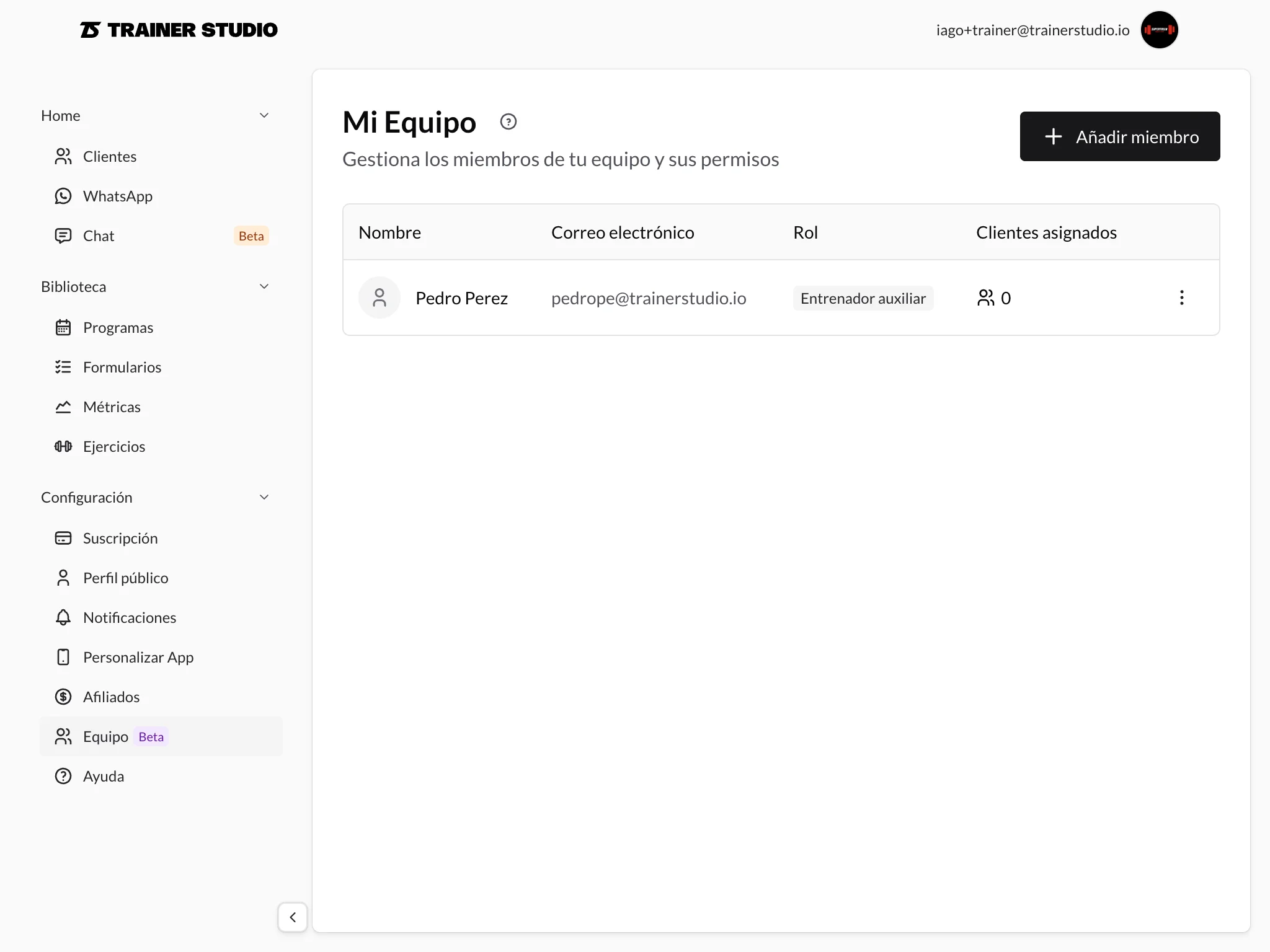
Each employee can have specific permissions per functional area. For example, you can decide whether they can view exercises, create new exercises, edit existing exercises, or delete exercises. The same applies to training programs, clients, recipes, forms, and metrics. You can grant very specific permissions depending on what each employee needs to do their job.
Important: Employees can never access company settings (logo, colors, domain), billing and subscription information, or manage other employees. These permissions are not available to employees and only you as the account owner can manage them.
By default, an employee can only see the clients you have specifically assigned to them. This lets you divide the workload clearly, maintain privacy between clients of different employees, and organize by specialty by assigning clients based on each employee's expertise. If you need an employee to see all clients (for example, a coordinator), you can grant them the permission to view all clients.
Adding an employee
To add a new employee, go to the "My Team" section from the sidebar menu and click "Add member". Fill in the basic information: first name, last name, email (used to log in), and a temporary password (the employee can change it later). You can also add an optional job title such as "Personal Trainer", "Nutritionist", or "Physiotherapist".
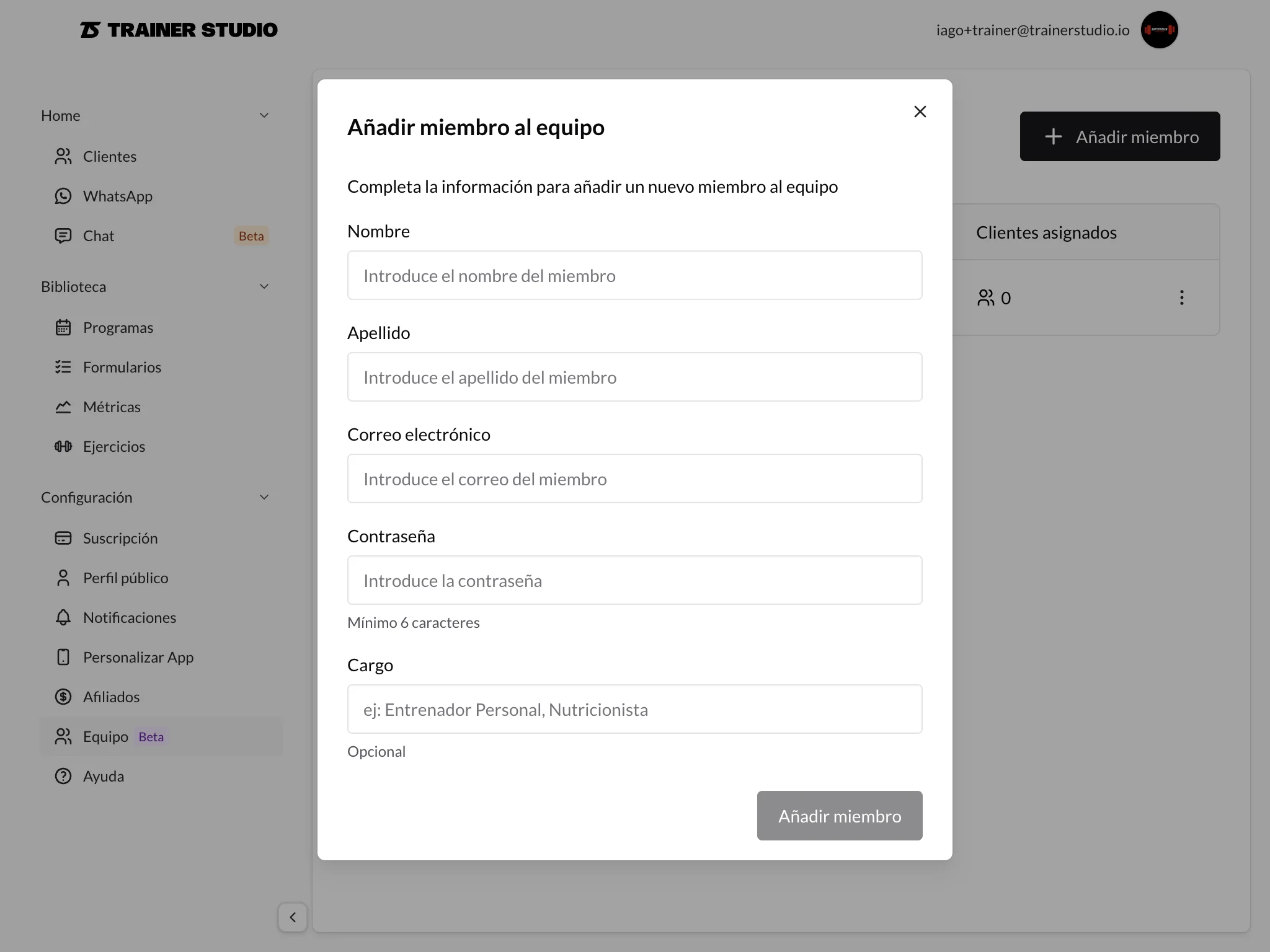
TrainerStudio suggests default permissions that you can adjust based on the employee's needs. The default permissions include viewing exercises, viewing programs, viewing assigned clients, editing assigned clients, viewing recipes, viewing forms, and viewing metrics. You can add or remove permissions depending on what each employee needs to do their job.
Once the details are complete, click "Add member" and the employee account will be created. You can share the credentials (email and password) with them so they can log in to TrainerStudio.
Managing permissions
Permissions can be modified at any time from the employee's profile. For each functional area there are different access levels available.
For exercises, you can allow viewing the exercise library, creating new exercises, modifying existing exercises, or deleting exercises. For training programs, you can allow viewing existing programs, creating new routines, modifying existing programs, or deleting programs.
For clients, you can allow viewing all company clients or only assigned ones, creating new clients, or editing assigned clients' data. For recipes and nutrition, you can allow viewing the recipe catalog, adding new recipes, modifying existing recipes, or deleting recipes.
For forms, you can allow access to assessment forms, creating new forms, modifying existing forms, or deleting forms. And for metrics, you can allow access to metric sets, creating new metrics, modifying existing metrics, or deleting metrics.
Assigning clients to employees
To assign clients to an employee, go to "My Team", click on the employee you want to assign clients to, and in the "Assigned clients" section click "Add client". Select the clients from the list and save the changes.
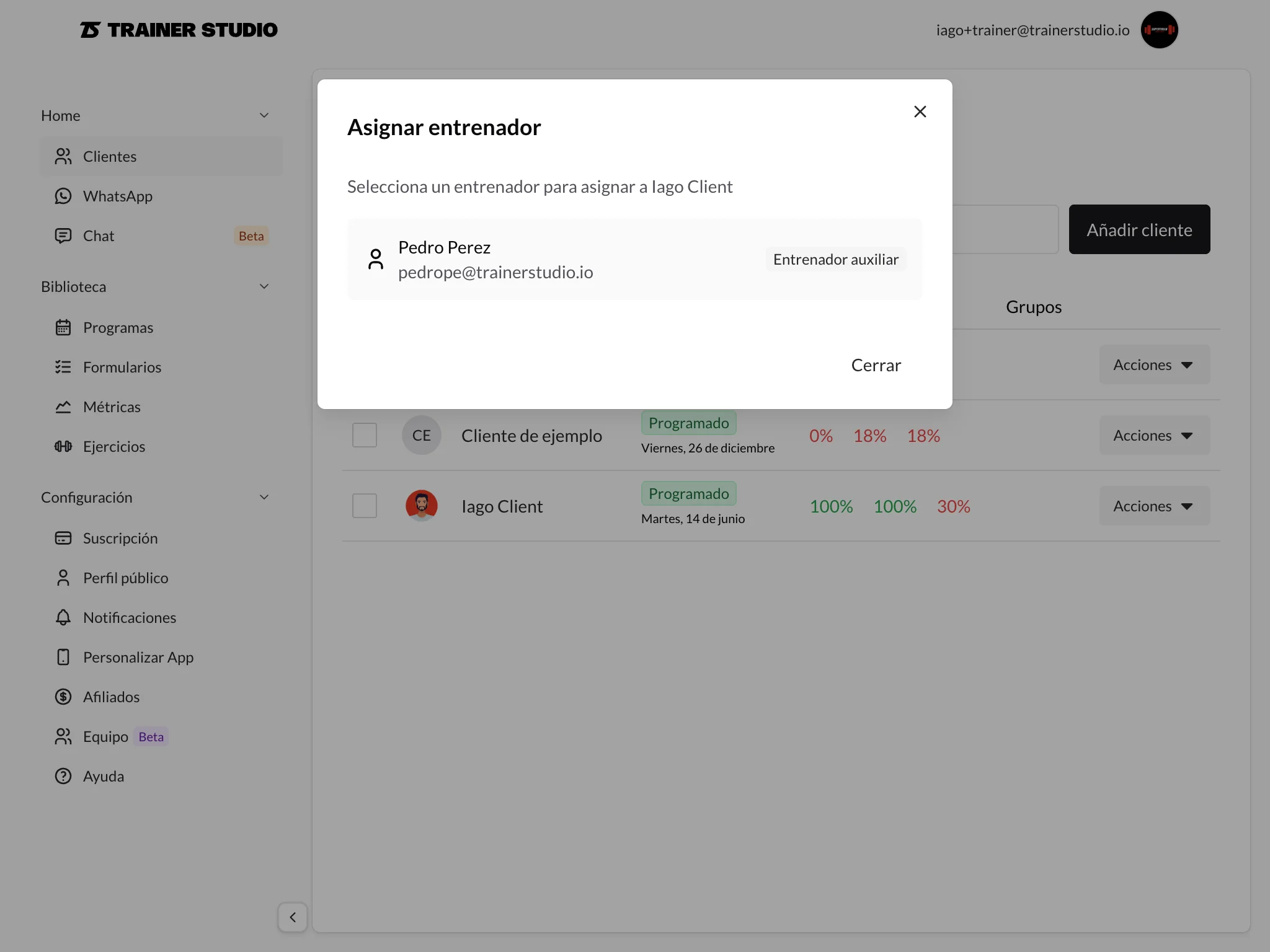
You can also assign clients directly from the client list. Select a client and in the actions menu choose "Assign trainer". Select the employee you want to assign the client to.
To unassign a client, go to the employee's profile, find the client in the "Assigned clients" section and click remove next to the client. Confirm the action. Unassigning a client does not delete the employee's previous work with that client — it only revokes future access.
Managing existing employees
You can modify an employee's first name, last name, email, and job title at any time from their profile. Permissions can also be changed at any time: go to the employee's profile, in the "Permissions" section check or uncheck the permissions you want, and save the changes. Changes take effect immediately.
If an employee forgets their password, go to their profile and click "Reset password". Set a new temporary password and share it with the employee so they can log in again.
To delete an employee, go to their profile, click "Delete" in the actions menu, and confirm. Deleting an employee revokes their access immediately, but does not delete the work they performed (workouts, plans, etc.). The clients they had assigned become unassigned and you can reassign them to another employee afterwards.
Employee view
When an employee logs in, they see a version of TrainerStudio tailored to their permissions. They only see the menu sections they have permission for, a client list that includes only their assigned clients (or all clients if they have that permission), and shared resources such as exercises, programs, and recipes according to their permissions. They cannot see company settings, billing or subscription information, or manage other employees.
Employees cannot access company settings, view billing or subscription information, manage other employees, access unassigned clients (unless they have the corresponding permission), or use features they do not have permission for.
Common use cases
If you have a nutritionist who should only manage meal plans, give them permissions to view, create, and edit recipes, view assigned clients, and edit assigned clients. They do not need access to exercises, programs, or forms. Assign only the clients who need a nutrition plan.
For a junior trainer working with some clients under your supervision, give them permissions to view exercises and programs, view assigned clients, and edit assigned clients. Do not give them permissions to create or delete resources — only to use what already exists. Assign their specific clients.
If you work with a physiotherapist who occasionally evaluates your clients, give them permissions to view assigned clients, view and create forms for assessments, and view metrics. They do not need access to exercises, programs, or recipes. Assign clients only when they need an evaluation.
For a senior trainer with autonomy who manages their own portfolio, give them permissions to view, create, and edit exercises and programs, view assigned clients, create clients, and edit assigned clients. Do not give them permission to view all clients — only their own — nor to delete important resources. Assign their own portfolio and allow them to bring in new clients.
Frequently asked questions
How many employees can I add?▼
It depends on your subscription plan. Check the pricing section or your account settings to see your current limit.
Do employees count as clients?▼
No, employees are separate accounts and do not affect your client limit.
Can an employee add other employees?▼
No, only you as the account owner can manage the team.
Can I see what each employee does?▼
Yes, workouts and changes made by employees are recorded in the system.
What happens if I delete an employee who had clients?▼
The clients remain in the system but become unassigned. You can assign them to another employee or manage them yourself.
Can employees chat with clients?▼
Yes, employees can use the chat with the clients assigned to them (if chat is enabled for those clients).
Can I change an employee's permissions after creating them?▼
Yes, you can modify permissions at any time from the employee's profile. Changes take effect immediately.
Can an employee view the company's billing?▼
No, billing and subscription information is only accessible to you as the account owner.
TrainerStudio - Scale your business without losing control