Tutorial cliente
Home screen
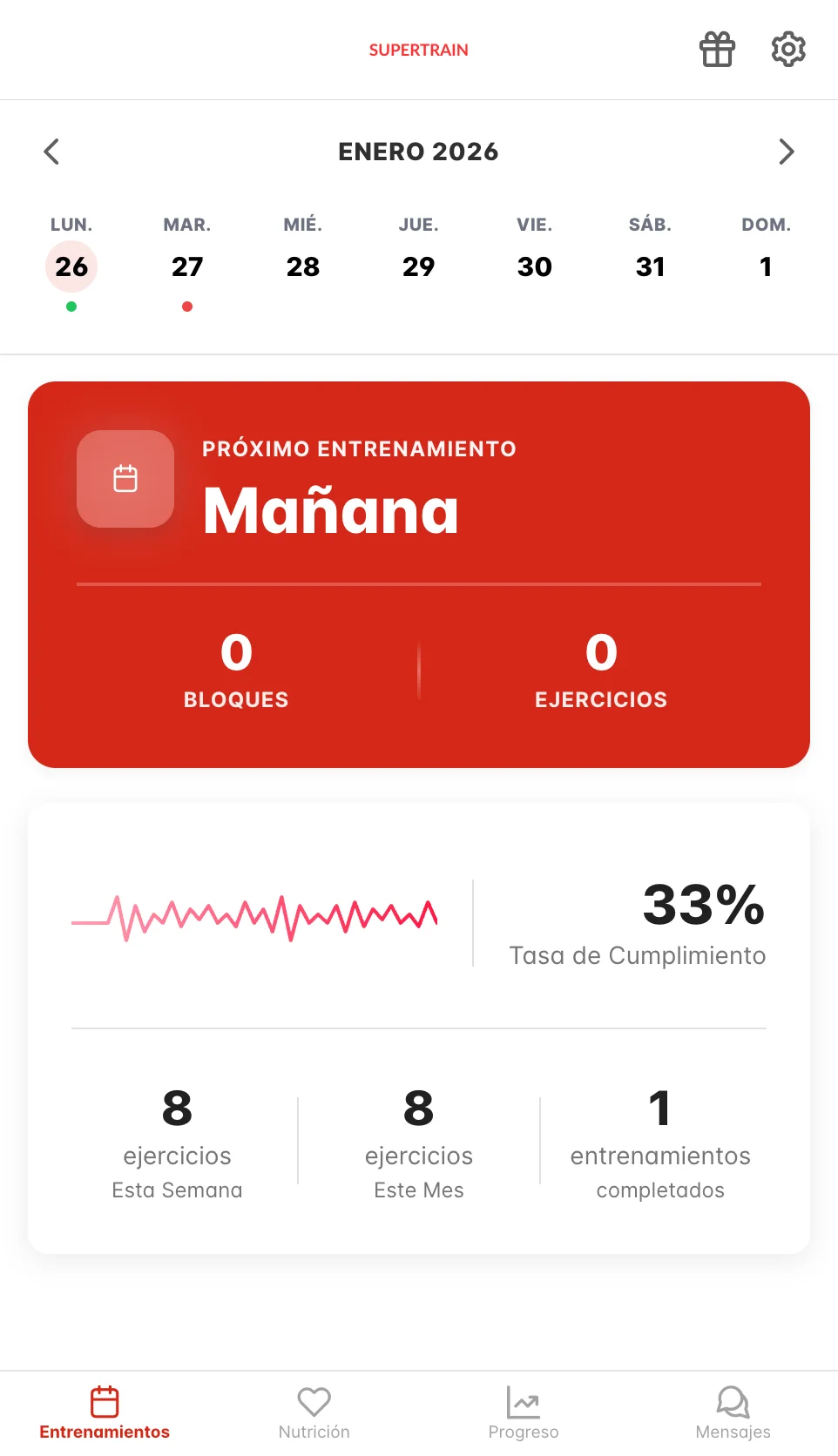
The home screen shows your monthly calendar, your next scheduled workout, and a summary of your progress.
Monthly calendar
At the top you will see the monthly calendar with arrow navigation. Days with a workout have a color indicator:
- Green - Workout completed
- Red - Workout pending
You can navigate between months using the left and right arrows next to the month name.
Next workout
Below the calendar you will see a highlighted red card showing your next workout. This section tells you:
- When it is - For example, "Tomorrow" or the specific date
- How many blocks the workout has
- How many exercises it includes
Tap on this card to go directly to the workout.
Progress statistics
Further down you will find a summary of your progress that includes:
- Completion rate - Percentage of workouts completed
- Exercises this week - Total exercises performed in the current week
- Exercises this month - Total exercises performed in the current month
- Completed workouts - Total number of finished workouts
Accessing a workout
You can access a workout in two ways:
- From the calendar - Tap on any day with a color indicator (green or red)
- From the next workout card - Tap directly on the highlighted red card
Bottom menu
At the bottom of the screen you will find a navigation menu with four main sections:
- Workouts - Your main dashboard with calendar and upcoming workouts (current screen)
- Nutrition - Your nutrition plan
- Progress - Progress photos and metrics
- Messages - Communication with your trainer
The icon and text of the active section are highlighted in red to indicate which screen you are on.